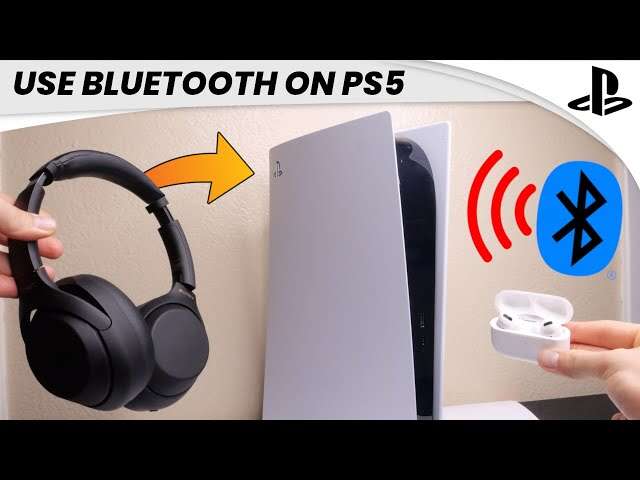
Press and hold the power or pairing button until the LED flashes, then select the Sony headphones on your device.
I’ve helped dozens of people pair Sony headphones, from true wireless buds to over-ear noise-canceling models. This guide explains how to connect sony headphones bluetooth step by step, covers device-specific tips, fixes common issues, and shares hands-on lessons I learned while testing models like the WH-1000XM4 and WF-1000XM4. Read on to pair confidently and get the best sound and stability from your Sony headphones.
Preparing your devices before pairing
Before you start, take a moment to prepare both the headphones and the device you want to connect. This saves time and avoids common pairing problems.
- Charge both devices.
- Turn on Bluetooth on your phone, tablet, or computer.
- Close apps that might interfere with Bluetooth, like other music apps or device managers.
- Remove old or unused pairings from your device to avoid confusion.
I often forget to remove old pairings. That once caused my phone to keep reconnecting to an old speaker instead of the Sony headphones. Removing old entries fixed it fast.

Step-by-step: how to connect sony headphones bluetooth (common Sony models)
These steps work for most Sony headphones. Follow them exactly for a clean pairing process.
- Turn on the headphones.
- Enter pairing mode by pressing and holding the power button or the pairing button until the indicator flashes blue and red or the voice prompt says “Bluetooth pairing.”
- Open Bluetooth settings on your phone or computer.
- Look for the Sony headphone name (for example, WH-1000XM4 or WF-1000XM4) in the device list.
- Tap or click the headphone name to pair. Accept any pairing prompts.
- Confirm the connection by playing audio.
If pairing fails, power off both devices, wait 10 seconds, and try again. I use this method as my first recovery step. It resolves most pairing glitches.
:max_bytes(150000):strip_icc():format(webp)/A1-ConnectSonyHeadphonesEarbudsorSpeakerstoBluetooth-annotated-5d17cf6516f24b4e9134b59aa45024ef.jpg)
How to connect sony headphones bluetooth with Android, iPhone, Windows, and Mac
Different operating systems have small differences. Here’s a quick guide for each.
-
Android
- Open Settings > Bluetooth.
- Tap the Sony headphone name when it appears.
- Grant permissions if prompted.
- Use the Sony Headphones Connect app for advanced settings.
-
iPhone
- Open Settings > Bluetooth.
- Tap the Sony headphone name under “Other Devices.”
- Confirm pairing.
- If the headphone supports AAC or LDAC, iPhone will pick the best available codec automatically.
-
Windows 10 / 11
- Open Start > Settings > Bluetooth & devices.
- Turn on Bluetooth, then click Add device > Bluetooth.
- Select the Sony headphones from the list.
- Set the headphones as the default playback device if needed.
-
Mac
- Open System Settings (or System Preferences) > Bluetooth.
- Find the Sony headphone name and click Connect.
- Use Sound settings to choose output and input devices.
I once paired a Sony headset to a work laptop running Windows. Windows auto-installed a lower-quality driver at first. Switching the audio output to the headphone listed under “Playback devices” restored the better sound profile.
Troubleshooting: common pairing and audio problems
If pairing fails or audio is poor, try these quick fixes. They work more often than you’d expect.
-
Headphones not entering pairing mode
- Power off and try holding the power button longer.
- Consult the manual for model-specific pairing gestures.
-
Device cannot find headphones
- Turn Bluetooth off and on on the device.
- Move closer and remove obstacles.
- Restart both devices.
-
Paired but no sound
- Check device volume and app sound settings.
- Verify the headphones are selected as the output device.
- Reconnect or restart the playing app.
-
Call audio poor or mic not working
- Re-pair the headphones and choose the hands-free profile if offered.
- Some Sony models switch codecs during calls, reducing quality. This is normal.
-
Intermittent dropouts
- Turn off nearby Wi-Fi routers or other Bluetooth gadgets.
- Update firmware via Sony Headphones Connect.
In my experience, firmware updates fixed dropouts on one pair of buds. I ignored updates for months and regretted it. Update when you can.

Tips and best practices when using Sony Bluetooth headphones
Small habits improve sound and battery life. Try these tips.
- Use the Sony Headphones Connect app for noise-canceling and sound presets.
- Keep firmware updated for stability and new features.
- Charge both earbud stems or the case regularly.
- Store headphones in the case to preserve pairing memory and battery.
- Use multipoint sparingly; it’s handy but can add complexity.
- Rename your headphones in device settings to find them quickly.
I name my headphones “Living Room Sony” so my family doesn’t accidentally connect. Little tweaks like that save time.
Advanced features: multipoint, codecs, and app settings
Sony headphones include advanced options. Knowing them helps you get more from your gear.
-
Multipoint connection
- Lets the headphones connect to two devices at once.
- Great for laptop and phone use, but can sometimes delay reconnection.
- Enable in the Sony app if your model supports it.
-
Codecs: SBC, AAC, LDAC
- LDAC delivers the best sound on supported devices.
- AAC often works well with Apple devices.
- Android devices may switch to LDAC if both devices support it.
-
Adaptive Sound and ANC (Active Noise Canceling)
- Adjust these in the app for better battery life or comfort.
- Use ambient mode when you need to hear surroundings.
These features are powerful. I use LDAC with my music app for richer detail and switch to AAC for calls. Test each mode to find what you like.
Frequently Asked Questions of how to connect sony headphones bluetooth
How do I put Sony headphones in pairing mode?
Press and hold the power or pairing button until the LED blinks and you hear a voice prompt. Follow the model-specific manual if you don’t hear a prompt.
Why won’t my device find my Sony headphones?
Make sure the headphones are in pairing mode, Bluetooth is enabled on your device, and no old connections are interfering. Restart both devices and try again.
How do I reconnect Sony headphones after pairing once?
Turn Bluetooth off and on or select the headphone name in your device’s Bluetooth list. If it won’t reconnect, forget the device and re-pair.
Can I connect Sony headphones to two devices at once?
Some Sony models support multipoint pairing. Enable it in the Sony Headphones Connect app if your model supports the feature.
Will firmware updates improve Bluetooth performance?
Yes. Firmware updates often fix bugs, improve connection stability, and add features. Check the Sony Headphones Connect app for updates.
Why is audio quality worse during calls?
Phones switch to a hands-free profile for calls, which reduces audio quality to support the mic. Use a wired mic or a different headset for higher call quality if needed.
Conclusion
You can quickly and reliably connect your Sony headphones using the simple steps above. Start by preparing devices, enter pairing mode on the headphones, and select them from your device’s Bluetooth menu. Use the Sony Headphones Connect app for advanced settings and firmware updates. Try the troubleshooting tips if things go wrong, and test codecs and multipoint settings to suit your needs.
Take action now: pair your Sony headphones, explore the app settings, and leave a note about your model and experience below. I’d love to hear which tips worked for you and help with any stubborn pairing issues.

Everett Ashford is a tech reviewer at mytechgrid.com specializing in SSDs, cameras, TVs, earbuds, headphones, and other consumer electronics. He provides honest, data-driven reviews based on hands-on testing and real-world performance analysis. Everett simplifies complex tech details to help readers make smart, confident buying decisions.