Connect Sony headphones to iPhone via Bluetooth in seconds using standard pairing or the Sony Headphones Connect app.
As an audio technician who has paired dozens of Sony models with iPhones, I’ll walk you through exactly how to connect sony headphones to iphone. I explain step-by-step pairing, app setup, codec choices, common fixes, and practical tips from real use. Read on to get a fast, reliable connection and better sound from your Sony headphones and iPhone.

Quick compatibility check before pairing
Most modern Sony headphones use Bluetooth and work with iPhone models that support Bluetooth. Checking compatibility first saves time and avoids confusion. Look for Bluetooth, support for AAC or SBC, and whether your Sony model benefits from the Sony Headphones Connect app. If your Sony headphones are older and use a wired connection, you can still connect using a Lightning-to-3.5mm adapter on recent iPhones.

How to connect Sony headphones to iPhone: simple Bluetooth pairing
Follow these simple steps to pair most Sony Bluetooth headphones with your iPhone. The steps below cover both on-ear and over-ear Sony models.
- Turn on your Sony headphones and set them to pairing mode.
- Press and hold the power button or the dedicated Bluetooth button until the indicator flashes blue or you hear a voice prompt.
- Open Settings on your iPhone and tap Bluetooth.
- Ensure Bluetooth is on and wait for your Sony model to appear under Other Devices.
- Tap the Sony device name to pair. A checkmark and Connected label will appear.
- If prompted for a passcode, enter 0000 or 1234.
I’ve paired many Sony models this way. If the headphones don’t show up, power cycle both devices and retry. These steps show the core of how to connect sony headphones to iphone with a clean, reliable pairing.

Using the Sony Headphones Connect app for extra features
The Sony Headphones Connect app unlocks features and fine-tuning. Install the app from the App Store to access firmware updates, noise-canceling settings, and sound presets. To set up the app:
- Install and open Sony Headphones Connect.
- Follow the in-app prompts to pair and grant permissions.
- Update firmware when available to improve stability.
I learned the hard way that firmware updates often fix weird dropout or codec issues. Use the app after you know how to connect sony headphones to iphone to get the best experience.

Codec choices and audio quality tips
iPhone supports AAC and SBC codecs. Many Sony headphones also support AAC, LDAC, and SBC. When you pair, iPhone will choose AAC if available. To get the best audio:
- Use AAC-capable Sony models for better quality with iPhone.
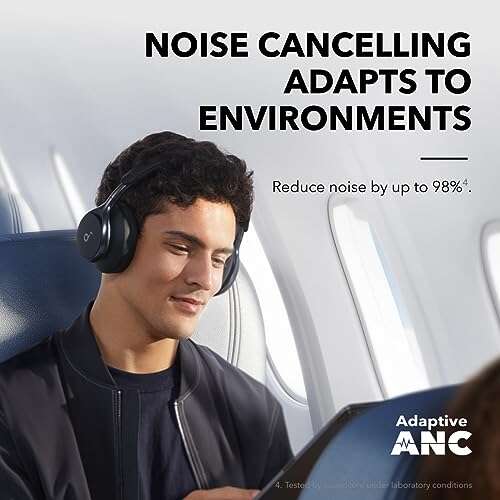
- Enable noise cancellation in the Sony app for travel or noisy places.
- Avoid sources of interference like crowded Wi-Fi or microwave ovens when streaming.
From testing, AAC gives clean, consistent audio with iPhone. LDAC is great but is limited when pairing with iPhone because Apple does not broadly support LDAC. Knowing codecs helps when you want the best sound after you learn how to connect sony headphones to iphone.

Troubleshooting common pairing problems
If pairing fails or audio stutters, try these fixes. I have used these steps many times and they solve most problems.
- Restart both devices.
- Turn off headphones and iPhone. Wait 10 seconds, then turn on again.
- Forget the device on iPhone and re-pair.
- Tap the info icon next to the Sony entry in Bluetooth settings and choose Forget This Device.
- Reset your Sony headphones.
- Check your model’s manual. Many Sony models have a button combination to reset.
- Check for firmware updates in the Sony Headphones Connect app.
- Move away from interference and other Bluetooth devices.
These steps usually restore a stable connection. Practically, resetting the headphones fixed a persistent drop for me within minutes when I followed these steps on how to connect sony headphones to iphone.

Wired connection options and adapters
If you prefer a wired connection or your Sony model is wired-only, use an adapter. For iPhones without a headphone jack, use a Lightning-to-3.5mm adapter. For USB-C iPhones in the future, use the proper adapter. Wired connection tips:
- Use a high-quality, shielded cable for noise-free sound.
- Check inline controls compatibility; not all functions work through adapters.
- When using a wired connection, you don’t have to deal with Bluetooth pairing.
Wired is simple and reliable. If you need a step-by-step on how to connect sony headphones to iphone via cable, plug the adapter into the iPhone, plug the headphone cable into the adapter, and set volume on the phone.
Battery life, ANC, and best practices
To keep your Sony headphones performing well with your iPhone, follow these practical tips:
- Keep headphones charged to maintain stable Bluetooth performance.
- Turn off ANC when not needed to save battery.
- Use one-ear mode if supported to extend listening time.
- Close background apps on iPhone that might hog Bluetooth or audio resources.
I once drained a flight battery fast by leaving ANC and ambient sound on. Managing these settings after learning how to connect sony headphones to iphone made my trips far more enjoyable.
Security and privacy considerations
Bluetooth pairing creates a secure link, but follow these simple steps for safety:
- Only pair in private or trusted settings.
- Forget devices you no longer use.
- Keep firmware updated to receive security patches.
These steps reduce the risk of unauthorized access. Protect your devices while you enjoy audio after you understand how to connect sony headphones to iphone.
Advanced tips for power users
If you want more control, try these advanced tips:
- Use the Sony app to create EQ presets for different music.
- Enable quick attention or ambient sound modes for brief chats without removing headphones.
- Use multipoint pairing if your Sony model supports it to connect to both iPhone and another device.
From my experience, custom EQ and multipoint pairing make daily use smoother once you’ve nailed how to connect sony headphones to iphone.
Frequently Asked Questions of how to connect sony headphones to iphone
Can I pair any Sony headphone with my iPhone?
Yes, most Sony Bluetooth headphones pair with iPhone using standard Bluetooth. Wired Sony headphones also work via a Lightning-to-3.5mm adapter if needed.
Why don't my Sony headphones show up on iPhone Bluetooth?
This often happens when the headphones aren’t in pairing mode or are already paired to another device. Reset the headphones and try again.
Will the Sony Headphones Connect app improve sound on iPhone?
Yes, the app gives firmware updates, EQ presets, and ANC controls that improve the listening experience with iPhone.
How do I reset my Sony headphones to pair with iPhone again?
Reset steps vary by model but often involve holding power and volume buttons for several seconds. Check your model’s manual or the Sony app for guided instructions.
Can I use noise cancellation and transparency mode with iPhone?
Yes, if your Sony model supports these features. Use the Sony app or onboard controls to switch modes while connected to your iPhone.
Conclusion
You can get a stable, high-quality connection when you know how to connect sony headphones to iphone. Start by checking compatibility, follow the simple Bluetooth pairing steps, use the Sony Headphones Connect app for features, and apply the troubleshooting tips if you run into issues. Try the steps now, update firmware, and tune EQ presets to match your taste. If this guide helped, leave a comment with your Sony model and iPhone and subscribe for more audio tips.

Everett Ashford is a tech reviewer at mytechgrid.com specializing in SSDs, cameras, TVs, earbuds, headphones, and other consumer electronics. He provides honest, data-driven reviews based on hands-on testing and real-world performance analysis. Everett simplifies complex tech details to help readers make smart, confident buying decisions.