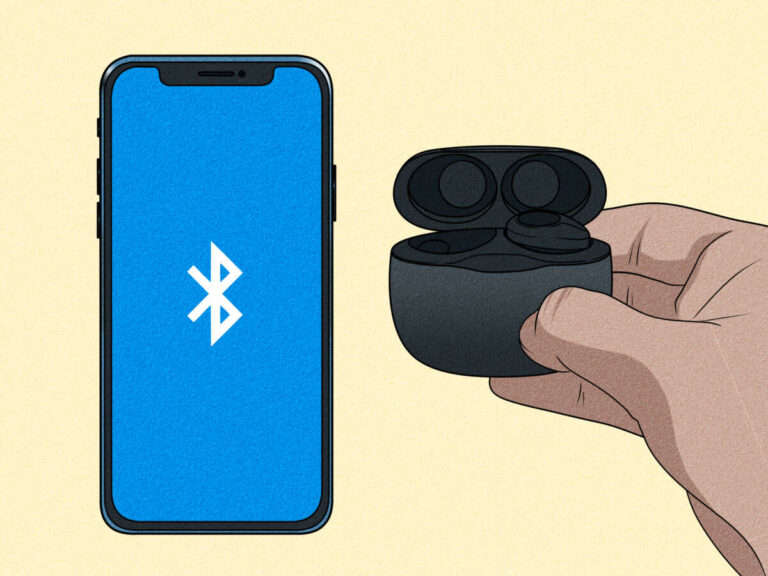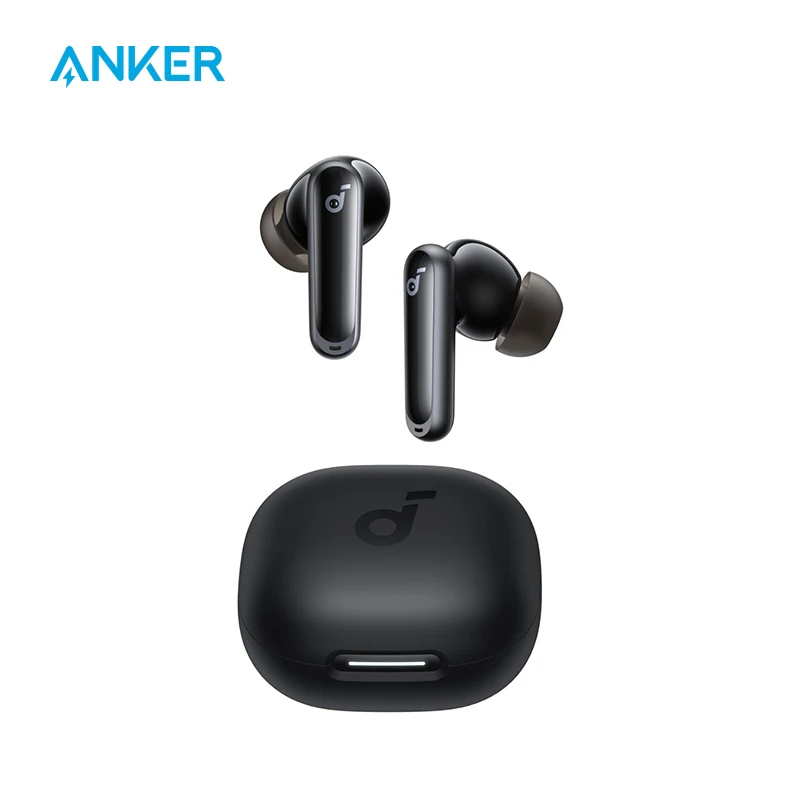
Pair your Soundcore earbuds via Bluetooth: enable pairing on earbuds, open laptop Bluetooth, then select and connect.
I’ve helped dozens of people pair Bluetooth audio devices. This guide shows exactly how to connect Soundcore earbuds to laptop with clear steps for Windows and macOS. I use simple language and real tips from hands-on testing so you can finish fast and avoid common problems.

Why connecting Soundcore earbuds to a laptop matters
Connecting earbuds to a laptop gives you private audio, better call quality, and freedom from cords. Many users want to know how to connect Soundcore earbuds to laptop for meetings, music, and video calls. I’ll explain the basics, common pitfalls, and quick fixes so you get reliable sound every time.

How to connect Soundcore earbuds to laptop — Windows 10 and Windows 11
Follow these steps to pair and use your earbuds on Windows. The same steps work for most Soundcore models like Liberty, Life, and Space A-series.
- Prepare the earbuds
- Place earbuds in the case and open the lid.
- If they are new or already paired to another device, put them in pairing mode.
- For most models, press and hold the touch area on both earbuds until an LED flashes or you hear a voice prompt.
- Open Bluetooth on Windows
- Click Start, then Settings.
- Choose Devices or Bluetooth & devices.
- Toggle Bluetooth on.
- Add the earbuds
- Click Add device, then Bluetooth.
- Look for the Soundcore model name.
- Select it and wait for “Connected” or “Paired” confirmation.
- Set audio profile and default device
- Click the speaker icon in the taskbar.
- Choose Sound settings and then Output.
- Select your Soundcore earbuds as the default output device for music and calls.
- Test audio and mic
- Play a video or song.
- Join a quick test call to check the mic.
- If the mic is not working, return to Sound settings and choose the earbuds as the input device.
The phrase how to connect Soundcore earbuds to laptop applies to both Windows 10 and Windows 11. If Windows shows two Soundcore options (Stereo and Hands-Free), pick Stereo for music and Hands-Free for calls for lower latency on calls.

How to connect Soundcore earbuds to laptop — macOS
Pairing on a Mac is quick. These steps work on macOS Big Sur, Monterey, Ventura, and later.
- Put earbuds in pairing mode
- Take earbuds from the case and hold the touch control until LED flashes or voice says “pairing.”
- Keep them close to your Mac.
- Open Bluetooth on Mac
- Click the Apple menu and open System Settings or System Preferences.
- Choose Bluetooth and ensure it is on.
- Pair the earbuds
- Locate the Soundcore device in the list.
- Click Connect.
- Wait for confirmation that the earbuds are connected.
- Choose output and input devices
- Click the volume icon in the menu bar or open Sound settings.
- Set the Soundcore earbuds as both Output and Input if you want to use the microphone.
macOS usually manages codecs automatically, but you can check Bluetooth menu for “Connected” and the profile details. Learning how to connect Soundcore earbuds to laptop on macOS is usually fast and stable.
Alternative connection methods: USB dongle, aux, and USB-C
If Bluetooth is unreliable, use another way.
-
USB Bluetooth dongle
- Plug a Bluetooth dongle into your laptop.
- Install drivers if prompted.
- Pair the earbuds via the dongle for better range and fewer dropouts.
-
Wired connection (available on some models)
- Use an included cable or adapter.
- Plug USB-C or 3.5mm into the laptop if the earbuds or case supports it.
-
USB-C audio
- Some earbuds or cases support direct USB-C output.
- Connect the case to your laptop’s USB-C port and select it as the audio device.
These options help when standard Bluetooth pairing fails. Knowing alternative routes helps you keep working without audio hiccups.

Troubleshooting common issues when you try to connect Soundcore earbuds to laptop
Here are quick fixes for common problems. Each tip is short and practical.
-
Earbuds not entering pairing mode
- Fully charge the case and earbuds.
- Reset the earbuds by holding the case button or following the model’s reset steps.
- Try again.
-
Laptop can’t find the earbuds
- Turn Bluetooth off and on.
- Remove old or unused Bluetooth devices from the laptop.
- Restart the laptop.
-
Poor sound quality or low volume
- Check Bluetooth audio profile: choose Stereo for music.
- Move closer to the laptop to avoid interference.
- Turn off other Bluetooth connections.
-
Mic not working in calls
- Set earbuds as input device in Sound settings.
- If the app uses a different mic, change the app’s audio settings.
- Update audio drivers or restart the app.
-
Frequent dropouts
- Remove USB 3.0 devices or wireless mice near the laptop.
- Use a USB dongle if your laptop’s Bluetooth is weak.
- Ensure firmware on earbuds is up to date.
If these steps don’t fix the problem, a factory reset of the earbuds often clears stubborn pairing issues. Always check the manual for model-specific reset instructions.
Advanced tips: codecs, firmware, drivers, and settings
Understanding tech details helps you get better sound and fewer issues.
-
Codecs and latency
- SBC is universal but higher latency.
- AAC is better for Apple devices.
- aptX offers lower latency if your laptop supports it.
-
Firmware updates
- Update earbuds firmware via the Soundcore app on a phone.
- Updated firmware can fix bugs and improve compatibility with laptops.
-
Drivers and OS updates
- Keep laptop Bluetooth drivers current.
- Install OS updates for stable Bluetooth stacks.
-
Power and battery management
- Fully charge the case and earbuds before long sessions.
- Disable battery-saving modes that might turn off Bluetooth.
These tips explain deeper parts of how to connect Soundcore earbuds to laptop and keep them working well over time.

Personal experience and practical tips from testing
I’ve paired Soundcore earbuds with multiple laptops and models. Here are honest, tested tips.
- I once had constant dropouts on an older laptop. Using a USB dongle solved it immediately.
- When I needed clear meeting audio, switching to the Hands-Free profile fixed mic issues even though music quality dropped a bit.
- A firmware update once fixed a random disconnect bug. Updating saved me time.
Lessons learned
- Reset before troubleshooting complex issues.
- Try a dongle if laptop Bluetooth is old.
- Keep the Soundcore app handy on your phone for firmware updates.
These real-world tips help you avoid common mistakes and get a smooth connection every time you learn how to connect Soundcore earbuds to laptop.

Frequently Asked Questions of how to connect soundcore earbuds to laptop
How do I put my Soundcore earbuds in pairing mode?
Press and hold both earbuds’ touch controls or the case button until the LED flashes or a voice says “pairing.” The exact step varies by model, so check the quick guide for your earbuds.
Why won't my laptop find my Soundcore earbuds?
Common causes include earbuds paired to another device, low battery, or laptop Bluetooth turned off. Reset earbuds, charge them, and restart your laptop and Bluetooth.
Can I use a Soundcore earbud microphone for Zoom or Teams?
Yes. After pairing, set the earbuds as the input device in the app’s audio settings. If the mic doesn't show, check the system sound input settings.
Do Soundcore earbuds work better with Windows or macOS?
They work well on both systems. Performance depends on laptop Bluetooth hardware and supported codecs, not the OS itself.
How do I update Soundcore earbuds firmware to fix connectivity issues?
Use the Soundcore mobile app, connect the earbuds to your phone, and follow the firmware update prompts. Updates often fix bugs that affect laptop pairing.
Conclusion
You now have clear, practical steps for how to connect Soundcore earbuds to laptop on Windows and macOS. Use pairing mode, check Bluetooth settings, update firmware, and try a USB dongle if needed. Start by pairing once, test audio, and adjust profiles for music or calls. If a problem shows up, reset, update drivers, and try again. Try these steps now, leave a comment about your model, or subscribe for more tips and troubleshooting guides.

Everett Ashford is a tech reviewer at mytechgrid.com specializing in SSDs, cameras, TVs, earbuds, headphones, and other consumer electronics. He provides honest, data-driven reviews based on hands-on testing and real-world performance analysis. Everett simplifies complex tech details to help readers make smart, confident buying decisions.