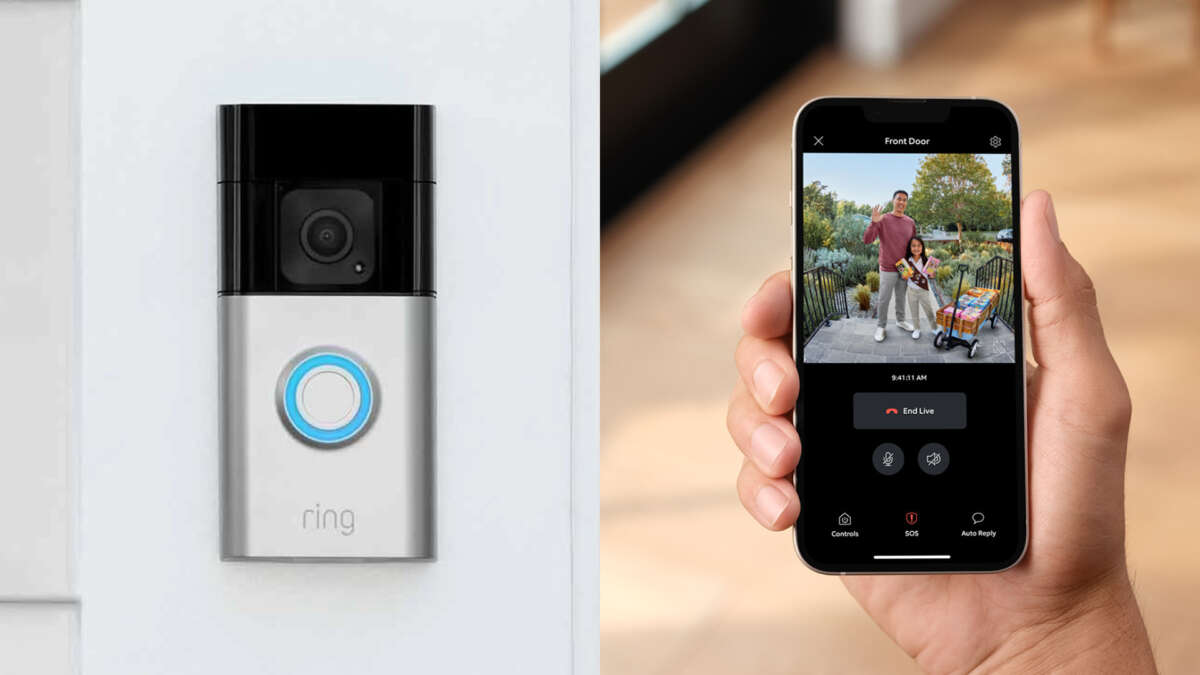
Connect your installed Ring camera by opening the Ring app, selecting the device, and completing Wi-Fi setup.
I have set up, reconnected, and troubleshot dozens of Ring cameras for friends and clients. This guide shows exactly how to connect to ring camera that is already installed, step by step. You will learn what to check, how to reconnect without removing the unit, and practical fixes for common network and app issues. Read on to get your camera live and recording in minutes.
:max_bytes(150000):strip_icc()/001_how-to-install-the-ring-doorbell-and-ring-doorbell-2-4769124-cf7713fed34b40cabf77f8c9cb5f2006.jpg)
What you need before you connect
Before you try to connect, gather a few things.
Have the Ring app installed on a phone or tablet.
Log into the Ring account tied to the camera.
Know your Wi‑Fi network name and password.
Have access to the camera’s location for a quick reboot if needed.
If your camera was installed by someone else, confirm account ownership or ask for shared device access. This prevents lockouts and saves time. Use a charged phone and a stable Wi‑Fi signal for best results.
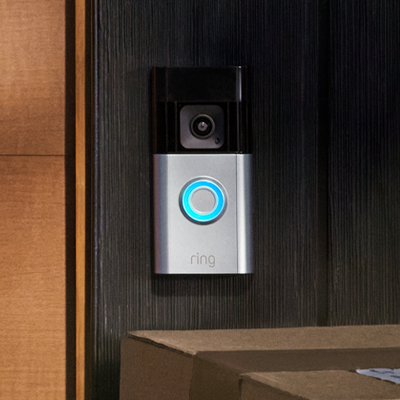
Step-by-step: how to connect to ring camera that is already installed
Follow these steps to connect to ring camera that is already installed without removing it.
- Open the Ring app and sign in.
- Tap the three-line menu, then tap Devices.
- Select the camera you want to connect.
- Tap Device Health to see current status.
- If the camera shows “Offline,” tap Change Wi‑Fi Network or Set Up a Device.
- Follow the in-app prompts: confirm device, connect to Ring’s setup network, then enter your home Wi‑Fi name and password.
- Wait for the green check or “Online” status in Device Health.
If the app asks to scan a QR code, scan the code on the back of the camera or in the quick start card. If your camera is battery-powered, put it into setup mode by pressing the setup button. If it’s wired, unplug and replug the power to force a restart. These steps work when you need to connect to ring camera that is already installed and avoid taking the camera down.

If the camera is installed but won’t connect
You can often fix connection issues without removing the camera. Try these fixes when connecting to ring camera that is already installed.
- Power cycle the camera by unplugging it or removing the battery for 10 seconds, then restore power.
- Move closer with your phone to improve signal during setup.
- Confirm your router broadcasts on 2.4 GHz if the camera only supports that band.
- Restart your router and modem to clear temporary network problems.
- Temporarily disable VPNs or mobile data on your phone while setting up the camera.
I once spent an hour trying to reconnect a porch camera. A quick router reboot fixed the problem. Never underestimate the power of a reset.

Network and troubleshooting tips
Strong Wi‑Fi matters. These checks help when you connect to ring camera that is already installed.
- Check signal strength in Device Health. Move the router or add a range extender if RSSI is poor.
- Use a smartphone Wi‑Fi analyzer app to confirm a steady channel and signal.
- Rename or remove special characters from your Wi‑Fi name if the Ring app fails to accept it.
- Ensure your network allows new devices and that MAC filtering is off or updated.
- Update router firmware and restart it before setup if possible.
If the camera still won’t connect, try setting up a mobile hotspot from your phone, connect the camera to that hotspot during setup, then switch it back to your home Wi‑Fi. This trick often bypasses tricky router settings.

Managing settings after you connect
Once the camera is online, finish these steps to get full use from it.
- Check Device Health for firmware version and battery level.
- Update the camera firmware if an update is available.
- Configure motion zones and sensitivity to reduce false alarms.
- Set up notifications, shared users, and privacy settings in the app.
- Test live view and recorded clips to confirm image and audio quality.
Sharing access avoids account issues. Add family or trusted neighbors through Shared Users in the Ring app instead of giving out your login. This is safer and keeps the device tied to your account.
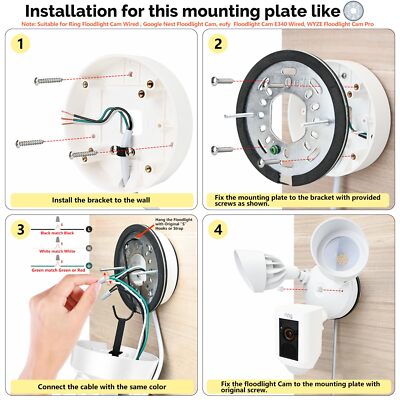
Security and privacy best practices
Protect your camera and your account when you connect to ring camera that is already installed.
- Enable two‑factor authentication on your Ring account.
- Use a unique, strong password and change it if multiple people have used the login.
- Review device sharing and remove users who no longer need access.
- Keep the camera’s firmware current to get security patches.
- Position cameras to avoid unnecessary views into neighbors’ private spaces.
I always recommend checking who is listed under Account Users and Shared Users after any setup. Removing old users reduces risk and keeps your feed private.

Personal tips and mistakes to avoid
I have learned several things the hard way. These tips save time when you connect to ring camera that is already installed.
- Don’t assume a camera is dead. Test power and try a restart before replacing it.
- Avoid moving the router unless you can test signal strength afterward.
- Take photos of the QR code or device label before installation to speed future setups.
- Avoid creating many Wi‑Fi networks with similar names; Ring may pick the wrong one during setup.
- If you planned to hand off an installed camera, remove it from your account first and then let the new owner add it.
These small moves prevent most headaches and keep your system stable over time.
Frequently Asked Questions of how to connect to ring camera that is already installed
How do I reconnect a Ring camera that is already installed?
Open the Ring app, select the camera, then use Change Wi‑Fi Network or Set Up a Device and follow prompts. You may need to press the camera’s setup button or power cycle it during the process.
Can I reconnect without uninstalling the camera?
Yes. Use the app’s Change Wi‑Fi Network option or power cycle the device to re-enter setup mode without removing the unit. This keeps the camera mounted and in place.
What if my Ring camera needs 2.4 GHz Wi‑Fi?
Ensure your router broadcasts a 2.4 GHz network or enable a mixed mode. If the camera can’t see 2.4 GHz, try temporarily disabling 5 GHz during setup.
Why does the app ask to scan a QR code?
The app uses the QR code to identify your camera and link it to your account. Scan the code on the camera, the quick start card, or in the device label area.
What if the camera shows “Offline” after setup?
Check power, Wi‑Fi signal, router status, and firmware. Restart the camera and router, then re-run setup if needed.
Conclusion
You can connect to ring camera that is already installed by using the Ring app, confirming account access, and following in‑app setup steps while troubleshooting power and network issues as needed. Start with Device Health, try a quick power cycle, and work through the Wi‑Fi settings carefully. Take time to secure the account and tune motion zones after the camera is online. Now that you have the steps and practical tips, try reconnecting your camera today, test live view, and leave a note or question below if you need help.

Everett Ashford is a tech reviewer at mytechgrid.com specializing in SSDs, cameras, TVs, earbuds, headphones, and other consumer electronics. He provides honest, data-driven reviews based on hands-on testing and real-world performance analysis. Everett simplifies complex tech details to help readers make smart, confident buying decisions.