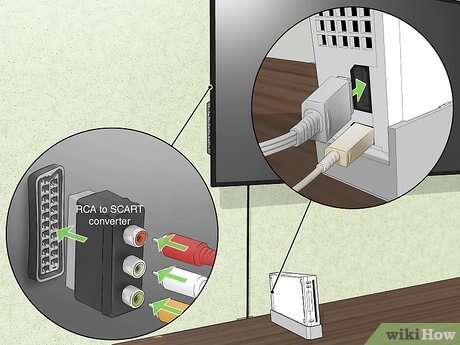
Connect the Wii to a Samsung TV using composite, component, or an HDMI adapter—match cables and TV input.
I’ve helped dozens of people set up older consoles on modern TVs, and I’ll walk you through clear, tested steps for how to connect Wii to Samsung TV. This guide covers every common model and scenario, from the simple composite hookup to a cleaner component connection and using HDMI adapters. You’ll get step-by-step instructions, troubleshooting tips, and real-world advice so you can play Wii games on your Samsung TV without fuss.
What you need before you start
Before you try to connect the Wii to your Samsung TV, gather the right parts and check the TV model. Knowing your TV inputs and the Wii’s cable type makes setup fast and painless.
- Nintendo Wii console: Make sure it powers on and has fresh batteries in the remote.
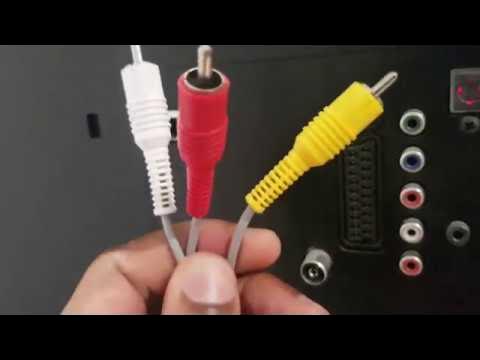
- Composite AV cable: Standard red, white, yellow cable that came with many Wiis.
- Component cable: Red, blue, green plus red and white audio for better video quality.
- Wii AC power adapter: Official Wii power is required.
- HDMI adapter (optional): Use only if your Samsung TV lacks composite or component inputs.
- Remote and sensor bar: Have the sensor bar and remote ready to test controls.
If you don’t know your TV model, look on the back or in the TV settings. That helps you confirm which inputs are available. This preparation prevents step-back trips and wrong cable buys.

Understanding Wii video outputs
The Wii outputs analog video and audio only. It does not have a native HDMI port. That means you will use composite cables, component cables, or an adapter to convert to HDMI.
- Composite cable: Single yellow video plus red and white audio. Lowest quality but widely supported.
- Component cable: Green, blue, and red for video plus red and white audio. Offers sharper picture and supports progressive scan on some Wii games.
- HDMI adapter: Converts the Wii’s analog signal to HDMI for newer Samsung TVs that lack analog inputs.
Knowing these differences helps you pick the best option based on your Samsung TV’s inputs and how sharp you want the picture to be. If you value clarity, component or HDMI adapter is better than composite.

Step-by-step: How to connect Wii to Samsung TV (Composite cable)
This is the simplest and most common method. Use composite if your Samsung TV has yellow, red, and white RCA ports.
- Turn off the Wii and the Samsung TV.
- Plug the yellow composite video plug into the TV’s yellow video input.
- Plug the red and white audio plugs into the TV’s red and white audio inputs.
- Connect the Wii AC power adapter to the Wii and plug it into an outlet.
- Plug the sensor bar into the Wii’s sensor bar port and place it above or below the TV.
- Turn on the TV and set the input to the matching AV channel (AV1, AV2, or Composite).
- Turn on the Wii. The Wii menu should appear. If not, try selecting the input again.
Composite is reliable. If the picture looks fuzzy or colors are off, consider switching to component or an HDMI adapter for a cleaner image. This method remains a solid baseline for how to connect Wii to Samsung TV.

Step-by-step: How to connect Wii to Samsung TV (Component cable for better quality)
Component improves color and sharpness. Use component if your Samsung TV has red/green/blue video inputs.
- Power off the Wii and TV.
- Connect the green, blue, and red component video plugs to the matching TV inputs.
- Connect the red and white audio plugs to the TV’s audio inputs.
- Attach the Wii AC adapter and sensor bar.
- Power on the TV and choose the component input. Some Samsung TVs label this YPbPr or Component.
- Turn on the Wii. Go to Wii Settings > Screen > TV Resolution to select 480p if your cable and games support it.
- If you see no image, ensure the colors match and that the component input is selected.
Component gives a noticeably sharper image than composite. It’s a preferred option when you want better visuals and is an easy upgrade for how to connect Wii to Samsung TV.

Using an HDMI adapter to connect Wii to Samsung TV via HDMI
Many newer Samsung TVs lack analog inputs. An HDMI adapter converts the Wii’s AV or component to HDMI.
- Choose an adapter that supports composite or component input depending on your cable.
- Plug the Wii cables into the adapter’s inputs exactly as they match by color.
- Connect an HDMI cable from the adapter to an HDMI port on your Samsung TV.
- Power the adapter if it requires external power.
- Select the HDMI input on your TV and turn on the Wii.
Adapters vary in quality. A cheap adapter may introduce lag or washed-out colors. I recommend a mid-range adapter that supports component to HDMI for better color and less noise. Using an HDMI adapter is a practical way to connect Wii to Samsung TV models without analog ports.

Configuring your Samsung TV input and picture settings
After connecting, you may need to tweak TV settings for the best image.
- Select the correct input: Use the Source or Input button on the Samsung remote and pick AV, Component, or the HDMI port you used.
- Turn off overscan: Look for Picture Size or Aspect settings and set to 16:9, Just Scan, or Fit to Screen.
- Adjust picture mode: Choose Game or Standard mode to reduce processing lag.
- Check resolution: The Wii outputs 480i or 480p. Ensure the TV is not forcing a different resolution that causes scaling artifacts.
- Audio settings: If you use HDMI adapter, verify the TV audio input is set to HDMI and not external speakers.
A small tweak to the picture size or game mode can make the Wii look much better on a Samsung TV. Knowing these steps completes the how to connect Wii to Samsung TV process.

Troubleshooting common problems
If things don’t work right, try these fixes. I’ve used these repeatedly when helping friends.
- No picture: Verify cables are fully seated and the TV is set to the right input. Try another input or cable.
- No sound: Check red/white audio cables. Ensure TV volume and mute settings are correct.
- Wrong colors or no green/blue: Make sure component cables are in the right jacks. Component requires all three video plugs.
- Remote won’t sync: Re-sync by pressing the red sync button on the Wii and the remote. Replace batteries if needed.
- Adapter issues: If an HDMI adapter shows a black screen, try a different adapter or power the adapter from USB or the provided supply.
These steps solve most problems you’ll face when you try to connect Wii to Samsung TV. If a specific Samsung model behaves oddly, check its manual for legacy input quirks.

Tips and best practices
Here are tips I picked up while setting up multiple Wii units on modern TVs.
- Label cables: Mark composite or component cables to avoid confusion later.
- Keep original Wii cables: They often provide the best match for the console.
- Test on an older TV first: If you have issues, try connecting to a TV that clearly supports composite/component.
- Use a high-quality HDMI adapter: A cheap adapter can add lag and reduce image quality.
- Position the sensor bar well: Place it centered above or below the TV for accurate remote tracking.
These small habits make future hookups easy and ensure the best picture when you connect Wii to Samsung TV. I learned the hard way by buying the wrong adapter once; don’t make that same mistake.
Frequently Asked Questions of how to connect wii to samsung tv
How do I know whether to use composite or component cables?
Check the ports on the back or side of your Samsung TV. Use composite if you see yellow/red/white jacks; use component if you see red/green/blue plus red/white audio jacks.
Can I use an HDMI adapter with any Samsung TV?
Yes, if your Samsung TV has HDMI inputs, an adapter can convert the Wii’s analog output to HDMI. Quality varies, so pick a reliable adapter for better results.
Why does my Wii picture look stretched on my Samsung TV?
The TV’s aspect or picture size setting may be wrong. Set Picture Size to 16:9, Just Scan, or Fit to Screen to prevent stretching when you connect Wii to Samsung TV.
Will component cables make Wii games HD?
No. The Wii outputs up to 480p. Component cables improve clarity over composite but do not provide true HD resolution.
My remote won’t work after connecting—what should I try?
Resync the remote by pressing the red sync button on the Wii and then the remote. Replace batteries and ensure the sensor bar is connected and unobstructed.
Conclusion
You can reliably connect your Wii to a Samsung TV using composite or component cables or an HDMI adapter when needed. Start by identifying your TV’s inputs, use the proper cables, set the TV input and picture options, and follow simple troubleshooting steps if things go wrong. Try the higher-quality component or a good HDMI adapter for a better image, and label your cables to save time in the future. Ready to play? Hook everything up, tweak the settings, and enjoy your Wii games—then leave a comment with your TV model and I’ll help fine-tune the setup.

Everett Ashford is a tech reviewer at mytechgrid.com specializing in SSDs, cameras, TVs, earbuds, headphones, and other consumer electronics. He provides honest, data-driven reviews based on hands-on testing and real-world performance analysis. Everett simplifies complex tech details to help readers make smart, confident buying decisions.