Pair your Roku remote by inserting batteries and following the on-screen pairing prompt.
I’ve walked hundreds of people through how to connect your roku remote to your tv. I know the quirks of pairing, the battery traps, and the hidden settings that save time. Read on for a clear, step-by-step guide that covers every Roku remote type, quick fixes, and real-world tips so you can pair confidently and fast.
Why pairing matters and what to expect
Pairing ensures the remote communicates properly with your Roku device or TV. When you know how to connect your roku remote to your tv, you avoid lag, missing buttons, and lost voice control. Good pairing gives reliable power, volume control, and menu access. Poor pairing leads to dropped signals and frustration during streaming.

Types of Roku remotes and how they pair
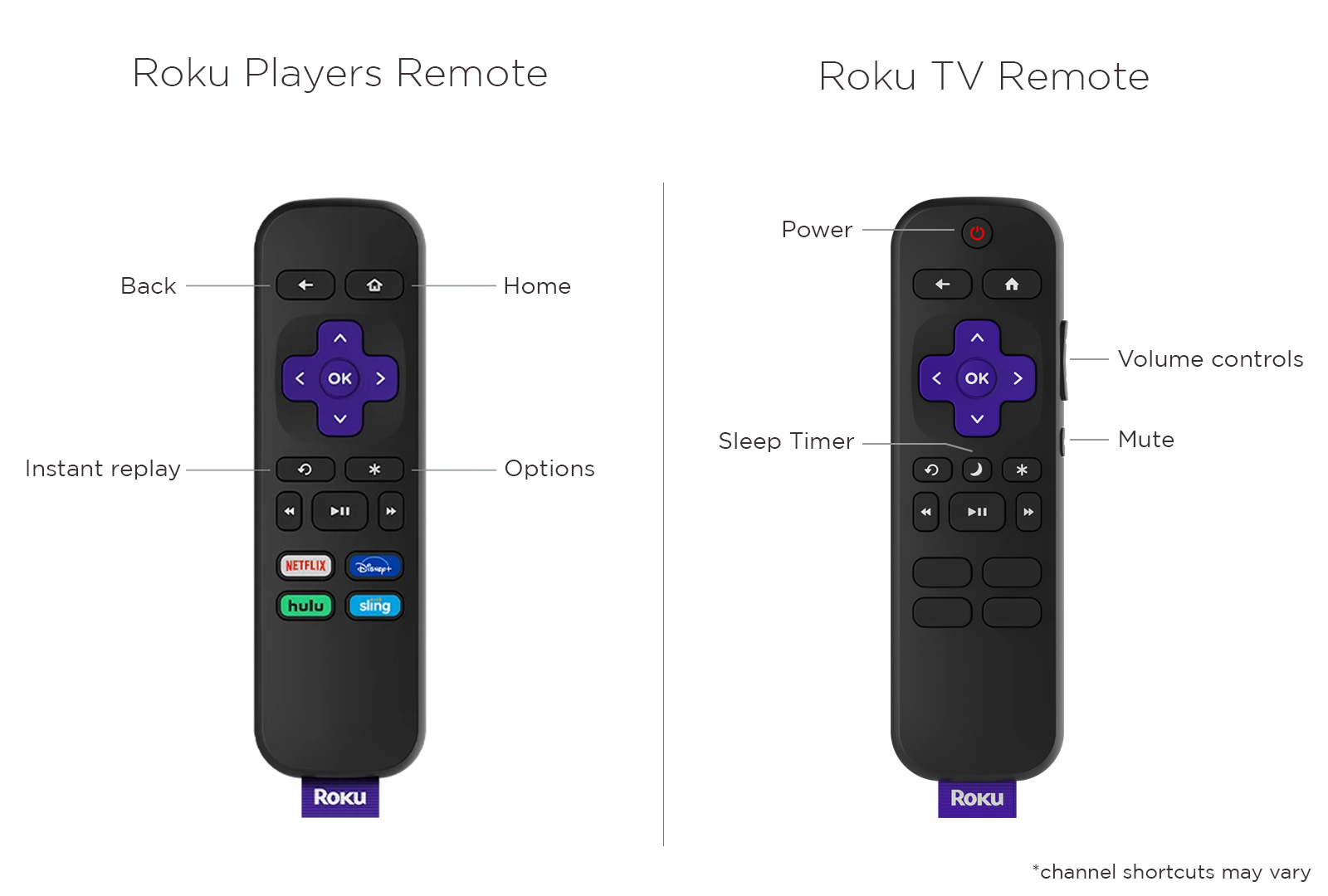
Roku makes two main remote types. Basic infrared remotes need line-of-sight. Enhanced remotes use Bluetooth or a wireless protocol and can pair through the Roku device. Knowing which remote you own helps with how to connect your roku remote to your tv.
Common remote types
• Basic IR remote — Works like an old TV remote and does not pair; it sends signals directly.
• Enhanced (point-anywhere) remote — Pairs with the Roku device using Bluetooth or a wireless link.
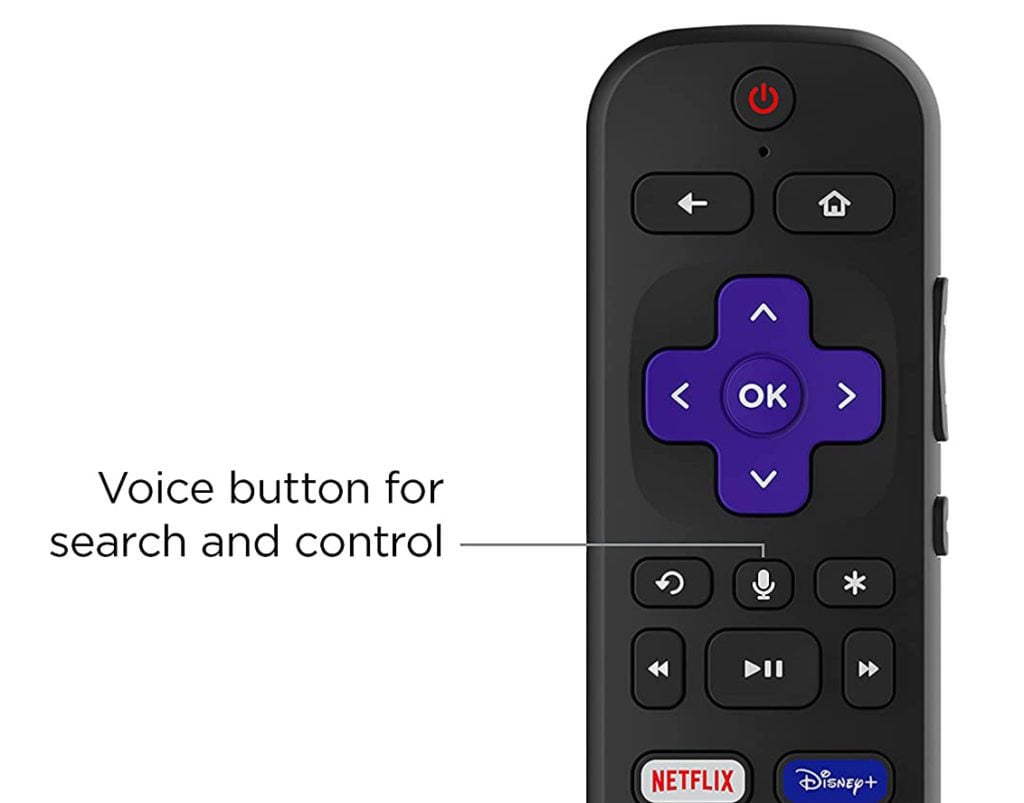
• Voice remote — Adds microphone functions and pairs like other enhanced remotes.
• TV remote (Roku TV) — Controls the TV power and volume and pairs during initial setup.
Prepare your TV and Roku device first
Power cycle both devices before pairing. Unplug the Roku streaming stick or box for 10 seconds, and plug it back in. Make sure the TV is on the correct HDMI input or the Roku TV is awake. Having a clear TV screen and stable power makes how to connect your roku remote to your tv much simpler.
Also check these basics
• Replace or insert fresh batteries in the remote.
• Remove any unneeded devices that could block signals.
• Move within 3 to 10 feet of the Roku device when pairing.

Step-by-step: How to connect your Roku remote to your TV
Follow these steps for enhanced and basic remotes. The steps below show how to connect your roku remote to your tv for most models.
Enhanced remote pairing (Bluetooth/wireless)
- Insert fresh batteries into the remote.
- Power on your Roku device and wait for the home screen.
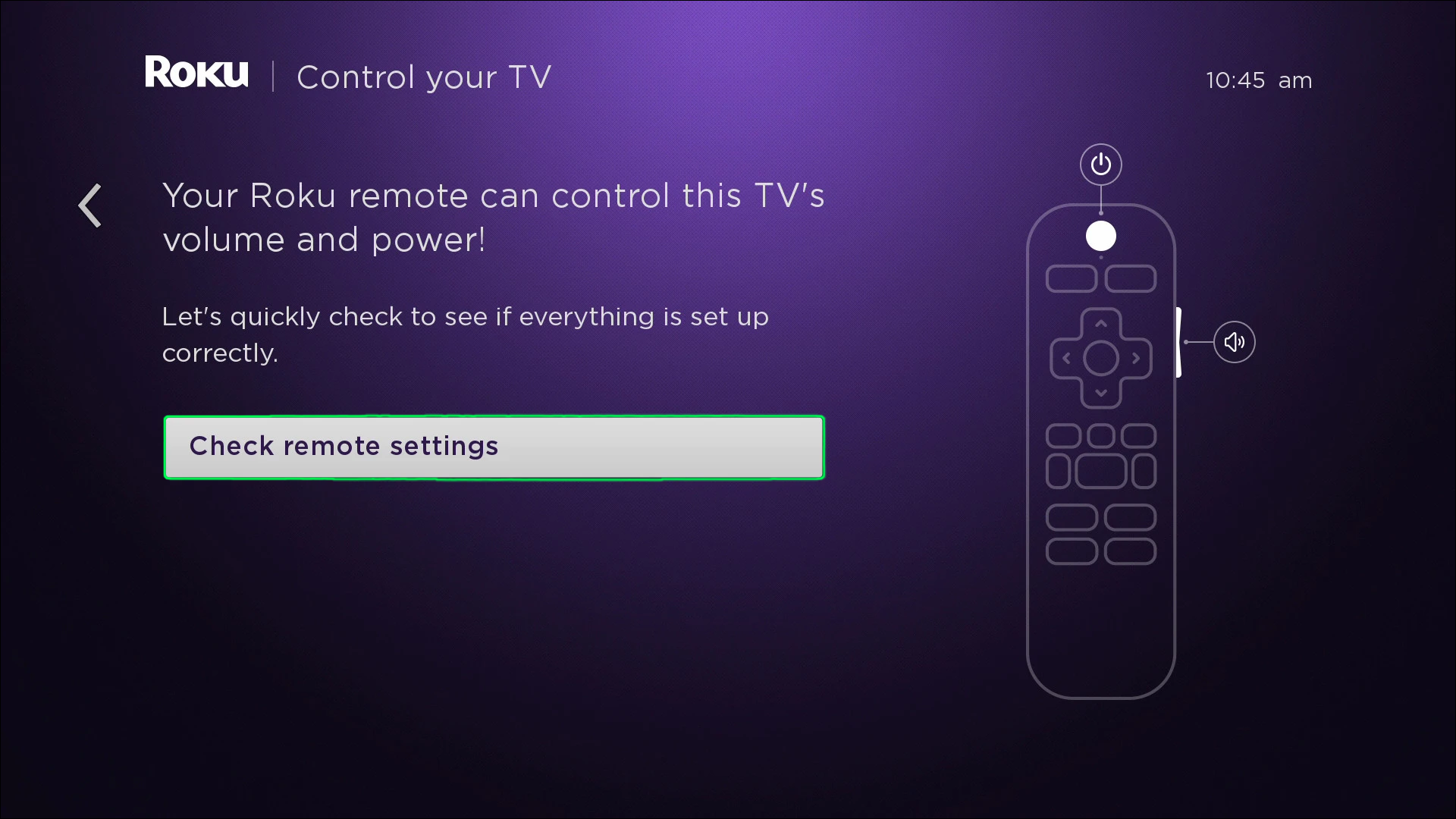
- Look for the pairing screen. If it appears, follow the on-screen instructions.
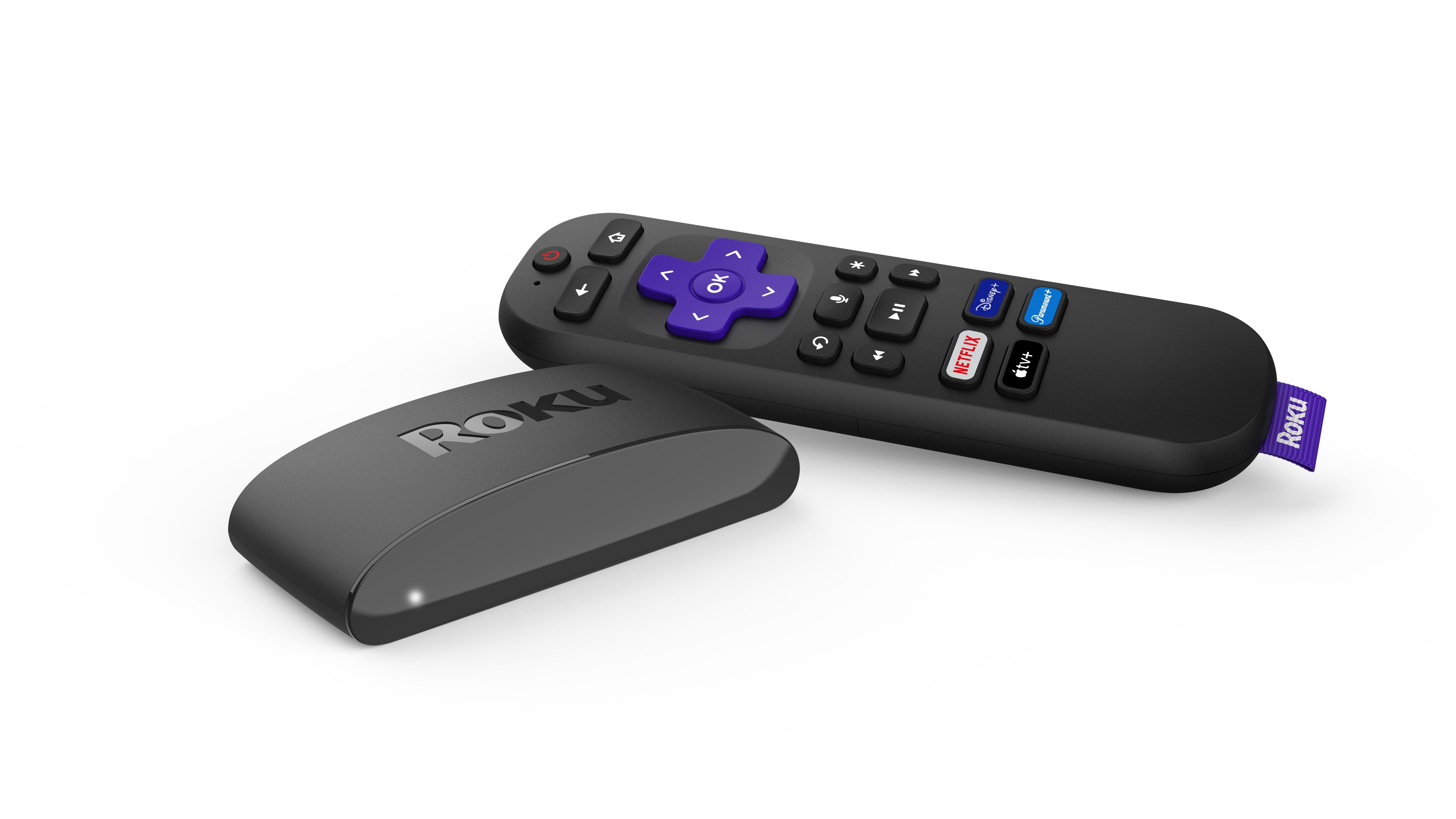
- If pairing screen does not appear, press and hold the pairing button inside the battery compartment for 3 to 5 seconds until the LED blinks.
- Wait for the on-screen message confirming pairing. Use the remote to test navigation and volume.
Basic IR remote setup
- Insert batteries and point the remote at the Roku device or TV.
- Press any button to test navigation. No pairing is required.
- If it doesn’t work, test with fresh batteries and remove obstacles between remote and device.
Roku TV remote pairing during setup
• Many Roku TVs automatically request pairing during the first boot. Follow the on-screen prompts.
• If you need to pair later, go to Settings > Remotes & Devices > Set up new device, then follow instructions.
I once helped a friend who kept pressing buttons during pairing and interrupted the process. Pause and let each step finish. Patience matters when you learn how to connect your roku remote to your tv.
Troubleshooting common pairing issues
If pairing fails, try these quick fixes. These steps will fix most problems when you try to connect your roku remote to your tv.
Remote won’t pair
• Replace batteries with new alkaline ones and retry pairing.
• Restart the Roku device by unplugging it for 10 seconds and replugging.
• Press the remote’s pairing button for 10 seconds to reset pairing mode.
Remote pairs but cannot control TV volume or power
• Ensure your Roku TV or streaming device supports TV remote control features.
• In Settings > Remotes & Devices > Remote, enable TV control.
• Reprogram the remote within the Roku TV setup if needed.
Intermittent response or lag
• Move closer to the Roku device and avoid metal or thick furniture between the remote and device.
• Turn off nearby wireless devices that may cause interference.
• Update your Roku software: Settings > System > System update.
When all else fails
• Try pairing another remote to confirm whether the issue is with the Roku or the remote.
• Factory reset the remote by removing batteries and holding the pairing button for 20 seconds, then reinsert batteries and pair again.
• Contact support if the remote still does not pair. Note that hardware damage or old remotes may require replacement.
Tips, best practices, and personal notes
Small habits prevent many pairing headaches. These tips reflect years of hands-on troubleshooting and show how to connect your roku remote to your tv without stress.
Helpful tips
• Keep a spare set of batteries near your TV to avoid low-battery issues.
• Label remotes if you have multiple Roku devices to avoid confusion.
• Use the Roku mobile app as a backup remote over Wi-Fi if pairing fails.
• Update Roku firmware to maintain compatibility with newer remotes.
Personal note
I once paired a Roku in a room with strong wireless noise. Moving the Roku 2 feet solved the problem. The lesson: changing one small thing often fixes how to connect your roku remote to your tv.
Frequently Asked Questions of how to connect your roku remote to your tv
How do I know if my Roku remote needs pairing?
If the remote doesn’t control the Roku or shows a pairing prompt, it needs pairing. Enhanced remotes show a pairing screen or require the pairing button.
Can I use a Roku app instead of a physical remote?
Yes. The Roku mobile app can control your Roku over Wi-Fi and acts as a backup when a remote won’t pair.
Why does my remote work only when pointed at the Roku?
That means you likely have a basic IR remote. IR remotes need line-of-sight and do not pair with the device.
How long does pairing usually take?
Pairing typically takes less than a minute once the device and remote have power and you follow the prompts. Delays usually come from low batteries or interference.
Will a new remote work with an older Roku device?
Often yes for enhanced remotes, but compatibility can vary by model and software. Check your Roku’s settings and update the system if needed.
What if the pairing button is missing?
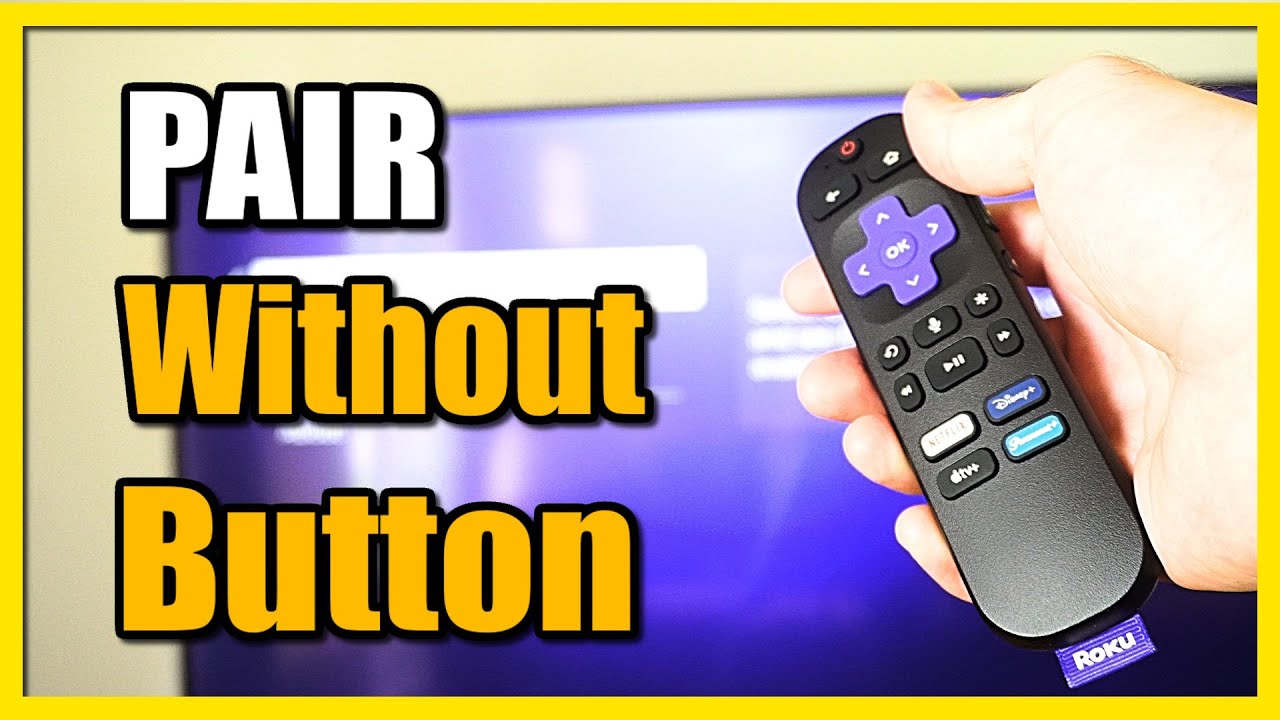
Some remotes use an automatic pairing method with the on-screen prompt. Check inside the battery compartment or refer to the model instructions if no button is visible.
Conclusion
You now have a clear path for how to connect your roku remote to your tv. Start by checking batteries, power cycling your devices, and following the on-screen pairing prompts. Use the troubleshooting steps if pairing fails, and keep the Roku mobile app handy as a backup. Try these steps today and enjoy smoother, faster control of your streaming setup. If this guide helped, leave a comment or subscribe for more practical tech tips.

Everett Ashford is a tech reviewer at mytechgrid.com specializing in SSDs, cameras, TVs, earbuds, headphones, and other consumer electronics. He provides honest, data-driven reviews based on hands-on testing and real-world performance analysis. Everett simplifies complex tech details to help readers make smart, confident buying decisions.