Remove the camera from your Blink account via the app or reset the device and unregister it.
I have spent years setting up and troubleshooting Blink systems for homes and small businesses. This guide on how to deregister Blink camera walks you through every step, from the app process to factory resets, so you can remove a camera cleanly, protect your privacy, and prepare a device for sale or transfer. Read on for clear, tested steps and practical tips that make deregistering a Blink camera fast and safe.
Why you might need to deregister a Blink camera
Many people ask how to deregister Blink camera when they move, sell equipment, or want to remove old devices. Deregistering stops the camera from reporting to your Blink account. It also revokes access for anyone still linked to that device.
Common reasons to deregister include device replacement, selling a unit, returning a rental property, cleaning up an account, or solving persistent connection errors. Removing a device also helps protect video privacy and prevents accidental recordings tied to your account.

What you need before you deregister Blink camera
Prepare these items before you attempt how to deregister Blink camera. Preparation saves time and prevents mistakes.
- Blink account username and password for the account the camera is currently registered to.
- The Blink mobile app installed on your phone or tablet.
- The camera and its Sync Module nearby, if applicable.
- A fully charged phone and reliable Wi-Fi connection.
If you no longer have account access, gather proof of ownership like purchase receipts or original emails. That will help if you need support to deregister a Blink camera without login credentials.
Method 1 — Deregistering a Blink camera using the Blink app
This is the simplest method to learn how to deregister Blink camera. Use the Blink app on iOS or Android.
- Open the Blink app and sign in to your account.
- Tap the system that contains the camera you want to remove.
- Tap the settings gear icon for that camera.
- Scroll and choose Remove Camera or Delete Camera from System.
- Confirm the removal when prompted.
The camera will be removed from your account immediately. If the camera has a Sync Module, confirm it is still connected to Wi‑Fi before removing. If a camera is offline, removal usually still works but the device may keep trying to reconnect until reset.

Method 2 — Deregistering when you do not have app access
If you cannot sign in, you can still learn how to deregister Blink camera with support help or a factory reset.
- If you forgot your password: use the app’s password reset flow to regain access.
- If you lost account access permanently: contact Blink support and provide proof of ownership.
- If support cannot help: perform a factory reset on the camera and Sync Module to remove account links locally.
A factory reset often clears pairing and forces the device to be treated like new. Still, support may be required if the camera remains tied to the original account after reset.

How to factory reset Blink camera (step-by-step)
Resetting is a core step for how to deregister Blink camera when you cannot remove it via the app. Follow the model-specific steps carefully.
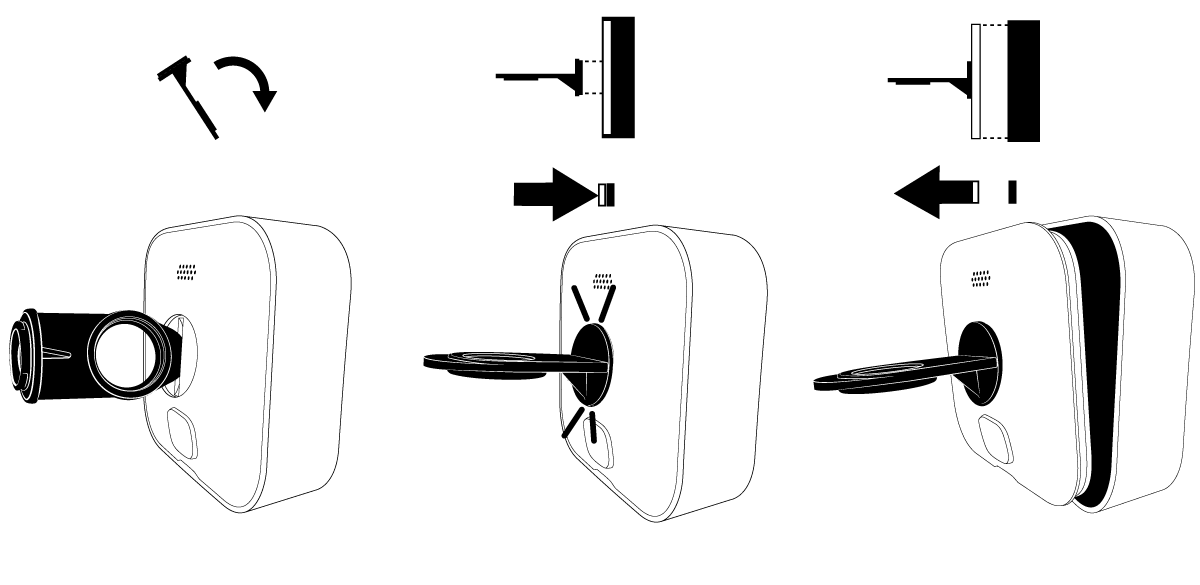
- Indoor/outdoor cameras without Sync Module:
- Remove the camera from power.
- Press and hold the camera’s reset button (usually inside or on the base) while reapplying power.
- Keep holding for about 15 seconds until the LED changes color or blinks.
- Cameras paired with a Sync Module:
- Unplug the Sync Module.
- Press the Sync Module’s reset button, hold for 10 seconds, and then plug it back in.
- Reset each camera by pressing its reset button for the required duration.
After reset, the device should start in setup mode. You can then add it to a new account or leave it unregistered. If the camera still shows as linked to an old account, contact support for ownership release.

Preparing a Blink camera for sale or transfer
When transferring ownership, follow these best practices for how to deregister Blink camera to protect privacy and ensure a smooth handoff.
- Remove all cameras from your Blink account via the app before giving the device away.
- Factory reset each camera and the Sync Module.
- Remove personal information and disable linked third-party integrations.
- Provide new owner with original accessories, mounting hardware, and setup instructions.
Doing these steps avoids confusion for the buyer and prevents your account from receiving recordings from a device you no longer own.

Troubleshooting common issues when deregistering
Problems can occur while you learn how to deregister Blink camera. Here are quick fixes for the usual issues.
- Camera still appears in the app after removal:
- Force-close the app and sign out, then sign back in. Clear cache if needed.
- Cannot remove camera because it shows as offline:
- Power cycle the camera and Sync Module, then try removal again.
- Device remains linked after factory reset:
- Contact Blink support with proof of purchase to request unlinking.
If you hit repeated failures, log each step you try. This record helps support diagnose the issue faster and demonstrates effort.

Security and privacy considerations
Deregistering is more than a technical step; it is a privacy safeguard. When you learn how to deregister Blink camera, treat it as part of good digital hygiene.
- Always remove cameras before selling or gifting them.
- Change account passwords after losing physical control of a camera.
- Review and remove any saved clips or clips in cloud storage tied to the device.
- Audit linked accounts and third-party integrations for access tokens that may need revocation.
These steps help prevent unauthorized viewing and preserve control over your recordings.

Personal experience, tips, and mistakes to avoid
From working on dozens of Blink setups, here are practical insights about how to deregister Blink camera that save time and frustration.
- Tip: Remove devices in the app while they are online. It speeds removal and avoids lingering records.
- Mistake to avoid: Don’t sell a camera without a reset. I once had buyers return a camera because it stayed linked to my account.
- Tip: Keep proof of purchase for at least a year. It helps if support needs to verify ownership.
- Tip: When resetting, give the device a full minute to boot. Rushing steps often causes repeat resets.
These small steps make the process smooth and protect your data.
Best practices for account cleanup after deregistering
After you complete how to deregister Blink camera, tidy your account with these final actions.
- Remove unused systems and rename active devices for clarity.
- Revoke third-party access and review notification settings.
- Back up any important clips you want to keep before deleting a camera.
- Enable two-factor authentication to secure future access.
A clean account is easier to manage and reduces privacy risk over time.
Frequently Asked Questions of how to deregister Blink camera
How do I deregister a Blink camera if I no longer have the email account?
If you lost the email, try account recovery or password reset first. If that fails, contact Blink support and provide proof of ownership to request account unlinking.
Will a factory reset remove the camera from my Blink account?
A factory reset usually clears local settings and resets pairing. However, the camera may still appear linked in the cloud until you remove it via the app or support confirms unlinking.
Can I deregister a Blink camera remotely?
Yes. If you can sign in to the Blink app, you can remove the camera remotely by deleting it from your system settings. Remote removal depends on account access.
What should I do before selling my Blink camera?
Remove the camera from your Blink account, perform a factory reset, remove personal data, and include original accessories. Confirm the camera boots into setup mode for the new owner.
My camera remains in the app after removal. What now?
Force-close and reopen the app, sign out and back in, or reboot your phone. If the camera still appears, contact support with screenshots and a description of steps you tried.
Conclusion
Deregistering a Blink camera is a quick but important task that protects your privacy and prepares devices for new owners. Follow the app removal steps first, use factory resets when needed, and keep records of proof of ownership if access issues arise. Take these practical steps now to secure your account and make future device transfers hassle-free. If this guide helped, try the steps on your system, leave a comment about your experience, or subscribe for more practical smart‑home advice.

Everett Ashford is a tech reviewer at mytechgrid.com specializing in SSDs, cameras, TVs, earbuds, headphones, and other consumer electronics. He provides honest, data-driven reviews based on hands-on testing and real-world performance analysis. Everett simplifies complex tech details to help readers make smart, confident buying decisions.