Disable Webex camera via the camera icon, Settings, or system permissions before or during meetings.
I have used Webex for years and I will walk you through clear, tested steps on how to disable camera in webex across desktop, mobile, and admin settings. This guide shows simple actions, real-world tips, and fixes so you can control your video in meetings with confidence.

Why you might want to disable camera in webex
People turn off video for privacy, bandwidth, or focus. Turning video off helps save data and reduce distractions. Many workplaces require cameras off for security or policy reasons. Knowing how to disable camera in webex gives you control in any meeting.
How to disable camera in webex: step-by-step (desktop app)
Use these quick methods to stop video on the Webex desktop app.
-
Method 1: Disable camera before joining
- Open the Webex app.
- Click the meeting link or Join button.
- On the pre-join screen, click the camera icon to turn it off.
- Confirm video shows as off before entering.
-
Method 2: Disable camera during a meeting
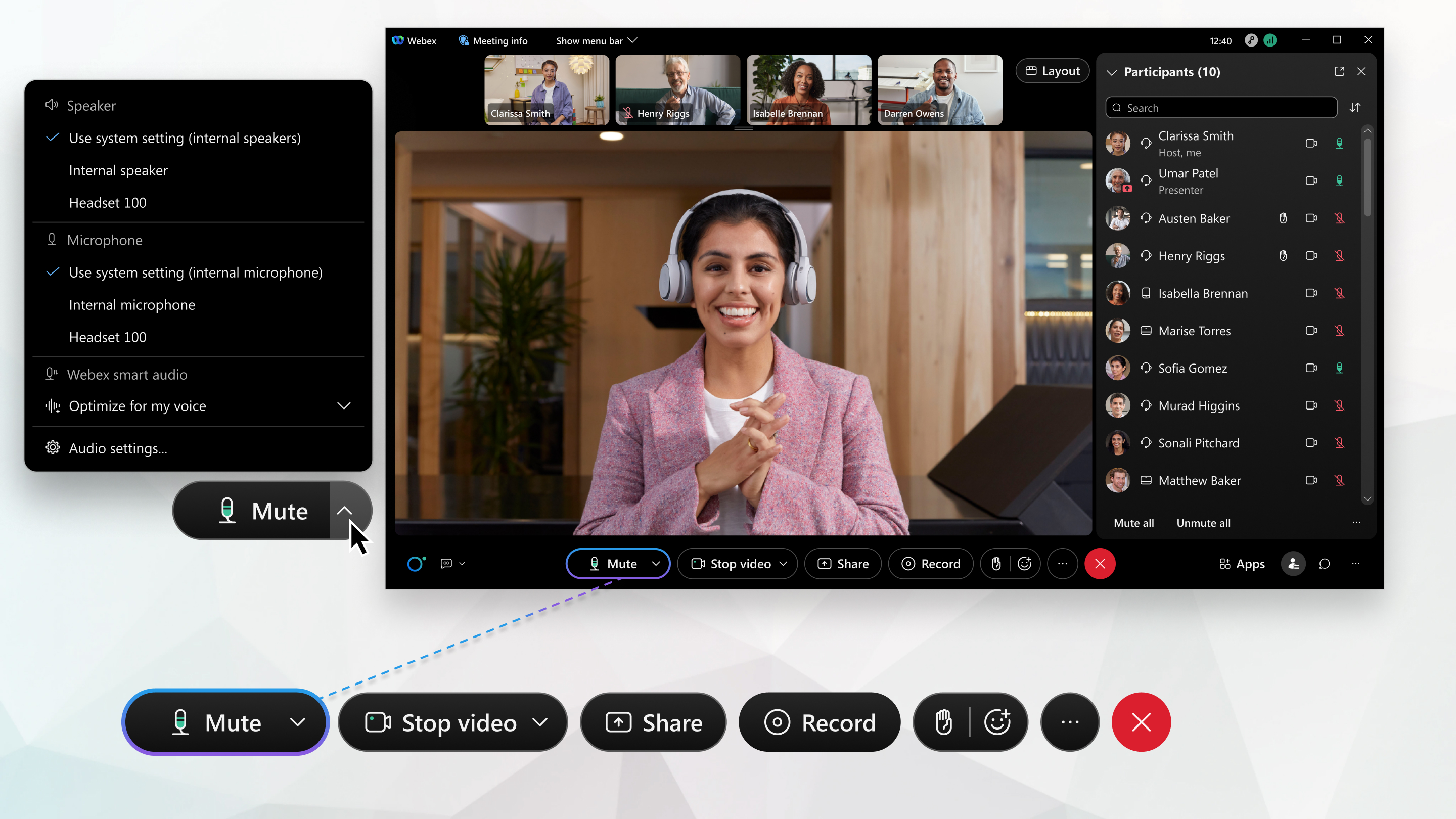
- Move your mouse to the meeting controls bar.
- Click the camera icon to stop your video.
- Verify your profile picture or name appears instead of video.
-
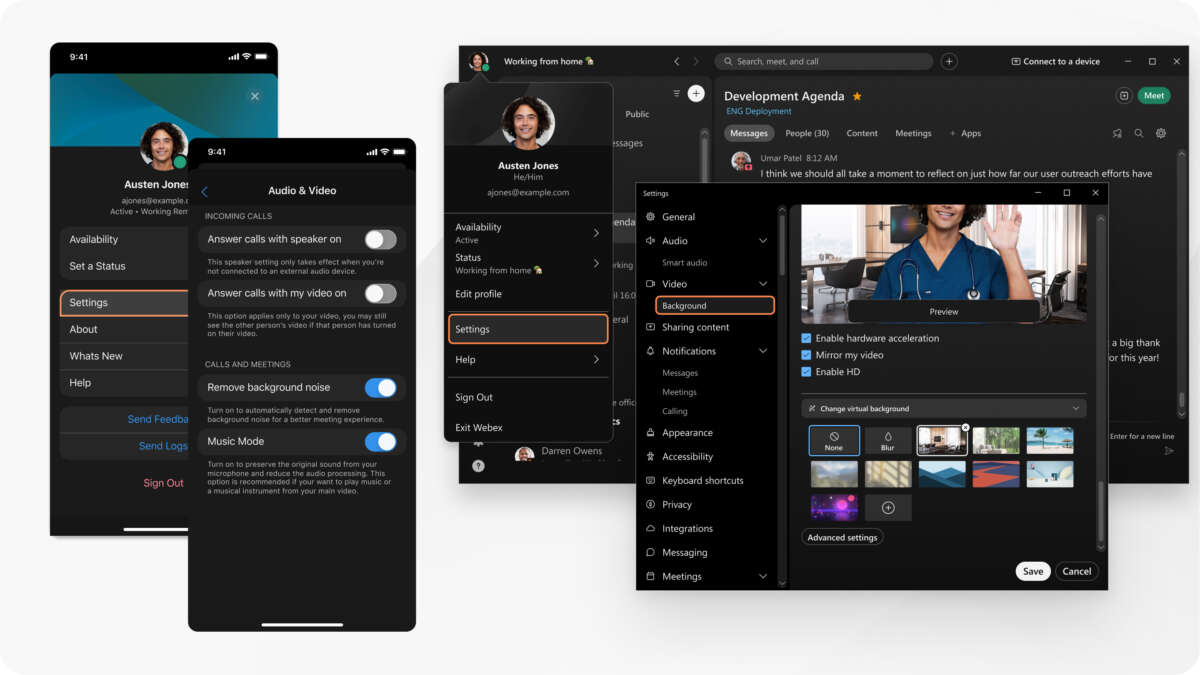
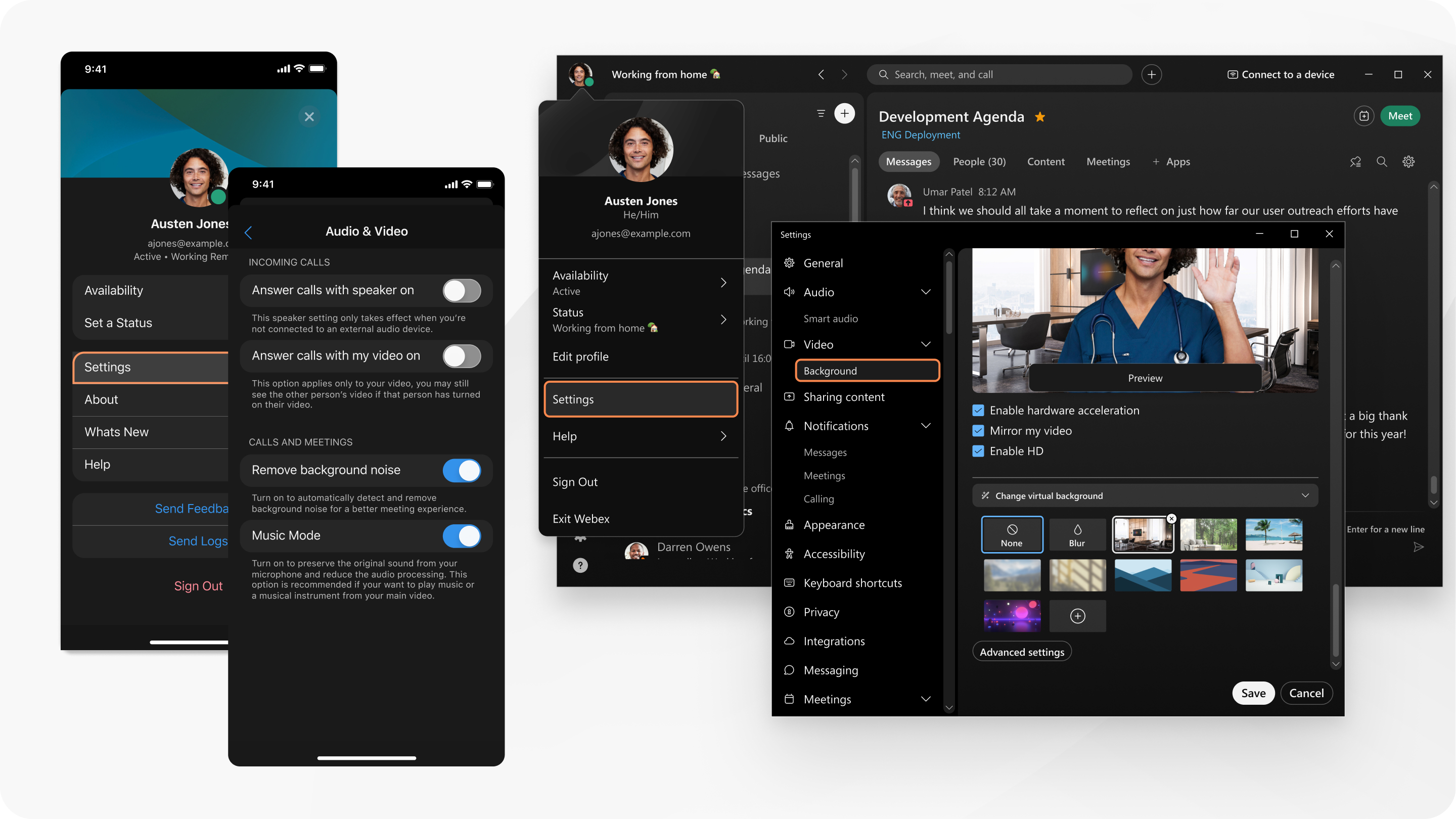
Method 3: Disable camera in Settings
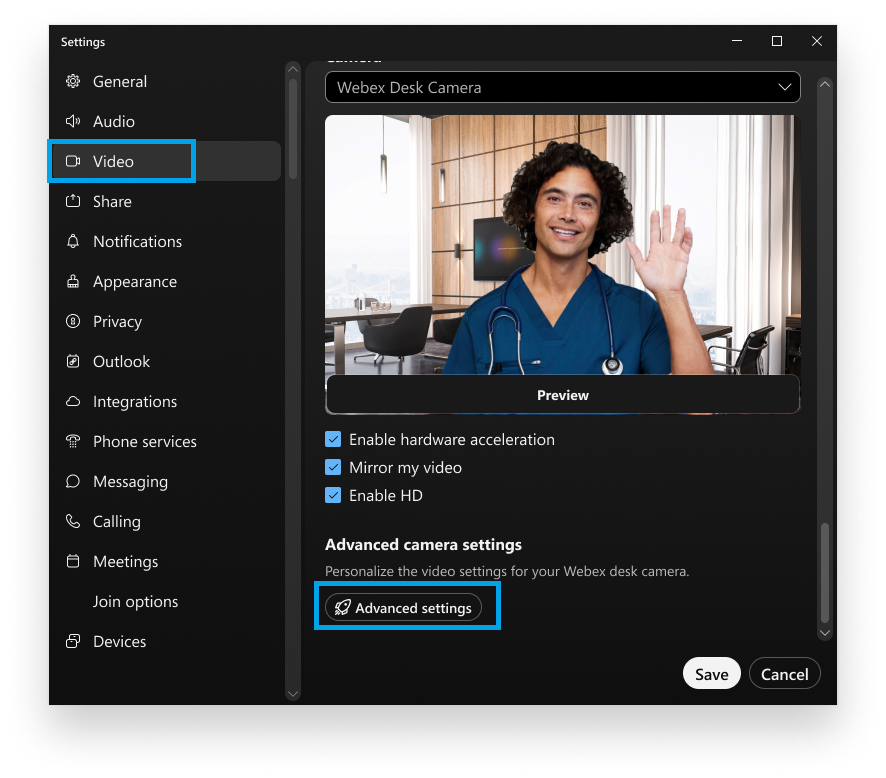
- Click your avatar, then choose Settings.
- Go to Audio & Video or Video.
- Set Camera to None or select a virtual camera that is disabled.
- Save or close the settings.
I once joined a large meeting and forgot to turn off the camera. I learned to always check the pre-join screen. That small habit avoided awkward moments.

How to disable camera in webex: step-by-step (Webex web version)
The Webex web app works in the browser. Here is how to stop video there.
-
Before joining
- Click your meeting link.
- On the web pre-join panel, click the camera icon to turn off video.
- Confirm the preview is blank or replaced by your avatar.
-
During the meeting
- Locate the control bar in the browser window.
- Click the camera icon to toggle video off.
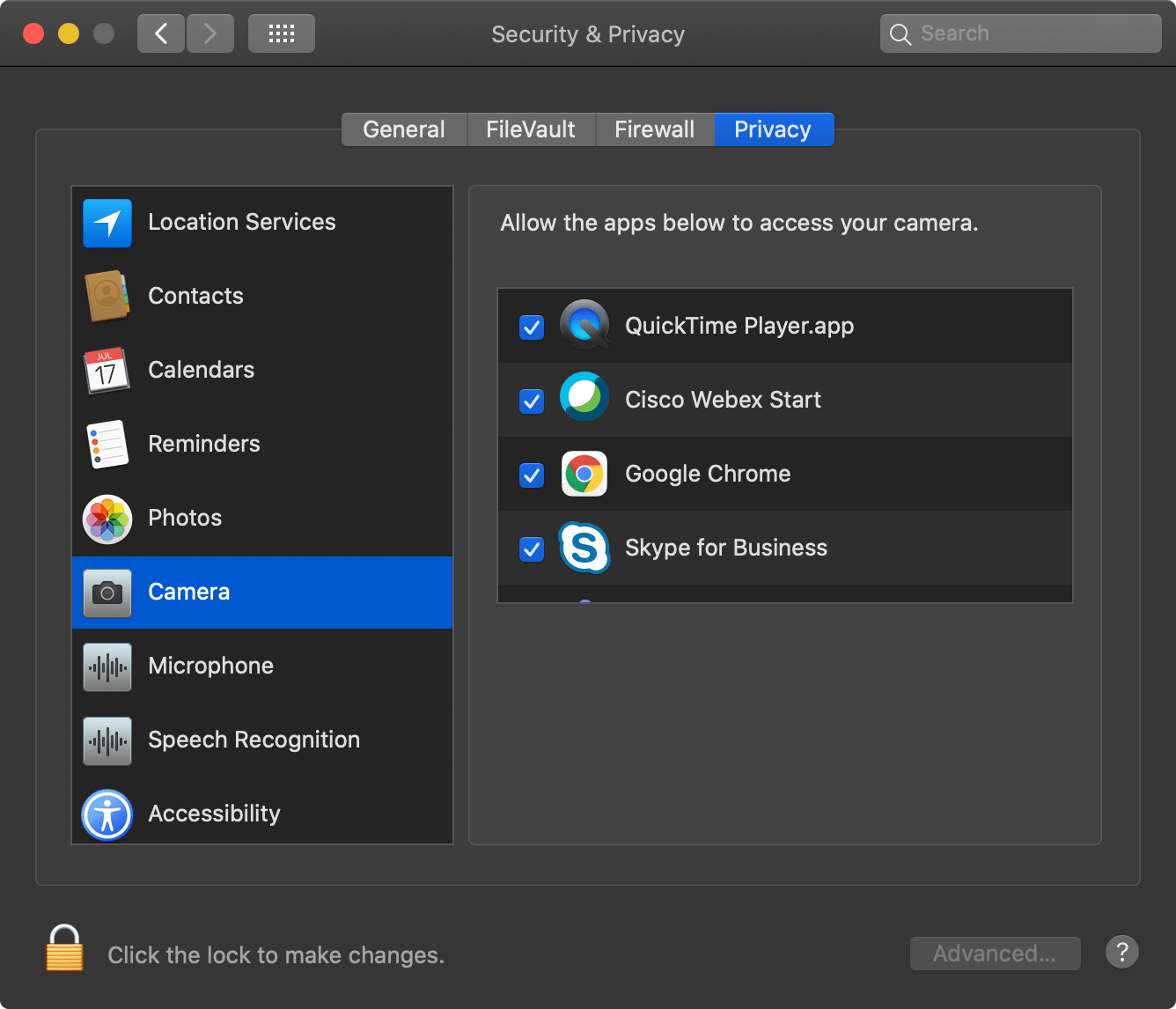
- If the camera still appears on, check browser permissions.
If the web app keeps enabling camera, it often means the browser allowed access. Revoke camera permission in browser settings to prevent automatic camera use.
How to disable camera in webex: step-by-step (mobile app)
On iPhone or Android, the steps are simple and fast.
-
Before joining
- Tap the meeting link or open the meeting in the Webex app.
- On the join screen, tap the video icon to switch it off.
- Check the preview to confirm.
-
During the meeting
- Tap the screen to show controls.
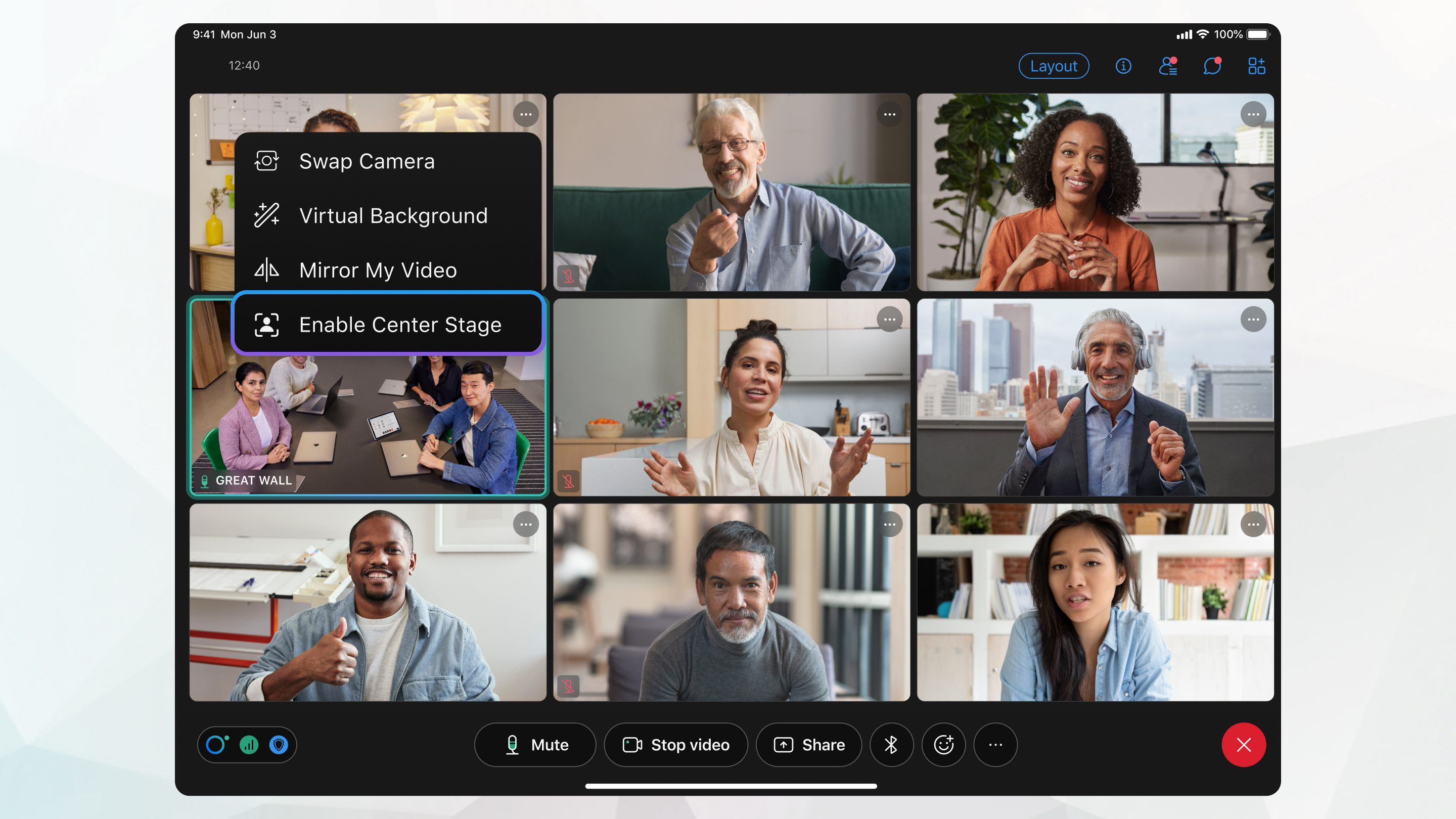
- Tap the camera icon to stop your video.
- Use the app settings to set default to off if available.
Mobile data can be limited. I set camera off by default on my phone to save battery and data. That saved me during long calls.
Disable camera before joining a meeting (best practices)
Turn off video early to avoid accidental broadcasts. Use these checks every time.
- Verify the pre-join screen shows video off.
- Turn off virtual backgrounds that might require camera access.
- Close other apps that may access camera.
- Test with a colleague if unsure.
Making this a habit reduces stress before big meetings.
Disable camera during a meeting (quick tips)
Need to stop video fast? Try these options.
- Click the camera icon on the control bar immediately.
- Mute video via keyboard shortcuts if available.
- Use the participant menu to stop your video for meetings with many participants.
- If video won’t stop, turn off camera in system settings or unplug external webcam.
I once had a camera that would not stop until I unplugged it. If software toggles fail, the hardware disconnect is a solid fallback.

Admin controls and organization-wide settings
IT admins can enforce camera policies for groups or org-wide. Key options include:
- Disable camera for specific users through device management.
- Use Webex Control Hub to set meeting policies that restrict video.
- Enforce meeting templates that default to cameras off.
- Manage device-level permissions using MDM (Mobile Device Management).
If your organization needs consistent rules, talk to IT about how to disable camera in webex across accounts. Admin enforcement keeps meetings aligned with policy.
Troubleshooting and common issues
If you cannot disable camera, try these fixes.
- Check camera permissions in OS settings and the browser.
- Restart the Webex app and the device.
- Update Webex to the latest version.
- Disable other apps that use the camera.
- Reinstall the app if issues persist.
If Webex still shows video, test with a different camera or create a private test meeting. That helps isolate the problem.
Best practices and privacy tips
Control your video to protect privacy and improve meeting quality.
- Default to camera off for large or public meetings.
- Notify hosts when you enable video to respect meeting etiquette.
- Use virtual backgrounds if privacy around your location is needed.
- Regularly review permissions for apps and browser sites.
Treat camera control like a privacy setting. It is part of your digital hygiene.
Frequently Asked Questions of how to disable camera in webex
How do I permanently disable my camera in Webex?
Webex does not offer a single global "permanently off" toggle for all devices. You can set camera off before joining each meeting, change app settings, or use system permissions to block camera access. For organization-wide control, ask your admin to enforce policies.
Why does my camera turn back on in Webex?
A browser or app permission may auto-enable the camera, or another app might take control. Restart the app, revoke camera permissions, and update Webex to prevent auto re-enable.
Can a host turn on my camera in Webex?
No. Hosts cannot turn on a participant’s camera. Participants must enable their own video. Admins can set policies, but hosts cannot force a participant’s camera on.
How do I disable camera in webex on Mac or Windows?
Open the pre-join screen or in-meeting controls and click the camera icon to turn it off. You can also revoke camera access in System Preferences or Settings to block the camera entirely.
What if the camera icon is missing in Webex?
The icon may be hidden due to a small window or an unsupported device. Resize the window, update the app, or check that your device meets Webex camera requirements. Reinstalling the app can restore missing controls.
Conclusion
This guide explained practical ways to control your video and how to disable camera in webex on desktop, web, and mobile. Start by checking the pre-join screen, use the camera icon during meetings, and apply system or admin controls when needed. Take one simple step today: set your default to camera off and test in a private meeting to build confidence. If this guide helped, try these tips in your next meeting and share feedback or questions below.

Everett Ashford is a tech reviewer at mytechgrid.com specializing in SSDs, cameras, TVs, earbuds, headphones, and other consumer electronics. He provides honest, data-driven reviews based on hands-on testing and real-world performance analysis. Everett simplifies complex tech details to help readers make smart, confident buying decisions.