Disable Camera on iPad via Settings > Screen Time > Content & Privacy > Allowed Apps — toggle Camera off.
I’ve guided hundreds of parents, teachers, and IT admins through how to disable camera on iPad safely and reliably. This guide explains every method step by step, shows when to use each option, covers troubleshooting, and shares real-world tips from my experience managing family and school devices. Read on to learn the exact steps to disable the camera on your iPad, how it affects apps like FaceTime, and what to do if you forget a passcode.
Why you might want to disable the camera on an iPad
Many people want control over camera use. Parents limit privacy risks for kids. Schools block cameras during tests. Businesses protect sensitive spaces. Disabling the camera stops photos, video, and many apps from accessing the camera. It’s a simple privacy and compliance tool that gives you control.
Main methods to disable camera on iPad
There are several ways to disable the camera on an iPad. Each fits a different need.
- Use Screen Time to permanently block the Camera app for standard users.
- Use Restrictions (older iOS) when Screen Time is not available.
- Use Privacy settings to block camera access for specific apps.
- Use Guided Access to temporarily block camera use in a single app.
- Use Mobile Device Management (MDM) or Supervised mode for organizations.
Pick the method that matches your goal. For parents and most users, Screen Time is the best choice. For schools and businesses, supervised devices controlled by MDM offer more enforcement.
Step-by-step: Disable camera on iPad using Screen Time (recommended)
This method works on modern iPadOS versions and is easy to reverse.
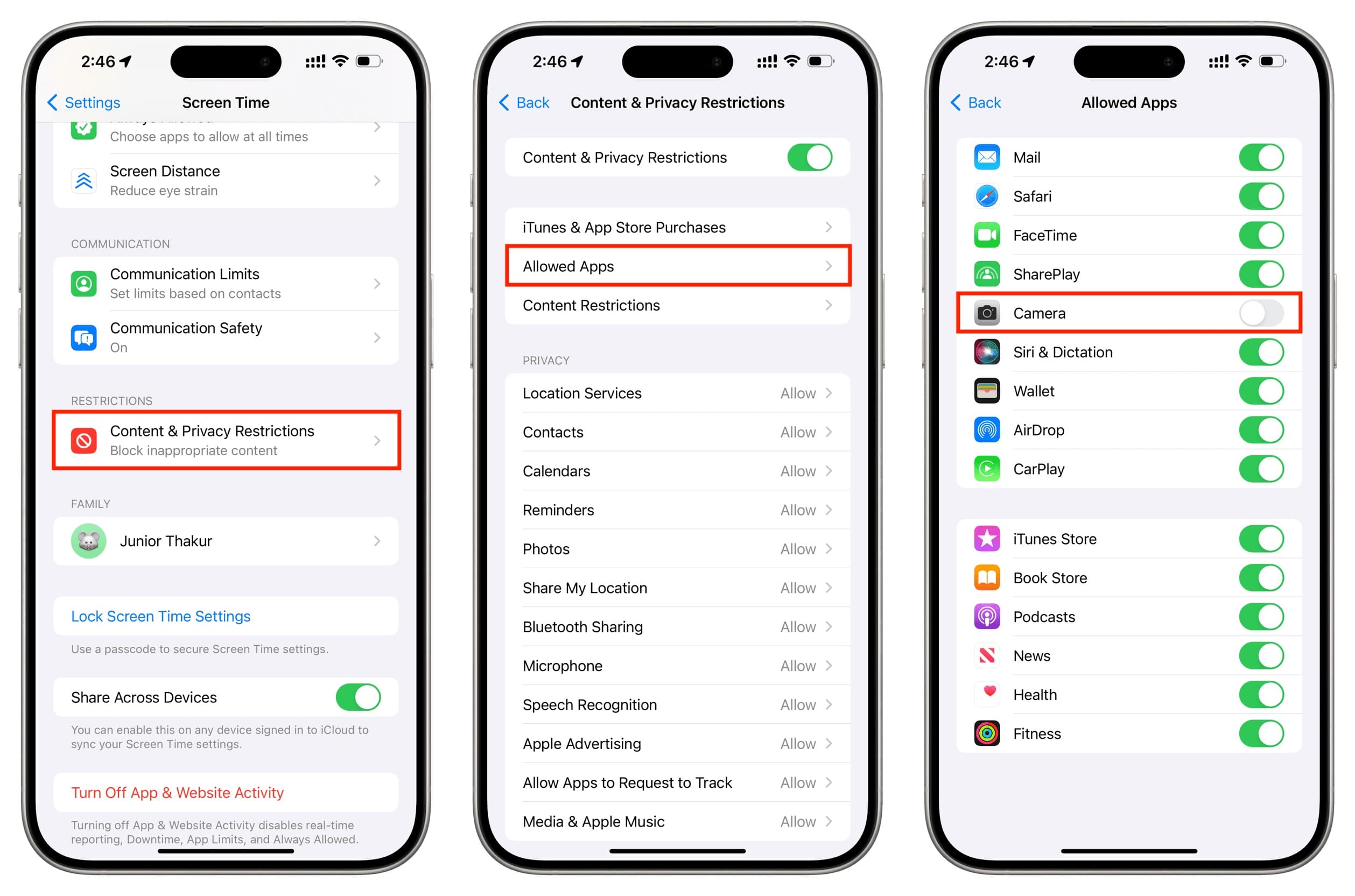
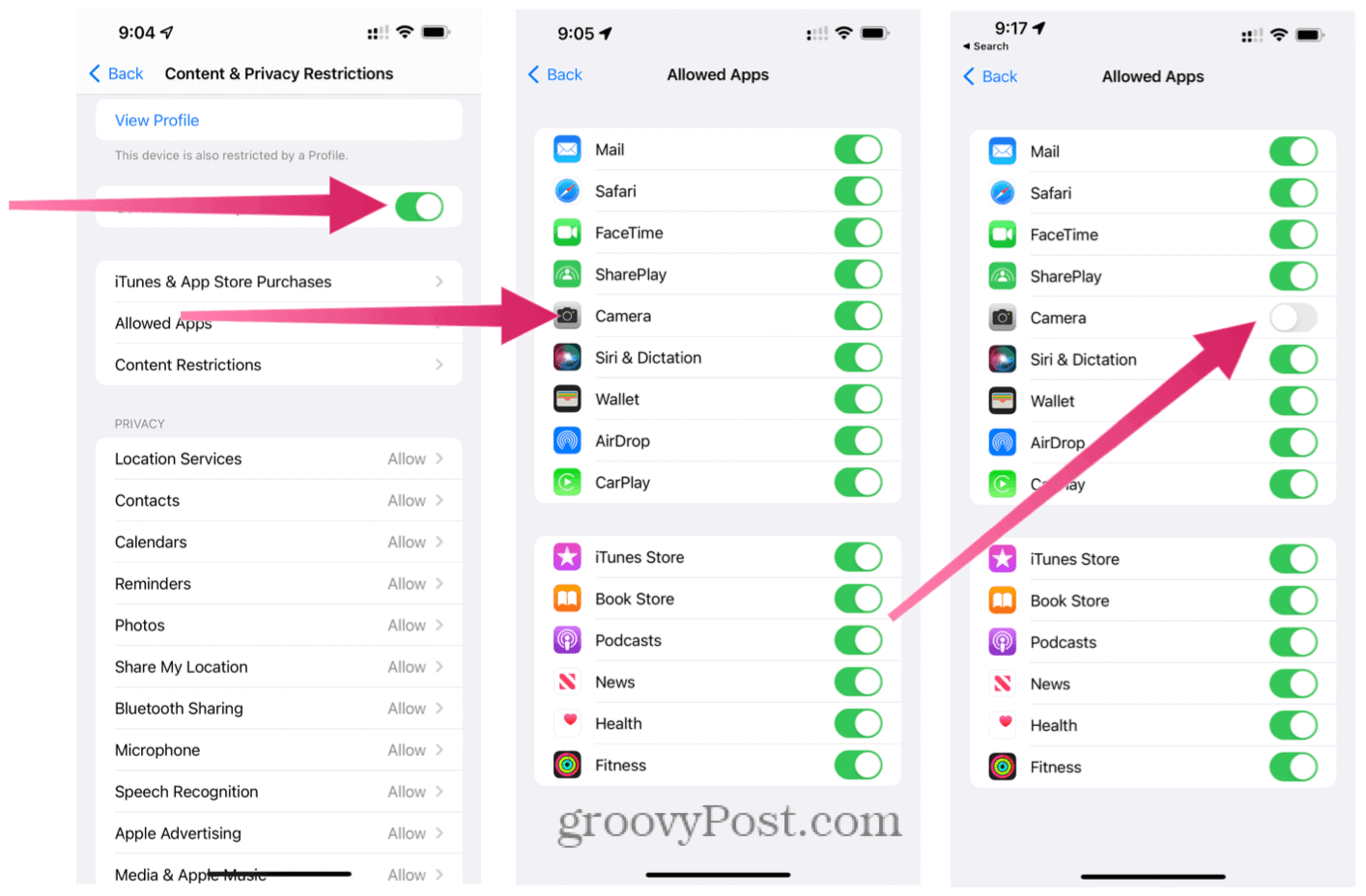
- Open Settings on the iPad.
- Tap Screen Time.
- If Screen Time is off, tap Turn On Screen Time and follow prompts.
- Tap Content & Privacy Restrictions.
- Toggle Content & Privacy Restrictions to On.
- Tap Allowed Apps.
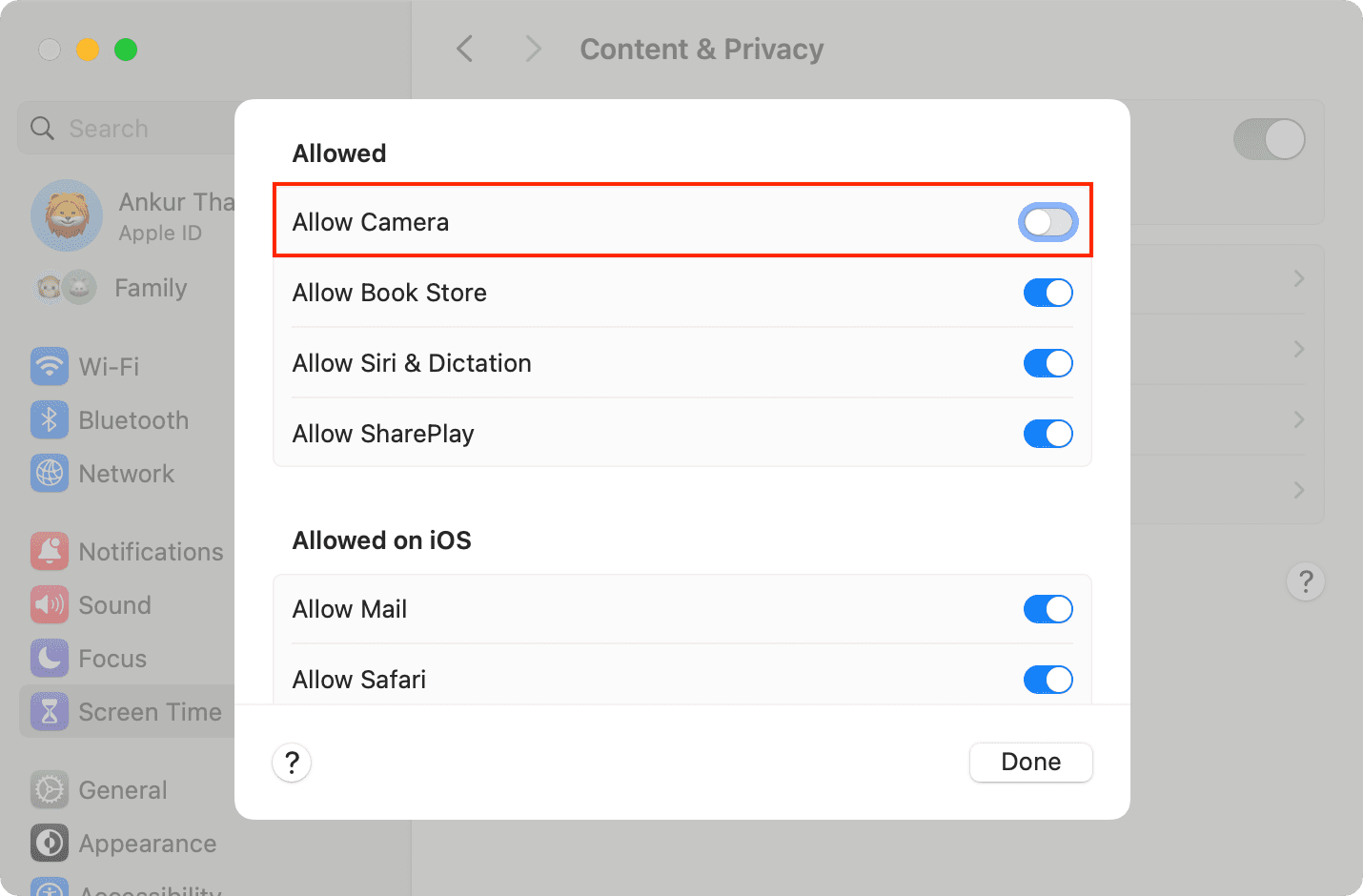
- Find Camera and toggle it Off.
Once off, the Camera app disappears from the Home Screen. Many apps will also lose access to the camera when it’s disabled. This is the most user-friendly way to disable camera on iPad.

Disable camera on iPad using Restrictions (older iOS versions)
Older iOS versions use Restrictions under General. Use this method if your device runs iOS 11 or earlier.
- Open Settings and go to General.
- Tap Restrictions.
- Tap Enable Restrictions and set a Restrictions passcode.
- Toggle Camera to Off.
Restrictions also blocks camera access in apps. If your device is newer, prefer Screen Time. If you have an older device, this still works.

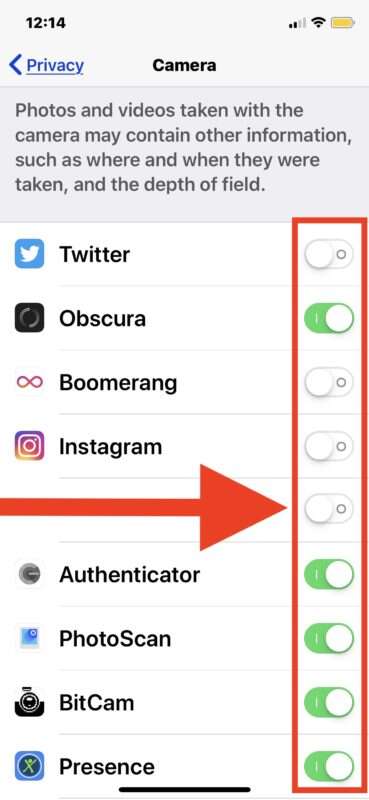
Disable camera access for specific apps (privacy control)
Sometimes you only want to stop certain apps from using the camera. This keeps the Camera app available but limits app access.
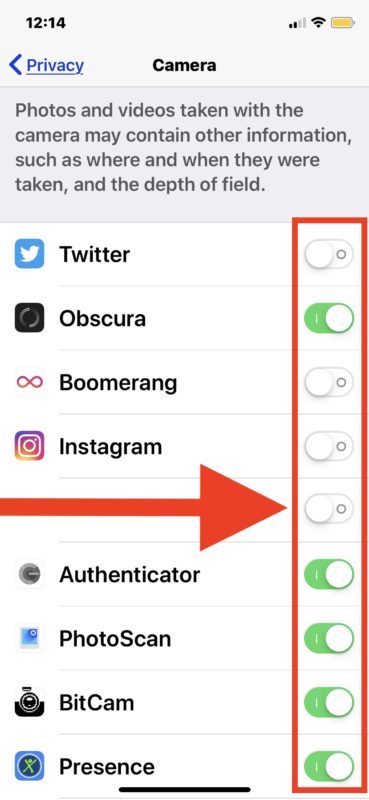
- Open Settings.
- Scroll to Privacy.
- Tap Camera.
- Toggle off apps you want to block.
This is ideal when you trust the Camera app but want to stop third-party apps from using the camera. Use this to limit social apps or browsers without removing the camera entirely.

Temporarily disable camera using Guided Access
Guided Access locks the device to one app and can restrict device features. It’s useful for short-term needs.
- Open Settings and tap Accessibility.
- Tap Guided Access and turn it on.
- Set a Guided Access passcode.
- Open the app you want to lock the iPad into.
- Triple-click the Home or Top button to start Guided Access.
- Tap Options and toggle Hardware Buttons or Motion as needed.
- Start Guided Access.
Guided Access won’t directly toggle the camera app, but it can prevent switching to the Camera app. Use it during tests or public demos when you need temporary control.
Supervised devices and MDM: enterprise and school solutions
For schools and businesses, the most robust control is Supervised mode managed by MDM.
- Supervision allows admins to disable the camera remotely.
- MDM can enforce camera disable across many devices.
- Profiles pushed by MDM can lock the camera and prevent users from re-enabling it.
If you manage multiple devices, use a trusted MDM solution. I’ve helped IT teams deploy camera restrictions for hundreds of iPads. It prevents tech-savvy users from bypassing settings.

How to re-enable the camera on an iPad
Re-enabling is straightforward but depends on how it was disabled.
- If disabled with Screen Time: Settings > Screen Time > Content & Privacy Restrictions > Allowed Apps > toggle Camera On.
- If disabled with Restrictions: Settings > General > Restrictions > enter passcode > toggle Camera On.
- If blocked per-app: Settings > Privacy > Camera > toggle apps On.
- If managed by MDM: contact your admin to change the profile.
If you forget a Screen Time or Restrictions passcode, you may need to use your Apple ID to reset it or erase the device if no recovery option exists.
Troubleshooting common issues
If the Camera app is missing after disabling, it’s expected behavior. Re-enable via Screen Time or Restrictions.
If apps still access the camera after disabling, check per-app Privacy settings. Some apps may prompt for permission again when re-enabled.
If you can’t change settings, the device might be supervised by MDM. Contact the device administrator.
If you forget passcodes, try using the Apple ID recovery option. If that fails, back up and erase the device to restore settings.
Personal tips and real-world lessons
I disabled the camera on my child’s iPad to keep them safe online. Lesson learned: always set a Screen Time passcode you can remember. I once locked myself out after creating a complex code. Recovery took time and a device erase.
Another tip: communicate the change. Kids and coworkers appreciate knowing why the camera was disabled. This avoids confusion and saves support time.
Last tip: use per-app restrictions for a balanced approach. Block camera access for social apps but keep it for homework scanning apps.
Frequently Asked Questions of how to disable camera on ipad
Can I disable the camera on any iPad model?
Yes. All iPad models support disabling the camera through Screen Time or Restrictions. Older iPads may use Restrictions under General while newer ones use Screen Time.
Will turning off the camera block FaceTime and camera features inside apps?
Yes. Disabling the camera removes camera access system-wide, which includes FaceTime and most in-app camera functions.
How do I re-enable the camera if I change my mind?
Open Settings, go to Screen Time or Restrictions, and toggle Camera back on. If managed by MDM, contact your administrator to restore access.
What if I forget the Screen Time passcode?
Try the Apple ID recovery option set during Screen Time setup. If that fails, you may need to erase the device and restore from a backup.
Can a supervised iPad prevent me from re-enabling the camera?
Yes. Supervised devices managed by MDM can lock camera settings and prevent users from changing them without admin approval.
Conclusion
Disabling the camera on an iPad is a simple but powerful step to protect privacy, enforce rules, and prevent misuse. Use Screen Time for home devices, per-app privacy settings for selective control, Guided Access for short-term restrictions, and MDM for organizational enforcement. Start by choosing the method that fits your needs, set clear passcodes, and keep a recovery plan in place. Try the recommended steps on your device today and leave a comment to share your experience or questions.

Everett Ashford is a tech reviewer at mytechgrid.com specializing in SSDs, cameras, TVs, earbuds, headphones, and other consumer electronics. He provides honest, data-driven reviews based on hands-on testing and real-world performance analysis. Everett simplifies complex tech details to help readers make smart, confident buying decisions.