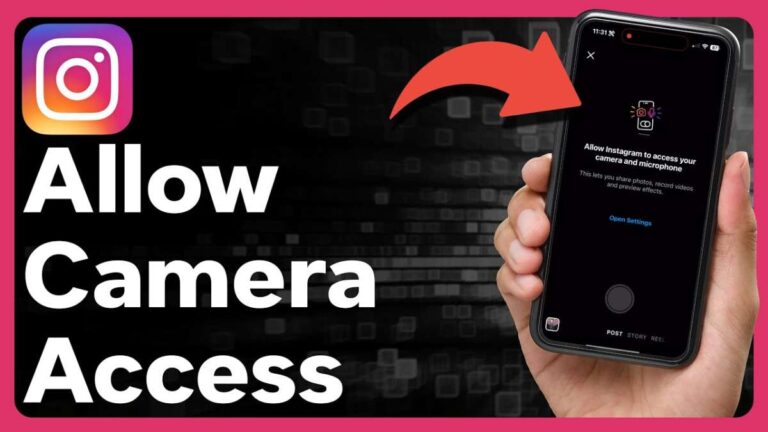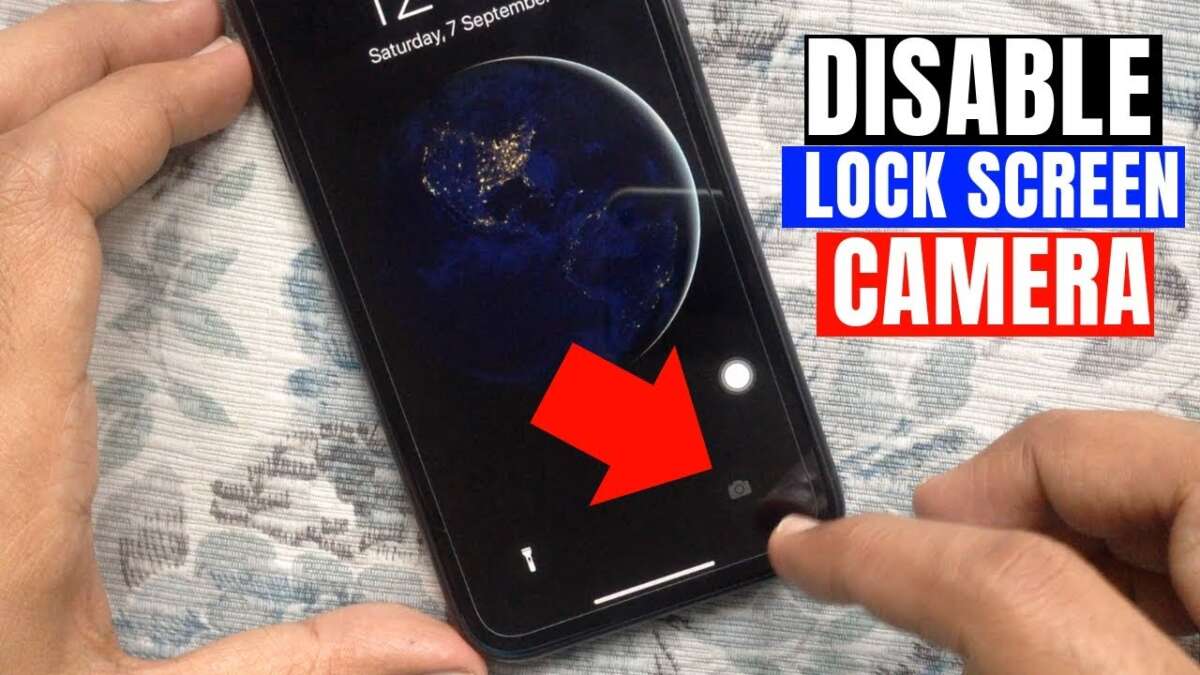
Turn off Camera in Screen Time > Content & Privacy > Allowed Apps to remove lock screen camera access.
I’ve spent years fixing iPhone settings for families and businesses, and I know exactly how to disable lock screen camera iphone safely and cleanly. This guide walks you through every method, explains trade-offs, and gives real tips so you can remove lock screen camera access without breaking other features. Read on to learn step-by-step how to disable lock screen camera iphone on modern and older iOS versions, plus when to use alternatives.
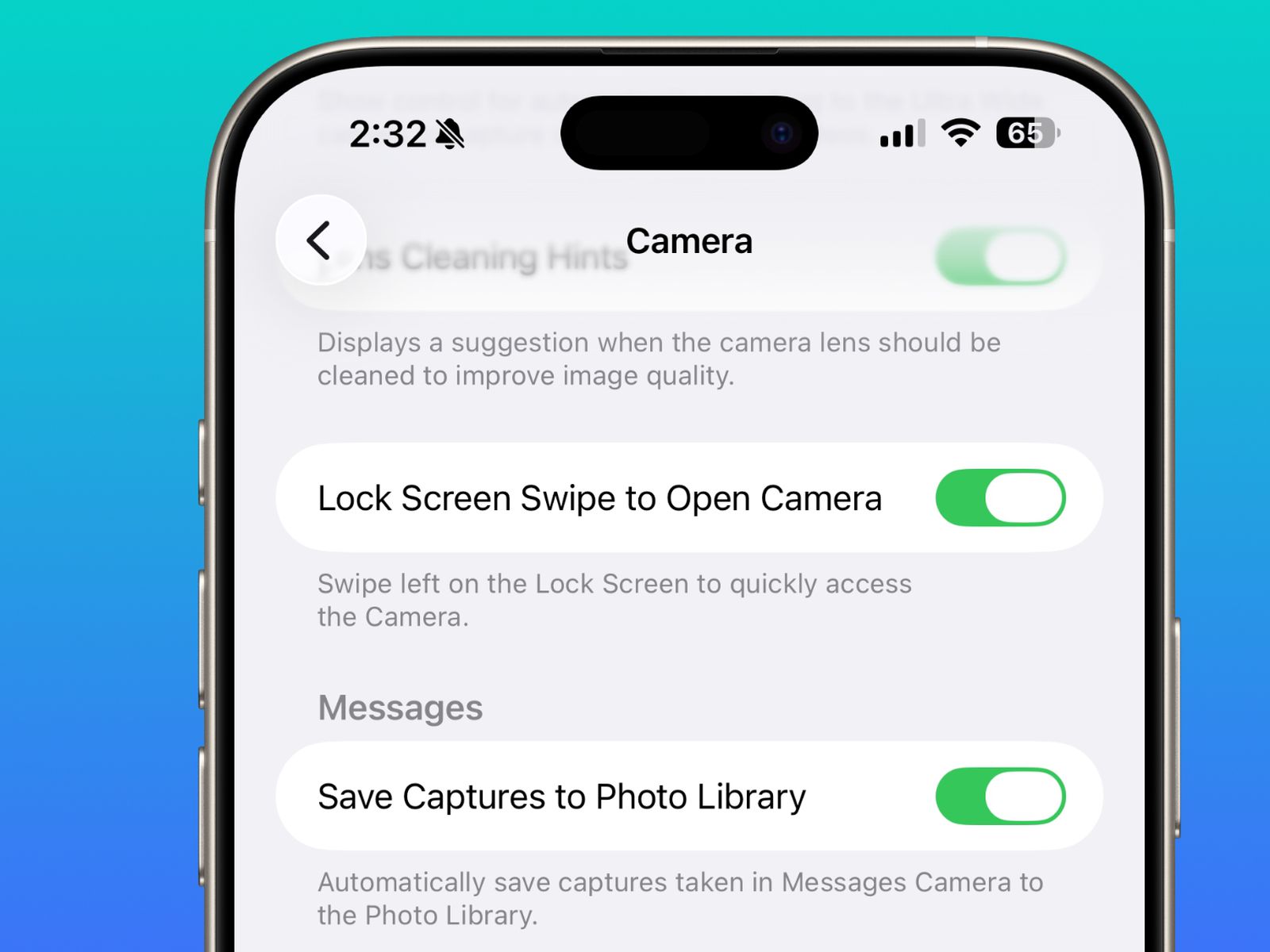
Why you might want to disable the lock screen camera
Removing the camera from the lock screen limits quick photo access. Parents often want this to stop kids from taking photos. Businesses use this to protect privacy on managed devices. Knowing how to disable lock screen camera iphone helps you choose the right approach for each need.
How to disable lock screen camera iphone — step-by-step (iOS 12 and later)
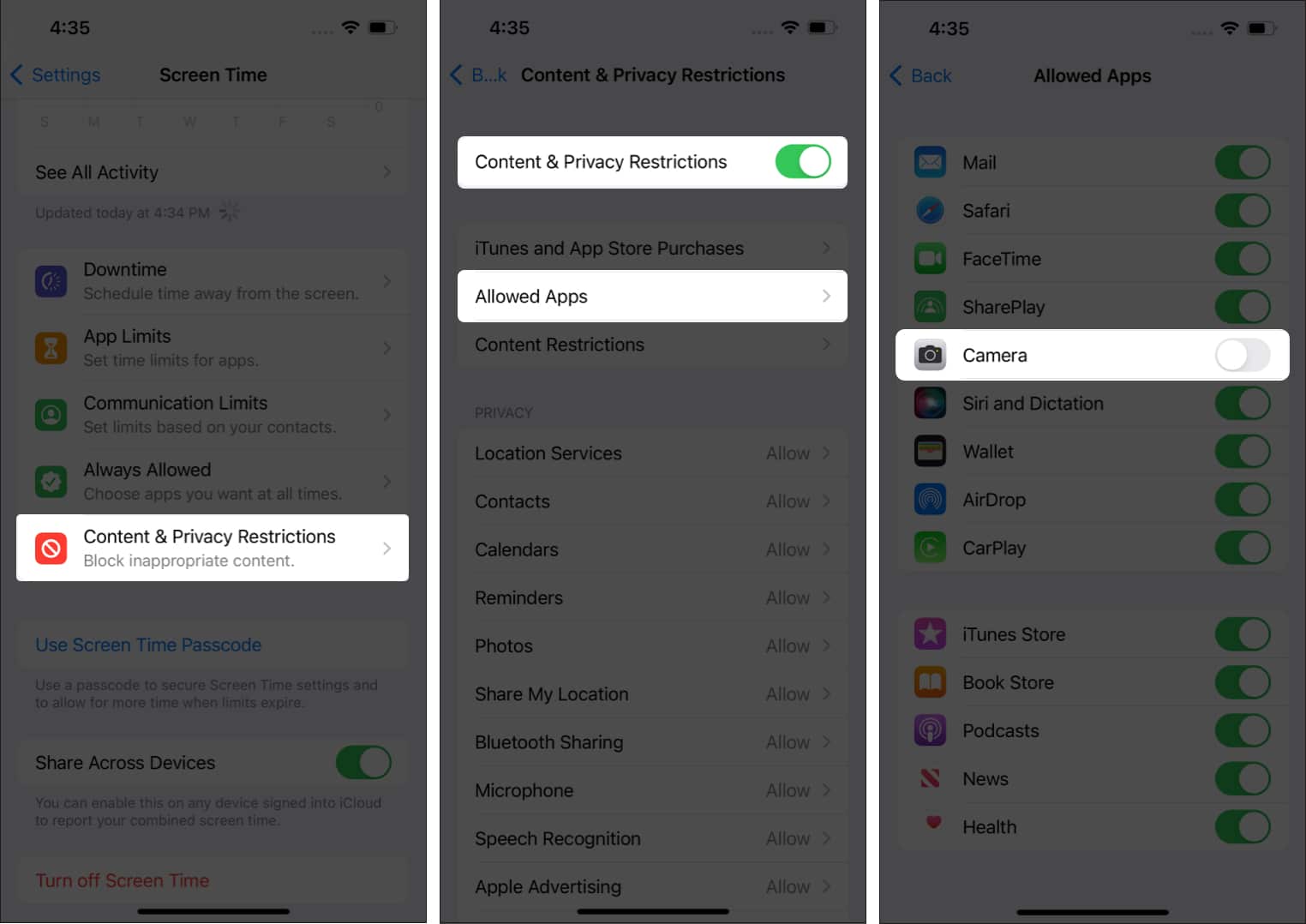
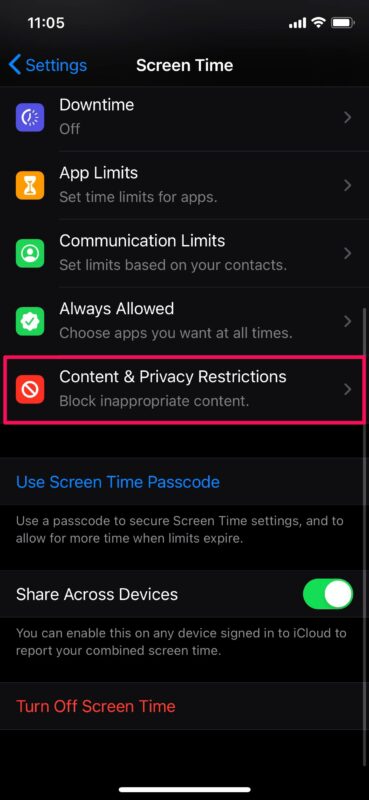
Use Screen Time to turn off the Camera app. This hides the camera from the home screen and disables the lock screen camera. Follow these short steps.
- Open Settings. Tap Screen Time.
- If Screen Time is off, tap Turn On Screen Time and follow the prompts.
- Tap Content & Privacy Restrictions. Enable Content & Privacy Restrictions.
- Tap Allowed Apps.
- Toggle off Camera.
After you toggle off Camera, the lock screen camera and all camera access are removed. If you want to allow camera access again, return to Allowed Apps and toggle Camera on. This is the simplest, official method to disable lock screen camera iphone without third-party tools.

How to disable lock screen camera iphone on older iOS versions (iOS 11 and earlier)
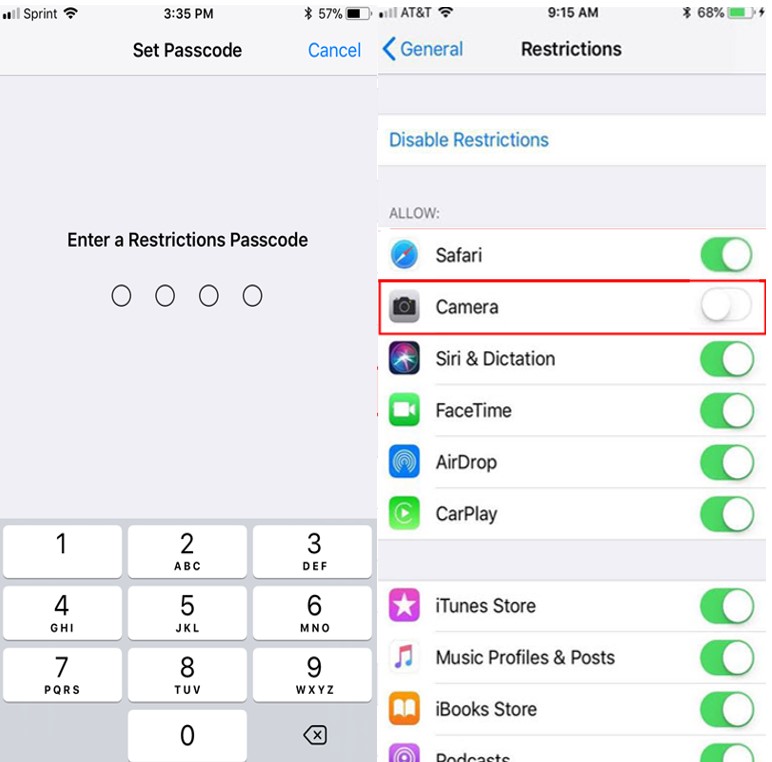
Older iOS used Restrictions under General. If you have an old iPhone, use this path.
- Open Settings. Tap General.
- Tap Restrictions. Enter your Restrictions passcode.
- Toggle off Camera under Allowed Apps.
This removes the Camera app and the lock screen camera shortcut. If you later update iOS, Screen Time replaces Restrictions, so use Screen Time after upgrading to modern iOS.
Alternative ways to limit the lock screen camera
Sometimes you don’t want to remove the camera entirely. Here are other choices that help without full removal.
- Disable Control Center on Lock Screen
- Settings > Face ID & Passcode (or Touch ID & Passcode) > turn off Control Center under Allow Access When Locked.
- This prevents Control Center camera access but does not remove the swipe-left camera shortcut.
- Use Guided Access for temporary lock-down
- Settings > Accessibility > Guided Access. Start Guided Access in apps to block gestures and locks.
- Use Mobile Device Management (MDM) for work phones
- IT admins can deploy policies to disable camera across many devices.
- Physically restrict access
- For short times, place the device in supervised mode or hand it to a trusted person.
Each method has pros and cons. If you need to fully remove quick camera access, the Screen Time approach remains the best way to disable lock screen camera iphone.

What happens when you disable the lock screen camera
When you disable the Camera app, several features stop working. FaceTime, video apps, QR scanning, and third-party camera apps lose camera access. Photos and videos cannot be taken until you re-enable the Camera. Apps that previously used the camera will show an error or ask for permission.
If you use camera-dependent apps for work or travel, plan to re-enable the camera when needed. Knowing these effects helps you decide how to disable lock screen camera iphone without unwanted surprises.
Troubleshooting and tips
If the camera still shows on the lock screen, try these fixes.
- Check Screen Time passcode
- You need the Screen Time passcode to change Allowed Apps. If you forgot it, reset via your Apple ID if set up.
- Restart the iPhone
- A quick reboot can refresh settings and hide the camera.
- Update iOS
- Some quirks are fixed in updates. Keep iOS current.
- Check device management profiles
- A profile may override your settings. Go to Settings > General > VPN & Device Management to inspect profiles.
- Remember app impacts
- Re-enable camera before using apps that need it.
Use these checks to ensure the steps to disable lock screen camera iphone actually apply on your model.

Personal experience and best practices
I once disabled the lock screen camera on a family iPad to stop late-night photo bursts. It worked well, but I forgot the Screen Time passcode once and had to reset it. Lesson learned: store the Screen Time passcode with other device info. For work devices, coordinate with IT so business apps keep the access they need. When you learn how to disable lock screen camera iphone, set up a clear re-enable plan and document passcodes.
Frequently Asked Questions of how to disable lock screen camera iphone
How do I disable the lock screen camera iphone without a Screen Time passcode?
If you don’t have the passcode, you must reset it through Settings > Screen Time > Change Screen Time Passcode and use your Apple ID to recover. If that fails, erase the device and restore from a backup to remove the passcode.
Will disabling Camera via Screen Time remove the Camera app completely?
Yes. Disabling Camera in Allowed Apps hides the Camera app and removes quick access from the lock screen and home screen until you re-enable it.
Does turning off the lock screen camera iphone affect Face ID or FaceTime?
Turning off Camera stops apps from using the camera, so FaceTime and any Face ID-dependent app camera actions will not work while Camera is disabled.
Can I disable only the lock screen camera but keep camera in apps?
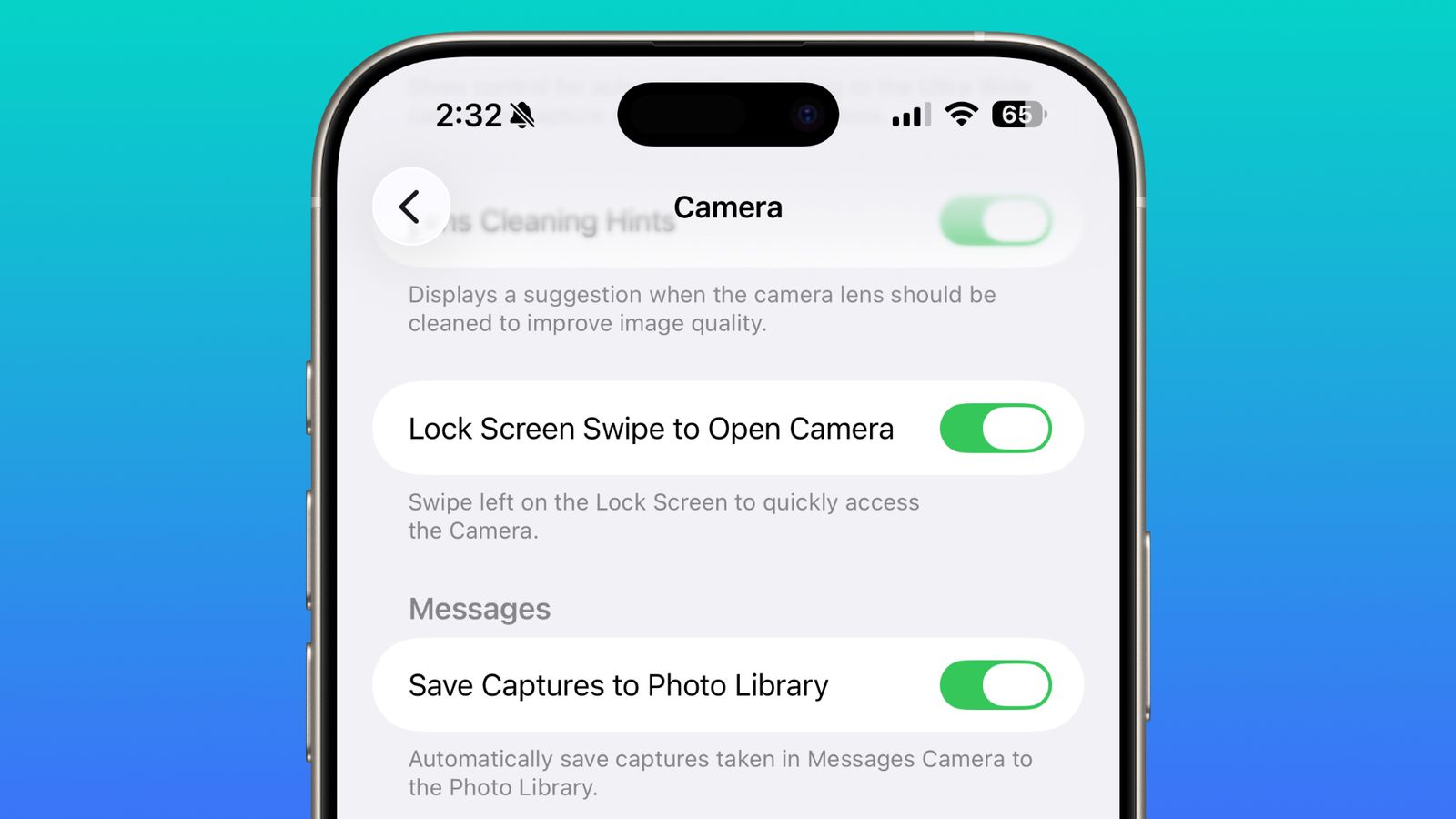
No. iOS does not offer a separate toggle only for the lock screen camera. To remove lock screen access you must disable the Camera app, or use workarounds like disabling Control Center on the lock screen or using Guided Access.
How can IT manage multiple devices to disable lock screen camera iphone?
IT should use Mobile Device Management (MDM) to push camera restrictions to supervised devices. MDM allows admins to disable cameras across many devices centrally.
Conclusion
Disabling the lock screen camera iphone is simple and effective when you use Screen Time or, on older models, Restrictions. The method removes quick access and the Camera app, so plan for impacts on apps and services. Try the step-by-step Screen Time approach first, keep your Screen Time passcode secure, and use Guided Access or MDM where a finer control is needed. If this guide helped, try the steps now, leave a comment with questions, or subscribe for more clear device privacy tips.

Everett Ashford is a tech reviewer at mytechgrid.com specializing in SSDs, cameras, TVs, earbuds, headphones, and other consumer electronics. He provides honest, data-driven reviews based on hands-on testing and real-world performance analysis. Everett simplifies complex tech details to help readers make smart, confident buying decisions.