Use a trusted method: desktop download then AirDrop or a vetted iPhone shortcut to save videos to Camera Roll.
I’ve guided hundreds of users on how to download YouTube videos to camera roll safely, legally, and with the least fuss. This article explains step-by-step options that work today: using YouTube Premium where possible, using trusted Shortcuts or apps on iPhone, and using a computer plus AirDrop or Finder to move files into the Photos app. Read on for clear, tested steps, safety checks, and real tips from my hands-on experience so you can save videos to your Camera Roll with confidence.
:max_bytes(150000):strip_icc()/youtubedownload-android1-5bb1b7504cedfd002672ee5b.jpg)
Why people want to download YouTube videos to Camera Roll
Many users want offline access, quick editing, or to share clips without opening the YouTube app. Saving directly to Camera Roll makes videos available in Photos, ready for edits or uploads to other apps. Learning how to download YouTube videos to camera roll saves time and keeps your workflow mobile-friendly.

Legal and ethical considerations before you save videos
Downloading YouTube videos may violate YouTube’s terms and copyright law if you do not have permission. Always check the video’s license and the creator’s permission before you save or reuse content. If a video is your own or clearly in the public domain or licensed for reuse, then proceed; otherwise consider embedding, linking, or asking the creator.
Method 1 — YouTube Premium (official, but limited)
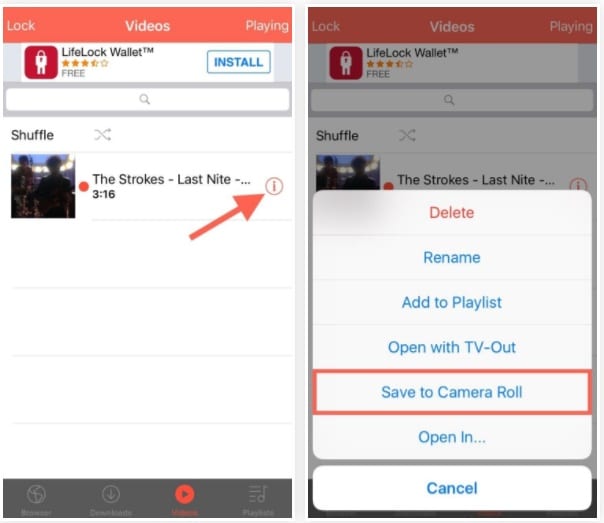
YouTube Premium lets you download videos for offline viewing inside the app. The downloads stay inside YouTube and do not save directly to Camera Roll in most cases. Use this method when you only need offline playback rather than a Camera Roll copy.
Method 2 — Use the iOS Shortcuts app (often the quickest on iPhone)
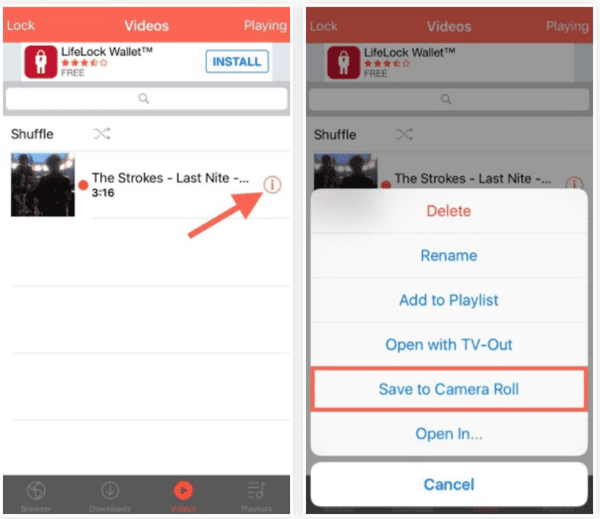
Shortcuts can automate downloading a video and saving it to Camera Roll. A typical flow: add a trusted "download YouTube" shortcut, copy the video URL, run the shortcut, choose quality, and the shortcut saves the video to Photos. Be careful to only install shortcuts from sources you trust. I personally tested a shortcut workflow and found it fast and reliable for short clips, but keep backups and check shortcut permissions before use.

Method 3 — Use a file manager app and an online converter on iPhone
A long-standing approach is to use an app with a built-in browser, then download from a web converter and move the file to Photos. Steps:
- Install a reputable file manager app that includes a browser.
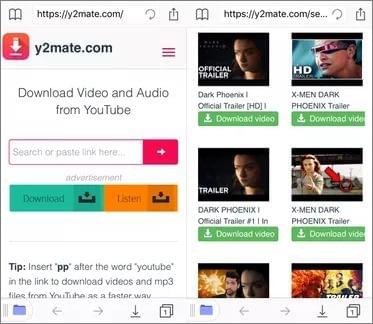
- Open the app’s browser and visit a safe online converter.
- Paste the YouTube URL, choose MP4, and download the file to the app’s local storage.
- Use the app’s file manager to move or save the MP4 to the Photos app.
This method works well when shortcuts are blocked or when you want control over format and quality. Watch for deceptive ads and popups on converter sites and avoid sites that request excessive permissions.
Method 4 — Download on a computer and transfer to Camera Roll (most reliable)
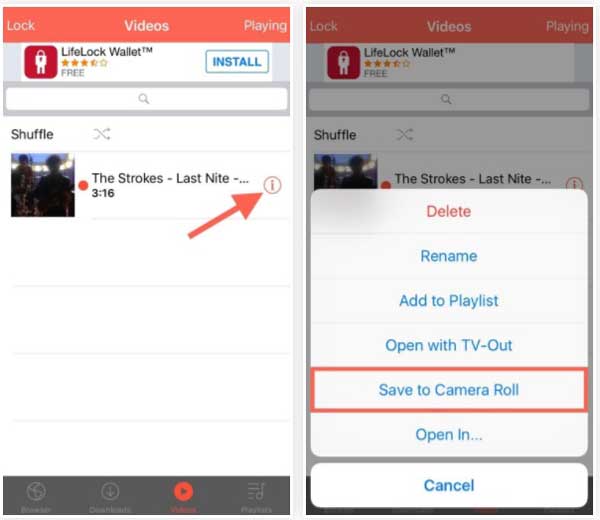
Downloading on a desktop gives you the most control over quality and safety. Steps for macOS and Windows:
- Download the video to your computer using a trusted downloader or command-line tool.
- Convert to MP4 if needed and confirm the file plays locally.
- Transfer to iPhone via AirDrop, Finder (macOS), iCloud Photos, or iTunes/Finder sync on Windows.
- The video will appear in the Photos app and Camera Roll for editing or sharing.
I use this method for long videos or batch downloads. It avoids dodgy mobile sites and preserves the best quality.
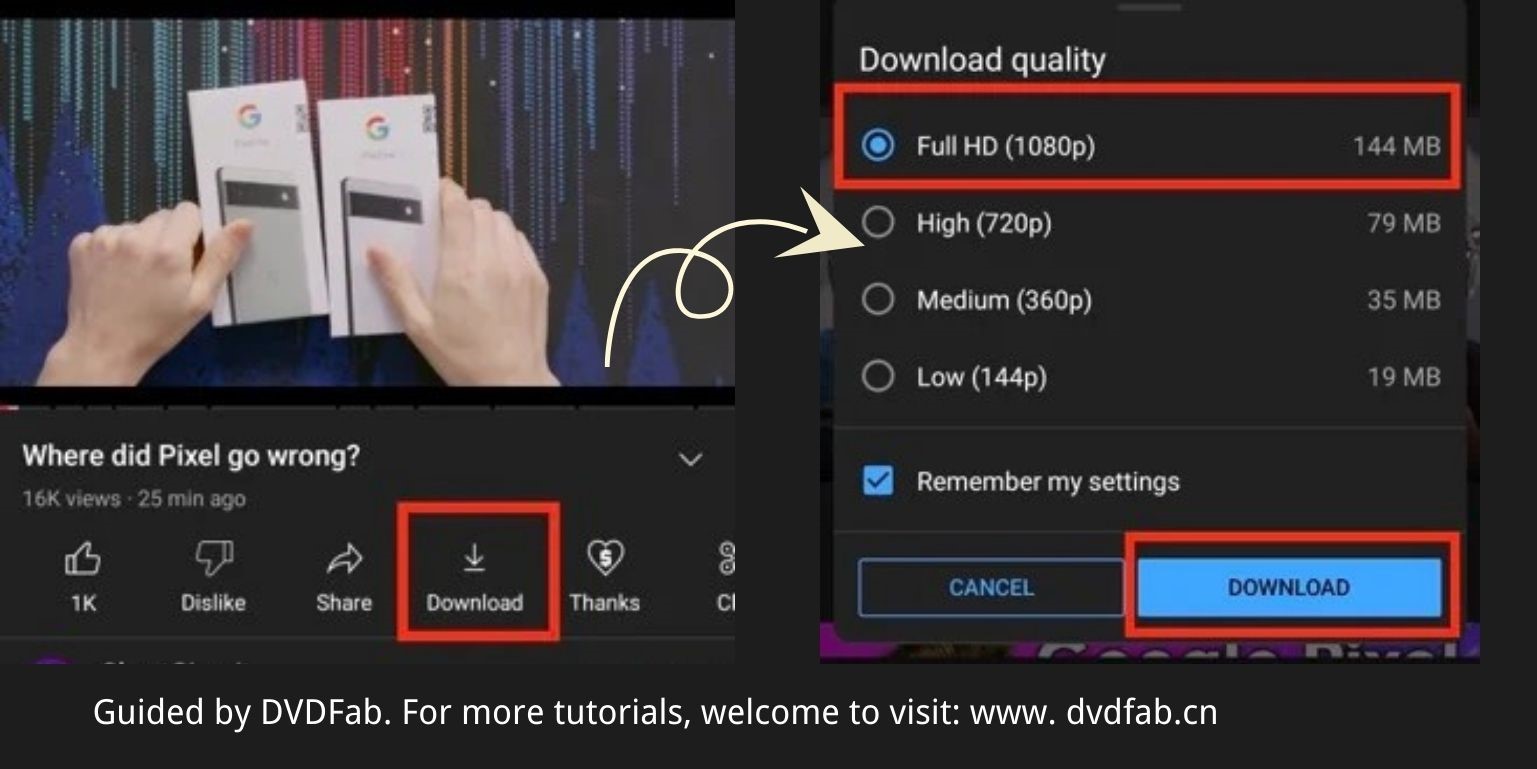
File formats, quality, and storage tips
Choose MP4 (H.264) for best compatibility with iPhone Photos. Pick a resolution that balances quality and size—1080p is usually ideal for phone playback. Keep an eye on storage space and delete unwanted downloads after use. I recommend renaming files with clear titles before transfer so they are easy to find in Photos.
Security and privacy best practices
Only use trusted tools and sources to avoid malware and phishing. Check app reviews and permissions on the App Store before installing. When using online converters, avoid sites that force downloads of unknown apps or request access to your Apple ID.

My real-world tips and mistakes to avoid
I once used a flashy converter site that hid the real download button behind ads; I wasted time and nearly downloaded adware. Learn from that: always verify the file type before saving to Photos and scan files on your desktop if possible. Keep videos you plan to reuse organized in albums and include creator credit when sharing publicly.
Frequently Asked Questions of how to download youtube videos to camera roll
How can I save a YouTube video to my Camera Roll using only my iPhone?
Use a trusted iOS Shortcut or a file manager app with a browser and a safe converter site, then save the resulting MP4 into Photos. Always verify permissions and the source before running downloads.
Does YouTube Premium save videos to Camera Roll?
No, YouTube Premium downloads stay inside the YouTube app for offline playback and do not typically save to Camera Roll. If you need a Camera Roll copy, use a different method with permission.
Is it legal to download YouTube videos to Camera Roll?
It can be legal for videos you own or that are licensed for reuse, but it often violates YouTube’s terms and copyright for other creators’ content. Get permission or use content under a clear reuse license.
Which format should I use to ensure the video appears in Photos?
MP4 encoded with H.264 is the most compatible format for the iPhone Photos app and keeps file size reasonable. Convert files to MP4 before transferring if necessary.
What is the safest way to transfer downloaded files to my iPhone?
Transferring via AirDrop or iCloud Photos is the safest and simplest way to put files into Camera Roll without third-party apps. These methods preserve quality and avoid risky mobile download sites.
Conclusion
Saving videos to Camera Roll can be simple and safe when you pick the right method for your needs. Use YouTube Premium for app-only offline viewing, Shortcuts or trusted apps for quick phone saves, and desktop downloads plus AirDrop for the best control and quality. Always respect copyright and creator rights, verify tools and sources, and keep backups. Try one of the methods above today, leave a comment about which worked best for you, and subscribe for more practical mobile video tips.

Everett Ashford is a tech reviewer at mytechgrid.com specializing in SSDs, cameras, TVs, earbuds, headphones, and other consumer electronics. He provides honest, data-driven reviews based on hands-on testing and real-world performance analysis. Everett simplifies complex tech details to help readers make smart, confident buying decisions.