Use external drives, cloud storage, and smart cleanup to extend SSD storage without replacing it.
I've worked with laptops and desktops for over a decade. I help people save space and avoid costly SSD swaps. This guide explains how to extend SSD storage without replacing it. You will get clear, tested options, step-by-step tips, and real-world mistakes to avoid. Read on to learn practical ways to add usable space and keep your system fast.
Why extend SSD storage without replacing it?
Many users hit storage limits before the SSD dies. Replacing an SSD can be costly and time-consuming. Extending SSD storage without replacing it saves money. It also keeps your current drive and data intact. This topic covers hardware add-ons, software tricks, and workflow changes to free or add space. Expect clear pros and cons for each method.

Hardware options to extend SSD storage without replacing it
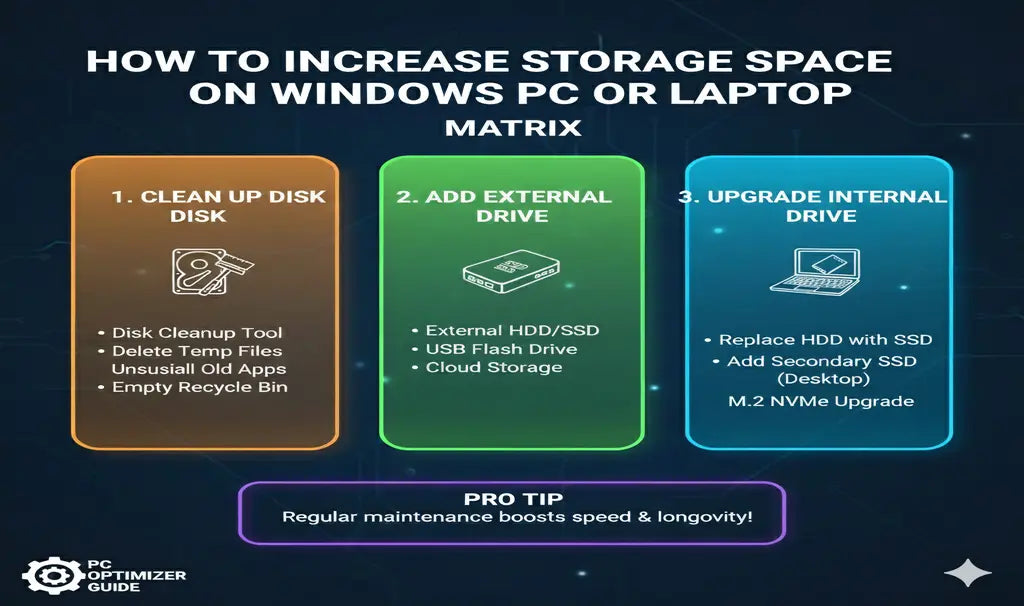
Here are the solid hardware choices to extend SSD storage without replacing it. I list easy options first.
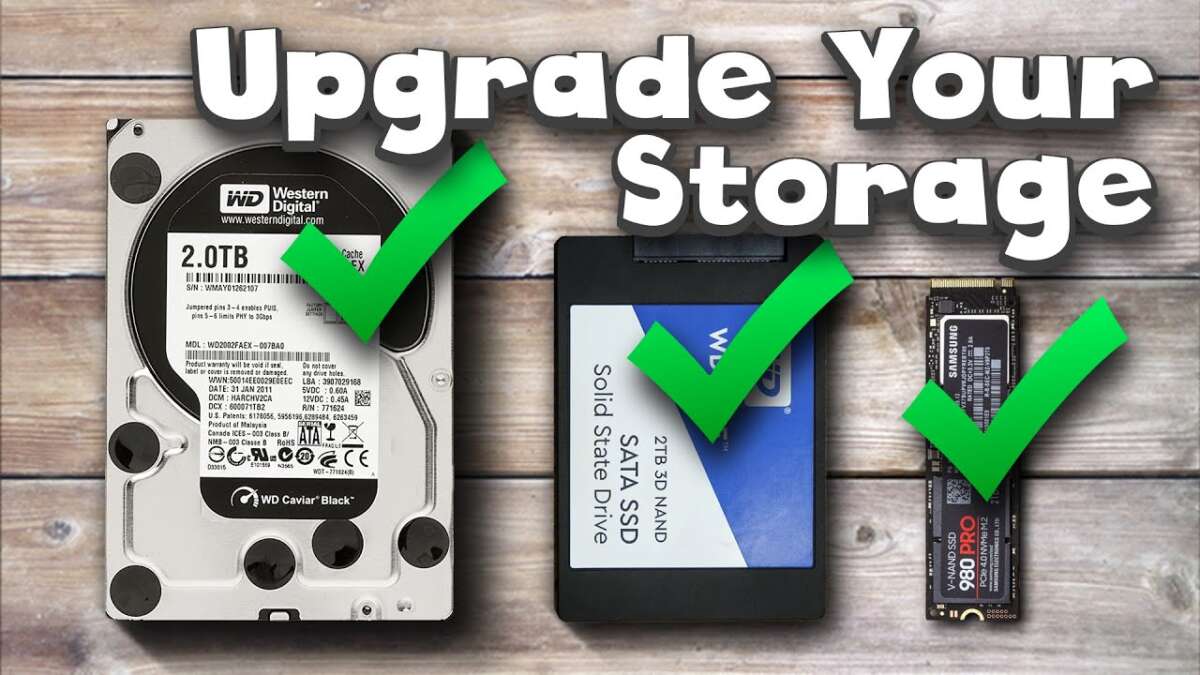
- External SSD or HDD for files and backups
- Plug in via USB-C or USB 3.0. Move photos, videos, and archives to the external drive. This frees internal SSD space fast.
- NVMe or SATA add-in (desktop)
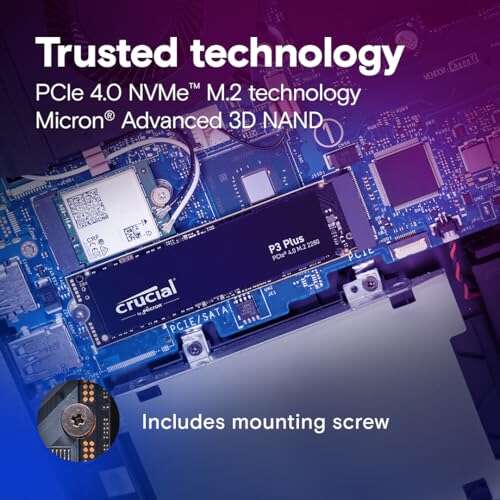
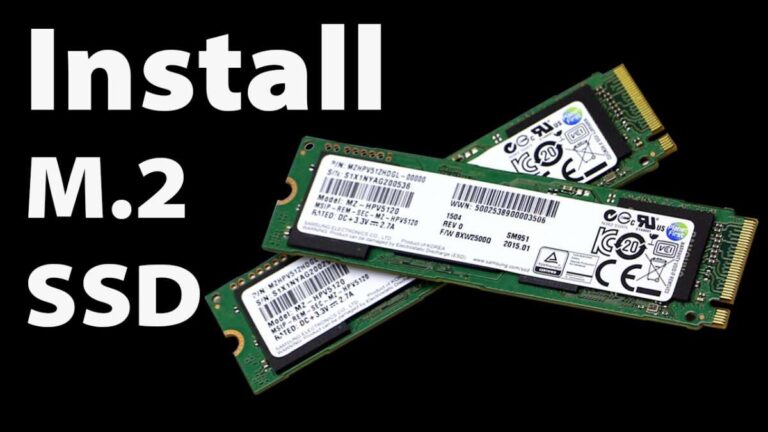
- Add a second M.2 NVMe or 2.5" SATA drive in a desktop. Use it for games, media, or large apps. No need to remove the original SSD.
- USB flash drive or microSD (laptops)
- Use as semi-permanent storage for documents and media. Speeds are lower but cost is low and setup is instant.
- NAS (Network Attached Storage)
- Put files on a home NAS. Access data over the network. Works well for media libraries and backups.
- External enclosure for your old drive
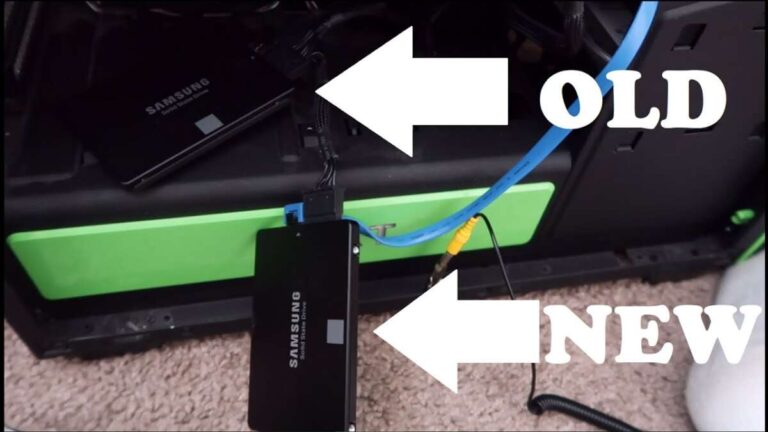
- Turn a spare SSD or HDD into an external drive with a cheap enclosure. It’s a low-cost way to add portable storage.
My experience: I once freed 200 GB on a laptop by moving raw video to an external NVMe in a USB-C enclosure. The laptop ran faster and I avoided an internal swap.
Software and system methods to extend SSD storage without replacing it
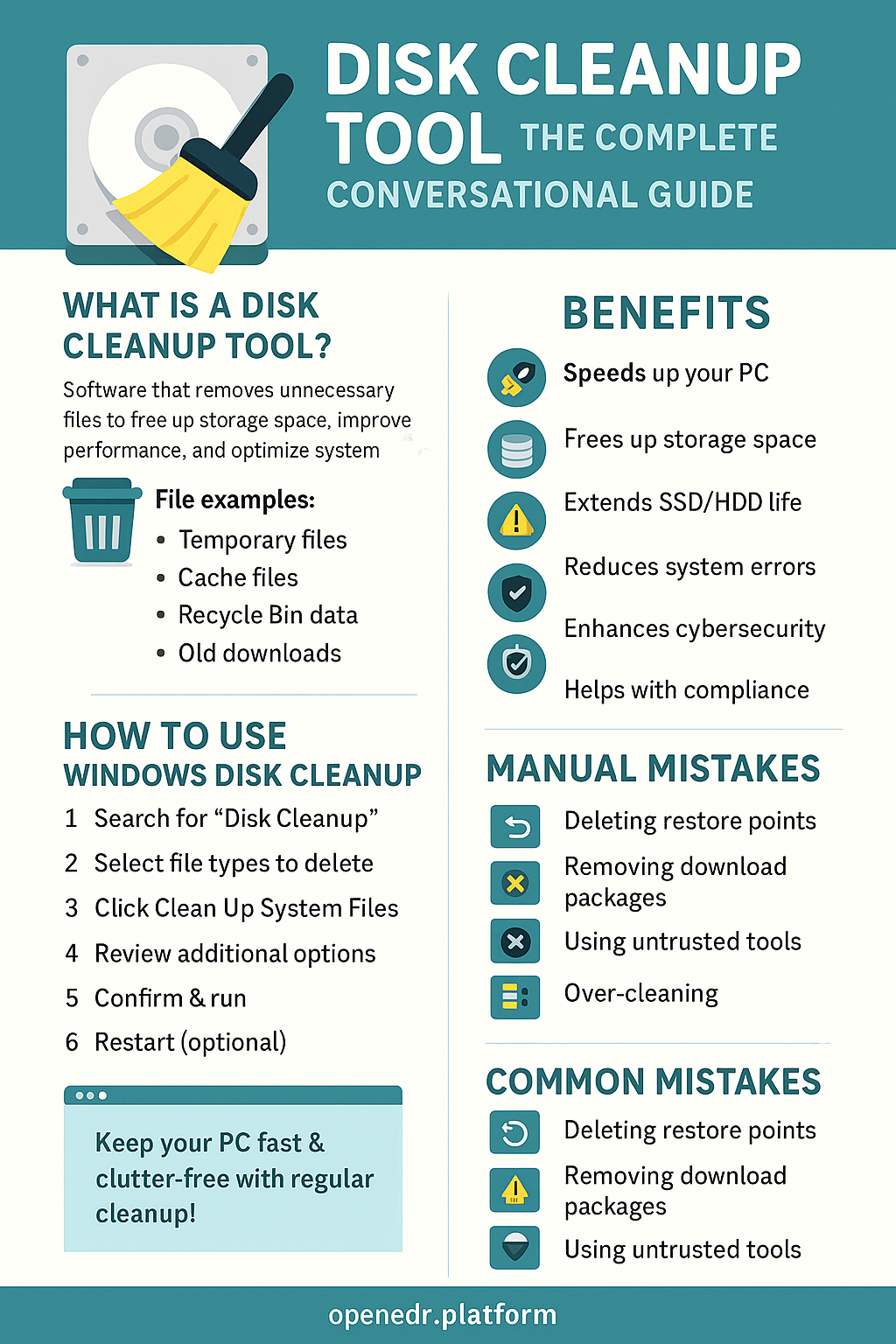
You can reclaim and stretch usable space with software and settings. These steps often yield big gains.
- Clean up large and duplicate files
- Use a disk analyzer to find big files. Delete or move what you don't use.
- Move user folders to another drive
- Relocate Documents, Pictures, and Downloads to an external or second drive. Windows and macOS support this.
- Use symbolic links (symlinks)
- Create folder links from the SSD to another drive so apps think files stay local while they live elsewhere.
- Enable cloud storage with selective sync
- Use selective sync settings to keep only needed files locally. Archive the rest to the cloud.
- Compress files and folders
- Compress rarely used folders. This saves space, at the cost of extra CPU when accessing files.
- Offload games and large apps
- Move games to an external fast drive or uninstall rarely used games.
- Trim and firmware updates
- Keep TRIM enabled and update SSD firmware for stable performance and space management.
- Use filesystem features
- Deduplication and sparse files on supported systems can reduce used space.
A practical tip from my work: Before moving the Steam library, I used a disk scanner to find the top 5 largest folders. Moving just those freed enough space to avoid swapping the SSD entirely.
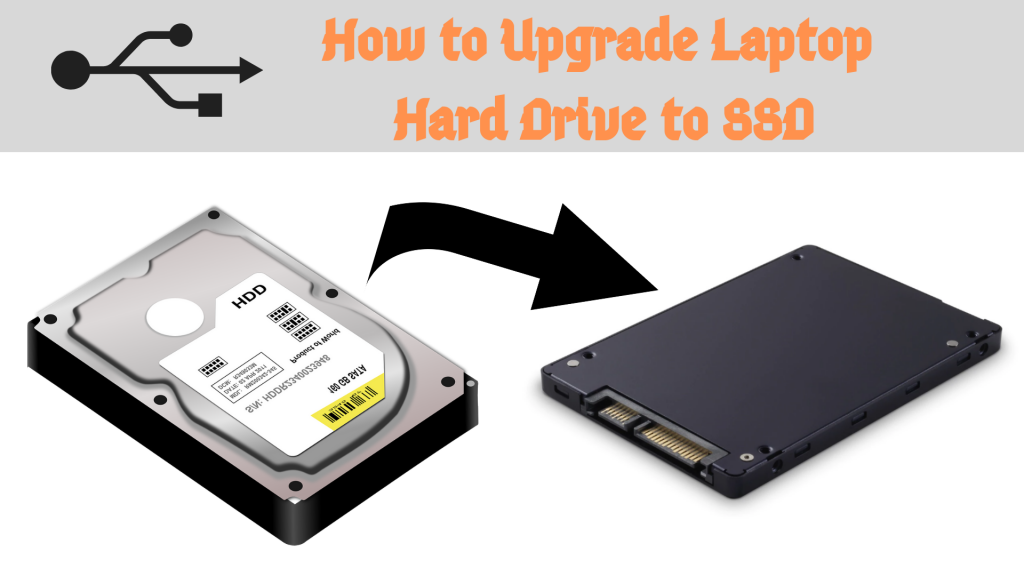
Using caching, tiered storage, and virtualization
Advanced methods help extend SSD storage without replacing it. They mix hardware and software.
- SSD caching to a larger HDD
- Set up the SSD as a cache for a larger HDD. This keeps OS tasks fast while storing bulk files on the HDD.
- Tiered storage systems
- Some OS and NAS setups move hot files to SSD and cold files to HDD automatically.
- Use virtual disks on network storage
- Map network storage as virtual drives for heavy file workflows.
These methods are great for power users and home labs. They can be complex. But they avoid replacing the SSD while giving the capacity you need.
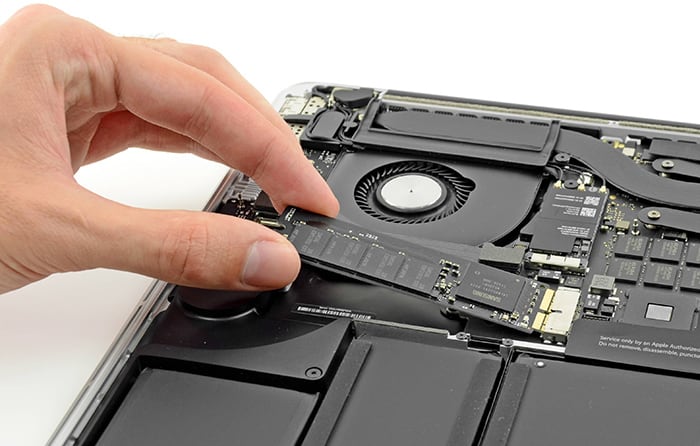
Best practices, tips, and maintenance
Follow these habits to extend SSD storage without replacing it and keep performance stable.
- Back up before major changes
- Always make a backup before moving or deleting large sets of files.
- Prioritize what stays on SSD
- Keep OS, apps, and active projects on the SSD. Move archives and media.
- Monitor free space
- Keep at least 10–20% free on an SSD to avoid slowdowns. This is crucial for SSD health.
- Automate cleanup
- Use scheduled tools to clear caches and temp files regularly.
- Test external drives for speed and reliability
- Cheap external drives can be slow. Pick one that matches your workflow.
- Consider power and portability
- External NVMe enclosures need a good USB-C port for speed. Choose accordingly.
From my tests: keeping the SSD above 15% free avoided noticeable slowdowns. I also flagged a few apps that stored large caches. Clearing those cut space use by 30% on some machines.
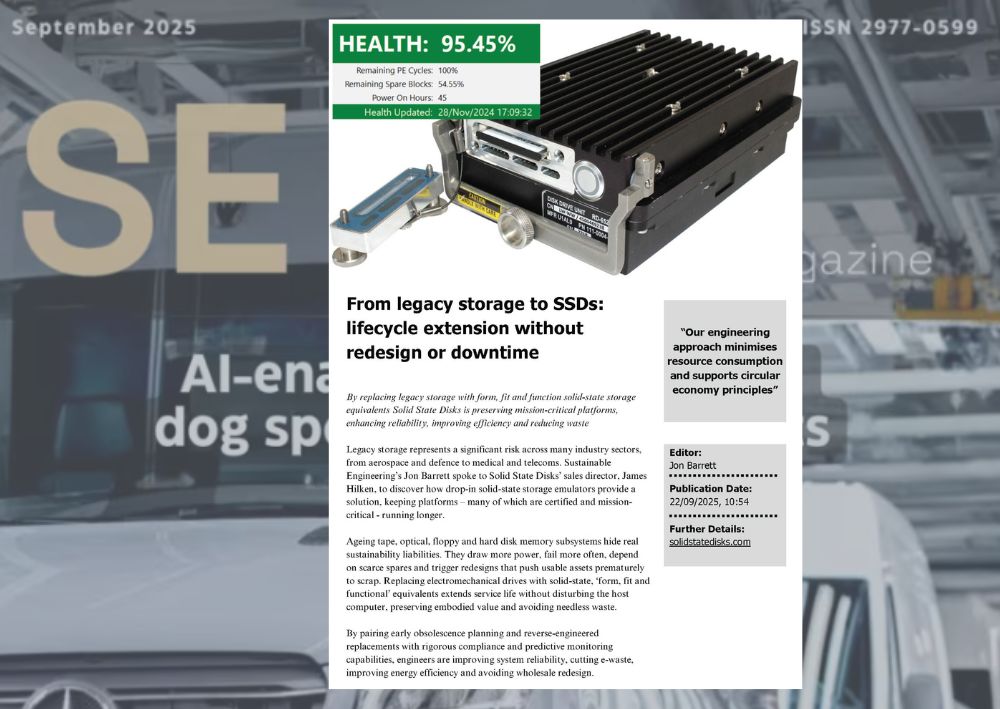
Limitations and trade-offs when you extend SSD storage without replacing it
Extending SSD storage without replacing it is often strong, but it has limits.
- Speed mismatch
- External HDDs are slower than internal SSDs. This affects load times for large files.
- Added complexity
- Symlinks, caches, and NAS setups add management overhead.
- Reliability trade-offs
- External drives may fail more often if moved around. Backups are key.
- Cost vs. benefit
- Some solutions (fast external NVMe) have a cost near that of a new internal SSD.
- Security and privacy
- Moving files to cloud or network storage requires secure configs and strong passwords.
Be honest about your needs. If raw speed and compactness matter most, replacing the internal SSD might be a better long-term choice.
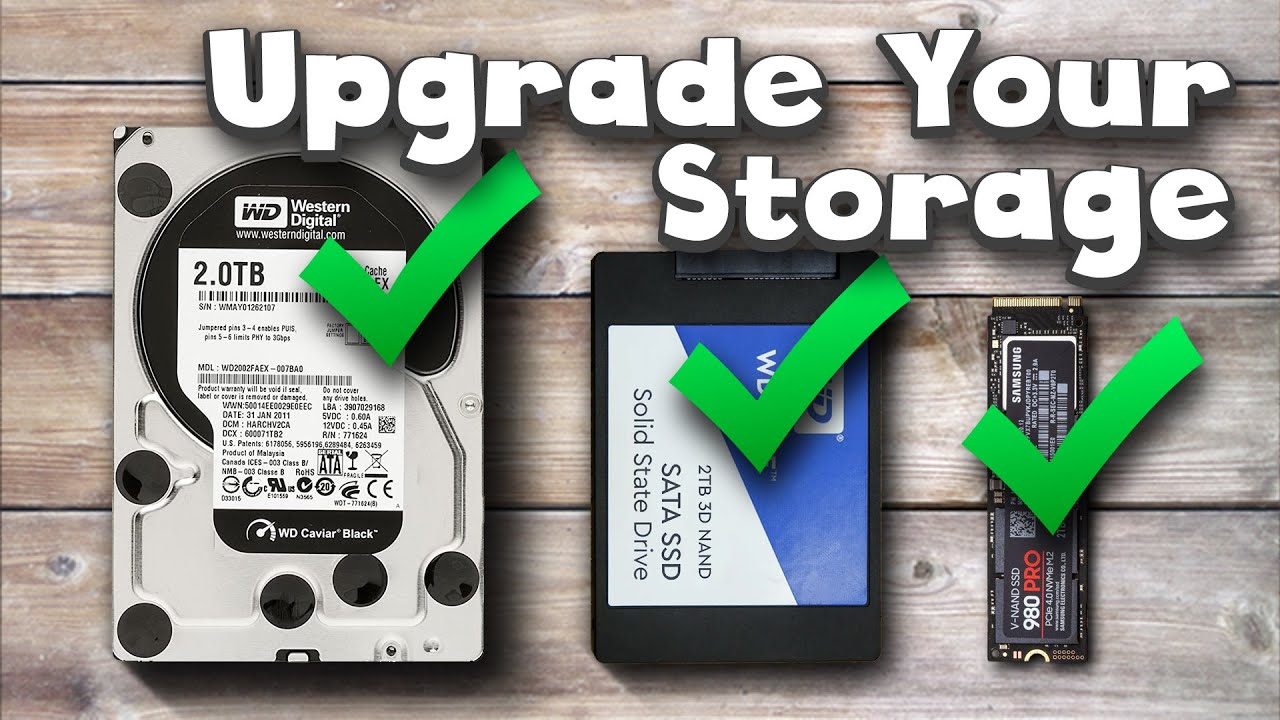
Real-life scenarios and examples
Here are practical examples where I used methods to extend SSD storage without replacing it.
- Video editor at home
- Problem: 1 TB SSD filled with raw footage. Solution: Bought a 1 TB NVMe enclosure and moved raw files there. Result: Faster edits and no internal swap.
- Student laptop
- Problem: Low internal space for apps and assignments. Solution: Moved Documents and Downloads to an external SSD and used cloud for backups. Result: Clean SSD and fewer sync issues.
- Small office setup
- Problem: Shared media files crowding each workstation. Solution: Set up a NAS and mapped team folders to network drives. Result: Centralized storage and easy sharing.
Lessons learned
- Always test file access speed after moving data.
- Label external drives and keep good backups.
- Use symlinks carefully; breaking them can confuse apps.

Quick PAA-style questions
What is the fastest way to extend SSD storage without replacing it?
- The fastest way is to use an external NVMe SSD in a USB-C enclosure or add a second internal drive in desktops.
Can I move programs to an external drive?
- Yes. Many programs can be moved, but some system-level apps need to stay on the system SSD for best performance.
Will moving files to cloud slow my work?
- It may if you rely on internet access. Use selective sync to keep active files local and archive the rest.
Is SSD performance affected when near full?
- Yes. SSDs can slow down as free space decreases. Keep at least 10–20% free to maintain speed.
Are backups necessary when extending storage?
- Always. Moving or linking files increases the risk of accidental loss. Keep at least one backup copy.
Frequently Asked Questions of how to extend ssd storage without replacing it
How can I free up large amounts of SSD space quickly?
Run a disk analyzer, remove or move the biggest folders, clear browser and app caches, and uninstall unused apps. Moving media files to an external drive often yields the fastest gains.
Is using cloud storage a good alternative to replacing my SSD?
Yes, cloud storage is a good alternative if you have reliable internet and can use selective sync to keep local files lean. It adds cost over time but avoids hardware swaps.
Can I use a USB flash drive as permanent extra storage?
You can, but USB flash drives are slower and less durable than SSDs. They work well for light use and portability, but not for heavy workloads.
Will symbolic links help me manage space?
Yes. Symbolic links let you keep folder paths the same while physically relocating data to another drive. They work well for games and large app libraries.
Should I upgrade to a larger SSD instead of extending it?
If you need the best speed and a simple setup, upgrading is a good choice. But if cost or time is a concern, extending SSD storage without replacing it is effective and cheaper.
Conclusion
You have many good ways to extend SSD storage without replacing it. Use external drives, cloud tools, symlinks, and smart cleanup to gain space. Balance cost, speed, and simplicity to pick the best method for your needs. Try a small change first, like moving large folders or adding an external drive, and measure results. If this helped, try one tip today and see how much space you free. Leave a comment with your setup or subscribe for more practical storage guides.

Everett Ashford is a tech reviewer at mytechgrid.com specializing in SSDs, cameras, TVs, earbuds, headphones, and other consumer electronics. He provides honest, data-driven reviews based on hands-on testing and real-world performance analysis. Everett simplifies complex tech details to help readers make smart, confident buying decisions.