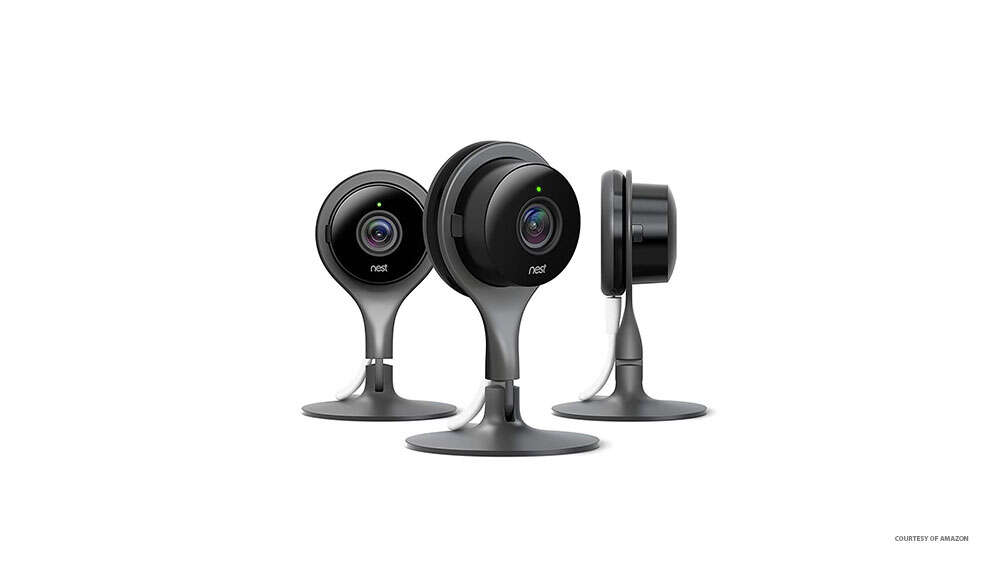
Hold the Nest camera reset button for 10–20 seconds until the status light blinks, then re-add it to your account.
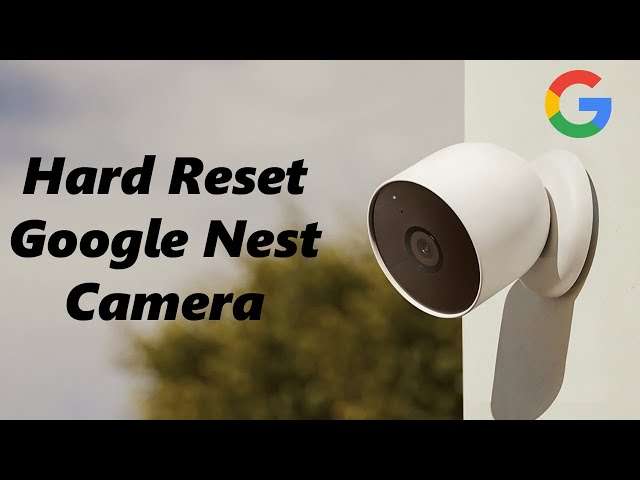
I’ve reset many Nest cameras while troubleshooting connectivity, swapping accounts, and preparing devices for resale. This guide explains how to factory reset Nest camera step by step, for all common Nest models, with clear warnings, tips, and setup advice so you can finish the job quickly and safely.
Why you might need to factory reset Nest camera
A factory reset clears the camera’s settings and removes it from your Nest or Google Home account. You may need this when you change Wi‑Fi, hand the camera to someone else, or fix persistent software faults. Knowing how to factory reset Nest camera saves time and prevents setup errors later.

What a factory reset does and does not do
A factory reset erases local settings and account links from the device. It does not delete cloud recordings tied to your account instantly; those remain with your Nest/Google account unless you remove them separately. Learn how to factory reset Nest camera so you know what is lost and what you can recover.

Before you reset: quick checklist
Prepare before you reset to avoid losing data or access. Follow this short checklist to make the process smooth.
- Back up critical clips or snapshots to your phone or cloud storage before you reset.
- Note your Wi‑Fi name and password, and have your Google/Nest account email ready.
- Remove the camera from shared user lists and tell household members you will reset the device.

How to factory reset Nest camera — step‑by‑step
Different Nest camera models have slightly different reset methods. Below are clear steps for each common type. Read the steps for your model and follow them slowly.
-
Nest Cam (battery)
- Ensure the camera has charge or connect to power.
- Press and hold the reset button on the back or bottom for about 10 seconds.
- Release when the status light flashes amber or white. Wait for reboot.
- Open the Google Home or Nest app and remove then re-add the device if needed.
-
Nest Cam (wired indoor/outdoor)
- Keep the camera powered.
- Locate the small reset pinhole or button by the power connector.
- Press and hold the button for 10–20 seconds until the LED blinks.
- Wait for the camera to restart and follow app prompts to set up.
-
Nest Hello (doorbell)
- Remove power by turning off the breaker or disconnecting wires if needed.
- Press and hold the reset button located on the device for 10 seconds after restoring power.
- The light will flash and then the unit will reset. Reinstall through your app.
-
Nest Cam IQ
- With the camera powered, press and hold the reset button for about 15 seconds.
- Watch for the status light to change and the device to reboot.
- The camera will return to factory settings and will need full setup.
-
Using the app (if supported)
- Open the Google Home or Nest app and select the camera.
- Choose settings, then device options, and find the “Remove” or “Delete” option.
- Removing the camera from the app can act like a soft factory reset for account linkage. For a full hardware reset, follow the button-press methods above.
Always follow the exact instructions for your model. If you are unsure, confirm your model name on the device label and use the matching steps. Practicing how to factory reset Nest camera once helps you feel confident when you need it most.
After reset: how to set up your camera again
Once the camera is reset, you must set it up like a new device. Follow these simple steps to restore service.
- Open the Google Home or Nest app and sign into the account you want to use.
- Tap Add device, choose camera, and follow on‑screen prompts to scan the QR code or enter the device code.
- Connect to your Wi‑Fi and confirm camera placement, notifications, and privacy settings.
If you run into pairing issues, move the phone close to the camera and temporarily disable mobile data. Knowing how to factory reset Nest camera makes the setup process familiar and faster next time.

Troubleshooting common problems after a reset
Resets usually fix issues, but sometimes new problems pop up. Use these quick fixes if setup stalls or the camera won’t reconnect.
-
Camera won’t show in app
- Verify the camera has power and the LED indicates startup. Restart your router and phone. Try the setup again.
-
No Wi‑Fi connection
- Check that your Wi‑Fi uses a 2.4 GHz band if required. Re-enter your Wi‑Fi password carefully. Move the camera closer to the router.
-
Account or permissions problems
- Make sure the device is removed from any old accounts. Sign out and sign back into the Google/Nest app and try adding the camera again.
-
LED stays solid or shows unusual colors
- Power cycle the camera and repeat the reset. If the LED remains abnormal, the device may need support or replacement.
These steps reflect common patterns I’ve seen while resetting multiple units. Learn to factory reset Nest camera to reach these troubleshooting checks quickly.
Security and privacy considerations
A factory reset is an important step when you transfer devices. It protects your account and private footage. Follow these security tips before and after the reset.
- Remove the camera from your Google or Nest account before giving it away.
- Delete saved video clips from your account if you do not want future owners to access them.
- Change your account password and enable two‑factor authentication for extra security.
Handling the reset correctly prevents accidental access. If you are selling the camera, restoring to factory default is essential.
Personal tips and lessons learned
From field experience, I’ll share a few practical tips that save time and stress.
- Use a label on each camera with purchase date and model. It speeds up looking up reset steps.
- Keep a small tray with a SIM card tool or paperclip for pinhole resets. You’ll thank yourself when you need it late at night.
- If a camera fails to reset after repeated attempts, document the LED behavior and contact support. They can often spot hardware faults.
I once lost an afternoon because I tried to reset using the wrong model steps. After that, I started checking model labels first. Knowing how to factory reset Nest camera correctly will avoid that wasted time.
Best practices for device life and resale
A good reset is part of device hygiene. Follow these best practices for long device life and safe resale.
- Update firmware before transfer when possible. A recent firmware makes the device easier for the next user.
- Remove all account links and reset to factory defaults before shipping.
- Package the device with instructions or a note about the model to help the new owner set it up.
These small habits protect privacy and increase buyer confidence. They also make your devices simpler to reuse.
Frequently Asked Questions of how to factory reset nest camera
Can I factory reset a Nest camera without the physical button?
You can remove the camera from your account via the app, but most full hardware resets require the physical reset button. Use app removal for account unlinking and button resets for full device wipe.
Will resetting my Nest camera delete my recorded videos?
Factory resetting the camera removes device settings and account links, but recorded videos can remain tied to your cloud account until you delete them from the app. Be sure to remove sensitive clips manually if needed.
How long does a Nest camera factory reset take?
The reset itself usually takes under a minute for the button press and a few minutes for the camera to reboot and enter setup mode. Allow up to 10 minutes for firmware checks and final startup.
Can I reset my Nest camera remotely?
You can remove the camera from your Nest or Google account remotely via the app, but a full hardware factory reset typically needs the physical button on the device. Remote removal is helpful when you can’t access the device directly.
What if my Nest camera won’t reset or still links to the old account?
Try power cycling the camera and repeating the reset steps. If the problem persists, contact support with the device serial number and LED behavior. Support can verify ownership and assist with unlinking.
Conclusion
Resetting a Nest camera is straightforward when you follow the right steps for your model. You now know how to factory reset Nest camera, what a reset removes, and how to set the device up again. Take action: back up any clips, follow the model-specific steps above, and secure your account before you hand the camera to someone else. If this guide helped, subscribe for more device tips or leave a comment with your model and issue.

Everett Ashford is a tech reviewer at mytechgrid.com specializing in SSDs, cameras, TVs, earbuds, headphones, and other consumer electronics. He provides honest, data-driven reviews based on hands-on testing and real-world performance analysis. Everett simplifies complex tech details to help readers make smart, confident buying decisions.