Reset your Samsung TV via Settings or remote to restore factory defaults safely.
I’ve helped dozens of people fix frozen menus, remove accounts, and erase unwanted settings on Samsung TVs. This guide on how to factory reset Samsung TV walks through each method step-by-step, explains what to back up first, and shares real-world tips so you won’t lose data or get stuck. Read on to learn the safest, fastest way to return your Samsung TV to factory settings for any model or situation.

Why you might want to factory reset your Samsung TV
A factory reset clears all settings, removes accounts, and restores the TV to its original state. You should consider a reset when apps crash, the TV freezes, Wi-Fi won’t connect after troubleshooting, or you plan to sell or give away the set. A reset is often the last good step after simpler fixes fail.
Common reasons to factory reset Samsung TV:
- Fix persistent software glitches or app crashes.
- Remove personal accounts and stored passwords before selling.
- Resolve network and Smart Hub problems.
- Undo settings changes that caused performance issues.

What to do before you factory reset Samsung TV
Take a few minutes to prepare. A reset is permanent for account data and settings. Back up what you can and sign out of accounts first.
Do this before you reset:
- Note your Wi‑Fi name and password so you can reconnect easily.
- Write down any custom picture, sound, or network settings you want to restore.
- Sign out of Samsung account and streaming apps to avoid activation problems.
- Remove paired Bluetooth devices if you plan to give the TV away.
- If possible, update the TV firmware before reset. Sometimes an update fixes issues without needing a reset.

How to factory reset Samsung TV — step-by-step methods
Different Samsung models and years use different menus. Below are straightforward, tested methods for most Samsung TVs, including Tizen smart TVs and older models.
Quick overview of reset types:
- Soft reset (power cycle) restarts the TV without erasing data.
- Full factory reset erases apps, accounts, and all settings.
- Smart Hub reset clears app data only, leaving other settings intact.

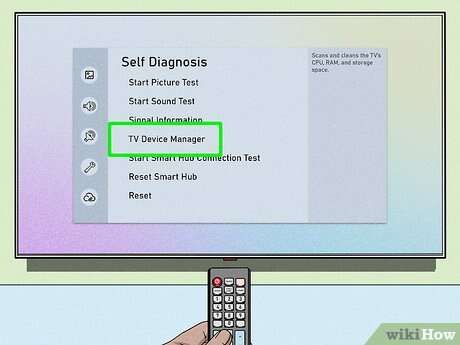
Method 1 — Factory reset Samsung TV via Settings (Tizen OS, recent models)
This is the most common method for 2015 and newer Samsung smart TVs.
- Press the Home or Smart Hub button on your remote.
- Go to Settings (gear icon) then select General.
- Scroll to Reset or Reset to Initial Settings.
- Enter your PIN (default is usually 0000) when prompted.
- Confirm to start the reset. The TV will restart and show the initial setup screen.
This method fully resets the TV and removes apps and accounts. It usually takes a few minutes.
Method 2 — Soft reset (quick fix for freezes)
A soft reset can solve temporary problems without erasing data.
- Turn off the TV with the remote.
- Unplug the TV power cord from the wall outlet.
- Wait 30 seconds to 1 minute.
- Plug the TV back in and turn it on.
This clears memory and resets processes. Try this before a full factory reset.
Method 3 — Reset using the TV buttons (no remote)
If you lost the remote, you can often reset with physical buttons on the TV frame or back.
- Locate the power or menu button on the TV panel.
- Press and hold the button for 10–15 seconds until the TV restarts or the menu appears.
- Use the button presses to navigate to Settings and choose Reset.
Not all models offer full-menu control via buttons. If this fails, use the SmartThings app as a remote alternative.
Method 4 — Reset via SmartThings or mobile remote app
Samsung’s SmartThings app can act as a remote for many models.
- Install SmartThings on your phone and add the TV to the app.
- Open the remote control feature in SmartThings.
- Navigate to Settings > General > Reset and follow prompts.
This is useful if your physical remote is lost or broken.
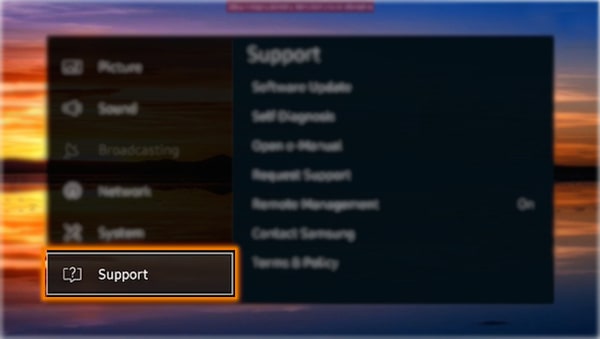
Method 5 — Reset when you forgot the PIN
If you can’t remember the PIN, try the default 0000 or your chosen PIN. If that fails:
- Power cycle the TV and try again.
- For many models, you can reset the PIN by using a specific button sequence on the remote or by contacting Samsung support for device-specific guidance.
Always verify your model number if PIN reset steps differ.
Troubleshooting common problems after reset
A reset usually fixes many issues, but sometimes new problems appear. Here’s how to handle them.
If Wi‑Fi won’t connect:
- Re-enter the correct Wi‑Fi password and restart your router if needed.
- Move the router closer if signal is weak.
If apps are missing or won’t sign in:
- Reinstall apps from the app store and sign in with correct account details.
- Check for a firmware update after the reset.
If picture or sound seems wrong:
- Reapply your saved picture and sound settings.
- Run the TV’s auto picture or sound calibration, if available.
If the TV still misbehaves:
- Try the soft reset again.
- If issues persist, contact Samsung support or an authorized technician.

Tips, mistakes to avoid, and best practices
Small choices matter. These tips help you reset without regrets and get back to watching quickly.
Helpful tips and best practices:
- Always note network and login info before you reset your Samsung TV.
- Update firmware first — sometimes the update alone fixes issues.
- Don’t skip signing out of streaming apps if you’ll sell the TV.
- Avoid factory reset if the problem is a single app; reinstall the app instead.
- Keep your remote batteries fresh before trying menu-based resets.
Common mistakes to avoid:
- Resetting without backing up essential settings or account info.
- Assuming a reset will fix hardware faults — it won’t.
- Forgetting to remove external storage or USB drives before reset.

My experience and real-world tips
I’ve reset dozens of Samsung TVs for friends and clients. Once, I restored a TV for resale and forgot to remove the owner’s streaming accounts. That taught me to always sign out of accounts first.
What I learned:
- A soft reset often solves 70% of issues and saves time.
- Using SmartThings as a remote can be a lifesaver when the remote dies.
- Keep a short checklist by your TV: Wi‑Fi, PIN, accounts, USB devices.
If you follow these steps, you’ll avoid common pitfalls and get the TV working smoothly again.

Frequently Asked Questions of how to factory reset samsung tv
How long does it take to factory reset a Samsung TV?
A full factory reset usually takes 5 to 15 minutes depending on model and app restoration. Initial setup after the reset can add more time for downloads and updates.
Will factory reset delete my streaming app accounts?
Yes. A factory reset removes installed apps and clears signed-in account data, so you will need to re-download and sign in again after the reset.
Can I factory reset Samsung TV without the remote?
Yes. You can use the TV’s physical buttons or the SmartThings mobile app to perform a reset on many models. Steps vary by model, so check your TV’s layout or app controls.
What is the Samsung TV PIN and what if I forgot it?
The default PIN is often 0000, unless changed. If you forgot the PIN, try power cycling the TV or follow the model-specific PIN recovery steps; contacting Samsung support helps if those fail.
Will a factory reset fix hardware problems like no picture or no sound?
No. A factory reset addresses software and settings issues. Hardware problems like a broken panel, speakers, or damaged ports need repair or service.
Conclusion
A well-executed factory reset can fix stubborn software issues, clear personal data, and return your Samsung TV to a clean state. Prepare by noting Wi‑Fi and account details, try a soft reset first, and choose the reset method that fits your model and situation. Use the SmartThings app if your remote is missing, and reapply updates and apps after the reset. Ready to try it? Follow the steps above, and share your experience or questions in the comments so others can learn from your setup.

Jamie Lee is a seasoned tech analyst and writer at MyTechGrid.com, known for making the rapidly evolving world of technology accessible to all. Jamie’s work focuses on emerging technologies, product deep-dives, and industry trends—translating complex concepts into engaging, easy-to-understand content. When not researching the latest breakthroughs, Jamie enjoys exploring new tools, testing gadgets, and helping readers navigate the digital world with confidence.