You can find an IP address on a TV from its network settings or your router, usually in seconds.
I’ve worked with home networks and smart TVs for years, and I’ll walk you through how to find an IP address on a TV clearly and confidently. This guide covers step-by-step methods for Samsung, LG, Sony, Roku, Android TV, Fire TV, and generic models. I’ll share reliable techniques, router checks, phone apps, and troubleshooting tips so you can locate your TV’s IP address fast and safely.

Why knowing how to find an IP address on a TV matters
Finding the IP address on your TV helps with setup, troubleshooting, and security.
You may need the IP for casting, remote management, or parental controls.
Knowing the address also helps when you want to block or reserve the TV on the router.
How to find an IP address on a TV — quick overview of methods
There are three main ways to find an IP address on a TV:
- Check the TV’s own network or settings menu. This is the fastest method on most brands.
- Use your router’s admin page or mobile app to see devices and IP addresses.
- Use a network scanning app on your phone to detect devices on your Wi‑Fi.
Each method works well. I’ll show step-by-step instructions for each TV brand and method below.

Step-by-step: how to find an IP address on a TV by brand
Different brands put the IP info in different spots. Here are concise steps per brand.
Samsung Smart TV
- Open Settings.
- Select General or Network.
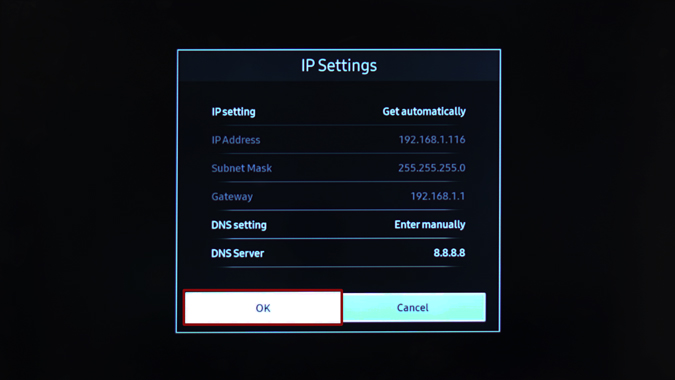
- Choose Network Status or Network Settings, then View Network Details.
The screen shows IP address, subnet mask, gateway, and DNS.
LG WebOS TV
- Press Settings on the remote.
- Go to All Settings > Network > Wi‑Fi Connection or Wired Connection.
- Select the connected network and choose Advanced Info to see the IP address.
Sony Android TV
- Open Settings.
- Select Network & Internet.
- Choose the connected Wi‑Fi or Wired network and view details for the IP address.
Roku TV
- Press Home, go to Settings.
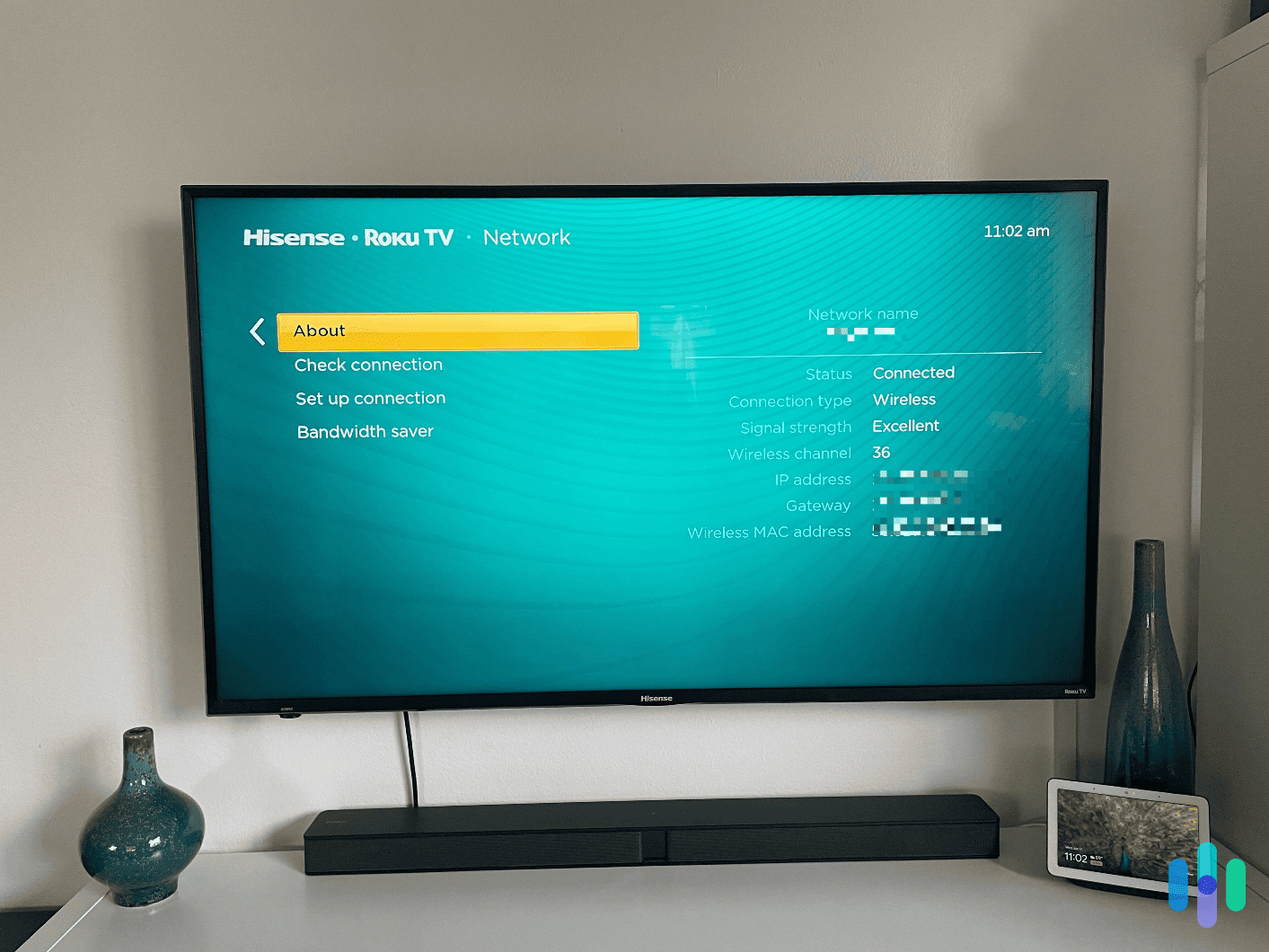
- Select Network > About.
- The IP address is on the About screen along with signal and MAC address.
Vizio SmartCast
- Press Menu or Home and go to Network.
- Choose Manual Setup or Status.
- Network Status shows the IP and other network details.
Amazon Fire TV
- Go to Settings.
- Select Network.
- Highlight the connected network; the IP address displays on the right or in Network Details.
Generic or older smart TVs
- Look for Network, Setup, or System menus.
- Select connection status or network information.
If the TV is basic, the manual often shows exact menu names.
How to find an IP address on a TV via your router
If the TV menus are hard to navigate, use your router.
- Log into the router admin page using a browser or app.
- Go to Attached Devices, Device List, or DHCP Clients.
- Find the device name that matches your TV. The IP will be listed next to it.
If the TV name is unclear, compare MAC addresses. You can find the TV’s MAC in its network info. Reserving the IP in the router gives the TV a fixed address.
How to find an IP address on a TV using mobile apps
Network scanning apps work well when you can’t access the router.
- Install a network scanner app on your phone.
- Scan your Wi‑Fi network.
- Look for new devices or a manufacturer name that matches your TV.
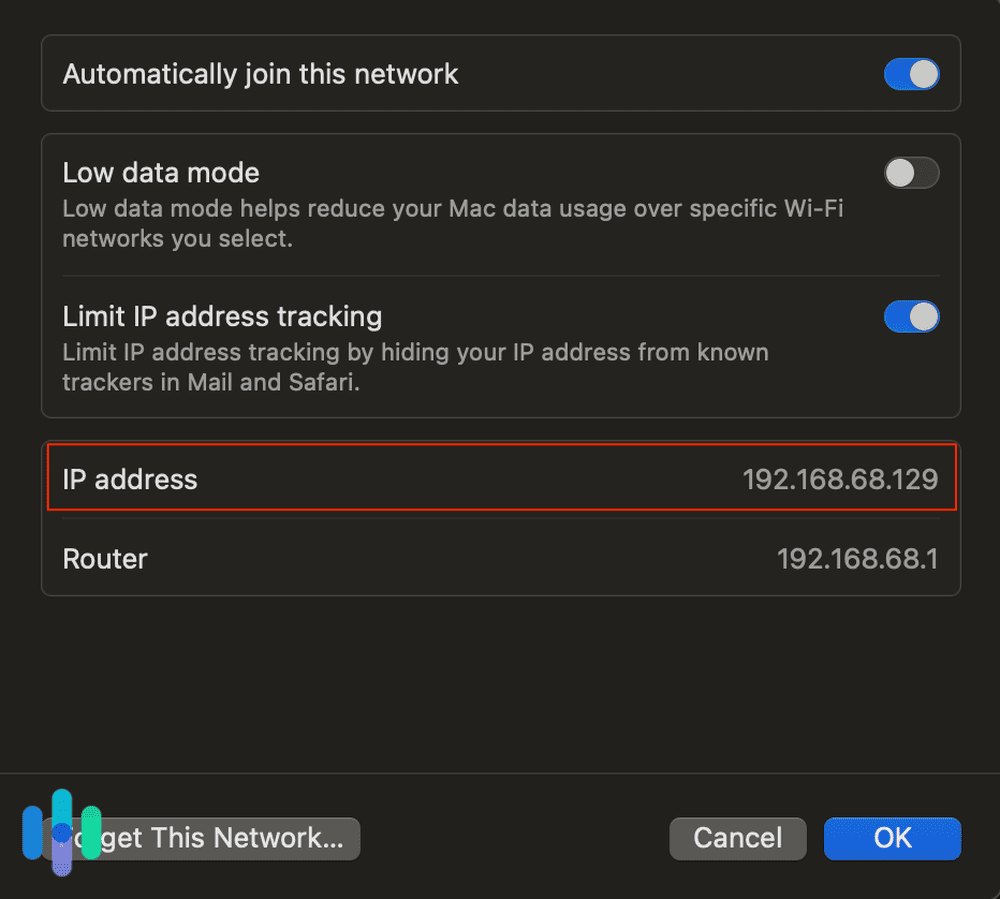
Common info includes IP, MAC, and sometimes device names. This method is quick and helps when the TV is on but menus are hidden.
Troubleshooting: common problems when locating TV IPs
Sometimes the IP will not appear or the TV shows 0.0.0.0. Try these fixes:
- Restart your TV and router. Simple reboots solve many issues.
- Reconnect to Wi‑Fi and re-enter the password.
- Try a wired Ethernet cable if Wi‑Fi fails.
- Update TV firmware; outdated software can hide network info.
If the TV still shows no IP, check DHCP settings on your router. A misconfigured DHCP server can fail to assign addresses.
Security and privacy considerations
Knowing how to find an IP address on a TV also brings responsibility.
Do not expose your TV to public networks. Keep firmware updated.
Use strong Wi‑Fi passwords and consider guest networks for visitors.
If you need remote control features, secure them with account passwords and two-factor authentication where available.

Personal experience, tips, and mistakes to avoid
I once spent hours troubleshooting a TV with no network access because the router had MAC filtering enabled. Lesson learned: check router settings early.
I also advise labeling devices in your router interface. It saves time when you need to find the TV IP later.
If you frequently work with multiple devices, reserve static IPs for TVs. It prevents IP conflicts and eases remote setup.
Advanced uses for a TV’s IP address
Knowing the IP lets you:
- Stream content from a PC using DLNA or private casting.
- Use remote administration tools for troubleshooting.
- Set up port forwarding for apps that require direct access.
Always secure these advanced features. Unsecured ports can expose devices to risk.
How to find an IP address on a TV on corporate or public networks
Public networks often block device discovery. In such settings:
- Ask IT to provide the TV’s network info or to reserve an IP.
- Use VLANs or dedicated guest networks for TVs to separate traffic.
IT policies may restrict access, so coordinate with administrators.
Frequently Asked Questions of how to find an ip address on a tv
How do I find my smart TV IP if the menus are confusing?
Check your router’s device list or use a network scanner app on your phone. Both methods reveal the TV’s IP without digging through confusing menus.
Can I assign a static IP to my TV?
Yes. Reserve an IP in your router by matching the TV’s MAC address, or set a manual IP in the TV’s network settings. Reservation prevents address changes after reboots.
What if my TV shows 0.0.0.0 or no IP at all?
Restart the TV and router, then reconnect the network. If that fails, check DHCP settings on the router or try a wired connection.
Is it safe to share my TV’s IP address?
Sharing the IP within your home network is generally safe, but avoid publishing it online. If remote access is enabled, secure accounts and use strong passwords.
Can I use the TV’s IP to stream from my computer?
Yes. Many apps like DLNA servers and casting tools use the TV’s IP or discover the TV on the local network. Ensure both devices are on the same subnet for best results.
How do I find the IP for a Roku TV specifically?
On Roku, go to Settings > Network > About. The IP address is listed there along with signal and MAC address information.
Conclusion
Finding your TV’s IP address is straightforward once you know where to look. Use the TV’s network menu first, then your router or a scanner app if needed. Protect networks with strong passwords and keep firmware updated to avoid issues.
Try these steps today to locate and, if useful, reserve your TV’s IP address. If this guide helped, leave a comment or subscribe for more practical network tips.

Everett Ashford is a tech reviewer at mytechgrid.com specializing in SSDs, cameras, TVs, earbuds, headphones, and other consumer electronics. He provides honest, data-driven reviews based on hands-on testing and real-world performance analysis. Everett simplifies complex tech details to help readers make smart, confident buying decisions.