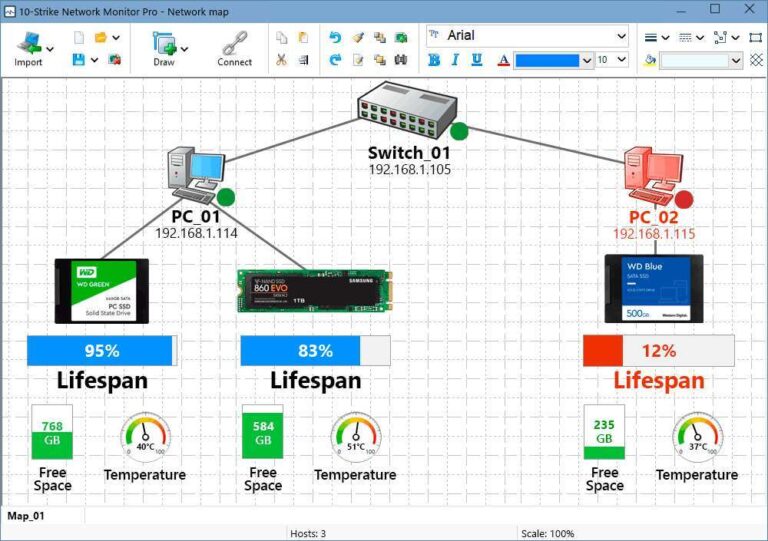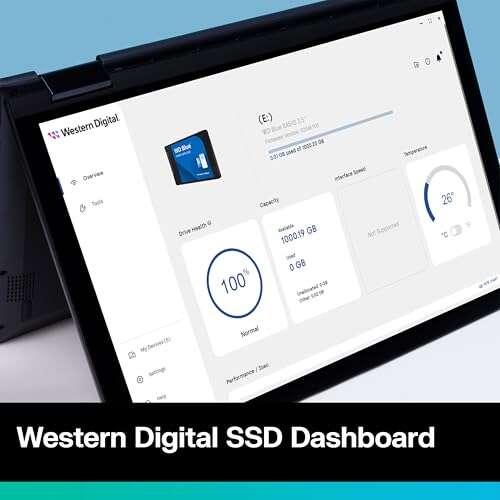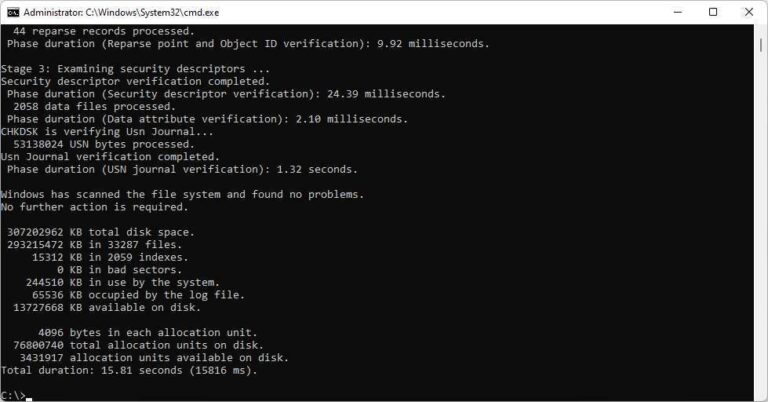
Use safe, non-destructive checks, run filesystem repair tools, SMART tests, and vendor utilities—no format needed.
If your SSD shows signs of corruption, you can often recover files and repair the drive without formatting. I’ve repaired corrupted SSDs for colleagues and clients, and in this guide I’ll walk you through clear, tested steps for how to fix corrupted SSD without formatting. You’ll get practical, step-by-step instructions for Windows, macOS, and Linux, plus tools, safety tips, and real-world lessons to avoid costly mistakes.

Why SSDs get corrupted
SSDs can become corrupted for many reasons. Power loss during writes can damage file system structures. Firmware bugs and failed updates can make the drive behave oddly. Bad sectors, controller issues, or a failing NAND chip also cause corruption. Malware or improper ejection from a computer can leave the file system inconsistent. Knowing the cause helps choose the right non-destructive fix.

Signs your SSD is corrupted
Look for these common symptoms before you try to fix a corrupted SSD without formatting:
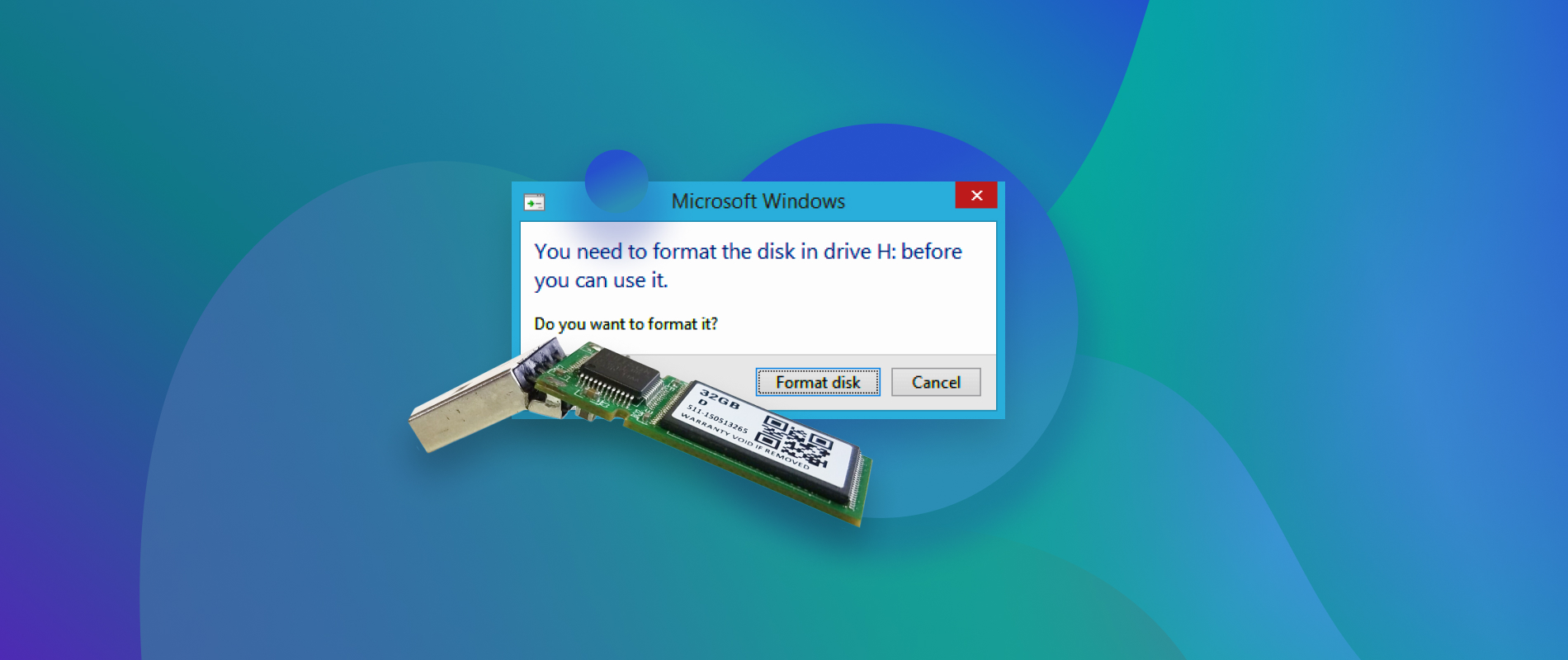
- Drive not mounting or showing as RAW in Windows
- Frequent I/O errors or slow reads and writes
- Files become unreadable or folders vanish
- System freezes, boot failures, or blue screen errors tied to the drive
- SMART reports showing reallocated sectors or other warnings
Prepare safely before attempting repairs
Always minimize writes and back up first when possible. Stop using the SSD immediately to prevent overwriting recoverable data. If you can still access files, copy critical files to another drive. If the drive is failing, create a full disk image with a tool that clones at block level to preserve data for later recovery. Take note of the SSD make, model, and firmware version—vendor tools often depend on that.

Non-destructive fixes: step-by-step for Windows, macOS, and Linux
Below are practical steps for how to fix corrupted SSD without formatting. Follow them in order, starting with the least invasive.
Windows steps
- Run a SMART check:
- Open Command Prompt as admin and run: wmic diskdrive get model,status
- For deeper SMART data, use a free SMART utility that shows vendor attributes.
- Try CHKDSK to repair file system errors:
- Open Command Prompt as admin.
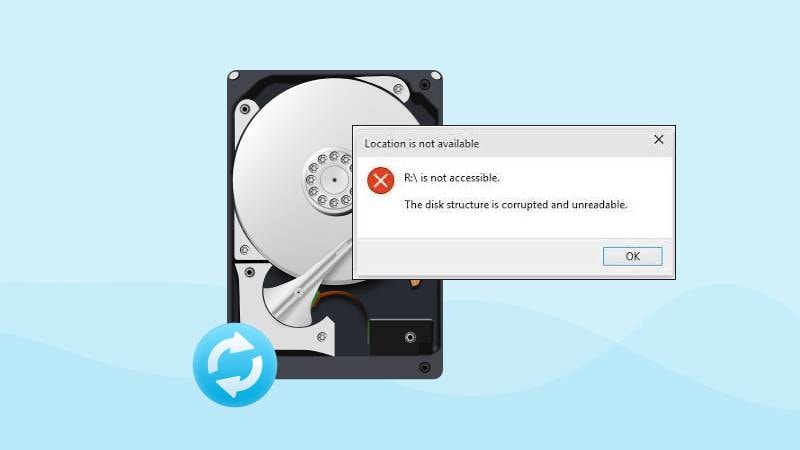
- Run: chkdsk X: /f /r /x (replace X with the SSD letter). This attempts safe repairs and surface checks.
- Use Windows Error Checking:
- Right-click the drive, Properties > Tools > Check.
- Run vendor SSD diagnostic and repair tools:
- Use the SSD maker’s toolbox to run diagnostics, firmware updates, and secure health checks.
- If the drive is read-only, clear attributes:
- Use DiskPart: list disk, select disk N, attributes disk clear readonly.
macOS steps
- Check SMART status in Disk Utility or use a SMART app.
- Run First Aid in Disk Utility to repair the filesystem.
- If First Aid does not mount the drive, try fsck in single-user or recovery mode:
- Run: /sbin/fsck_hfs -fy /dev/diskXsY (adjust identifiers).
- Use the vendor Mac utility for firmware or diagnostics if available.
Linux steps
- Check SMART: sudo smartctl -a /dev/sdX or /dev/nvme0n1
- Run file system check:
- For ext4: sudo fsck.ext4 -v /dev/sdXN
- For XFS: sudo xfs_repair /dev/sdXN (ensure the filesystem is unmounted).
- Use nvme-cli for NVMe drives: sudo nvme list; sudo nvme smart-log /dev/nvme0
- Clone a failing drive first if errors are severe: use ddrescue to image the drive.
General safe tips
- Always unmount before filesystem repair to avoid writes during checks.
- Prefer read-only diagnostic scans first.
- Update SSD firmware only if a vendor update addresses your symptom; follow vendor instructions.
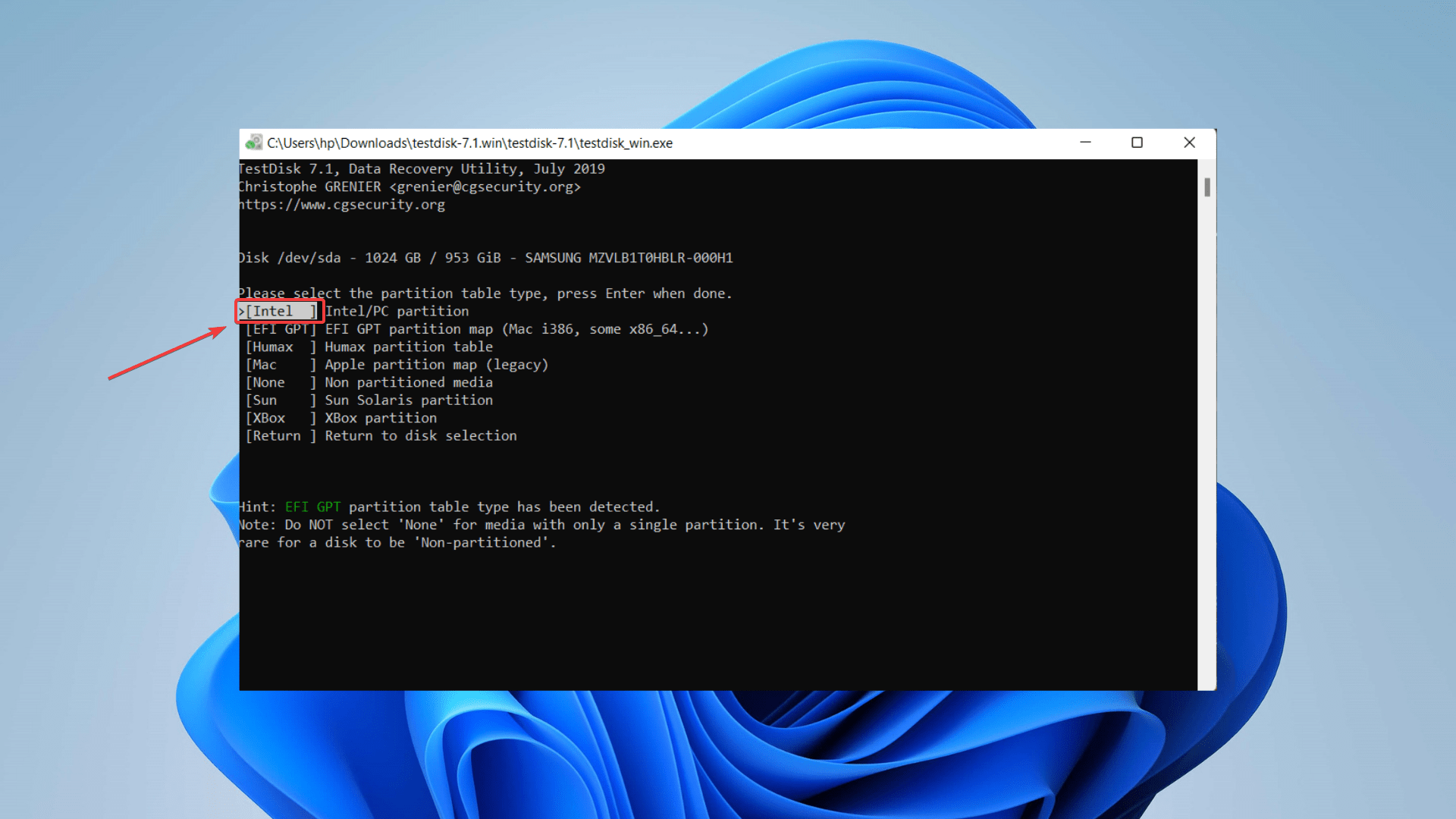
Using recovery and cloning tools without formatting
If filesystem repair fails, cloning and recovery tools can save data without formatting.
- Create a full disk image first
- Use ddrescue on Linux to clone a failing SSD to a healthy drive. This preserves unreadable sectors and lets you retry recovery safely.
- Use file recovery tools that work on images
- Tools can rebuild file tables or recover files from partially damaged file systems. Work on the image, never on the original.
- Repair metadata when possible
- Some tools can rebuild MFT (Windows NTFS) or superblocks (ext filesystems) without a full format.
- Avoid quick fixes that rewrite large portions of the drive
- Some “repair” utilities write data that destroy chance of recovery. Prefer read-only or repair modes that restore metadata only.
Firmware, TRIM, and controller-level fixes
Sometimes the issue lies in firmware or controller logic rather than files.
- Check for firmware updates from the SSD vendor. Carefully follow vendor instructions.
- TRIM can help SSD health by cleaning up stale blocks. Run TRIM only if the drive is healthy enough and the OS supports it.
- For NVMe drives, vendor tools or nvme-cli can reset or update controller settings. Use these cautiously.

When a corrupted SSD cannot be fixed without formatting
There are limits. You may need to format or replace the drive when:
- The controller firmware is irreparably corrupted and vendor reflash fails
- The drive reports physical failures: NAND wear-out, many reallocated sectors, or power faults
- The SSD doesn’t respond to SMART or vendor tools
If data is critical, stop DIY attempts and consult a professional data recovery service. They can often extract data from failed controllers or NAND chips, but costs can be high.
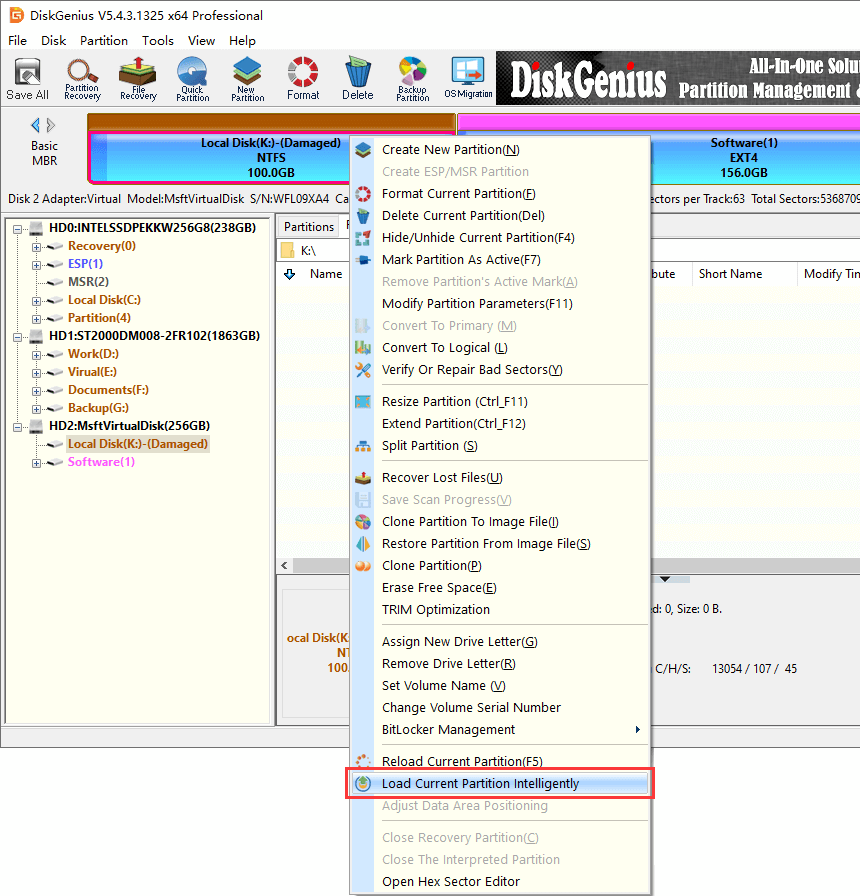
Personal experience and practical tips
I’ve recovered several client SSDs by following the non-destructive path above. One case: a work laptop’s SSD showed RAW and Windows chkdsk failed. I imaged the drive with ddrescue, ran ntfsfix on the image, and recovered 95% of files with a file carving tool. Key lessons:
- Never run repair tools without imaging first on failing drives.
- Vendor tools and firmware updates helped once in two cases, but they can also brick drives if interrupted.
- Keep a routine backup to avoid emergency recovery.

Quick PAA-style questions
Can I fix a corrupted SSD without formatting on Windows?
Yes. Use CHKDSK, vendor tools, and SMART checks first. Clone the drive before deeper repairs if data is important.
Will TRIM fix corrupted SSD files?
No. TRIM clears unused blocks and helps longevity, but it does not repair file system corruption.
Is it safe to run firmware updates to fix corruption?
It can help if the vendor identifies a known bug. Only update with stable firmware and reliable power.
Frequently Asked Questions of how to fix corrupted ssd without formatting
How do I recover files from a corrupted SSD without formatting?
Start by cloning the SSD to another drive using a block-level tool, then run file-recovery software on the clone to extract files. This avoids writing to the original and maximizes recovery chances.
Will chkdsk damage my SSD more?
CHKDSK performs safe fixes for file system errors. It can write to the drive, so image the disk first if it shows signs of hardware failure or repeated I/O errors.
Can SSD firmware updates repair corruption?
Firmware updates can fix controller bugs that cause corruption, but they should be applied only when recommended by the vendor and with stable power. Improper updates can worsen the issue.
What if the SSD doesn’t appear in BIOS or Disk Management?
If the drive is not detected, try different cables, ports, or another computer. If still invisible, the problem may be hardware-level and may require professional recovery.
Is professional data recovery necessary for all corrupted SSDs?
No. Many corrupted SSDs can be fixed with software tools and careful steps. Use professional recovery when the SSD has physical or firmware failures that DIY methods cannot address.
Conclusion
Repairing a corrupted SSD without formatting is often possible with careful diagnosis, safe cloning, and the right repair tools. Start with SMART checks and read-only diagnostics, image the drive, and apply filesystem repairs only after securing a copy. If firmware or hardware is to blame, vendor tools or professional recovery may be needed. Follow these steps, keep calm, and back up often to avoid future emergencies. Try the steps here, share your results, or ask for help in the comments—your next move could save important files.

Everett Ashford is a tech reviewer at mytechgrid.com specializing in SSDs, cameras, TVs, earbuds, headphones, and other consumer electronics. He provides honest, data-driven reviews based on hands-on testing and real-world performance analysis. Everett simplifies complex tech details to help readers make smart, confident buying decisions.