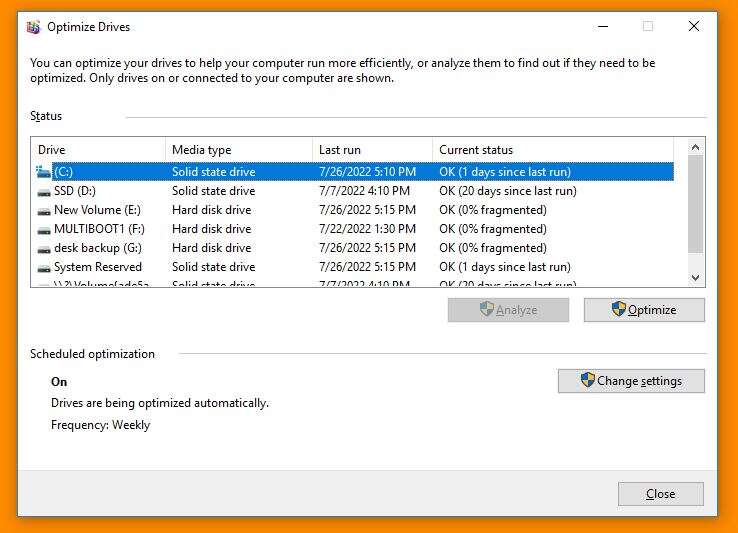
Update SSD firmware, update drivers, check cables, run diagnostics, and restore or replace the drive.
I’ve spent years fixing PCs for friends and clients, and I know how frustrating it is when a healthy-looking SSD causes a blue screen error. This guide explains how to fix SSD causing blue screen error step by step, with clear checks, safe fixes, and when to replace the drive. I’ll share practical tests, real troubleshooting steps I’ve used, and tips to protect your data while you fix the issue.
Why SSDs can cause blue screen errors
SSDs can trigger blue screen errors for hardware and software reasons. Common causes include failing NAND cells, corrupted firmware, bad SATA or NVMe drivers, power issues, and file system corruption. Because SSDs use flash memory and controllers, they fail differently than hard drives. Understanding these differences is the first step in how to fix SSD causing blue screen error.
SSDs often show early signs like slow writes, random freezes, or repeated crashing during boot. Tracking these signs helps you avoid data loss. In my experience, many blue screens blamed on the OS were actually caused by the SSD controller or its firmware.

How to diagnose that an SSD is causing the blue screen error
Start with a clear test plan. Narrowing down whether the SSD is the cause saves time and data. Use these steps to confirm the SSD is the issue.
- Boot into Safe Mode or Windows Recovery to see if crashes stop. If BSODs stop, a driver or SSD firmware issue is likely.
- Run SMART checks using built-in or third-party tools. Look for reallocated sectors, high bad block counts, or abnormal wear.
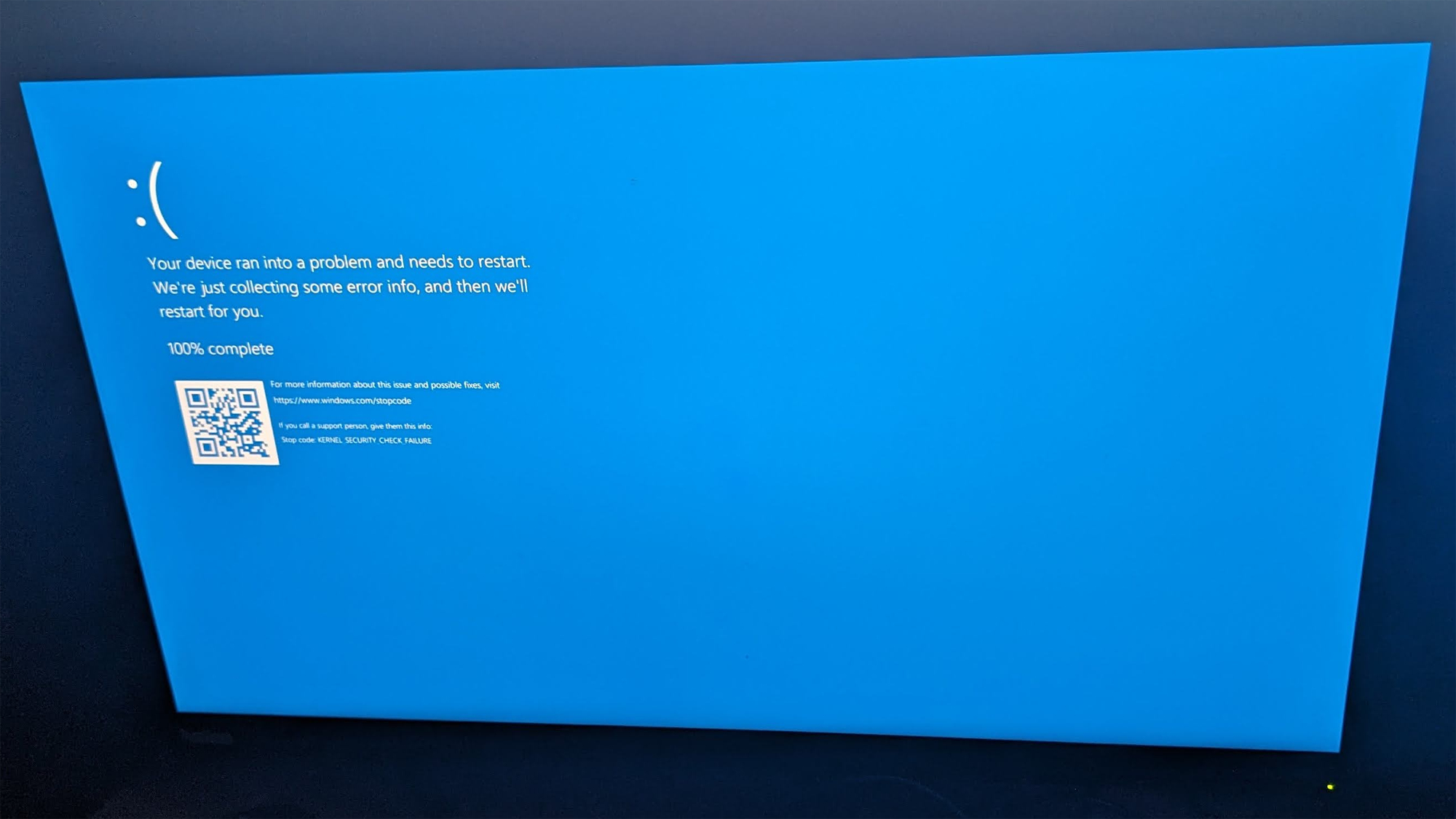
- Use Windows Event Viewer and dump files to get the stop code and driver listed at crash. Track patterns around disk, nvme, or storahci.
- Swap the SSD into another PC or connect it via USB enclosure to test. If crashes follow the SSD, the drive is suspect.
I once diagnosed a client's repeated BSODs by moving their NVMe into another laptop; the crashes moved too. That clear result saved hours and proved how to fix SSD causing blue screen error: replace the faulty drive.
Step-by-step software fixes for SSD causing blue screen error
Software fixes are safe and often successful. Always back up before major changes.
- Update Windows and drivers
- Install latest Windows updates. Update storage drivers like NVMe, AHCI, or the vendor’s driver.
- Run CHKDSK and SFC
- From an elevated command prompt run chkdsk /f /r C: and then sfc /scannow to repair disk and system files.
- Disable fast startup and uninstall problematic apps
- Fast startup can cause write cache issues. Remove recent apps or antivirus tools that hook deep into storage.
- Reset storage controller
- In Device Manager uninstall the storage controller and reboot so Windows reinstalls it.
- Use manufacturer tools
- Run the SSD maker’s diagnostic and repair tools for firmware checks and secure erase options.
These software steps often fix driver and file system causes. They are core to how to fix SSD causing blue screen error without replacing hardware.

Firmware and driver updates: what to do and why it matters
Outdated firmware and drivers are top causes of SSD-related BSODs. Firmware bugs can make the drive drop data or disconnect. Driver conflicts produce stop codes tied to storport, nvme, or atapi.
- Check SSD vendor site for firmware updates and follow the safe update steps they provide.
- Update NVMe or SATA controller drivers from your PC vendor if available, not just Windows Update.
- If a new driver causes BSODs, roll back to the previous version via Device Manager.
I once had a BIOS/firmware combo that caused rare write-time crashes. Updating the SSD firmware and the system BIOS fixed it. Always read vendor release notes and back up data before flashing firmware.
Hardware checks and replacements
If software fixes don’t stop BSODs, test the hardware. Simple checks can pinpoint physical faults.
- Check cables and ports first. Swap SATA cables and try a different SATA port or M.2 slot.
- Test power supply stability and voltage if the system randomly shuts down.
- Use a different PC or external enclosure to see if the SSD causes crashes elsewhere.
- If SMART reports failing cells or tests fail, prepare to replace the SSD.
When you find physical faults, replacing the SSD is often the safest route. Drives with growing bad sectors can corrupt data quickly. In my shop, failing SSDs usually showed SMART warnings days to weeks before full failure, so regular checks help.
Data backup and recovery when an SSD causes blue screen errors
Protect your data first. If the SSD is unstable, prioritize copying critical files.
- Use a live Linux USB to mount the SSD read-only and copy files to an external drive. This avoids triggering further writes.
- Try disk imaging tools to create a full image if the drive is readable. Image files let you attempt repairs safely later.
- If the drive is not readable, avoid DIY fixes that write to the disk and consult a data recovery specialist.
I rescued client data by imaging a semi-failing SSD to a stable drive, then performing repairs on the image rather than the original. This preserves the original state and increases the chance of full recovery.

Preventive maintenance and best practices
Preventing issues is easier than fixing them. Follow these habits to reduce the chance you’ll need to know how to fix SSD causing blue screen error later.
- Keep firmware and drivers current on a regular schedule.
- Enable TRIM in Windows to maintain SSD performance and longevity.
- Maintain regular backups using cloud or external drives.
- Avoid filling the SSD above 80 percent of capacity to reduce write amplification.
- Use a quality power supply and ensure good cooling for NVMe drives that run hot.
These steps extend drive life and reduce the chance of sudden blue screens.
Advanced troubleshooting and when to seek professional help
If basic steps fail, use deeper diagnostics. Advanced tools and help are needed for severe issues.
- Analyze minidumps and memory dumps with debugging tools to find faulty drivers or kernel module names.
- Run vendor low-level diagnostics and full erase utilities to reset drive state; use secure erase only after backup.
- Consider forensic-level recovery or lab services for drives with physical controller failure or NAND issues.
Seek professional help when the SSD shows physical signs of failure, or when data is critical. Data-recovery labs have specialized gear that can read failing NAND chips. Admitting limits and calling experts can save both time and data.
Frequently Asked Questions of how to fix ssd causing blue screen error
What immediate steps should I take when an SSD causes a blue screen error?
Boot into Safe Mode, back up important files, and run SMART checks. Then update drivers and run chkdsk to find corruption.
Can SSD firmware updates fix blue screen errors?
Yes. Firmware updates often fix controller bugs that cause crashes, but always back up data before flashing firmware.
How do I test if the SSD is at fault versus Windows?
Move the SSD to another PC or boot from a live USB. If crashes follow the SSD, the drive or its firmware is likely at fault.
Is it safe to run CHKDSK on an SSD that causes blue screens?
Running CHKDSK is usually safe and can repair file system errors. Create a backup first to avoid risk if the drive is failing.
When should I replace the SSD instead of trying repairs?
Replace the SSD if SMART shows reallocated sectors, high error counts, or if the drive fails diagnostics. Also replace if blue screens persist after firmware and driver updates.
Conclusion
Fixing an SSD causing blue screen error is a step-by-step mix of diagnosis, safe software fixes, firmware updates, and hardware checks. Start with backups and diagnostics, try driver and firmware fixes, and move to hardware swaps or replacement if needed. If data is critical or the drive shows physical failure, seek professional recovery help. Take action now: back up your data, run SMART tests, and follow the steps above to stop the blue screens and protect your files. Share your results or questions below and subscribe for more practical troubleshooting guides.

Everett Ashford is a tech reviewer at mytechgrid.com specializing in SSDs, cameras, TVs, earbuds, headphones, and other consumer electronics. He provides honest, data-driven reviews based on hands-on testing and real-world performance analysis. Everett simplifies complex tech details to help readers make smart, confident buying decisions.