Check connections, select the right interface, enable the drive in BIOS, and update firmware.
I’ve fixed many systems where the SSD did not appear in BIOS after installation. I will walk you through clear, tested steps for how to fix ssd not showing in bios after installation. You’ll get simple checks, step-by-step repairs, and a few advanced tips I learned from hands-on repair work. Follow this guide and you will find and fix the issue with confidence.
Why an SSD might not show in BIOS
An SSD can be invisible to BIOS for hardware, firmware, or configuration reasons. Some SSDs need power and data cables, others need the right M.2 slot or adapter. BIOS settings like disabled ports or legacy/UEFI conflicts can hide drives. Software issues, like outdated firmware, can also stop detection. Understanding these causes helps you know how to fix ssd not showing in bios after installation.

Quick pre-checks before you dig deeper
Do these simple checks first. They often fix the problem fast.
- Power and data connections: Confirm the SATA cable or M.2 screw and power cable are secure.
- Correct slot and keying: Make sure the M.2 SSD is in the right slot and oriented correctly.
- Try another cable or port: Swap the SATA cable or use a different SATA port.
- Test in another system or enclosure: If possible, test the SSD in a USB enclosure or another PC.
- Check compatibility: Laptops and motherboards sometimes support only SATA or NVMe in certain M.2 slots.
These steps are the first actions for how to fix ssd not showing in bios after installation.

Step-by-step fixes you can perform now
Follow this ordered list. Do each step and test BIOS after it.
- Power down and reseat the SSD. Turn off power, unplug, remove the SSD, then reinstall it. This fixes loose connections quickly.
- Try a different port or slot. Move a SATA SSD to another SATA port. Move an M.2 SSD to a different M.2 slot if available.
- Use a different cable or adapter. Bad cables and cheap adapters often block detection. Replacement is cheap and fast.
- Reset BIOS to defaults. Boot into BIOS and load optimized defaults to clear odd settings. Save and restart.
- Enable SATA/NVMe controllers. In BIOS, make sure SATA controller and M.2 ports are enabled. Some BIOS hide disabled devices.
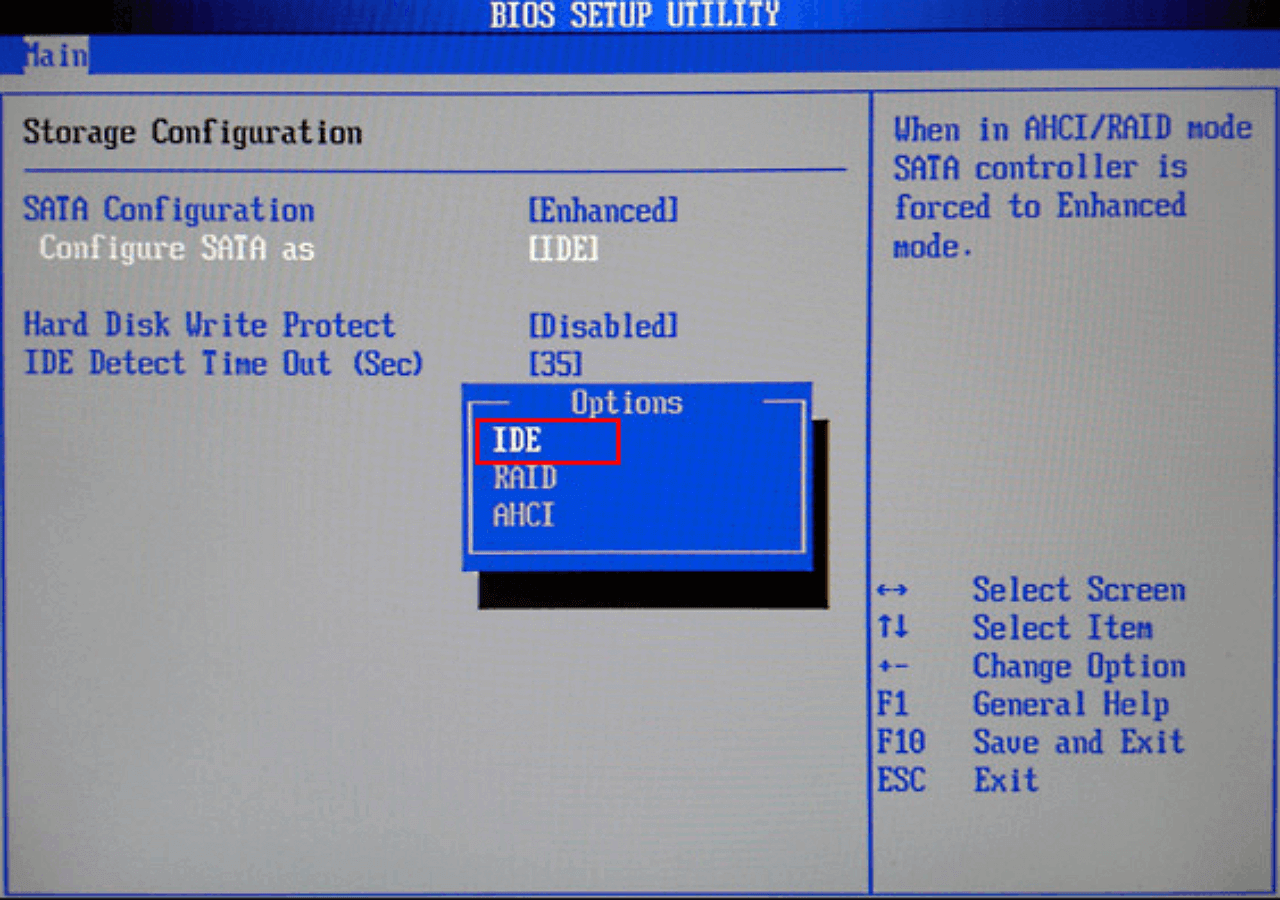
- Toggle storage mode (AHCI/RAID). If a controller is in RAID mode, the SSD may not show as an individual drive. Switching to AHCI can reveal it, but back up data first.
- Update BIOS and SSD firmware. Old firmware can break detection. Update BIOS to the latest stable version and apply SSD firmware updates.
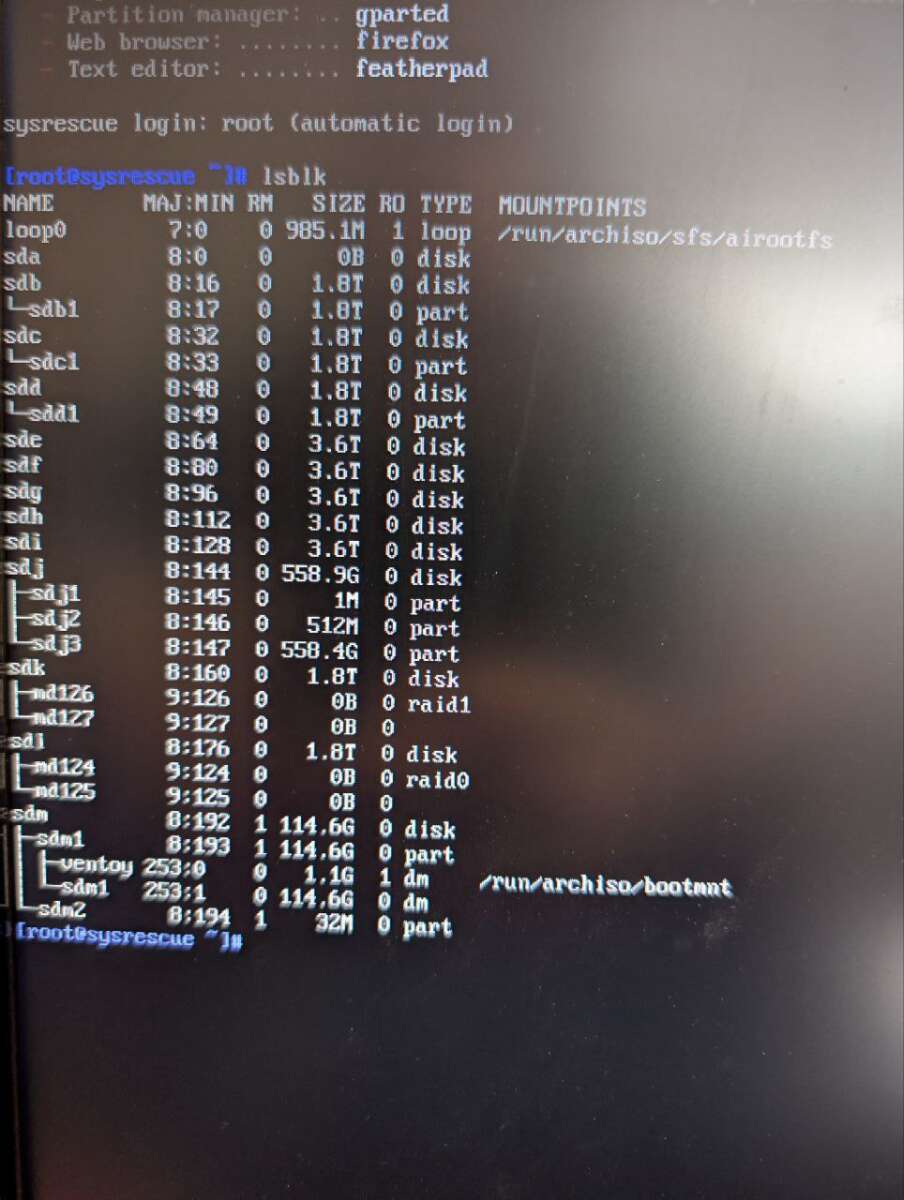
- Boot from a USB live OS and check detection. Linux live USB tools will show drives even when BIOS hides them. This helps isolate hardware vs BIOS issues.
- Check for jumper or power settings on older boards. Some motherboards need jumpers or specific cables for additional ports.
- Replace the drive if it fails elsewhere. If the SSD doesn’t appear in another system or enclosure, the drive may be dead and needs replacement.
These steps cover most situations for how to fix ssd not showing in bios after installation.
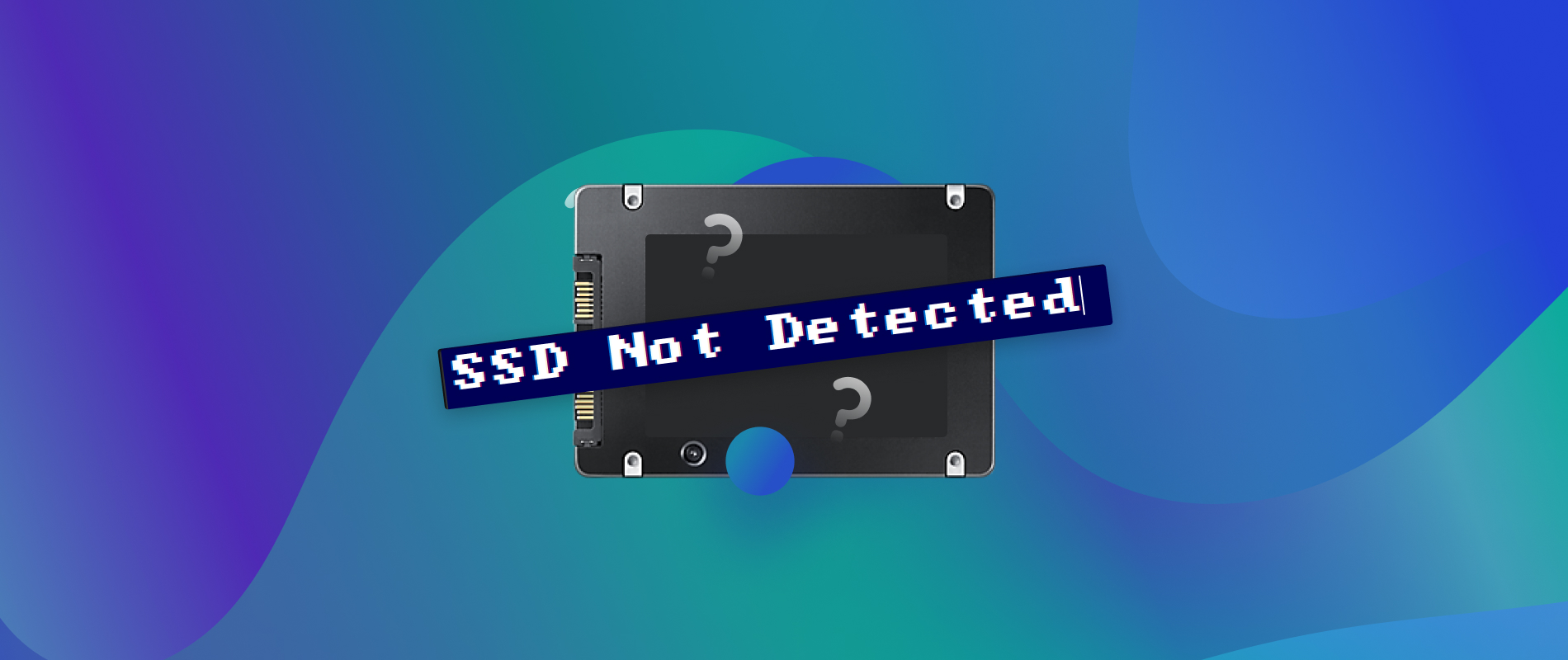
Advanced troubleshooting and BIOS settings
If the basic steps fail, try these focused methods.
- NVMe and PCIe lane conflicts: Some boards reduce PCIe lanes when multiple slots are used. Move PCIe cards or change M.2 slot to free lanes.
- Secure Boot and UEFI settings: Disable Secure Boot or switch between UEFI and Legacy temporarily to test visibility.
- Check for driver-dependent controllers: Some RAID or NVMe controllers require vendor drivers for Windows installers but should still appear in BIOS. Update controller firmware if needed.
- Use diagnostic tools: Run manufacturer SSD diagnostic tools from USB or bootable media to detect issues.
- Inspect for physical damage: Bent pins, debris in the M.2 slot, or scratched connectors can break detection. Clean gently with compressed air.
If you follow these advanced steps, you will better understand how to fix ssd not showing in bios after installation in complex setups.
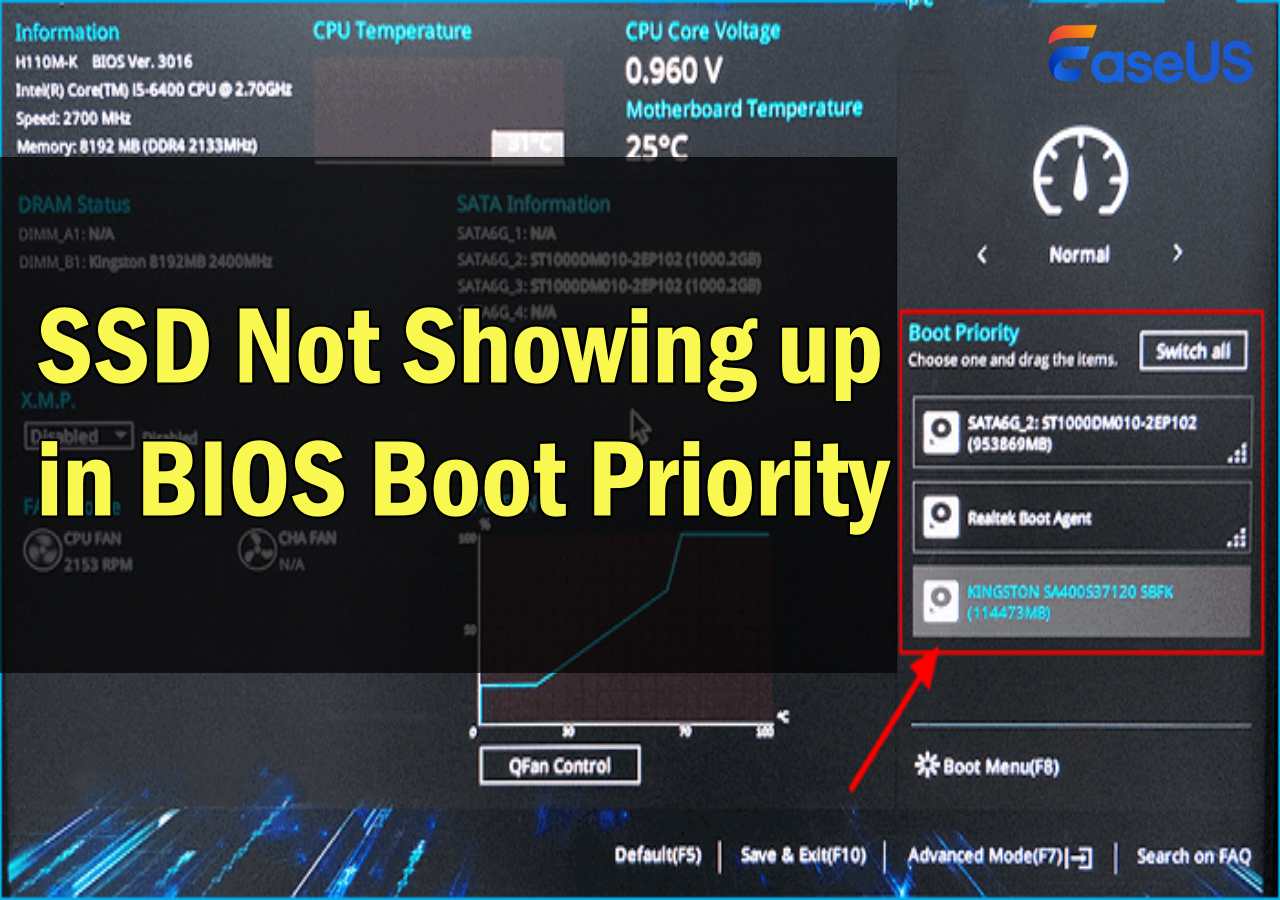
My experience: lessons learned and mistakes to avoid
I once installed a high-speed NVMe in a workstation and it was invisible. I tried software fixes first. That wasted time. The problem was a shared lane with a GPU slot. Moving the drive fixed it. From that job I learned: always test hardware swaps early. Also, never update firmware without a stable power source. One interrupted firmware update can kill an SSD. These practical tips help you avoid common pitfalls when you try to fix ssd not showing in bios after installation.

Preventive tips to avoid future detection problems
Small habits save time and frustration.
- Label cables and ports when building a system so you know which are in use.
- Keep BIOS and SSD firmware updated on a regular schedule.
- Use quality cables and adapters. Cheap parts cause intermittent issues.
- Document motherboard slot lane sharing in your build notes.
- Test drives in enclosures before installing them internally.
These steps reduce the chance you’ll need to troubleshoot how to fix ssd not showing in bios after installation again.
Frequently Asked Questions of how to fix ssd not showing in bios after installation
Why does my new SSD not show in BIOS after I installed it?
Often the cause is a loose cable, wrong slot, or disabled controller in BIOS. Reseat the drive, try another port, and check BIOS settings to enable the port.
Can a bad cable prevent the SSD from appearing in BIOS?
Yes. A faulty SATA or power cable can stop power or data transfer. Swap the cable and retry to rule this out quickly.
Will updating BIOS or firmware fix detection problems?
Yes, updates can resolve compatibility bugs and detection issues. Update BIOS and SSD firmware carefully and on stable power to avoid risks.
Should I change SATA mode to AHCI to see my SSD?
If the motherboard is set to RAID, switching to AHCI can make individual SATA SSDs appear. Back up data first because changing modes can affect existing OS installs.
Is it possible that my SSD is dead if it won’t show anywhere?
Yes. If the SSD fails to appear in BIOS or in an external enclosure on multiple systems, the drive may be defective and need replacement.
Conclusion
You now have a clear path for how to fix ssd not showing in bios after installation. Start with simple checks, then follow the ordered fixes, and use advanced steps only if needed. My real-world tips will help you avoid wasted time and risky moves. Take action: try the basic checks now, and if you’re still stuck, leave a comment or test the SSD in another system. If this guide helped, subscribe or save it for your next build.

Everett Ashford is a tech reviewer at mytechgrid.com specializing in SSDs, cameras, TVs, earbuds, headphones, and other consumer electronics. He provides honest, data-driven reviews based on hands-on testing and real-world performance analysis. Everett simplifies complex tech details to help readers make smart, confident buying decisions.