Restart, update firmware and drivers, run TRIM, stop heavy services, and check for malware.
I’ve spent years troubleshooting storage problems for clients and home builds. If you’re dealing with how to fix SSD stuck at 100 percent usage, this guide walks you through clear, tested steps. You’ll get definitions, causes, quick checks, step-by-step fixes, tools to use, and real-world tips I learned while fixing SSDs under heavy load. Read on so you can stop a slow PC and restore normal SSD performance.

What "SSD stuck at 100 percent usage" means
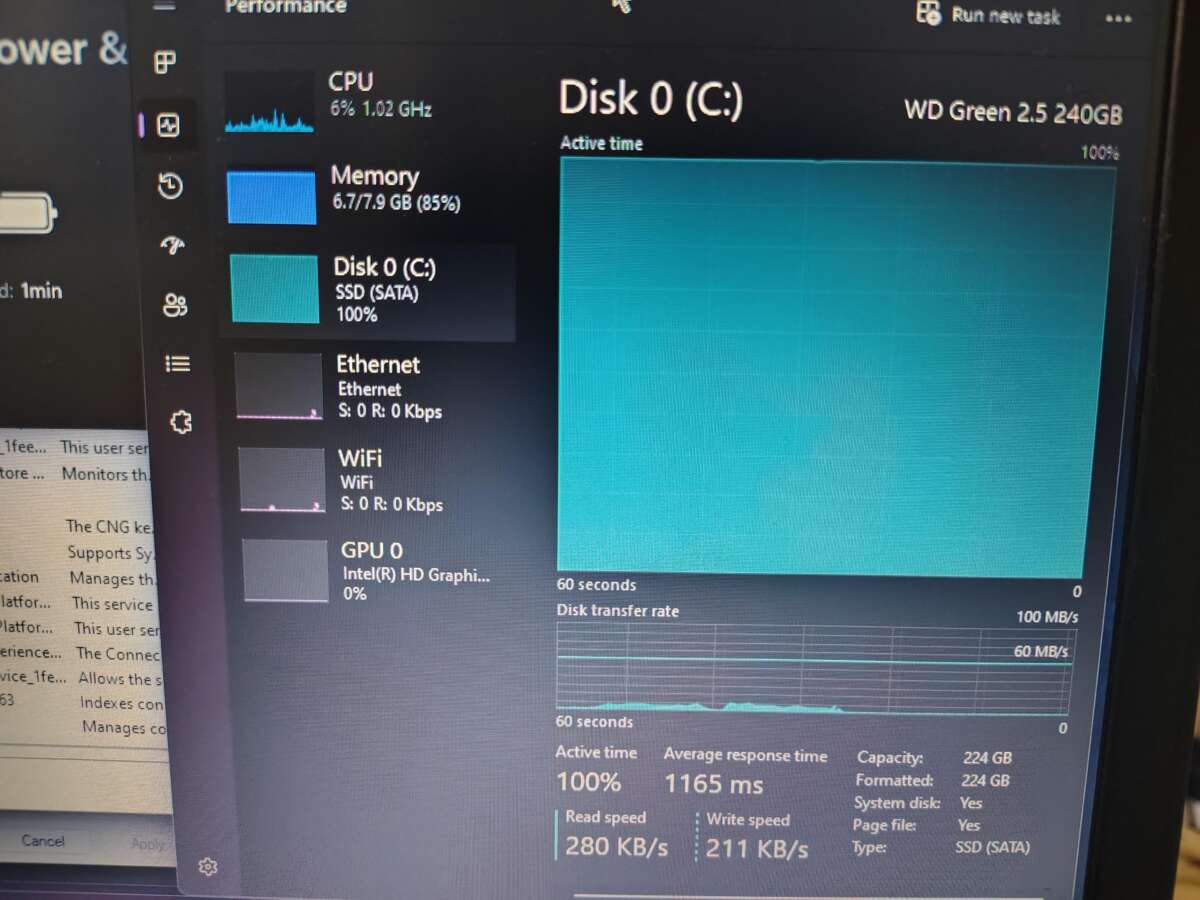
When your SSD shows 100 percent usage, the drive is being pinned by I/O. The system reports the disk as fully busy, which causes slow apps, stutters, and poor responsiveness. This state is about input/output operations per second (IOPS) and latency, not just free space.
Why this matters
- Your system can feel frozen even with low CPU use.
- File copy, app launch, and background tasks stall.
- The problem may be software, firmware, or hardware related.
Common measurements to watch
- Task Manager disk column.
- Resource Monitor read/write bytes and latency.
- SMART values and health reports.

Common causes of SSD stuck at 100 percent usage
Understanding root causes helps pick the right fix. Here are common reasons I see:
- Background Windows processes
- Windows Update, Superfetch (SysMain), and Search indexing can flood the drive.
- Antivirus or malware scanning
- Real-time scans may read and write constantly.
- Faulty or old drivers and firmware
- NVMe or SATA controller drivers and outdated SSD firmware can mismanage I/O.
- Misconfigured pagefile or excessive virtual memory churn
- Small RAM and heavy paging can spike SSD activity.
- Trim, write caching, or power settings problems
- Disabled TRIM or wrong power plan affects performance.
- Failing SSD or bad blocks
- A dying controller or NAND can lock the drive at high utilization.
- Heavy write workloads or background sync
- Cloud sync, backups, or virtual machines can saturate SSD throughput.
- Malware or cryptomining
- Malicious processes often max out disk I/O.
When you search for how to fix SSD stuck at 100 percent usage, start by matching symptoms to these causes.

Quick checklist: immediate steps to try
If you want fast relief, try these first. They are safe and reversible.
- Restart Windows
- A reboot clears hung processes and caches.
- Open Task Manager and sort by Disk
- See which process uses most I/O.
- Pause or disable cloud sync and large backups
- Stop OneDrive, Dropbox, or backup clients briefly.
- Run a quick malware scan
- Use a reputable scanner to rule out malicious I/O.
- Set power plan to High Performance
- This prevents aggressive power saving that can hurt throughput.
If these don't fix things, move to detailed steps below on how to fix SSD stuck at 100 percent usage.

Step-by-step fixes for 100 percent SSD usage
Follow this order. Test the system after each major step to see if the problem is solved.
- Identify the culprit
- Use Task Manager and Resource Monitor to find the top I/O process.
- If one app is responsible, close or uninstall it.
- Disable problematic Windows services temporarily
- Stop SysMain (Superfetch) and Windows Search to test impact.
- Command example: run services.msc, find SysMain, stop and set to manual.
- Update drivers and firmware
- Update SATA/NVMe drivers from your PC maker or motherboard vendor.
- Flash SSD firmware using vendor tools. A firmware fix can resolve controller bugs.
- Check for malware and disable real-time AV briefly
- Scan with a trusted tool. Temporarily disable AV to test if it’s the source.
- Verify TRIM and enable it if off
- Use Windows command: fsutil behavior query DisableDeleteNotify (0 = enabled).
- Enabling TRIM helps SSD clean blocks and improves performance.
- Check pagefile and memory use
- Let Windows manage pagefile size or increase RAM if you hit heavy paging.
- Excessive pagefile writes often cause high SSD use.
- Run SMART and health checks
- Use SMART tools to check reallocated sectors, endurance, and other warnings.
- If SMART shows errors, back up immediately and plan replacement.
- Run CHKDSK cautiously
- CHKDSK can help file system issues but avoid long scans if SSD is failing.
- Use: chkdsk C: /f to fix file table errors.
- Adjust Windows settings
- Turn off Superfetch (SysMain) and Windows Search permanently only if they cause issues.
- Disable fast startup if it triggers disk problems on your device.
- Tune power settings and write caching
- Enable write caching for better throughput. Beware of power loss risks.
- Use High Performance for testing to stop aggressive throttling.
- Reinstall storage drivers or OS as last resort
- Clean install of NVMe/SATA drivers can restore correct behavior.
- If many system files are corrupted, a repair install or OS reinstall may help.
- Full backup and secure erase if needed
- If firmware updates and repairs fail, backup data and consider secure erase and reformat.
- Secure erase restores factory mapping of NAND. It can fix severe slowdowns but is a last resort.
When addressing how to fix SSD stuck at 100 percent usage, this ordered approach usually resolves the issue for most users.

Advanced diagnostics and fixes
If the problem persists after the basic steps, use deeper tools and checks.
- Resource Monitor and Latency
- Use Resource Monitor to view average disk queue length and wait time.
- Windows Performance Recorder (WPR) traces
- Capture traces to see kernel and driver-level I/O behavior.
- NVMe vendor utilities
- Run vendor diagnostics for firmware issues and controller resets.
- Test with a different SATA/NVMe port or cable
- Swap ports or cables to rule out motherboard problems.
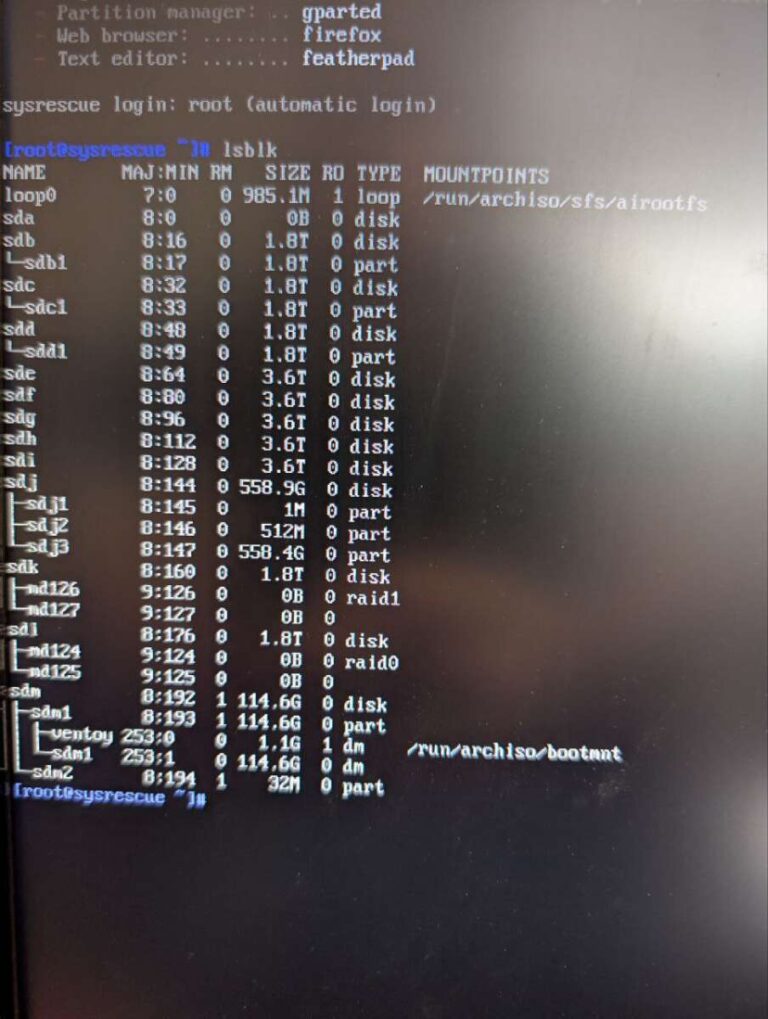
- Boot from a Linux live USB
- A different OS can show whether Windows-specific services cause the spike.
- Replace the drive if SMART shows failure
- If tests show bad blocks or a failing controller, replace the SSD and restore data.
Advanced fixes are technical. If you're not comfortable, ask a technician or follow vendor support. These methods are essential when basic fixes don’t resolve how to fix SSD stuck at 100 percent usage.

Prevention and maintenance tips
Small habits avoid repeated problems and extend SSD life.
- Keep SSD firmware and drivers current
- Regular updates fix bugs and improve stability.
- Leave some free space
- Avoid filling the drive above 70–80 percent to maintain performance.
- Enable TRIM and write caching
- These settings keep the SSD efficient.
- Avoid excessive unnecessary writes
- Move large temp or swap files to secondary drives if possible.
- Monitor health monthly
- Use SMART or vendor tools and take action on warnings.
- Use a UPS for desktops
- Prevent data corruption from sudden power loss when write caching is enabled.
These steps help prevent future cases of how to fix SSD stuck at 100 percent usage.

Personal experience and lessons learned
I once fixed a client PC that showed 100 percent disk use even when Chrome was closed. Task Manager pointed to a system process. After stopping SysMain and updating the NVMe driver, performance returned. The key lessons I learned:
- Measure before changing things.
- Update firmware early if the drive vendor recommends it.
- Back up before doing risky operations like secure erase.
Try one change at a time and test. Small, targeted fixes often solve the issue faster than sweeping changes.
Frequently Asked Questions of how to fix ssd stuck at 100 percent usage
What is the first thing I should try when an SSD is at 100 percent?
Restart your PC and check Task Manager to identify the top I/O process. Pause cloud sync and temporary background tasks to see if usage drops.
Can malware cause an SSD to reach 100 percent usage?
Yes. Malware and cryptomining can create constant read/write activity. Run a full scan with a trusted anti-malware tool to rule this out.
Will updating SSD firmware help fix 100 percent usage?
Updating firmware can fix controller bugs that cause high I/O. Always back up data before a firmware update.
Is it safe to disable SysMain (Superfetch) and Windows Search?
For testing, yes—disabling them temporarily helps identify the issue. For long-term use, only disable if they are the confirmed cause of high disk usage.
Should I replace the SSD if it stays at 100 percent?
If SMART reports failure or advanced diagnostics show bad blocks, replace it. Back up data immediately and plan for replacement.
How does TRIM affect SSD performance?
TRIM allows the SSD to clean unused blocks and maintain write speed. If TRIM is disabled, performance and garbage collection can degrade.
Conclusion
You don’t have to accept a slow PC. Start with simple checks: identify the process, pause heavy background tasks, update drivers and firmware, and ensure TRIM is enabled. Move to deeper diagnostics if needed, back up your data, and replace the drive when SMART indicates failure. With patient troubleshooting and these steps, you can confidently fix SSD performance problems and prevent them in the future.
Take action now: run the quick checklist, note any change, and follow the step-by-step fixes that match your symptoms. If this guide helped, leave a comment describing your issue or subscribe to get more practical fixes and troubleshooting tips.

Everett Ashford is a tech reviewer at mytechgrid.com specializing in SSDs, cameras, TVs, earbuds, headphones, and other consumer electronics. He provides honest, data-driven reviews based on hands-on testing and real-world performance analysis. Everett simplifies complex tech details to help readers make smart, confident buying decisions.