Open disk tools, choose GPT, create a partition, pick a file system, quick format.
If you want to learn how to format new nvme ssd the right way, you’re in the perfect place. I’ve set up hundreds of NVMe drives across Windows, macOS, and Linux. In this guide, I’ll show you how to format new nvme ssd step by step, explain what choices matter, and share the tips pros use to avoid slowdowns or data loss.
What formatting means for an NVMe SSD
Formatting prepares a blank NVMe for use. It adds a partition map and a file system. It does not make the drive faster by itself, but it makes it usable.
For modern PCs, use GPT. It replaces the old MBR layout and avoids size limits. Pick a file system that fits your OS and workflow.
NVMe drives need TRIM to stay fast over time. All major OSes handle TRIM. You do not need to defrag an SSD. A quick format is fine for new drives. Full format adds no value and wastes write cycles.

Before you start
Check a few basics before you format. This helps you avoid errors and save time.
- Confirm the right drive. Unplug other externals so you do not wipe the wrong disk.
- Update firmware. Use the vendor tool to apply SSD firmware updates.
- Use GPT. It is the safe default for UEFI systems and large drives.
- Decide on a file system. NTFS, exFAT, APFS, or EXT4 are common picks.
- Plan encryption. BitLocker, FileVault, or LUKS are easiest to set at the start.
- Check health. Look at SMART data in your OS tools or the vendor app.
A quick note from the field: I once saw a client format a boot SSD by mistake. The fix took hours. Label your disks and slow down at the confirmation step.
File system and partition map: choose the right one
Your choice depends on how you will use the drive. Here is a simple guide that answers how to format new nvme ssd for your case.
- Windows boot or apps: GPT with NTFS. It works best with Windows features.
- Cross‑platform data: exFAT. It works on Windows, macOS, and Linux.
- macOS boot or apps: GUID Partition Map with APFS.
- Linux boot or apps: GPT with EXT4. Btrfs or XFS are fine for advanced users.
- Large drives over 2 TB: GPT. MBR will cause issues.
Pick a label you can spot fast. Use a short name like NVME_2TB or SCRATCH.
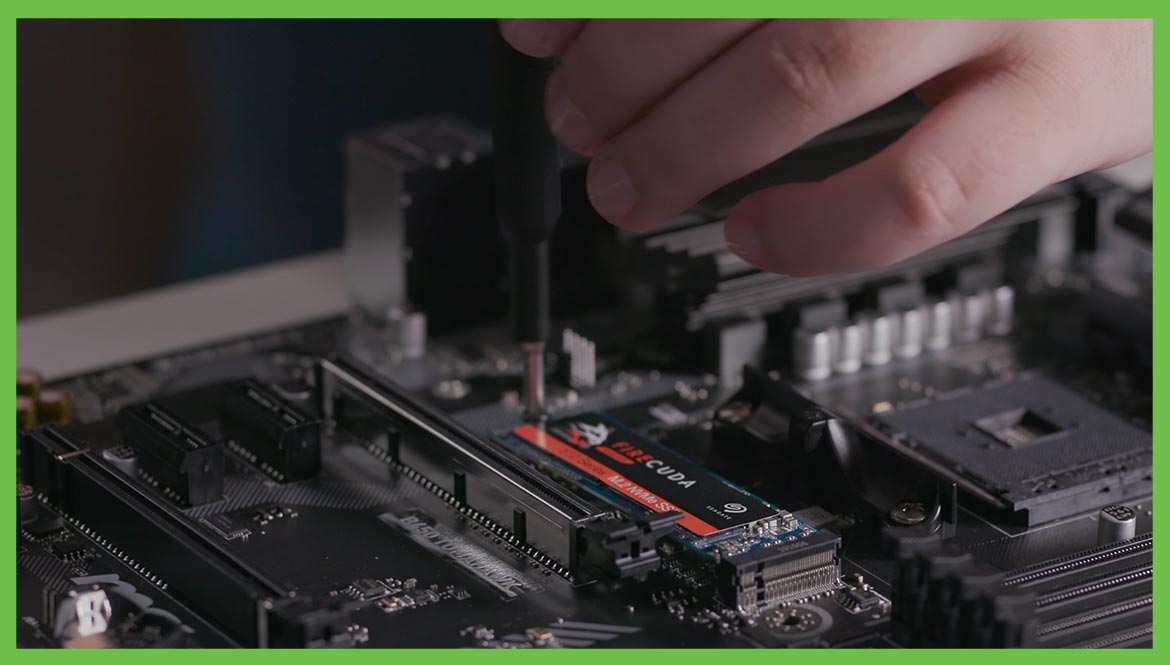
How to format new NVMe SSD on Windows 10/11
There are two simple paths. Use Disk Management for a friendly UI. Or use the command line for speed. Either method is great when you ask how to format new nvme ssd on Windows.
Disk Management method
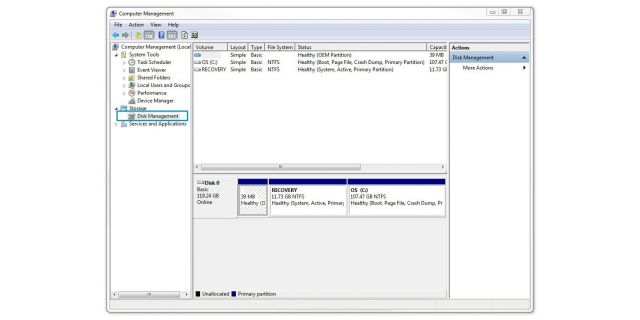
- Press Windows key and X, then select Disk Management.
- Find the new disk marked Unknown and Not Initialized.
- Right‑click the disk name and choose Initialize Disk. Select GPT.
- Right‑click the unallocated space and choose New Simple Volume.
- Pick the size. Use the full size for one partition.
- Assign a drive letter.
- Choose NTFS or exFAT. Leave allocation unit size as Default.
- Check Perform a quick format. Enter a clear Volume label.
- Finish and wait a few seconds.
Command line with DiskPart
- Press Start, type cmd, right‑click Command Prompt, Run as administrator.
- Run these commands. Double check the disk number.
diskpart
list disk
select disk X
clean
convert gpt
create partition primary
format fs=ntfs quick label="NVME"
assign letter=V
exit
PowerShell one‑liner
Initialize-Disk -Number X -PartitionStyle GPT
New-Partition -DiskNumber X -UseMaximumSize -DriveLetter V
Format-Volume -DriveLetter V -FileSystem NTFS -NewFileSystemLabel "NVME" -Confirm:$false
Check TRIM
- Open Command Prompt and run:
fsutil behavior query DisableDeleteNotify
- A 0 output means TRIM is on.
Pro tips from real projects
- Quick format is enough. Full format only adds wear.
- Leave allocation size at Default for most cases.
- Use NTFS for Windows game libraries. Use exFAT for cameras and NAS share drives.
- If Windows does not see the drive, update chipset and storage drivers.
This whole section addresses how to format new nvme ssd using built‑in Windows tools with safe defaults.
How to format new NVMe SSD on macOS
Disk Utility is the easiest way. It is also the best answer to how to format new nvme ssd on a Mac.
Disk Utility method
- Open Disk Utility.
- Click View and choose Show All Devices.
- Select the physical NVMe drive, not the volume.
- Click Erase.
- Name it, pick APFS for Macs, or exFAT for cross‑platform.
- Set Scheme to GUID Partition Map.
- Click Erase and wait.
Terminal method with diskutil
- Find the disk:
diskutil list
- Erase to APFS and GPT:
diskutil eraseDisk APFS NVME_SSD GPT diskX
- For exFAT:
diskutil eraseDisk ExFAT NVME_DATA GPT diskX
TRIM note
- Internal Apple NVMe drives have TRIM on by default.
- External NVMe enclosures over USB may not support TRIM. That is normal.
Field tip: If the drive does not show, choose Show All Devices. Many users select only the volume, which blocks proper formatting.

How to format new NVMe SSD on Linux
You can use a GUI or the terminal. This is a clean way to handle how to format new nvme ssd on Linux systems.
GNOME Disks method
- Open Disks.
- Select the NVMe device on the left.
- Click the gear icon and choose Format Disk. Select GPT.
- Click the plus icon to create a partition.
- Choose EXT4 for Linux use or exFAT for shared use.
- Set a label and confirm.
Terminal with parted and mkfs
- Identify the device:
lsblk
- Create a GPT table and one partition:
sudo parted /dev/nvme0n1 --script mklabel gpt
sudo parted /dev/nvme0n1 --script mkpart primary 1MiB 100%
- Make a file system:
sudo mkfs.ext4 -L NVME /dev/nvme0n1p1
For exFAT:
sudo mkfs.exfat -n NVME_DATA /dev/nvme0n1p1
TRIM
- Use scheduled TRIM once a week:
sudo systemctl enable fstrim.timer
sudo systemctl start fstrim.timer
- Or run on demand:
sudo fstrim -av
Real‑world tip: Mount with discard is not needed on most systems. fstrim is safer and reduces write load.
Advanced tips and common mistakes
This is where many users trip when they search how to format new nvme ssd. These tips save time and keep speed high.
- Do not full format SSDs. Quick format is enough for new drives.
- Use GPT for almost every build. It solves size and boot issues.
- Keep drivers current. Update chipset and storage drivers for best NVMe speed.
- Watch temps. Add a heatsink if the SSD hits high temps under load.
- Keep some free space. Leave 10 to 20 percent free for best sustained speed.
- Do not defrag SSDs. Use the OS Optimize tool, which sends TRIM.
- Label clearly. Names like WORK_4TB help prevent mistakes later.
From my field notes: A gaming rig dropped speed due to heat. A simple M.2 heatsink fixed the stutter during installs.
Troubleshooting
If you still wonder how to format new nvme ssd because things fail, try these checks.
- Drive not visible in OS. Reseat the M.2 SSD and ensure the slot is enabled in BIOS.
- Disk is Offline or Read‑Only. In Windows DiskPart, run:
diskpart
list disk
select disk X
attributes disk clear readonly
online disk
- macOS can’t erase the disk. In Disk Utility, Show All Devices, select the device level, not the volume.
- Linux sees the device but not partitions. Run lsblk, then re‑probe with:
sudo partprobe
- USB enclosure issues. Swap cables and ports. Some bridges block TRIM or large sector support.
- Firmware quirks. Use the vendor tool to update SSD firmware.
If all else fails, use the vendor’s secure erase tool. That resets the drive to factory state. Then try again.

Maintenance after formatting
Now that you know how to format new nvme ssd, keep it fast and healthy with light care.
- Let TRIM run on schedule. Do not force it daily.
- Update firmware twice a year. It can fix bugs and improve speed.
- Monitor temps during heavy writes. Add airflow if needed.
- Back up important data. Use a 3‑2‑1 plan if you can.
- Check SMART once a month. Look for rising media or error counts.
Small habits like these make a big difference over years of use.
Step‑by‑step checklist
Use this quick list any time you ask how to format new nvme ssd and want a safe, repeatable process.
- Identify the correct disk and confirm size and model.
- Update SSD firmware and system storage drivers.
- Initialize as GPT.
- Create a primary partition using the full space.
- Choose a file system: NTFS, APFS, EXT4, or exFAT.
- Quick format and set a clear label.
- Verify TRIM is enabled.
- Run a short copy or benchmark test.
- Set up encryption if needed.
- Record the setup in your build notes.
Frequently Asked Questions of how to format new nvme ssd
What file system should I use for how to format new nvme ssd?
Use NTFS for Windows, APFS for macOS, and EXT4 for Linux. Use exFAT if you share data across systems.
Do I need to full format when I learn how to format new nvme ssd?
No. A quick format is enough for new SSDs. Full format adds wear and no real benefit.
Is GPT required for how to format new nvme ssd?
GPT is recommended for almost all modern systems. It avoids size limits and works with UEFI boot.
How do I enable TRIM after I follow how to format new nvme ssd steps?
Windows and macOS enable TRIM by default. On Linux, enable fstrim.timer or run fstrim weekly.
Can I use exFAT when I decide how to format new nvme ssd?
Yes, exFAT works across Windows, macOS, and Linux. It is ideal for portable data drives.
Why is my NVMe not detected while trying how to format new nvme ssd?
Check the M.2 slot and BIOS settings first. Update firmware and try another slot or enclosure if needed.
What allocation unit size should I pick when doing how to format new nvme ssd?
Use Default unless you have a specific workload. Default gives stable performance and broad compatibility.
Conclusion
You now know how to format new nvme ssd with confidence on any major OS. Pick GPT, choose the right file system, quick format, and confirm TRIM. Keep drivers and firmware updated and your drive will stay fast for years.
Take five minutes and format your new NVMe the right way today. If this guide helped, share it, subscribe for more storage tips, or drop a question in the comments.

Jamie Lee is a seasoned tech analyst and writer at MyTechGrid.com, known for making the rapidly evolving world of technology accessible to all. Jamie’s work focuses on emerging technologies, product deep-dives, and industry trends—translating complex concepts into engaging, easy-to-understand content. When not researching the latest breakthroughs, Jamie enjoys exploring new tools, testing gadgets, and helping readers navigate the digital world with confidence.