Use TRIM, over-provisioning, proper power and caching settings, and limit writes to extend SSD life.
I have spent years tuning PCs and servers. I know SSD behavior and wear patterns well. This guide shows how to increase SSD lifespan with proper settings in clear steps. You will get practical settings, why they matter, and real tips I use in daily work. Read on to learn simple changes that make SSDs last longer and run better.
How SSDs work — a short, clear primer
Solid state drives store data in flash memory cells. Each cell can be written a limited number of times. Controllers use wear leveling to spread writes across cells. Heavy or pointless writes reduce drive life over time.
Why this matters: settings can cut unneeded writes. That slows wear and keeps performance steady. Understanding basics helps you choose the right tweaks and tools.
Why proper settings matter for SSD lifespan
Settings change how often the drive is written. Small tweaks cut write volume and improve endurance. Many defaults are fine for casual use but not for long-term heavy write loads.
Manufacturers publish endurance ratings. But real life depends on how you use the drive. Good settings reduce background writes and let the controller manage cells well. That lowers drive stress and extends life.

Key settings to increase SSD lifespan with proper settings
Below are the most effective settings. I list them in order of impact. Apply what fits your needs and hardware.
Enable TRIM
TRIM lets the OS tell the SSD which blocks are free. This helps the controller avoid extra writes during garbage collection. On modern OSes, TRIM is usually on by default. Verify it and enable if off.
Set over-provisioning
Over-provisioning reserves extra space for the controller to use. More spare area improves wear leveling and performance. Many SSD tools let you set a factory over-provision or you can leave some unpartitioned space.
Disable scheduled defragmentation
Defrag tools move data and create writes. That harms SSDs. Disable scheduled defrag on SSD volumes. Use optimization tools that run TRIM instead.
Adjust power and sleep settings
Set balanced power modes that avoid frequent spin-downs or long power cycles. For laptops, prefer AC power profiles that reduce deep sleep frequency. Avoid settings that lead to many short write cycles during suspend/resume.
Use AHCI or proper NVMe drivers
Use the correct interface driver. AHCI for SATA SSDs and vendor NVMe drivers for NVMe SSDs are best. Proper drivers enable features like NCQ and TRIM, which reduce unnecessary writes.
Tune write caching and flush behavior
Write caching can improve speed but risks data loss on power loss. For desktops with UPS, enable caching. For laptops without protection, use default safe settings. Some apps force frequent fsync calls; tune apps or move heavy-write tasks to other disks.
Manage pagefile, log, and temp files
Move browser caches, temp folders, and large logs to HDD or larger SSDs. Reduce pagefile size if you have ample RAM. Place frequent-write workloads on drives with higher endurance.
Update firmware and use vendor tools
Firmware updates fix bugs and improve wear handling. Vendor tools let you set over-provisioning and monitor health. Check firmware and run tools occasionally.
Monitor SMART and health metrics
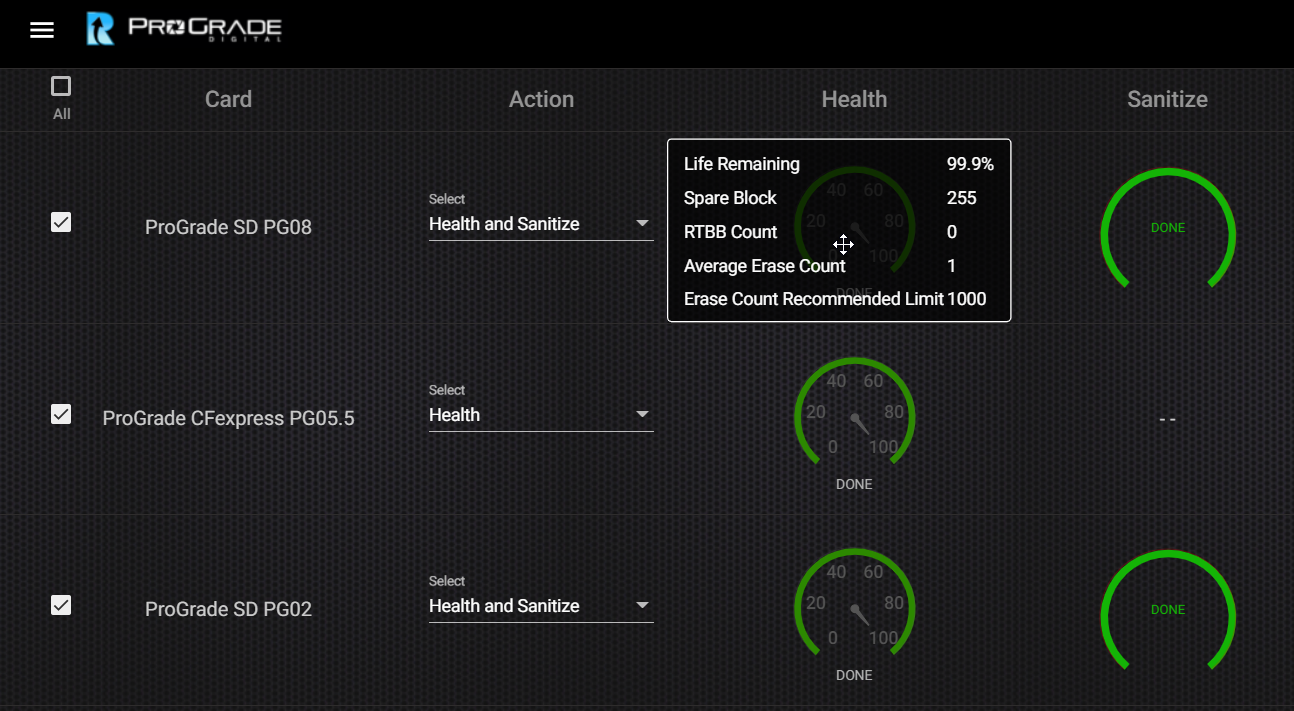
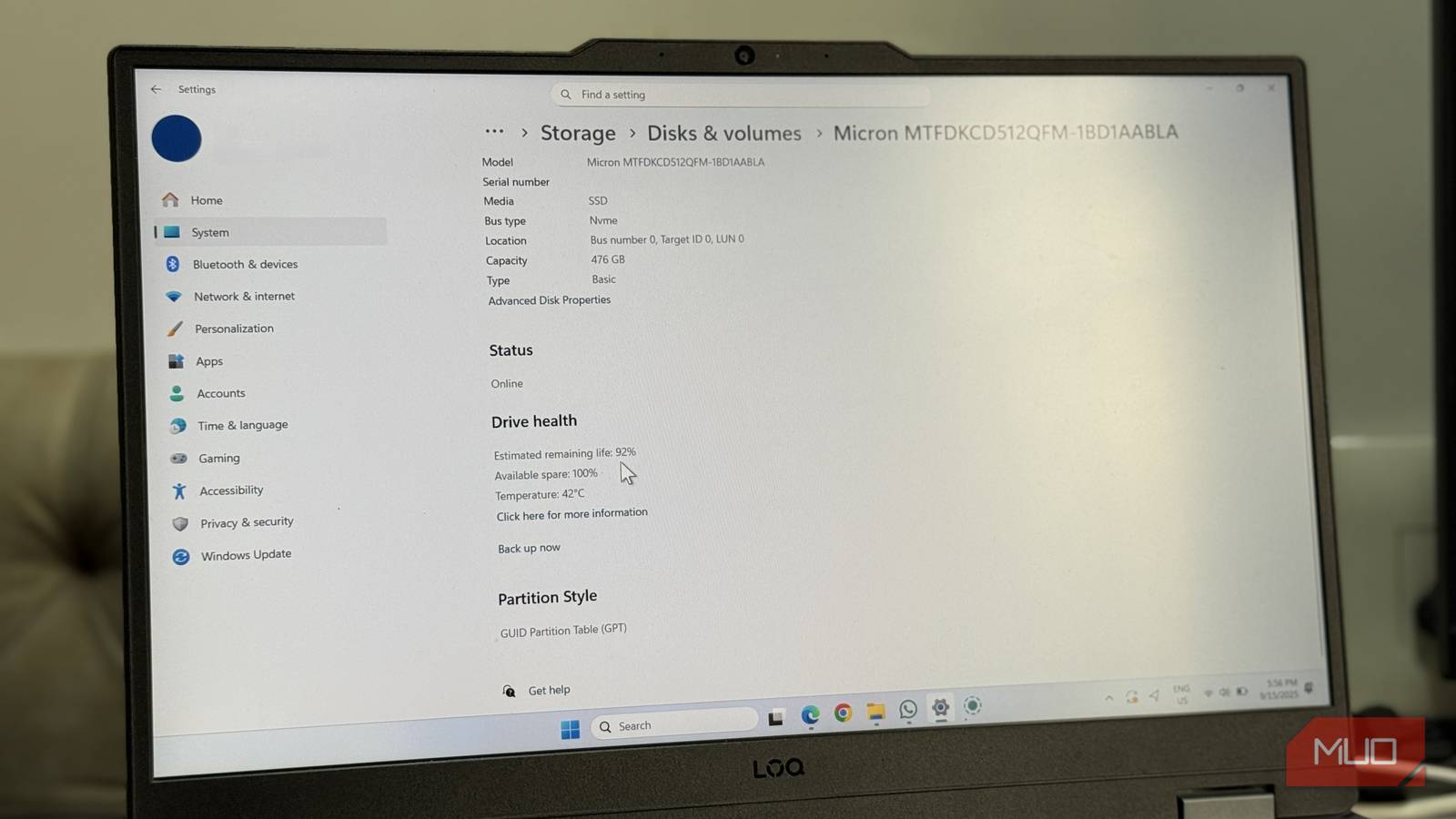
Keep an eye on TBW, wear percentage, and reallocated sectors. Monitoring gives early warning and helps you adapt settings before failure.
Step-by-step: Windows settings to increase SSD lifespan with proper settings
Follow these clear steps to optimize Windows PCs.
- Verify TRIM is enabled
- Open Command Prompt as admin. Run: fsutil behavior query DisableDeleteNotify. A result of 0 means TRIM is on.
- Turn off scheduled defrag for SSDs
- Open Optimize Drives and make sure SSDs are not set for traditional defrag. Allow only optimization (TRIM).
- Set power plan for SSD health
- Use Balanced plan. Avoid aggressive sleep/hibernate cycles that cause extra writes.
- Adjust pagefile and temp locations
- Move large temp directories or browser cache to an HDD or secondary drive. Keep pagefile on SSD only if you have limited RAM.
- Install vendor NVMe/SATA drivers and firmware
- Use vendor tools to update firmware and set over-provisioning if available.
These steps cut common, hidden writes. They are safe and reversible. I applied them to many office PCs with good results.
macOS and Linux tips
macOS and Linux handle SSDs well but still need tweaks.
-
macOS
-
TRIM is enabled by default on Apple SSDs. For third-party SSDs, enable TRIM with caution using the built-in tool if supported.
-
Avoid enabling aggressive swap if you have enough RAM.
-
Use vendor firmware tools where possible.
-
Linux
-
Use the nvme or ata drivers for correct behavior. Confirm TRIM with fstrim. Add weekly fstrim cron jobs for supported filesystems.
-
Mount options: use noatime to avoid extra writes for file access time, unless you need atime.
I run weekly fstrim on my Linux machines. It helps keep low write amplification and steady speed.

Monitoring and tools to track SSD health
Monitoring keeps you informed. Use simple tools and checks.
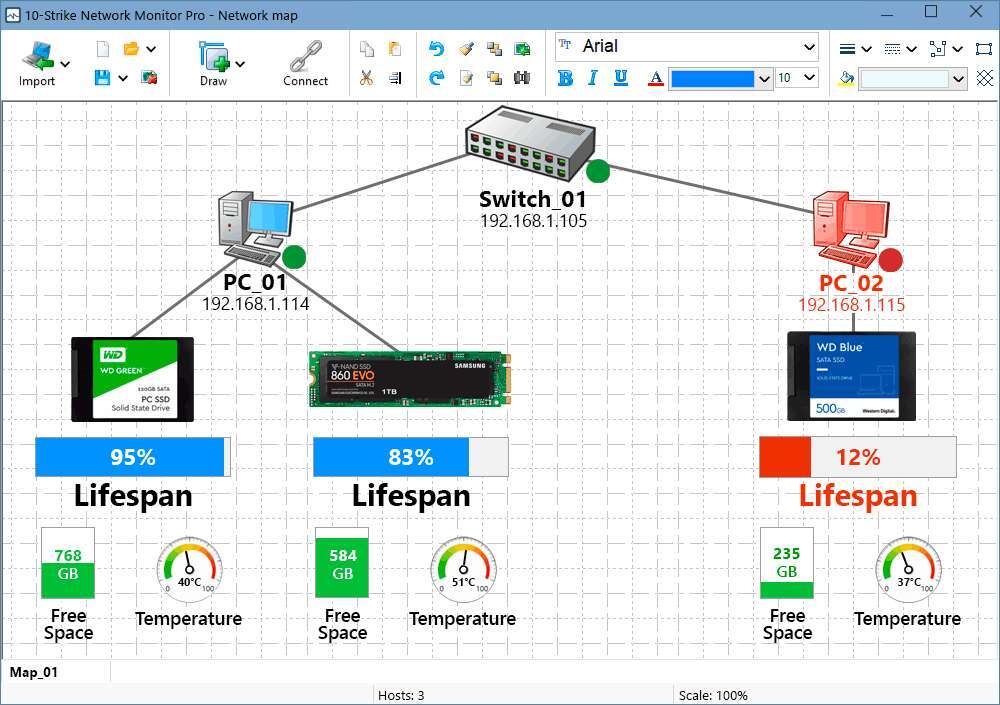
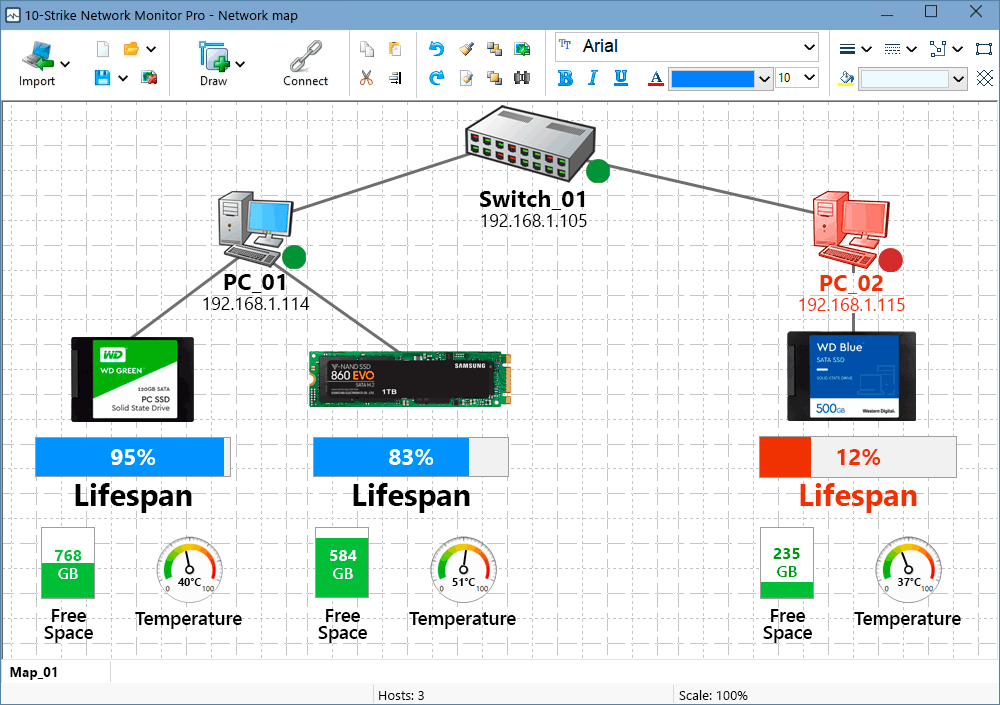
- Use SMART tools to read TBW and wear level. Watch for rising reallocated sectors.
- Vendor tools show warranty and TBW stats. Check them quarterly.
- Log heavy write apps. Use tools that show per-process disk writes to find culprits.
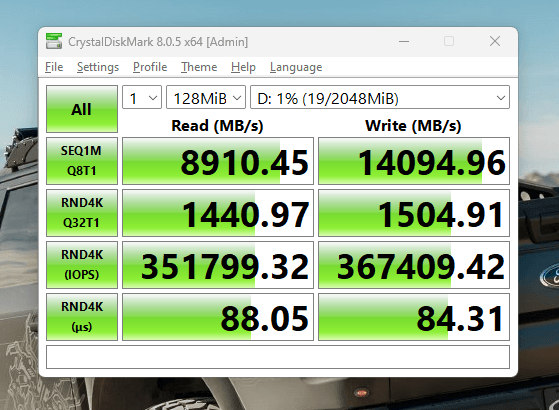
- Run bench tests only when needed. Excessive benchmarking adds wear.
I use a combination of vendor tools and a simple script that emails me when TBW crosses thresholds. This caught a failing drive before it died.
Limitations and trade-offs
No setting makes an SSD immortal. There are real trade-offs.
- More over-provisioning reduces usable space. It does help life.
- Disabling caching can slow the system. Choose based on power reliability.
- Moving temp files to HDD adds complexity and may trade speed for endurance.
Be honest about your needs. For a boot drive with light use, defaults are fine. For log servers or VMs, tune aggressively.
Common quick questions people ask about SSD lifespan
Q: Will changing settings void my warranty?
A: Some tweaks like over-provisioning or using vendor tools usually do not void warranty. Firmware changes from vendor sites are recommended. Avoid risky unofficial hacks.
Q: How much does disabling defrag help?
A: It removes a regular source of writes. The benefit is small for casual users but helpful over years. It is an easy safe win.
Q: Is TRIM safe?
A: Yes. TRIM is safe and supported by modern OSes and controllers. It reduces write amplification and helps performance.
Frequently Asked Questions of how to increase ssd lifespan with proper settings
What is the single best setting to increase SSD lifespan?
Enable TRIM and keep it enabled. It reduces write amplification and improves controller efficiency.
How much over-provisioning should I set?
Aim for 7% to 10% as a good start. Heavy write loads can benefit from more spare area.
Should I move my pagefile to an HDD?
If you have ample RAM, you can reduce pagefile use. For heavy swap workloads, moving it to an HDD can reduce SSD writes.
Do firmware updates help SSD life?
Yes. Firmware can fix write management and improve wear leveling. Update with vendor tools when stable releases are available.
How often should I monitor SSD health?
Check SMART and TBW every few months. For critical systems, monitor weekly and set alerts.
Conclusion
Small, smart changes make a big difference. Use TRIM, set over-provisioning, tune power and caching, and move heavy writes off the SSD when possible. Monitor drive health and update firmware. These steps show how to increase SSD lifespan with proper settings and keep performance steady over years. Try one change today, track the effect, and then adopt more tweaks. If this guide helped, subscribe for more tips or leave a comment with your setup and questions.

Everett Ashford is a tech reviewer at mytechgrid.com specializing in SSDs, cameras, TVs, earbuds, headphones, and other consumer electronics. He provides honest, data-driven reviews based on hands-on testing and real-world performance analysis. Everett simplifies complex tech details to help readers make smart, confident buying decisions.