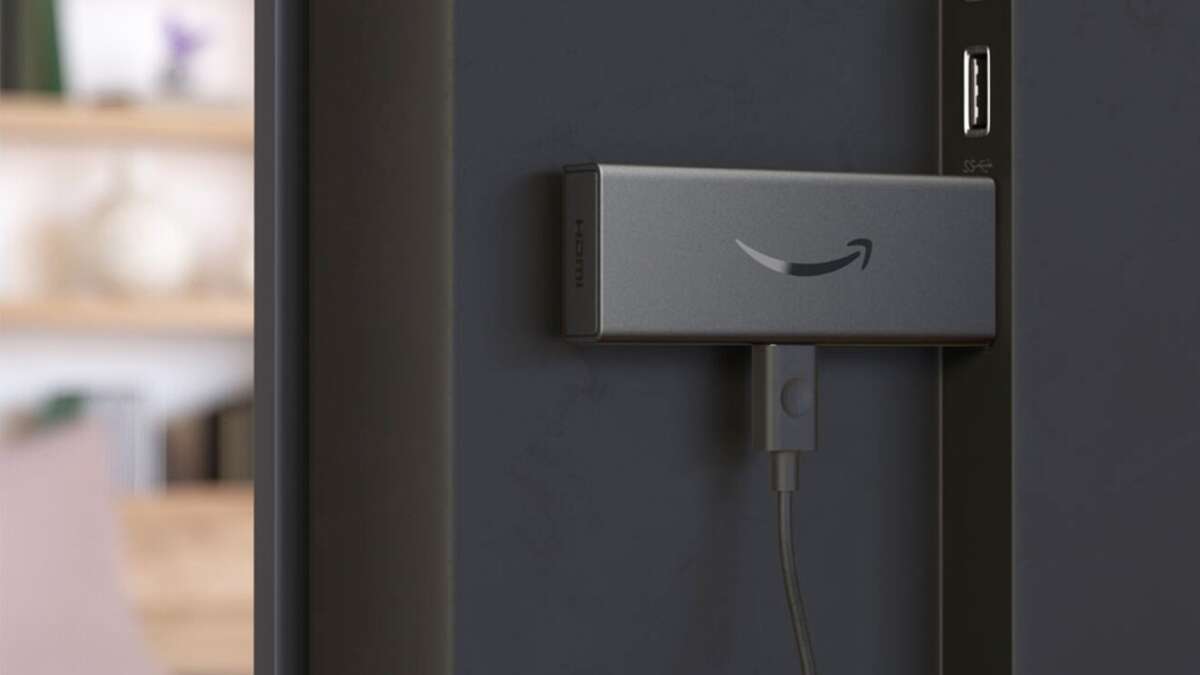
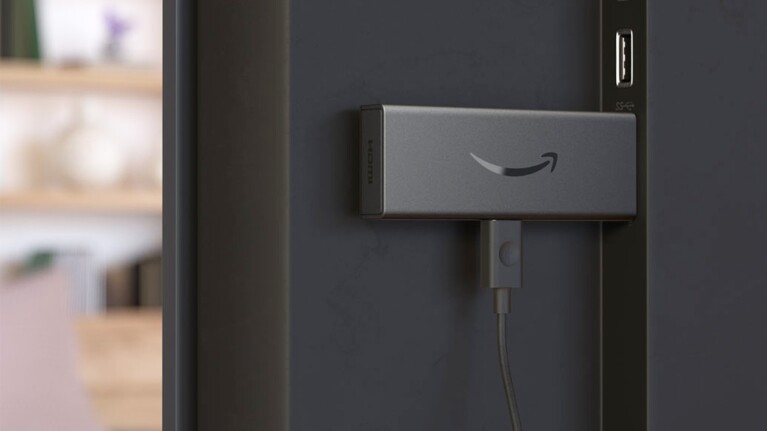
Plug the Fire TV Stick into an HDMI port, power it, then follow the on-screen setup to connect Wi‑Fi.
I have set up dozens of streaming devices for friends, family, and clients, so I know what works and what trips people up. This guide on how to install a tv fire stick covers every step, from unboxing to troubleshooting. Read on to get fast, reliable setup advice, clear screenshots prompts to expect, and tips I learned the hard way so you avoid common mistakes.
:max_bytes(150000):strip_icc()/Lede-AmazonFireTVstick-4772787-690a3f50ef5140a38ed49b40d1687768.jpg)
What you need before you start
Make sure you have these items ready. They speed up the process and prevent annoying delays.
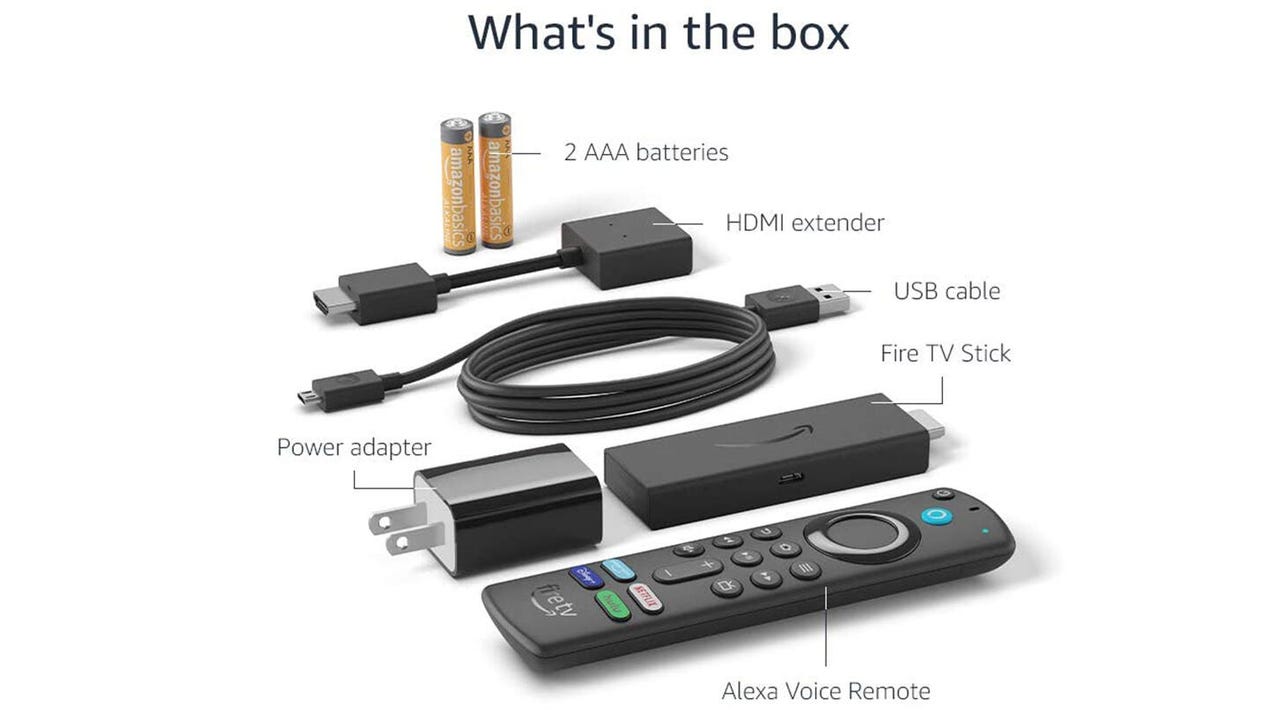
- Fire TV Stick box
- TV with an HDMI port
- Power adapter and USB cable that came with the Fire Stick
- Reliable Wi‑Fi network name and password
- Amazon account email and password
- Optional: HDMI extender and batteries for the remote
I recommend using the included USB power adapter rather than powering from the TV USB port. Power from the TV port can be weak and cause restarts. This checklist will make the how to install a tv fire stick process smooth and quick.

Step-by-step installation guide
Follow these clear steps to install and set up your Fire Stick.
- Unbox and inspect the items.
- Confirm the Fire TV Stick, remote, power adapter, USB cable, and any batteries are included.
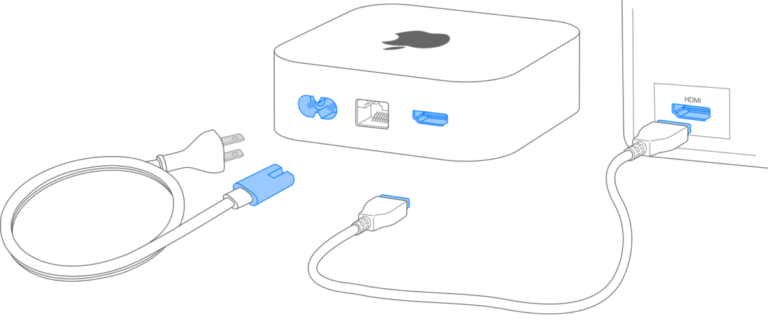
- Plug the Fire TV Stick into an HDMI port on your TV.
- Use the HDMI extender if the port is crowded or if the stick blocks other ports.
- Connect the USB power cable to the Fire Stick and the power adapter.
- Plug the adapter into a wall outlet. Do not rely on TV USB power for the initial setup.
- Turn on your TV and switch to the HDMI input you used.
- You should see the Fire TV boot screen within 30 seconds.
- Insert batteries in the remote and pair it when prompted.
- Usually press and hold the Home button for 10 seconds if it does not pair automatically.
- Follow on-screen prompts to select your language and connect to Wi‑Fi.
- Sign in with your Amazon account or create one on-screen if needed.
- Complete initial updates and allow the Fire Stick to restart if asked.
If you follow these steps, the core how to install a tv fire stick process should take about 10–20 minutes.
Set up Wi‑Fi, updates, and apps
Good Wi‑Fi and updates matter. They make the difference between smooth streaming and buffering problems.
- Connect to your 2.4 GHz or 5 GHz Wi‑Fi network. 5 GHz is faster and less crowded if signals are strong.
- If the Fire Stick says updates are available, install them right away. Updates fix bugs and add features.
- Sign into streaming apps like Netflix and Hulu from the Apps tab. Some apps need separate login credentials.
- Use a wired Ethernet adapter if Wi‑Fi is unreliable. It gives stable connections in crowded networks.
A final tip: reboot your router before setup if your Wi‑Fi seems slow. That simple step has solved many issues for me while teaching others how to install a tv fire stick.
Pairing the remote and using Alexa
The remote controls the Fire Stick and often includes Alexa voice features.
- Insert batteries and point the remote toward the Fire Stick.
- Hold the Home button for 10 seconds to pair if not automatic.
- To use Alexa, press and hold the voice button and speak clearly into the remote.
- Sign in to your Amazon account to enable personalized Alexa features and skills.
If voice search does not work, check the microphone settings and ensure the Fire Stick software is up to date. My experience: pairing usually works first try, but new batteries make the difference.
Troubleshooting common issues
Here are the most common problems and quick fixes when you learn how to install a tv fire stick.
- No signal on TV
- Confirm TV is on the correct HDMI input. Try the HDMI extender or another port.
- Remote not pairing
- Replace batteries and hold Home for 10 seconds. Restart the Fire Stick if needed.
- Wi‑Fi won't connect
- Reboot router, check password, try 2.4 GHz if 5 GHz fails, or use Ethernet adapter.
- Apps not loading or buffering
- Check internet speed, close background apps, and update the Fire Stick.
- Stuck on update screen
- Wait 10–15 minutes. If still stuck, unplug power for 30 seconds and try again.
When I set up a friend's Fire Stick last year, the issue was an old router. Swapping to a modern dual-band router fixed app buffering instantly. These simple checks usually solve 90% of setup problems.
Tips, best practices, and mistakes to avoid
A few practical tips will save time and prevent frustration.
- Use the original power adapter. It gives consistent power and avoids random reboots.
- Keep the Fire Stick firmware updated for security and performance.
- Place the Fire Stick where it has good airflow. Heat can slow it down.
- Create profiles for family members to keep watch history and recommendations clean.
- Avoid logging into too many apps at once during setup to speed things up.
Common mistakes I’ve seen:
- Relying on TV USB for power leads to slow boots and restarts.
- Trying to set up while phone hotspot drops. Use a stable home Wi‑Fi.
- Skipping updates and then wondering why apps fail.
Apply these tips when you set out to learn how to install a tv fire stick and you’ll have fewer headaches.

Advanced settings and customization
Once the basics work, customize the Fire Stick to fit your needs.
- Manage storage by uninstalling unused apps.
- Change display resolution if your TV supports higher or lower settings for better performance.
- Enable parental controls from Settings to limit content and purchases.
- Link Alexa routines for hands-free control of content and smart home devices.
- Use the Fire TV mobile app for keyboard input and easier navigation.
Tweak these settings gradually. Small changes can greatly improve the feel and speed of your Fire Stick.

Frequently Asked Questions of how to install a tv fire stick
Will any TV work with a Fire TV Stick?
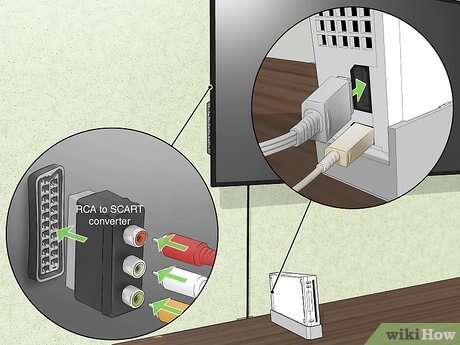
Most modern TVs with an HDMI port work with the Fire Stick. Older TVs without HDMI will need an HDMI-to-AV converter.
Do I need an Amazon account to use the Fire Stick?
Yes. An Amazon account is required to complete setup and access the full Fire TV experience.
Can I use my phone as the Fire Stick remote?
Yes. Download the Fire TV app on your phone to use it as a remote and type faster.
How long does setup usually take?
Setup typically takes 10–20 minutes, depending on updates and app sign-ins. Expect more time if updates are large.
Why does my Fire Stick keep buffering?
Buffering often comes from slow internet, router issues, or weak Wi‑Fi. Try moving the router, using 5 GHz, or connecting via Ethernet.
Conclusion
You now have a clear, practical plan for how to install a tv fire stick from unboxing to streaming. Follow the simple steps, use the troubleshooting checks, and apply the tips I shared from hands-on experience to avoid common pitfalls. Try the setup today, tweak the settings to fit your home, and leave a comment below to share your experience or ask a question.

Everett Ashford is a tech reviewer at mytechgrid.com specializing in SSDs, cameras, TVs, earbuds, headphones, and other consumer electronics. He provides honest, data-driven reviews based on hands-on testing and real-world performance analysis. Everett simplifies complex tech details to help readers make smart, confident buying decisions.