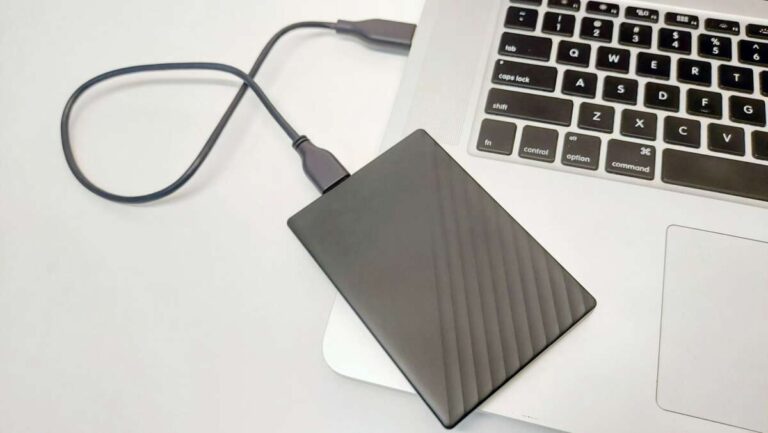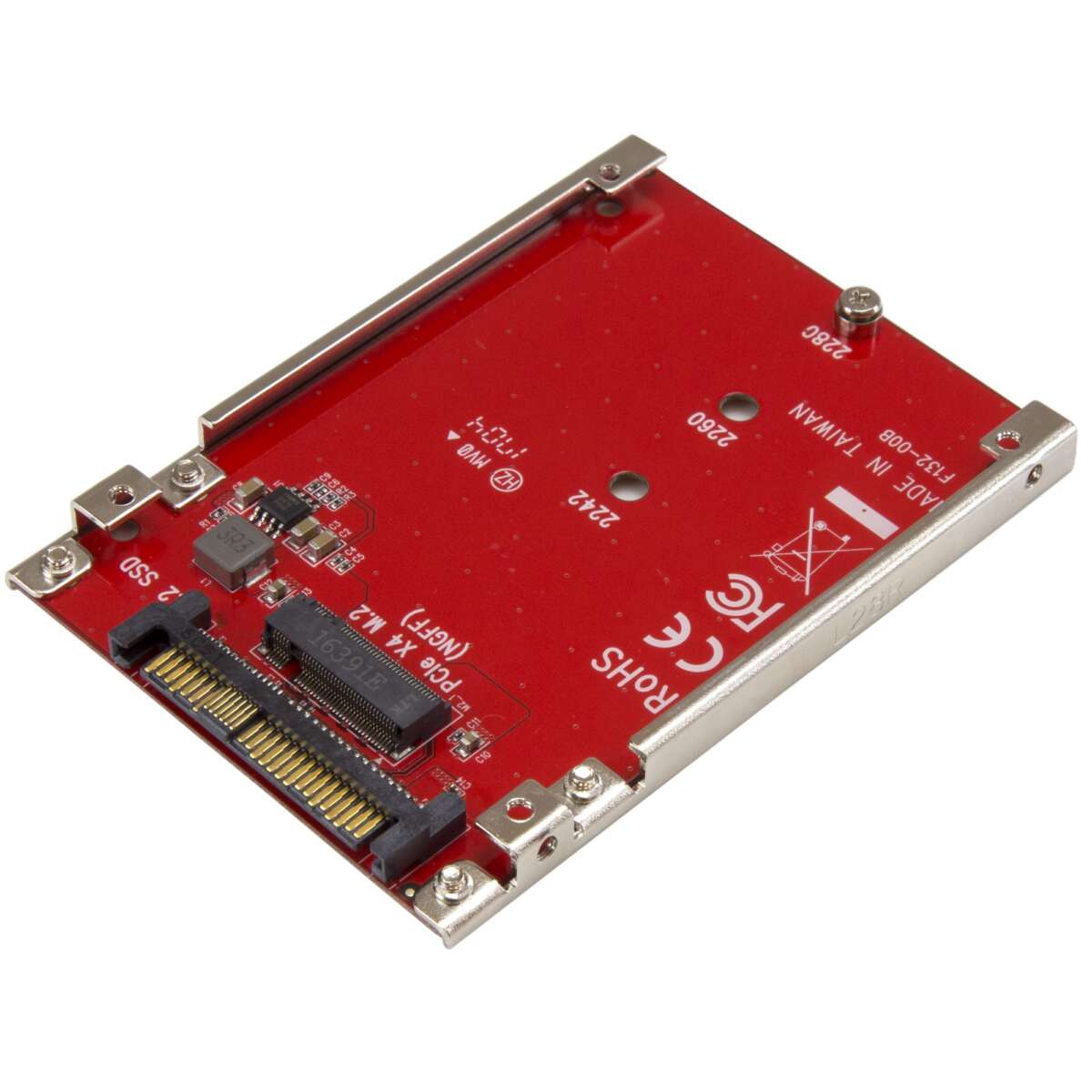
Install two NVMe SSDs by using two M.2 slots or an M.2 adapter and configure BIOS.
I’ve built and upgraded dozens of PCs, and I’ll walk you through how to install dual NVMe SSDs in one PC with clear steps, real tips, and what to watch for. This guide shows hardware checks, step-by-step installation, BIOS and OS setup, cooling and performance tips, plus troubleshooting. Read on to avoid common pitfalls and get both drives running fast and stable.
Understanding NVMe, M.2, and PCIe basics
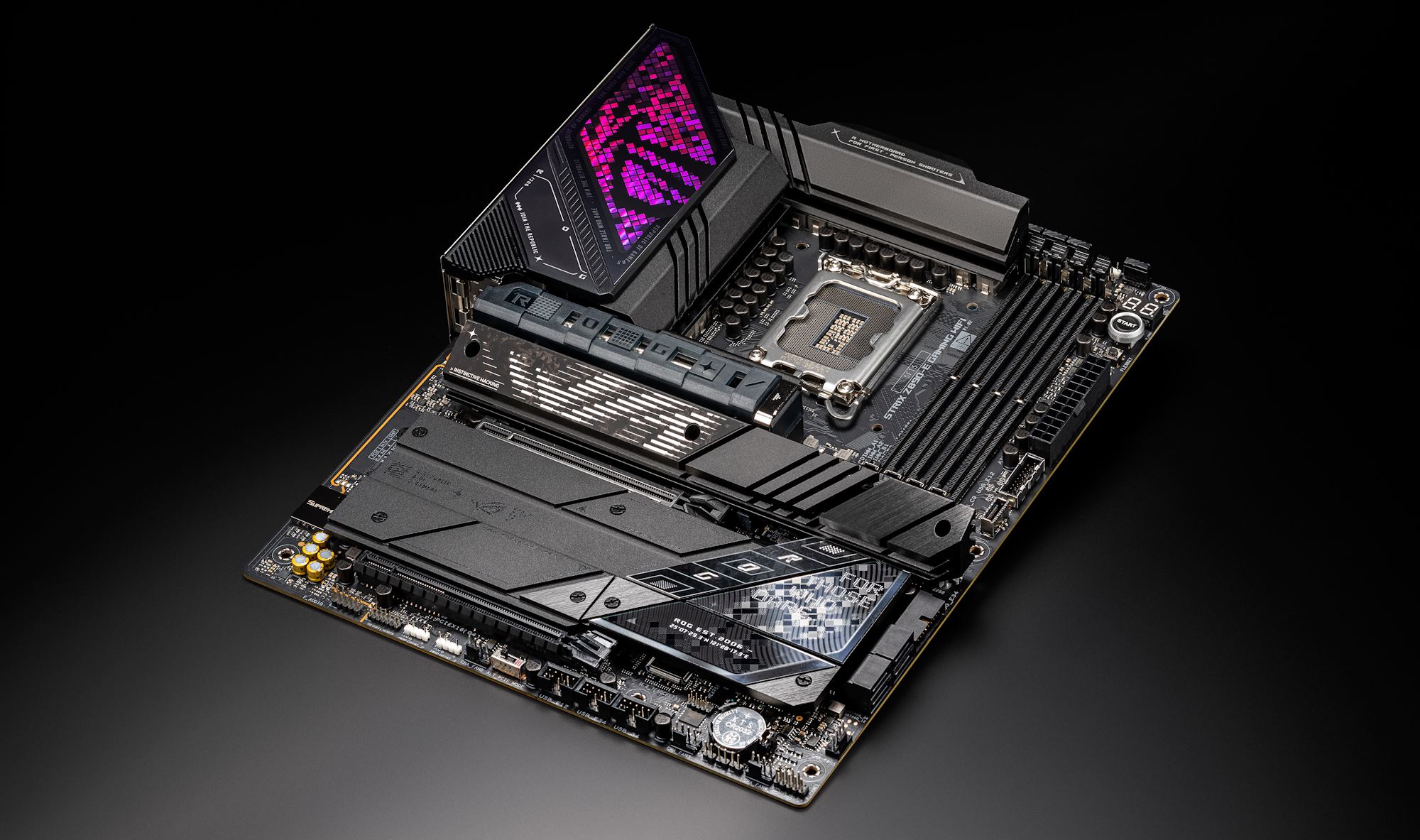
NVMe is a fast protocol that runs over PCIe lanes. M.2 is the physical form factor you’ll normally use for NVMe SSDs. The drive performance depends on the NVMe controller, the PCIe generation, and the number of lanes available. Most modern motherboards provide one or two M.2 slots. Some motherboards share PCIe lanes with SATA ports or PCIe slots, so adding a second NVMe can change how lanes are allocated.
Key terms to know:
- NVMe: A protocol designed for low-latency flash storage.
- M.2: The physical socket for many NVMe drives.
- PCIe lanes: The data paths that determine bandwidth per device.
- SATA-based M.2 vs NVMe: NVMe uses PCIe lanes; SATA does not.
Understanding these basics helps when you tackle how to install dual nvme ssds in one pc. Most of the time it is straightforward. Sometimes BIOS or lane sharing complicates things.
Do you have the hardware? Compatibility checklist
Before buying parts, confirm your system can accept two NVMe drives. This saves time and money.
Check these items:
- Motherboard M.2 slots: Does your board have two M.2 slots that support NVMe? Check the manual for slot specs.
- PCIe lane layout: Will the CPU and chipset provide enough lanes? Look at the motherboard’s lane-sharing notes.
- Physical space: Are the M.2 slots spaced so two drives with heatsinks fit without blocking other slots?
- BIOS support: Does your BIOS support booting from NVMe for your OS?
- Operating system: Modern Windows 10/11 and recent Linux kernels support NVMe natively.
- Power and cooling: Do you have enough case airflow or M.2 heatsinks for two drives?
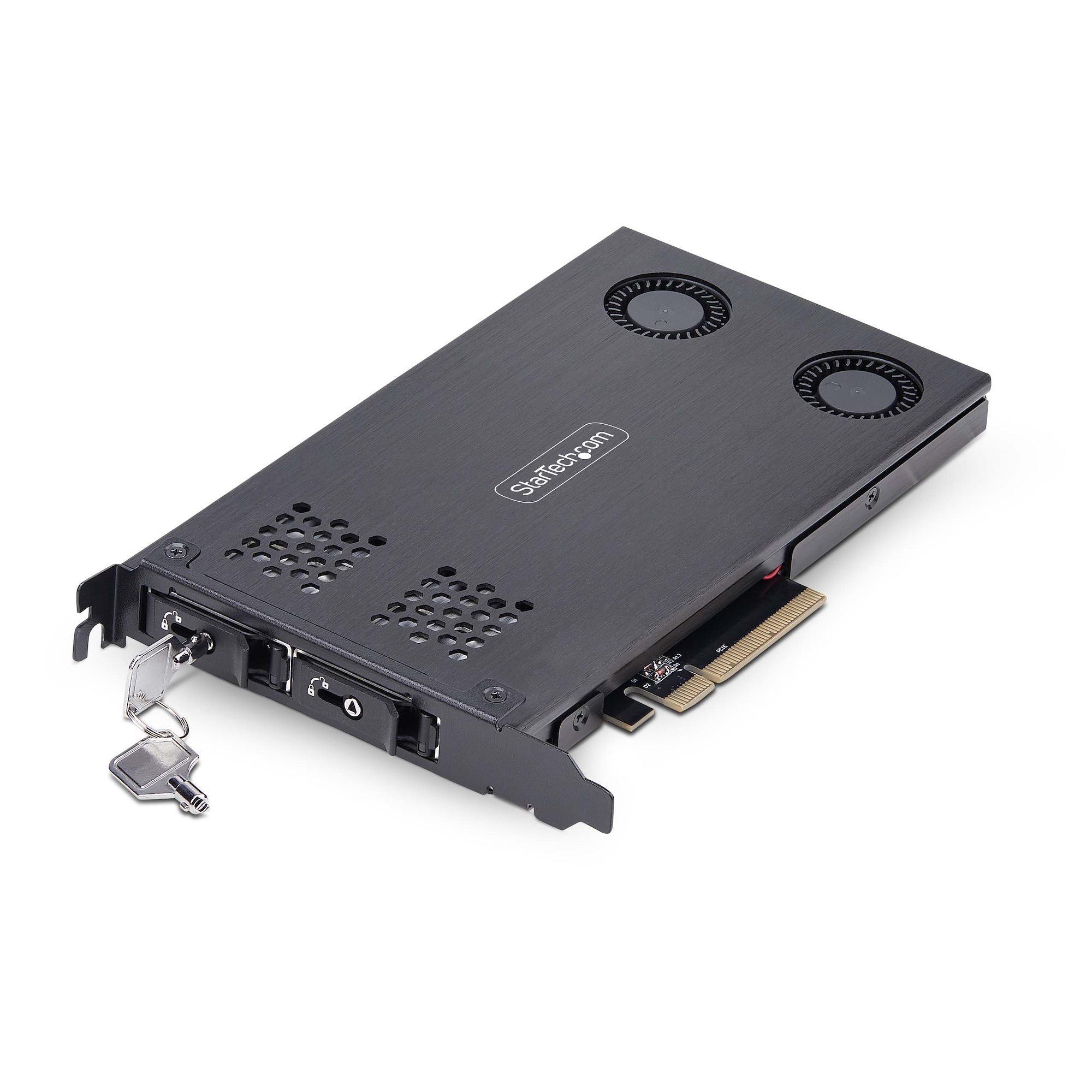
- Adapter option: If you have one M.2 slot, do you want an M.2-to-PCIe adapter to add a second drive?
If you want to install dual nvme ssds in one pc but your board has one slot, an adapter in a free PCIe x4 or x16 slot is a common solution. Adapters rely on free PCIe lanes and may affect GPU slot bandwidth on older or low-end boards.
Step-by-step: how to install dual nvme ssds in one pc
This section walks you through the physical install and setup. Work slowly and ground yourself to avoid static damage.
-
Prepare tools and workspace
-
Use a Phillips screwdriver, an anti-static wrist strap, and a clean surface. Power off the PC and unplug it. Press the power switch for a few seconds to drain residual charge.
-
Open the case and locate the M.2 slots. Consult your manual for recommended slots to use first.
-
Install the M.2 drives
-
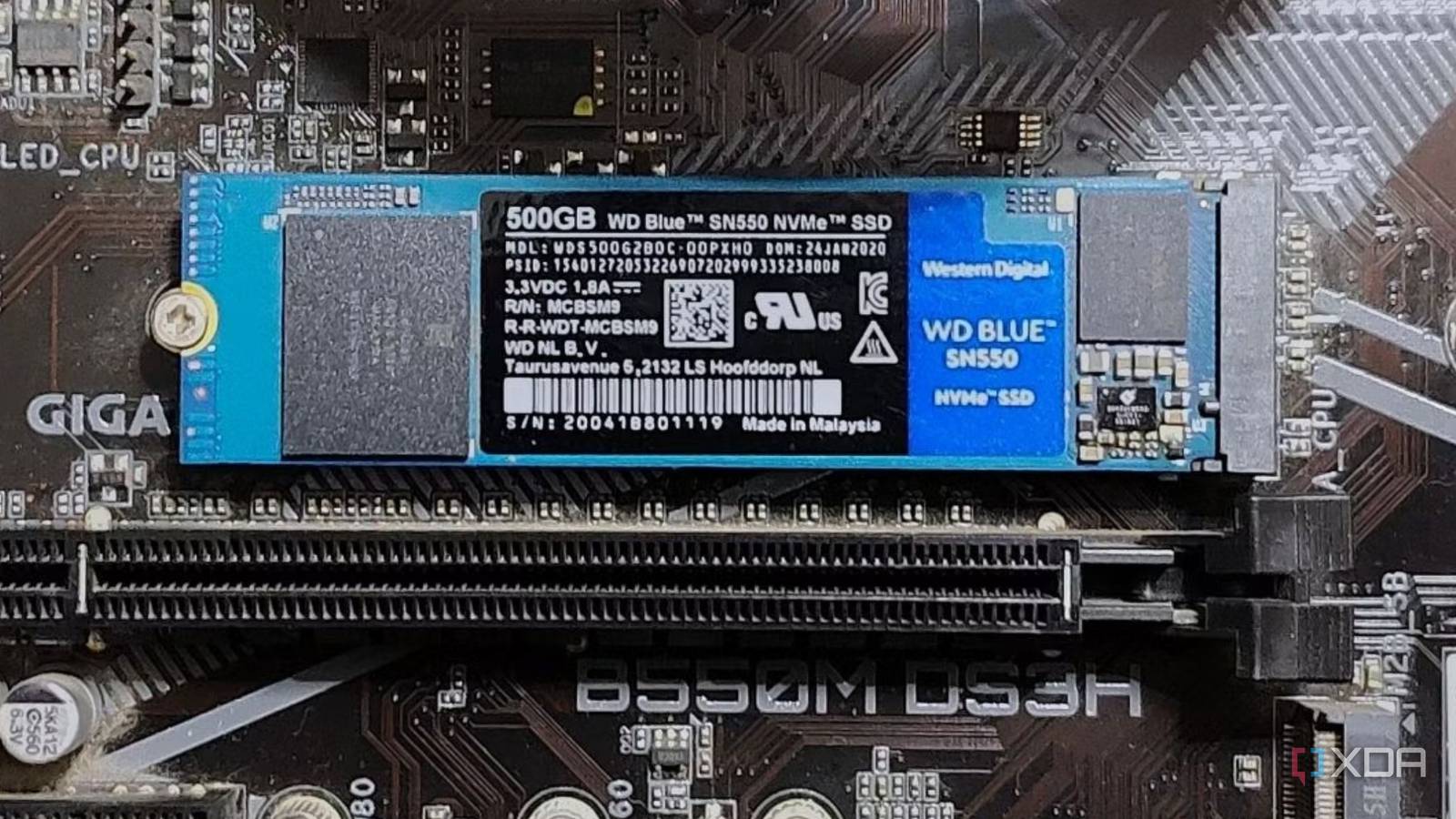
Remove the M.2 screw or standoff. Insert the NVMe SSD at a 30-degree angle into the slot until it clicks. Gently push the drive down and secure it with the screw.
-
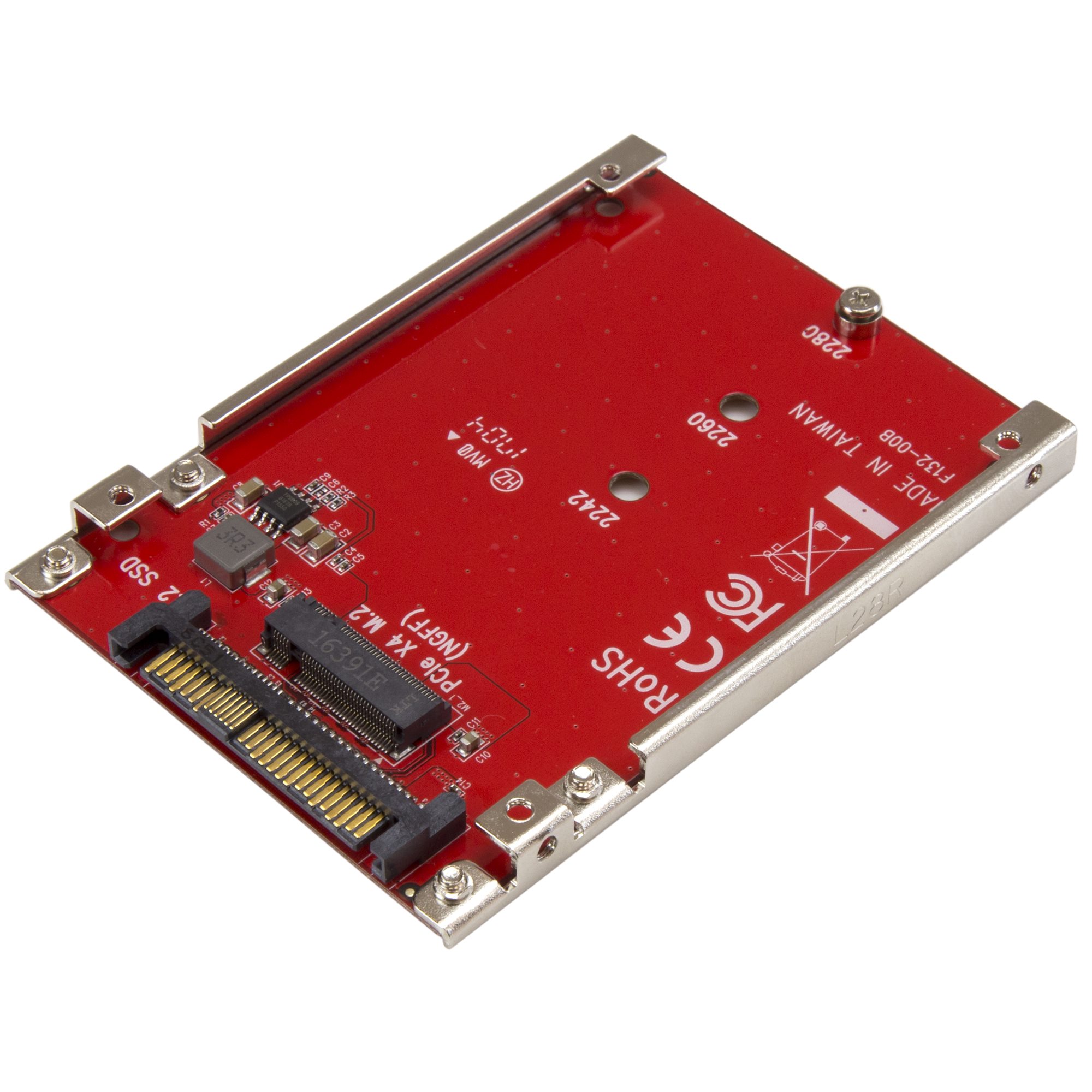
If using an M.2 adapter, insert the drive into the adapter and secure it. Then install the adapter into a free PCIe slot. Prefer a x4 slot or x16 slot wired as x4 to preserve lanes for your GPU.
-
Re-check spacing and cooling
-
Ensure any heatsinks fit and are not bending the board. If both drives sit close, consider low-profile heatsinks or thermal pads.
-
Re-seat any cables and fans that you moved. Close the case.
-
First boot and BIOS checks
-
Enter BIOS/UEFI. Look for both NVMe drives listed in storage devices. If a drive is missing, re-seat it or check BIOS settings for M.2 slot mode (some boards let you toggle between SATA and PCIe).
-
Set boot priority if you plan to boot from one of the NVMe drives. Save and exit.
-
OS installation or drive setup
-
For a fresh OS, boot from USB install media and pick the NVMe drive as the target. Install NVMe drivers only if the OS installer asks; modern OS builds include NVMe support.
-
For a second drive used as storage, initialize and format it in Disk Management (Windows) or using parted/lsblk and mkfs on Linux.
I’ve followed this exact flow many times. When you follow these steps, how to install dual nvme ssds in one pc becomes a routine upgrade, not a gamble.

BIOS/UEFI and OS setup details
BIOS settings can block or enable NVMe devices. Know where to look and what to change.
Important BIOS tips:
- NVMe mode: Set M.2 slots to PCIe/NVMe mode, not SATA, if there’s a choice.
- Boot mode: Use UEFI for NVMe boot drives. Legacy BIOS often won’t boot NVMe.
- PCIe lane configuration: If your board shares lanes, the BIOS may show disabled PCIe slots when an adapter is used. Check the manual to pick the right slot.
- Secure Boot and drivers: Secure Boot is OK with Windows and modern Linux. No special NVMe driver is required for recent systems.
OS notes:
- Windows: The installer recognizes NVMe drives. If cloning a drive, use proper cloning tools that support NVMe alignment and GUID partition tables.
- Linux: NVMe support is built into kernels since 3.x; use nvme-cli for advanced tasks.
If you plan to boot from either NVMe, set the desired drive as first in UEFI boot order. If issues occur, updating BIOS often helps. Remember, how to install dual nvme ssds in one pc includes these BIOS checks to avoid surprises.
Cooling, placement, and performance tips
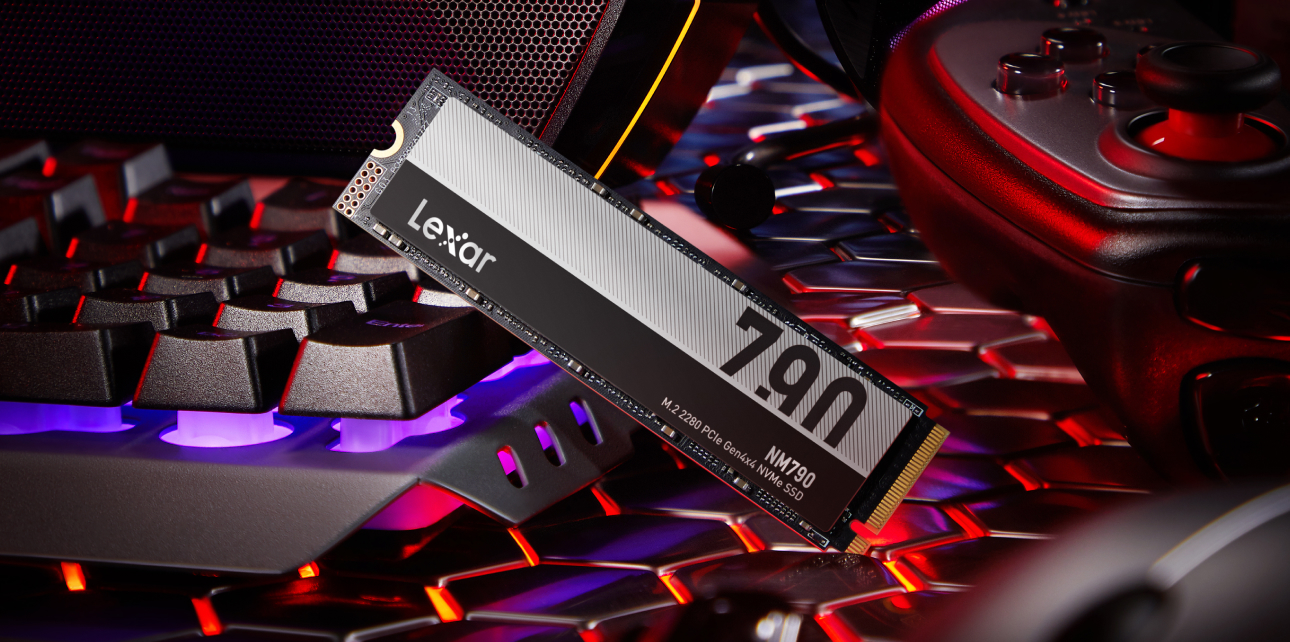
NVMe drives can get hot under sustained load. Cooling matters for speed and drive life.
Cooling strategies:
- Use M.2 heatsinks when possible to lower thermal throttling.
- Improve case airflow with front intake and top/rear exhaust fans.
- Avoid stacking NVMe drives directly over each other without airflow or shields.
- Monitor temps with tools like CrystalDiskInfo, nvme-cli, or HWInfo.
Performance tips:
- Match drive class when possible. Using one PCIe Gen4 drive and one Gen3 drive is fine, but they will run at different speeds.
- Keep important data on the faster drive and use the second as scratch or archive.
- Check firmware updates from the SSD maker for performance fixes and reliability improvements.
I once ran two high-speed NVMe drives without heatsinks and saw throttling in heavy transfer tests. Adding thin heatsinks and boosting front intake fans solved it. That’s a simple win when you install dual nvme ssds in one pc.
RAID, boot strategies, and troubleshooting
Decide early whether you want RAID or separate drives. RAID adds complexity and risk.
RAID options:
- Software RAID: Easy to set up in the OS. It is flexible and often safer for mixed hardware.
- Hardware RAID: Rare for NVMe without a dedicated controller. Usually used in servers.
- Motherboard RAID (Intel RST): Supported by some boards but may complicate OS installs and recovery.
Boot strategies:
- Single NVMe boot: Keep OS on one drive and data on the other. This is simplest.
- Boot from RAID: Make sure the BIOS supports NVMe RAID. Some implementations require special drivers during OS install.
Troubleshooting checklist:
- Missing drive in BIOS: Reseat the drive and test different M.2 slot. Update BIOS.
- Drive not visible in OS: Check Disk Management or use nvme list. Initialize the disk if new.
- Performance lower than expected: Check PCIe generation, lane width, and thermal throttling.
Knowing how to install dual nvme ssds in one pc also means planning for future upgrades. Keep a spare M.2 screw and note which slot you used; small details save hours later.

Personal experience and common mistakes
I’ve installed NVMe drives in home builds and client machines. Here are the lessons I learned the hard way.
Common mistakes I saw and made:
- Not reading the motherboard manual. Some slots disable SATA ports or share lanes.
- Using a PCIe adapter in a slot that drops to x1 lanes, throttling the NVMe.
- Forgetting to enable UEFI and then wondering why the system won’t boot from NVMe.
- Overlooking cooling. Small case, high-speed NVMe, and long copies make throttling obvious.
Quick tips from my bench:
- Test each drive alone first to make sure it’s healthy.
- If you use an adapter, pick one that supports proper cooling and stable mounting.
- Label drives in your case with masking tape during builds. It saves confusion later.
When you approach how to install dual nvme ssds in one pc with a checklist and a calm step-by-step plan, you’ll avoid these pitfalls and finish with a fast, stable system.

Frequently Asked Questions of how to install dual nvme ssds in one pc
Can I install two NVMe drives on any motherboard?
Most modern motherboards offer two M.2 slots or support an M.2 adapter in a PCIe slot. Check your motherboard manual for lane sharing and slot specifications before buying a second NVMe.
Will adding a second NVMe reduce GPU performance?
It can if your CPU or motherboard shares PCIe lanes between M.2 slots and PCIe slots. Review the board’s lane layout and use a slot that preserves your GPU’s lanes.
Do I need special drivers to boot from NVMe?
No for most modern systems. Windows 10/11 and recent Linux kernels include NVMe support. Some older motherboards may require an NVMe driver or BIOS update to boot.
Can I RAID two NVMe drives for speed or redundancy?
Yes, but RAID has trade-offs. Software RAID is flexible and easy, while motherboard RAID may need special drivers and complicate recovery. Consider backups over RAID for safety.
How do I cool two NVMe drives in a small case?
Use low-profile heatsinks and improve airflow with at least one intake and one exhaust fan. Thermal pads and repositioning cables can also help reduce temperatures quickly.
Conclusion
Installing dual NVMe SSDs in one PC is a highly effective upgrade for speed and storage. Start by checking compatibility, gather the right tools, follow the step-by-step install and BIOS setup, and pay attention to cooling and lane allocation. With careful planning, you’ll get two fast drives working together without surprises. Try the steps on your system today, share your build notes, or ask questions below to get tailored help.

Everett Ashford is a tech reviewer at mytechgrid.com specializing in SSDs, cameras, TVs, earbuds, headphones, and other consumer electronics. He provides honest, data-driven reviews based on hands-on testing and real-world performance analysis. Everett simplifies complex tech details to help readers make smart, confident buying decisions.