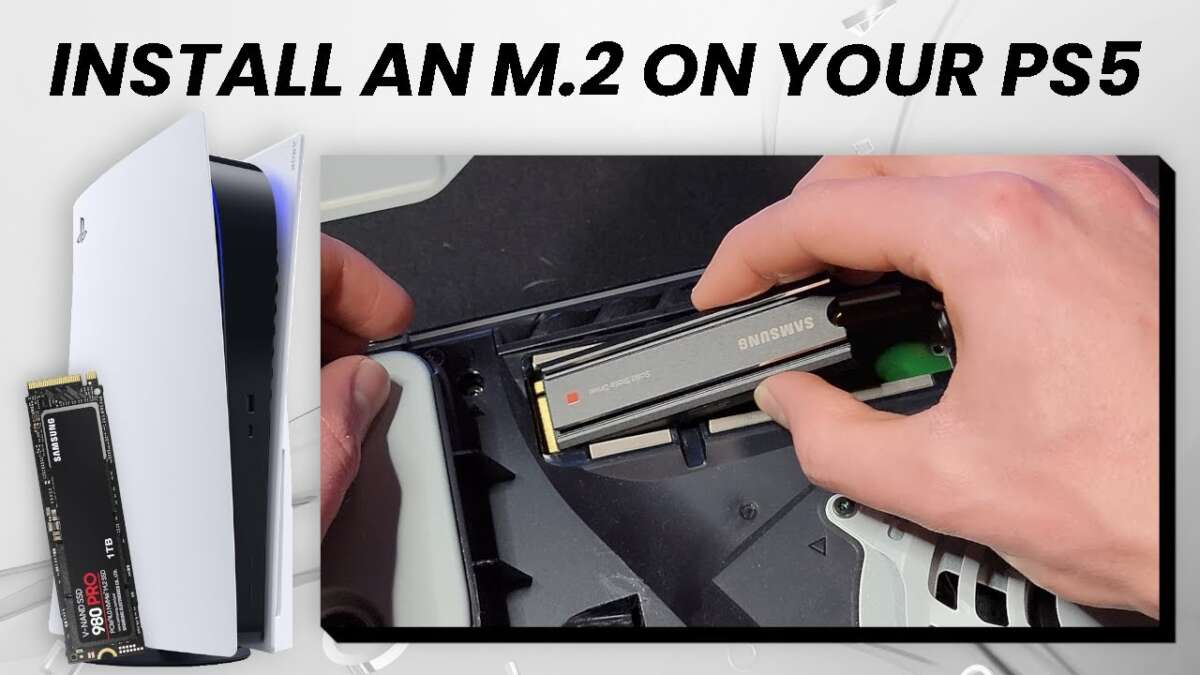
Installing an M.2 SSD in your PS5 involves opening the console, inserting the drive, and securing it. As a gamer who has done this upgrade firsthand, I understand the mix of excitement and hesitation you might feel. It seems technical, but trust me, it's one of the easiest hardware upgrades you can perform. This guide will walk you through exactly how to install an M.2 SSD in your PS5, transforming a potentially daunting task into a simple, 15-minute project that unlocks a world of gaming storage.

Why You Should Upgrade Your PS5 Storage
The PlayStation 5 is a powerhouse, but its internal storage can fill up surprisingly fast. With blockbuster games often exceeding 100GB, you might find yourself constantly deleting old favorites to make room for new ones. This is where a storage upgrade becomes less of a luxury and more of a necessity.
Adding an internal M.2 SSD is the best way to expand your capacity. Unlike an external USB drive, where you can only store and play PS4 games, an internal M.2 SSD lets you store and play PS5 games directly from it. This means you get the same lightning-fast loading speeds you expect from the console's native drive. Learning how to install an M.2 SSD in your PS5 is a direct investment in more gaming and less time managing storage.
Choosing the Right M.2 SSD for Your PS5
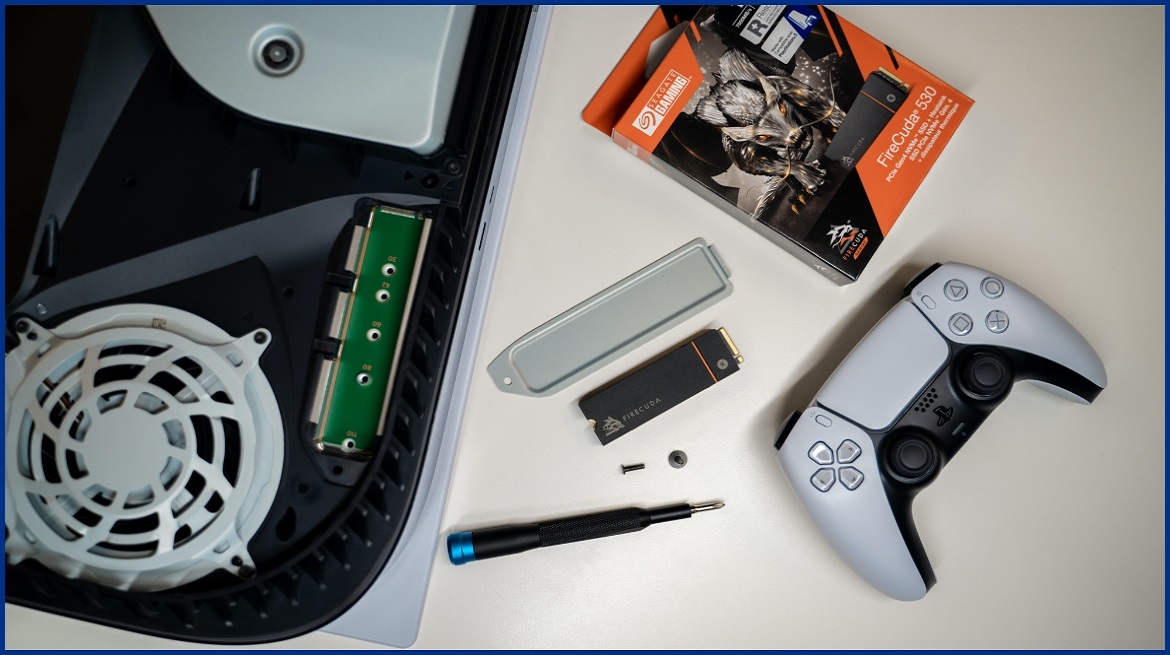
Before you start the installation, you need the right drive. Sony has specific requirements to ensure performance and prevent overheating. Getting this part right is the most crucial step in the entire process of how to install an M.2 SSD in your PS5.
Here are the key specifications to look for:
- Interface: It must be a PCIe Gen4 x4 M.2 NVMe SSD. Older Gen3 drives will not work.
- Read Speed: A sequential read speed of 5,500MB/s or faster is recommended. This ensures games load just as quickly as they do from the internal drive.
- Capacity: You can install a drive from 250GB all the way up to 8TB. I personally find a 2TB drive hits the sweet spot for price and capacity.
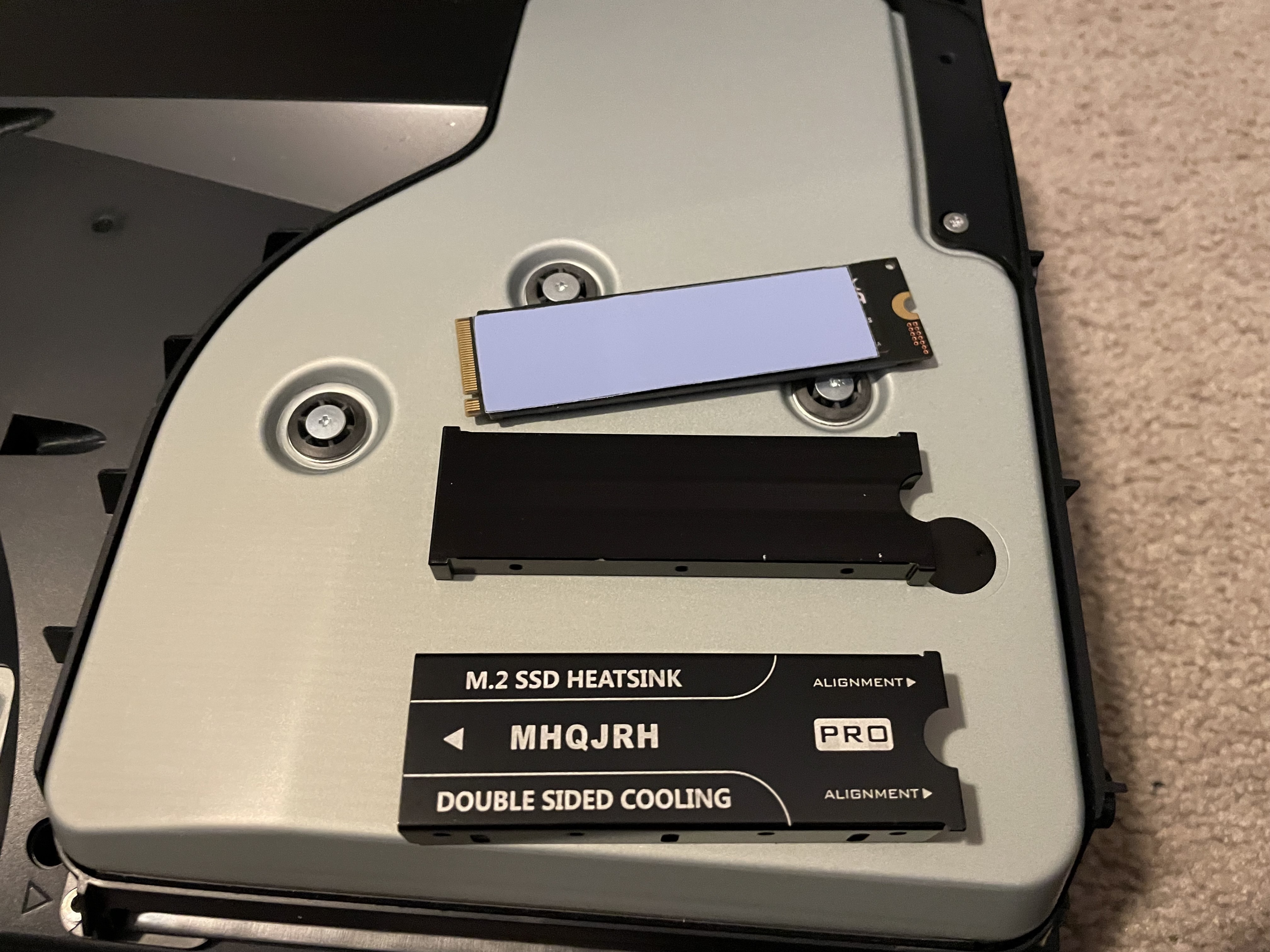
- Heatsink: A heatsink is absolutely required. These drives get hot under load, and a heatsink is essential for dissipating that heat to maintain performance. You can buy an SSD with a pre-installed heatsink or purchase and attach one yourself.
- Form Factor: The PS5 supports several M.2 sizes, including 2230, 2242, 2260, 2280, and 22110. The most common size you will find is 2280.
- Total Size: The drive, including its heatsink, must not exceed 25mm in width, 110mm in length, and 11.25mm in height.
Always double-check these specs before making a purchase. Choosing a compatible drive makes the process of how to install an M.2 SSD in your PS5 smooth and successful.

Tools and Preparation
The good news is that you don’t need a complex toolkit for this job. The preparation is minimal but important for a hassle-free installation.
Here is what you will need:
- A #1 Phillips head screwdriver.
- A clean, flat, and well-lit surface to work on, like a table with a soft cloth.
- Your compatible M.2 SSD with a heatsink.
Before you begin the physical installation, there are two crucial preparation steps. First, make sure your PS5 system software is fully updated. M.2 SSD support was added in a software update, so your console needs to be current. Second, completely power down your PS5 and unplug all cables. This is a vital safety step.
A Step-by-Step Guide on How to Install M.2 SSD in PS5
With your drive and tools ready, it’s time to begin. Follow these steps carefully, and you'll be done in no time. This is the core procedure for how to install an M.2 SSD in your PS5.
- Place Your PS5 on a Flat Surface. Lay the console on its side with the PlayStation logo facing down. The power port should be facing you. This orientation gives you access to the correct side panel.
- Remove the Side Cover. Gently grip the top-back corner and the bottom-front corner of the white cover. Lift the back corner slightly while sliding the cover towards the bottom of the console. It should pop off with a gentle click.
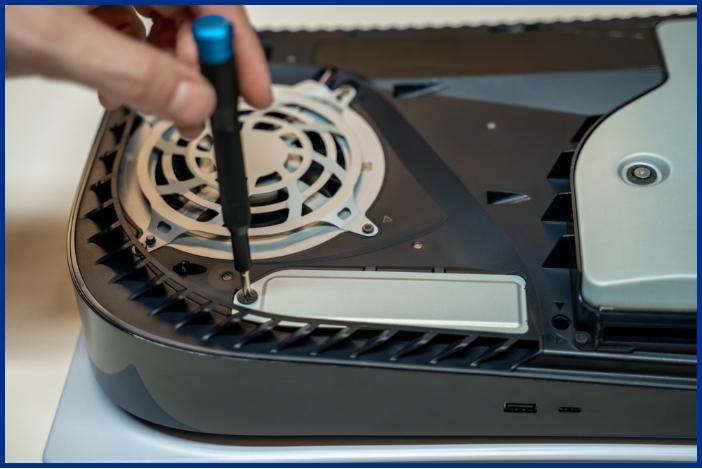
- Open the Expansion Slot. You will now see a long, rectangular metal cover held in place by a single screw. This is the M.2 expansion slot. Use your Phillips screwdriver to remove the screw and lift the cover off.
- Adjust the Spacer Screw. Inside the slot, you'll see a small screw and a spacer. They are likely in the "110" position. Unscrew it and move the spacer to the hole that matches your SSD's length, which is typically "80" for most drives.
- Insert the M.2 SSD. Take your M.2 SSD and align the notch on the connector with the corresponding key in the slot. Insert the drive at a slight upward angle until it is firmly seated.
- Secure the Drive. Gently press the SSD down so it rests on the spacer. Use the screw you removed in the previous step to secure the end of the drive to the spacer. Do not overtighten it.
- Replace the Slot Cover. Place the metal expansion slot cover back on and secure it with its screw. This completes the internal part of how to install an M.2 SSD in your PS5.
- Reattach the Side Cover. Align the side cover’s hooks with the console’s frame and slide it back into place. You will hear a satisfying click when it is secure.
- Power On and Format Your Drive. Reconnect all the cables and turn on your PS5. A formatting screen for the M.2 SSD will appear automatically. Follow the on-screen prompts to format the drive. This process takes only a few seconds.
After formatting, your PS5 is ready to use the new storage. You can set it as the default installation location for new games or move existing games over.
Frequently Asked Questions
Can I install any M.2 SSD in my PS5?
No, the drive must meet specific requirements. It needs to be a PCIe Gen4 NVMe SSD with a minimum read speed of 5,500MB/s and must include a heatsink.
Will adding an M.2 SSD void my PS5 warranty?
No, it will not. Sony designed the PS5 with a user-accessible expansion slot, and upgrading the storage is a supported feature that does not impact your warranty.
What is the maximum size M.2 SSD for PS5?
The PlayStation 5 officially supports M.2 SSDs with a capacity as large as 8TB. This provides a massive amount of space for even the most extensive game libraries.
Do I really need a heatsink on my PS5 M.2 SSD?
Yes, a heatsink is a mandatory requirement from Sony. The intense speed of the drive generates considerable heat, which the heatsink dissipates to ensure stable performance and prevent damage.
How do I move games to the new M.2 SSD?
From the home screen, go to your Game Library, highlight a game, press the Options button, and select "Move Games and Apps." You can then choose which games to transfer to your newly installed M.2 SSD storage.
Conclusion
Expanding your console's storage is one of the most practical upgrades you can make. By following this guide, you have learned how to install an M.2 SSD in your PS5, unlocking the freedom to keep more of your favorite games ready to play at a moment's notice. It is a simple process that empowers you to get the most out of your console.
Now that your digital library has room to grow, which game will you install first on your newly expanded storage? Share your plans in the comments below

Everett Ashford is a tech reviewer at mytechgrid.com specializing in SSDs, cameras, TVs, earbuds, headphones, and other consumer electronics. He provides honest, data-driven reviews based on hands-on testing and real-world performance analysis. Everett simplifies complex tech details to help readers make smart, confident buying decisions.