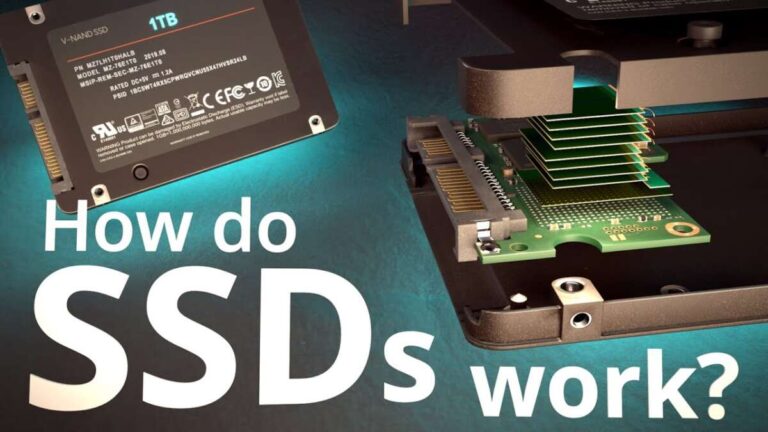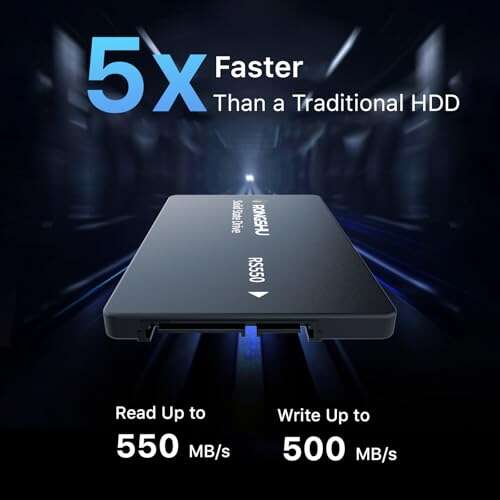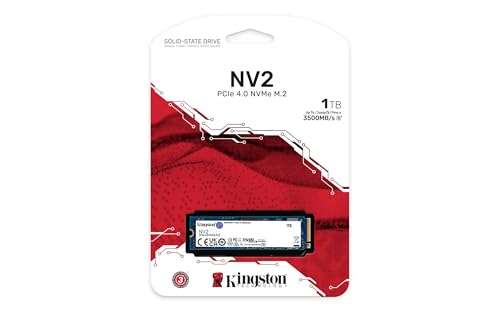
Add a second SSD by mounting it, connecting power/data cables or inserting an M.2, then initializing and formatting.
I have installed and configured dozens of drives for friends, clients, and my own systems. This guide walks you through how to install second SSD with clear steps for desktops and laptops, covers cloning and fresh installs, and offers real-world tips from hands-on experience. If you want faster storage, more space, or a dedicated drive for games or work, this article will make the process simple, safe, and reliable.

Do you have what you need?
Check compatibility before you start. Know your PC type, drive interface, and available slots. Desktops often accept 2.5-inch SATA SSDs or M.2 NVMe drives. Laptops may have one M.2 slot or a 2.5-inch bay; some need a caddy or adapter.
Gather tools and parts. You will usually need a screwdriver, SATA data cable, SATA power connector (from the PSU), or an M.2 screw and standoff. Also have a backup of important data and a system restore plan.
Verify the drive and motherboard support. Confirm whether you need SATA or NVMe, and whether the slot shares lanes with other ports. This prevents surprises like disabled SATA ports after adding an M.2.
:max_bytes(150000):strip_icc()/6-0094128015f74a7c84f1011743f4d556.jpg)
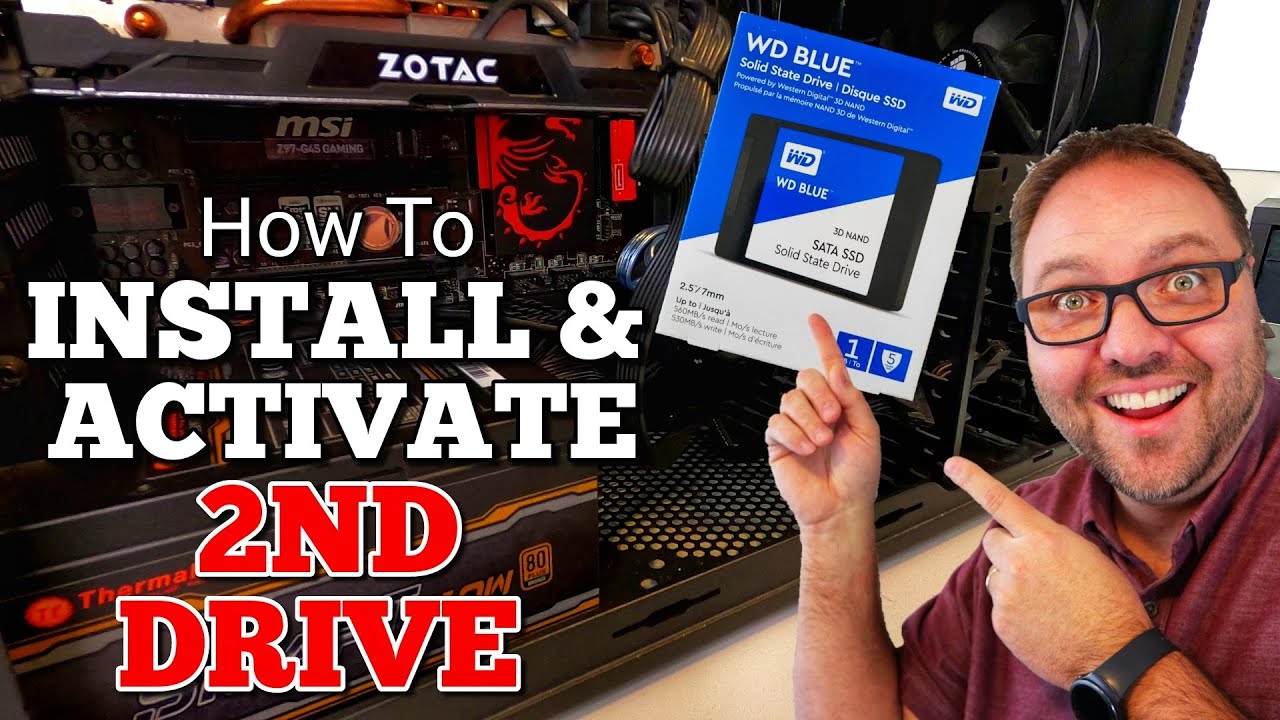
How to install second SSD in a desktop
Power down and unplug the PC. Press the case power button after unplugging to drain residual power. Ground yourself to avoid static.
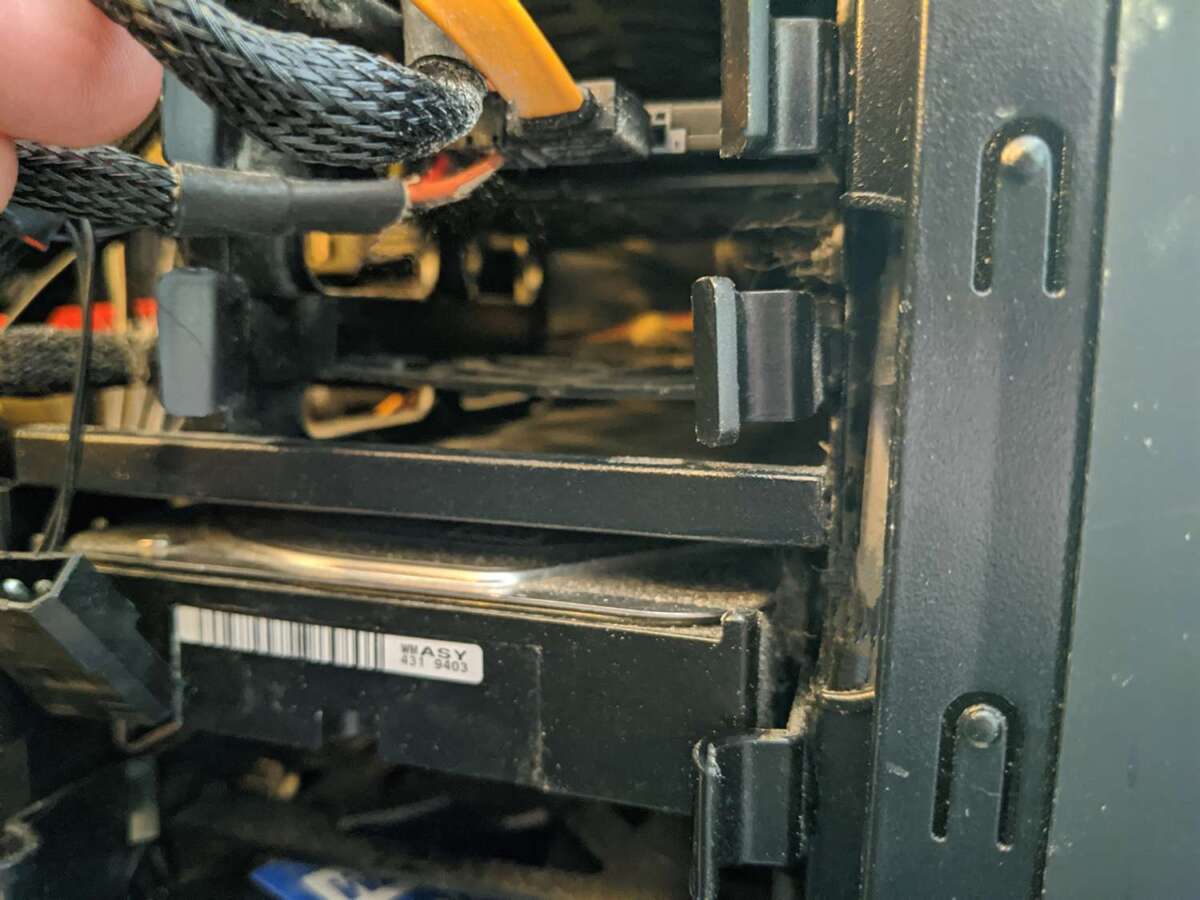
Open the case and find a mounting location. Use a 2.5-inch bay, adapter bracket, or an M.2 slot on the motherboard. Many cases have dedicated 2.5-inch trays that clip or screw in.
Mount and connect a SATA SSD
- Insert the SSD into the 2.5-inch tray or bracket.
- Secure with screws so it won’t move.
- Connect one end of the SATA data cable to the drive and the other to an available SATA port on the motherboard.
- Connect a SATA power cable from the PSU to the drive.
Install an M.2 SSD
- Locate the M.2 slot and remove the screw and standoff.
- Align the M.2 notch and insert at an angle (about 20–30 degrees).
- Press the drive down and secure it with the screw.
- Some M.2 drives need a heatsink; add one if recommended.
Close the case and boot to BIOS/UEFI. Confirm the new SSD appears in the storage list. If it’s not visible, re-check connections and slot sharing settings. If detected, proceed to initialize the drive in your OS.
How to install second SSD in a laptop
Turn off and unplug the laptop. Remove the battery if possible. Ground yourself.
Find the right bay or M.2 slot. Check the manual for the location. Some laptops require removing the whole bottom cover.
Install a 2.5-inch drive in laptops that support it
- Use the drive caddy or tray the laptop offers.
- Slide the drive into the connector and secure it with screws.
- Reassemble and boot.
Install an M.2 drive in laptops
- Locate the M.2 slot and remove the screw.
- Insert the M.2 drive into the slot at an angle and press down.
- Secure with the screw. For two M.2 slots, confirm lane allocation in the manual.
If your laptop has only one storage bay, you can replace the existing drive or use a USB adapter to add external SSD storage. Some models accept NVMe only; others accept SATA M.2. Verify compatibility before purchasing.
:max_bytes(150000):strip_icc()/3-4c5a4446f16443d0a6e9213779544f51.jpg)
Cloning, initializing, and partitioning
Decide between cloning and a fresh install. Cloning copies your OS and apps to the new SSD. A fresh install gives a clean system and often better performance.
Clone when you need an exact replica
- Use reliable cloning software.
- Ensure the target SSD is equal or larger than used space on the source drive.
- After cloning, boot from the new drive by changing the boot order in BIOS if desired.
Initialize and format for a new data drive
- In Windows, open Disk Management.
- If prompted, initialize as GPT (recommended for modern systems) or MBR for older systems.
- Create a new partition, format as NTFS, and assign a drive letter.
- For Linux or macOS, use the appropriate disk utility and file system.
Align partitions and enable TRIM. Proper alignment improves SSD performance and longevity. Enable TRIM in Windows with power shell or verify it’s on by default. For NVMe, install the latest drivers and firmware for best performance.

Troubleshooting common issues
Drive not detected
- Re-seat cables and the M.2 screw.
- Try another SATA port or different M.2 slot.
- Update BIOS if the board won’t see newer NVMe drives.
Slow performance
- Check cables: use SATA III ports and quality cables.
- Confirm the drive is in the correct PCIe lane for full NVMe speed.
- Verify drivers and firmware are current and TRIM is enabled.
Boot or cloning problems
- If cloning fails, try cloning only the system partition or use image-based backup and restore.
- Confirm boot order in BIOS and disable legacy boot if using GPT.
- Repair the bootloader with Windows recovery tools if necessary.
Thermal throttling on NVMe
- Add an M.2 heatsink or improve case airflow.
- Avoid installing NVMe drives in cramped slots without cooling.
- Monitor temperatures and workload to reduce sustained heat.

Tips, best practices, and mistakes to avoid
Backup first. Always make a full backup before hardware changes. This prevents data loss and keeps your mind calm.
Label cables and ports. This helps if you need to reassemble or troubleshoot later. Take a photo before unplugging things.
Avoid common mistakes
- Don’t force connectors. If a cable won’t fit, check orientation.
- Don’t skip firmware updates for new drives.
- Don’t assume every M.2 slot supports NVMe; some are SATA-only.
Personal experience: I once installed an NVMe in a slot that shared lanes with a SATA controller and lost two SATA ports. Checking the motherboard manual would have saved an hour. Learn from that: read the manual first and test before final assembly.
Plan storage by use case. Use a fast NVMe for your OS and apps and a larger SATA SSD for bulk storage. That mix keeps costs down and performance high.

Frequently Asked Questions of how to install second ssd
Do I need to format a new SSD after installing it?
Yes. After physically installing the drive, initialize and format it in your OS before use. In Windows, use Disk Management to create a partition and format as NTFS.
Can I install a second SSD without opening the case?
For desktops you must open the case. For laptops, some have quick-access panels. You can also use an external USB-to-SATA or USB-to-NVMe adapter to use a drive without opening the machine.
Will adding a second SSD speed up my computer?
Adding a second SSD can speed up tasks if you install the OS or active apps on a faster drive. Using a second SSD for game libraries or scratch storage reduces load on the main disk and improves responsiveness.
Is cloning the old drive necessary when installing a second SSD?
Cloning is optional. Clone if you need the same OS setup. Choose a fresh install if you want a clean system or to avoid migrating old clutter and drivers.
What if my BIOS doesn't detect the new drive?
Check connections or try another port. Update BIOS and firmware. For M.2, confirm slot support and check if lane sharing disables other ports; consult the motherboard manual.
Do I need a special cable for SATA SSDs?
Most SATA SSDs use a standard SATA data cable and a SATA power connector from the PSU. Use a SATA III cable for best speed and a healthy PSU with free power connectors.
Can I mix SATA and NVMe SSDs in one system?
Yes. Most modern systems support mixing SATA and NVMe drives. Check the motherboard manual for lane sharing or slot limitations to avoid disabling ports.
How do I choose between GPT and MBR when initializing?
Choose GPT for modern UEFI systems and drives larger than 2 TB. Use MBR only for older BIOS systems or legacy compatibility needs. GPT is recommended for most users.
Conclusion
Installing a second SSD is a high-impact upgrade that is simple when you follow the right steps. Check compatibility, gather tools, mount the drive properly, and initialize it in the OS. Whether you choose cloning or a fresh install, test and update firmware for best results.
Take action now: pick the right drive for your needs, follow the step-by-step sections above, and back up first. If you found this guide helpful, try the install and share your experience or questions in the comments.

Everett Ashford is a tech reviewer at mytechgrid.com specializing in SSDs, cameras, TVs, earbuds, headphones, and other consumer electronics. He provides honest, data-driven reviews based on hands-on testing and real-world performance analysis. Everett simplifies complex tech details to help readers make smart, confident buying decisions.