Place your Siri Remote close to the Apple TV and press and hold the correct buttons until the on-screen pairing message appears.
I’ve guided hundreds of people through how to pair Apple TV remote, so you’re in good hands. This guide covers every common Apple TV remote, step-by-step pairing methods, Bluetooth and Settings options, troubleshooting tips, and real-world fixes I’ve used. Read on to learn how to pair Apple TV remote quickly, fix the usual problems, and get your remote working like new.
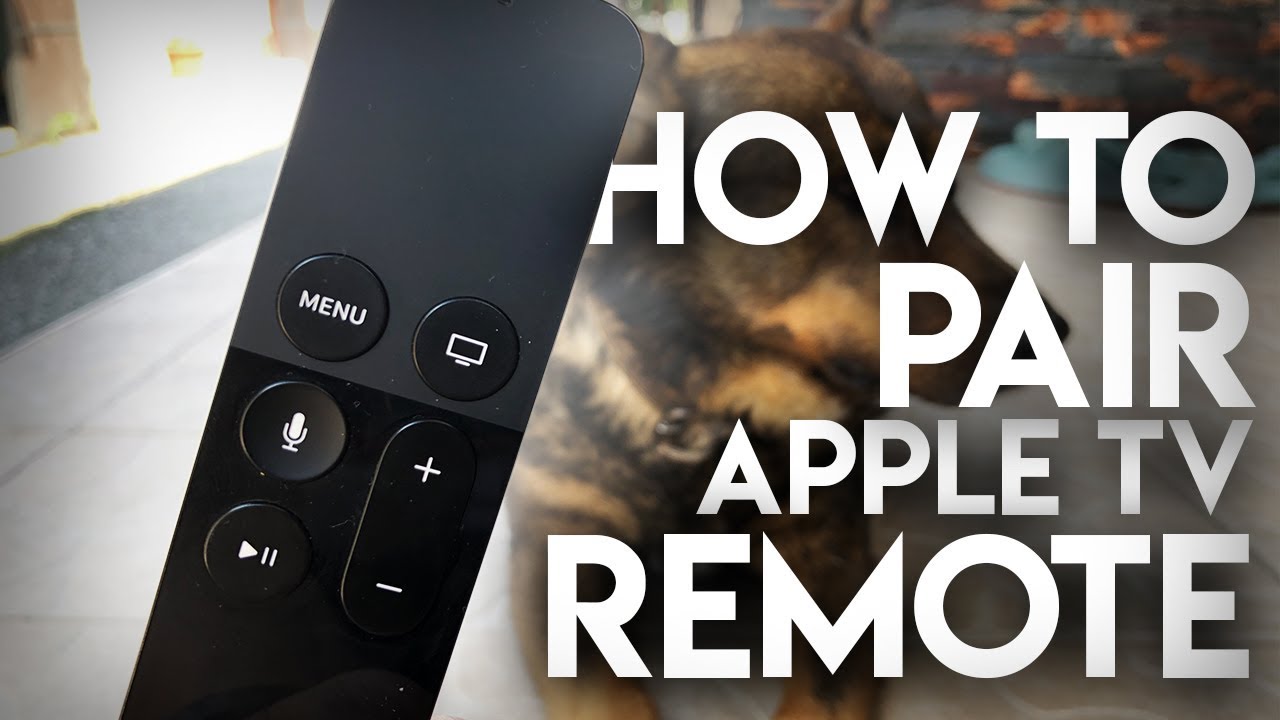
Quick steps to pair Siri Remote (fast guide)
If you want a short path to success, follow these steps to learn how to pair Apple TV remote with the Siri Remote quickly.
- Place the remote within 3 inches of the Apple TV.
- Make sure the Apple TV is on and awake.
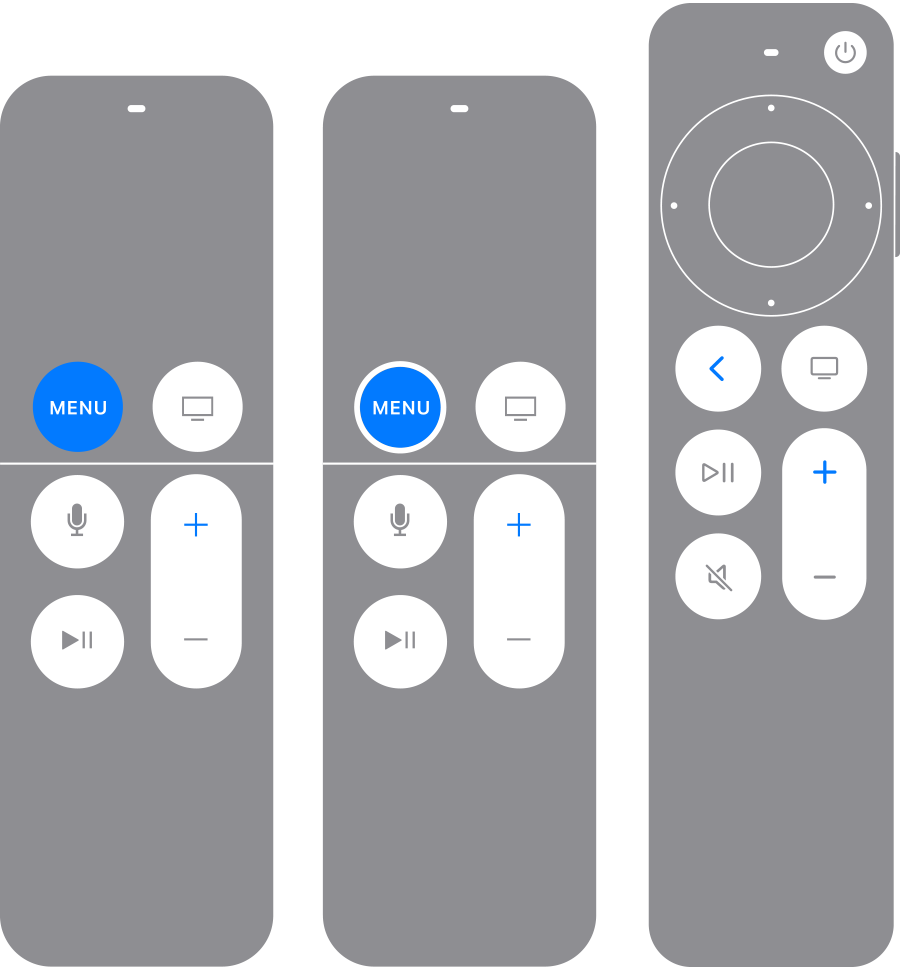
- Press and hold the Menu (or Back) and Volume Up buttons until you see a pairing message on screen.
- Wait for confirmation that the remote is paired.
If the remote doesn’t pair, try charging it, restarting the Apple TV, and repeating the steps. I’ve found doing a quick restart on Apple TV often fixes stubborn pairing problems when learning how to pair Apple TV remote.
Pair using Settings and Bluetooth
You can also pair your remote from Apple TV’s menus. This method helps if button-based pairing fails and is a good fallback when learning how to pair Apple TV remote.
- From the home screen open Settings.
- Select Remotes and Devices.
- Choose Bluetooth.
- Put your remote into pairing mode, then select it on the Apple TV screen.
If the remote appears in the Bluetooth list but shows “Not Connected,” select it again to pair. This Settings route is handy when you need control but the standard button combo isn’t working.
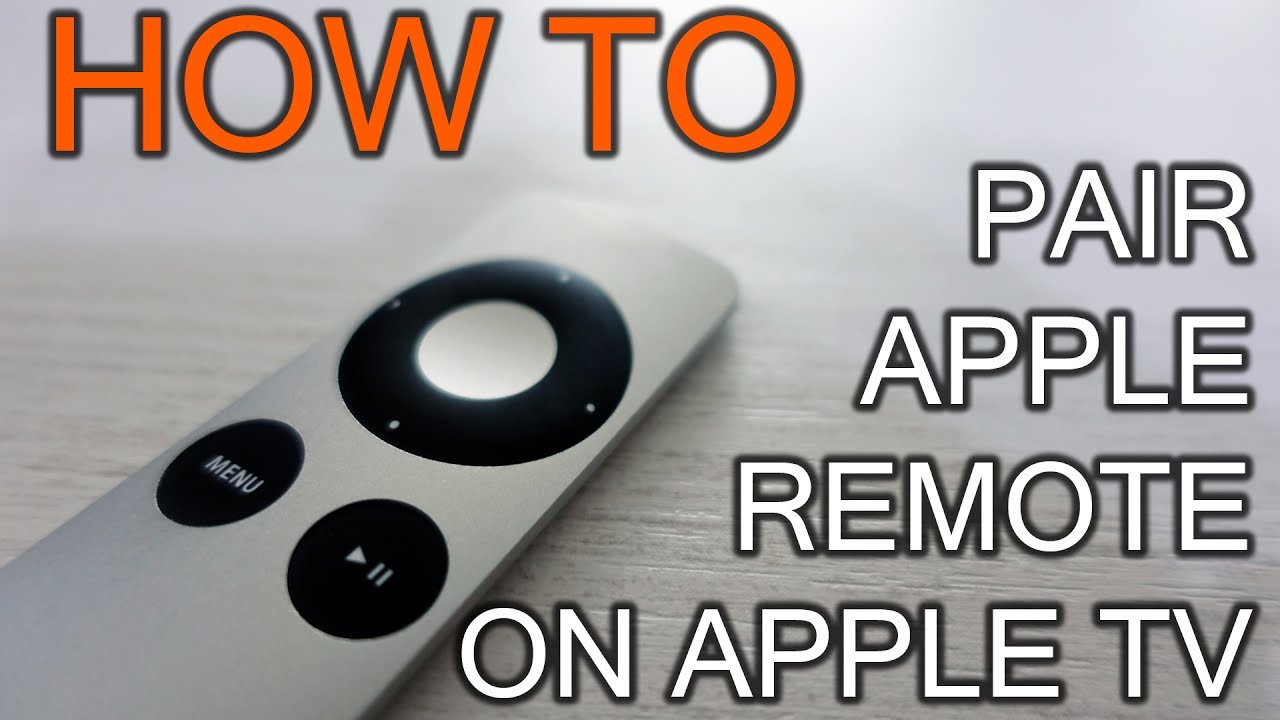
Pair older Apple Remote models
Older Apple Remotes use different steps. Here’s how to pair legacy remotes and what to watch for when you learn how to pair Apple TV remote that isn’t a Siri Remote.
- For aluminum or white Apple Remotes, ensure the battery is installed and fresh.
- Point the remote directly at the Apple TV.
- On some older models you may need to press and hold the Menu and Right buttons (or Menu and Next) until the LED blinks or a message appears.
- If pairing fails, replace the CR2032 battery and try again.
Older remotes are more sensitive to distance and obstructions. I once fixed an older remote by swapping the battery and standing right in front of the Apple TV—simple but effective when learning how to pair Apple TV remote from older generations.

Pair your Apple TV remote with an iPhone (use as backup remote)
If the hardware remote is missing or dead, your iPhone can act as a remote. This is a useful workaround while you figure out how to pair Apple TV remote hardware.
- Open Control Center on your iPhone.
- Tap Apple TV Remote.
- Select your Apple TV from the list.
- Follow on-screen prompts to connect.
This method uses the same Wi‑Fi network and is fast when you need a temporary solution. I often use my phone to pair and test settings before trying the physical remote again.
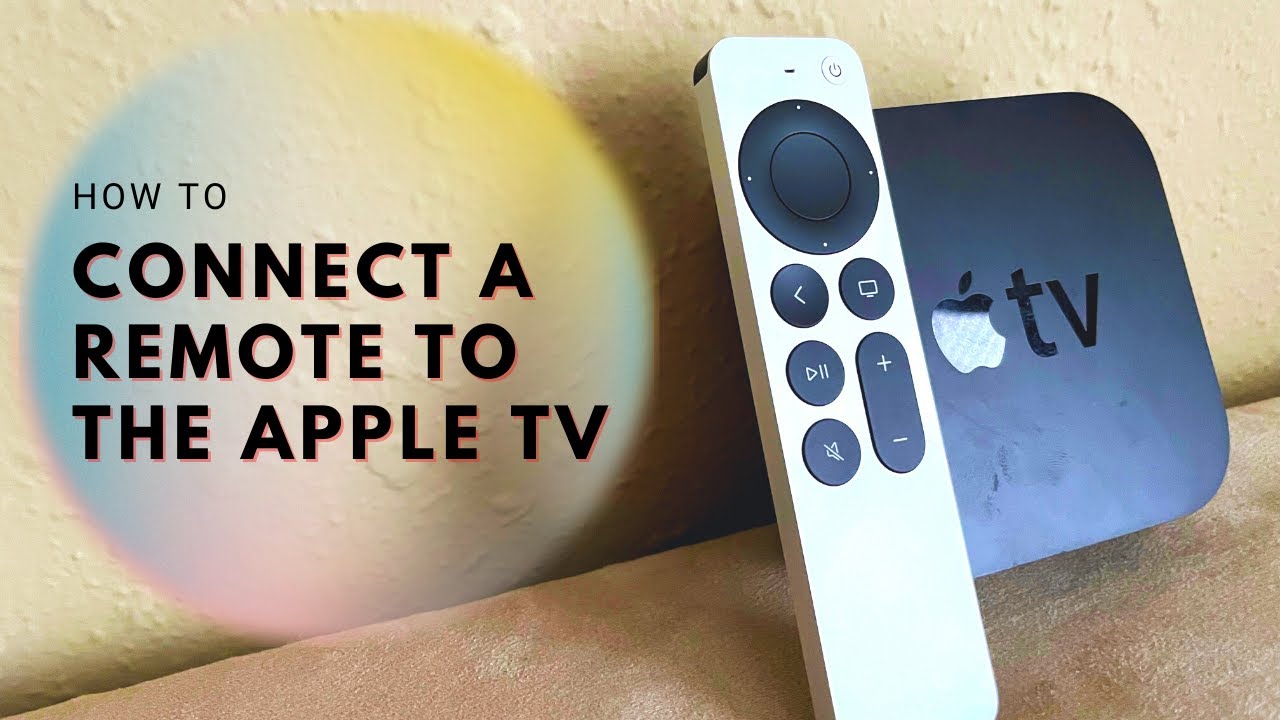
Troubleshooting common pairing problems
When learning how to pair Apple TV remote, problems are common but fixable. Here are practical fixes I use.
- Charge your remote
- Low battery often prevents pairing. Plug your Siri Remote into a charger for at least 10 minutes.
- Restart Apple TV
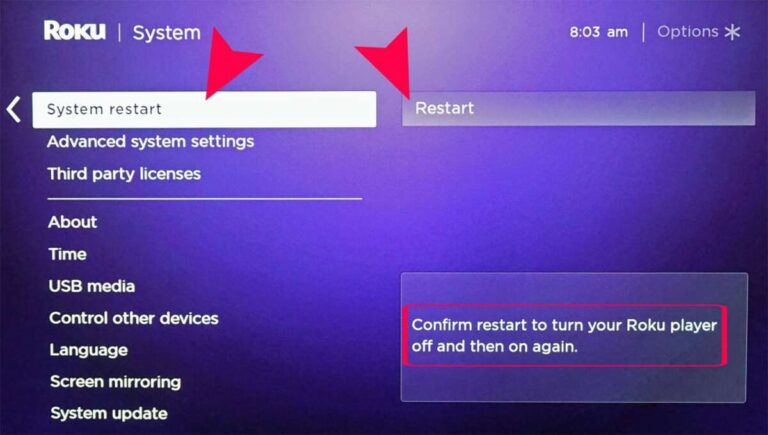
- Unplug it for 10 seconds or use Settings > System > Restart.
- Move closer and remove obstructions
- Keep the remote within a few inches and remove devices that may interfere.
- Update tvOS
- Go to Settings > System > Software Updates and install any updates.
- Unpair and re-pair
- For a stuck remote, unpair in Settings then repeat the pairing steps.
If none of these work, try a different remote or contact support. I once fixed a unit by updating tvOS; pairing started working right after the update.

Tips, best practices, and things I’ve learned
These hands-on tips speed up how to pair Apple TV remote and prevent headaches.
- Keep the remote charged. A charged remote pairs faster.
- Restart Apple TV before big troubleshooting steps.
- Use the iPhone remote as a test tool.
- Store older remotes with a spare battery.
- Try pairing in a quiet, interference-free room.
From my experience, patience matters. Hold the buttons a little longer than you think you need to. Small things like standing closer or removing a case from the remote often solve pairing troubles.
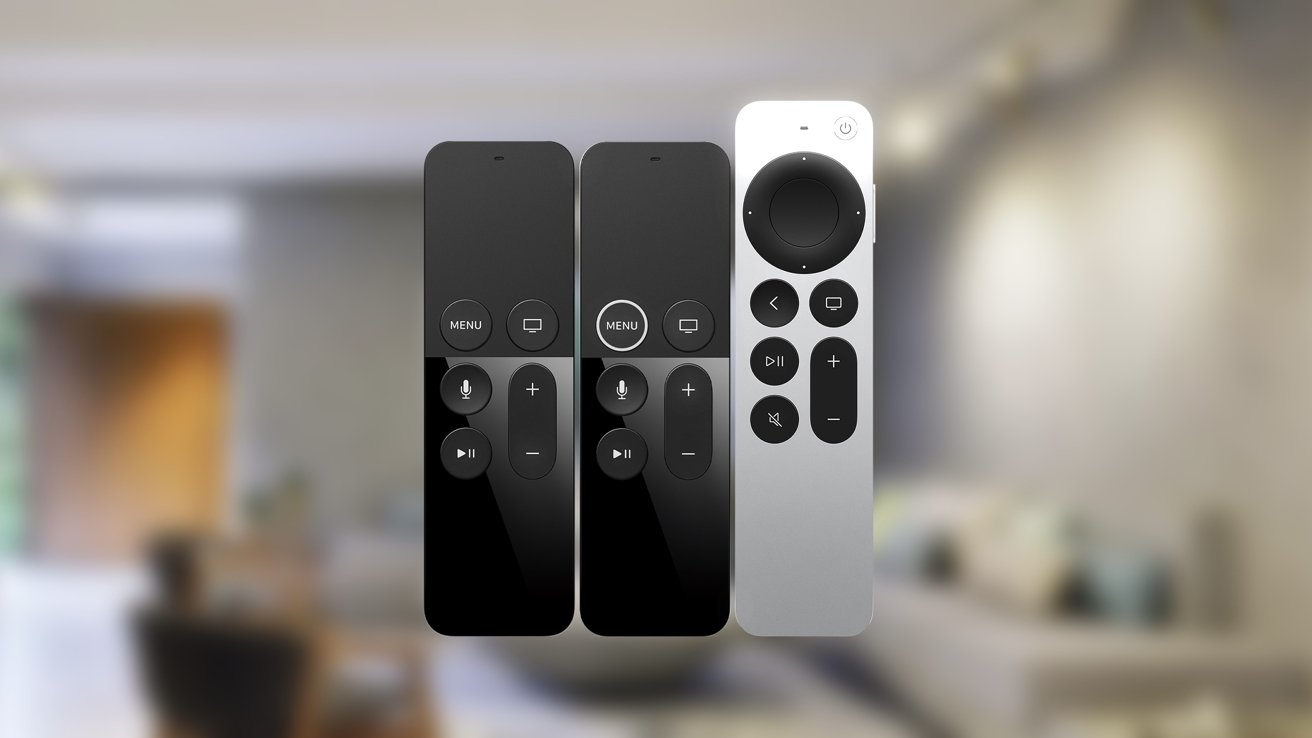
Frequently Asked Questions of how to pair apple tv remote
How long does it take to pair an Apple TV remote?
Pairing usually takes under 30 seconds once you start the process. If it does not pair, try charging the remote and restarting the Apple TV.
My remote won’t pair even after trying—what should I do?
Charge the remote, restart the Apple TV, update tvOS, and try again. If it still fails, try using the iPhone remote or replace the remote battery.
Can I pair more than one remote to the same Apple TV?
Yes, you can pair multiple remotes. Use the same pairing steps for each remote and confirm connection in Settings > Remotes and Devices.
Will a case on the remote block pairing?
Cases rarely block Bluetooth pairing, but a very thick or metal case may cause issues. Remove the case and try again if pairing fails.
How do I unpair an Apple TV remote?
Go to Settings > Remotes and Devices, select the remote, and choose to unpair or forget the device. You can also unpair older remotes by holding specific button combos as prompted.
Conclusion
You now have clear, tested steps for how to pair Apple TV remote across modern and older models, plus practical troubleshooting and backup plans. Try the simple button method first, then use Settings or your iPhone if needed. If pairing still fails, update tvOS, charge the remote, and keep trying—the fixes are usually simple.
Take action now: follow the step-by-step method that matches your remote, test the iPhone remote if needed, and leave a comment on what worked for you or which model you needed help with.
Related Posts

Jamie Lee is a seasoned tech analyst and writer at MyTechGrid.com, known for making the rapidly evolving world of technology accessible to all. Jamie’s work focuses on emerging technologies, product deep-dives, and industry trends—translating complex concepts into engaging, easy-to-understand content. When not researching the latest breakthroughs, Jamie enjoys exploring new tools, testing gadgets, and helping readers navigate the digital world with confidence.