Turn on the earbuds, open Bluetooth on your device, and select your Beats from the list.
I’ve paired Beats earbuds with phones, laptops, and tablets for years. This guide shows exactly how to pair Beats earbuds step by step. You will get clear instructions for iPhone, Android, Mac, and Windows. I include model notes, resets, troubleshooting, and real-world tips from hands-on experience. Read on to pair your Beats earbuds quickly and reliably.
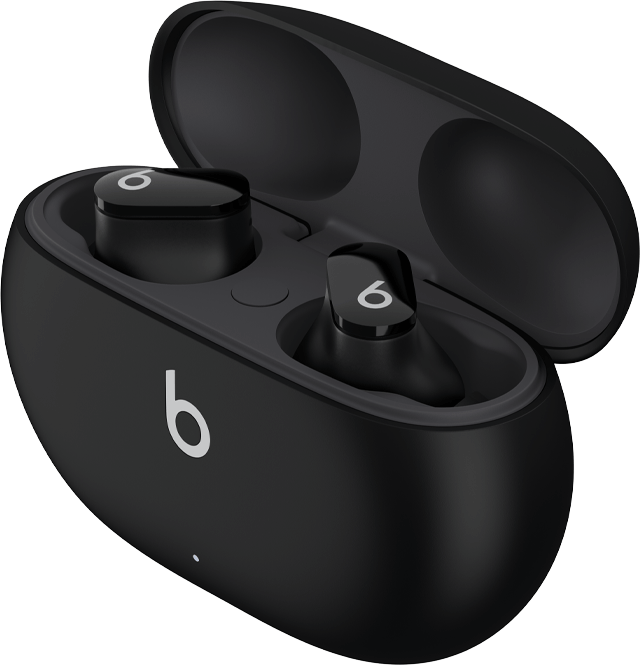
How to pair Beats earbuds: quick universal steps
Follow these short steps when you need a fast setup for most Beats earbuds. These steps work for Beats Studio Buds, Powerbeats Pro, Beats Fit Pro, and similar models.
- Make sure the earbuds are charged and in their case.
- Open Bluetooth on your device and keep the device near the case.
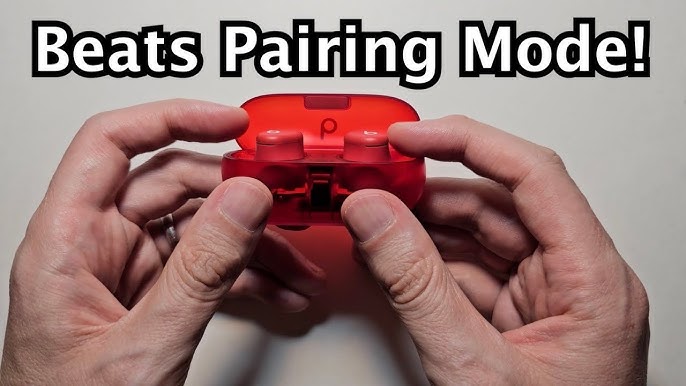
- Open the case and, if required, press the pairing button to enter pairing mode.
- Select the Beats device name in the Bluetooth list and confirm pairing.
These universal steps are the backbone of how to pair beats earbuds. If your device prompts for permission or a code, accept or enter 0000 when needed. Use these steps as a quick checklist before following model-specific tips.
How to pair Beats earbuds with iPhone (iOS)
iPhones give a smooth pairing flow for Beats. Apple supports seamless pairing with many Beats models.
- Make sure iPhone Bluetooth is on. Open Settings > Bluetooth.
- Keep the earbuds and iPhone close together.
- Open the earbuds case next to the iPhone or hold the earbuds near the device.
- Watch for a pop-up that shows the Beats image and tap Connect.
If you don’t see the pop-up, open the case, press the pairing button on the case or earbuds until the LED flashes, then check Settings > Bluetooth to select your Beats. Knowing how to pair beats earbuds with iPhone saves time and avoids the need to reset often.
How to pair Beats earbuds with Android
Android phones pair Beats earbuds via standard Bluetooth menus. The exact wording varies by brand, but the steps are similar.
- Turn on Bluetooth in Settings or Quick Settings.
- Open the earbuds case and press the pairing button if no auto pairing starts.
- In Bluetooth settings, look for the Beats model name and tap it.
- Accept any pairing prompts and allow permissions if requested.
If your Android phone supports Fast Pair, you might see a pop-up that speeds setup. Use those prompts when available. This is the core of how to pair beats earbuds with Android in a few simple taps.
How to pair Beats earbuds with Mac and Windows
Pairing on laptops is straightforward. Both macOS and Windows use standard Bluetooth controls.
- On Mac, open System Settings > Bluetooth and turn Bluetooth on.
- Open the Beats case and hold the pairing button until the LED flashes.
- Click the Beats device in the list and choose Connect.
- On Windows, go to Settings > Bluetooth & devices > Add device > Bluetooth, then pick your Beats.
If pairing fails, remove old entries for the same Beats model first. That clears conflicts and speeds up pairing. These steps cover most cases of how to pair beats earbuds to a computer.
Pairing notes for common Beats earbuds models
Each Beats model may have small differences. Here are model-specific tips that I’ve used in real life.
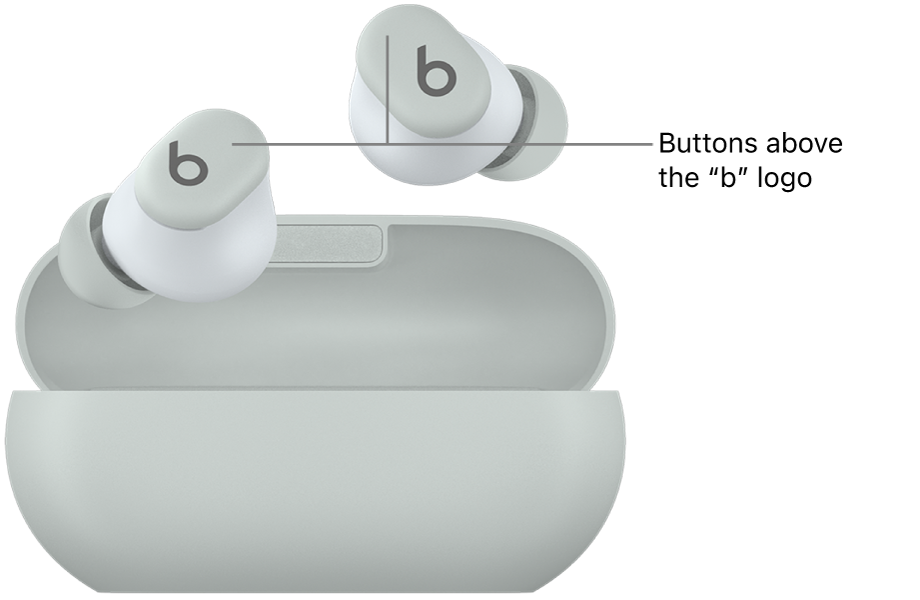
- Beats Studio Buds
- Open the case near your device. Press and hold the case button for pairing if needed.
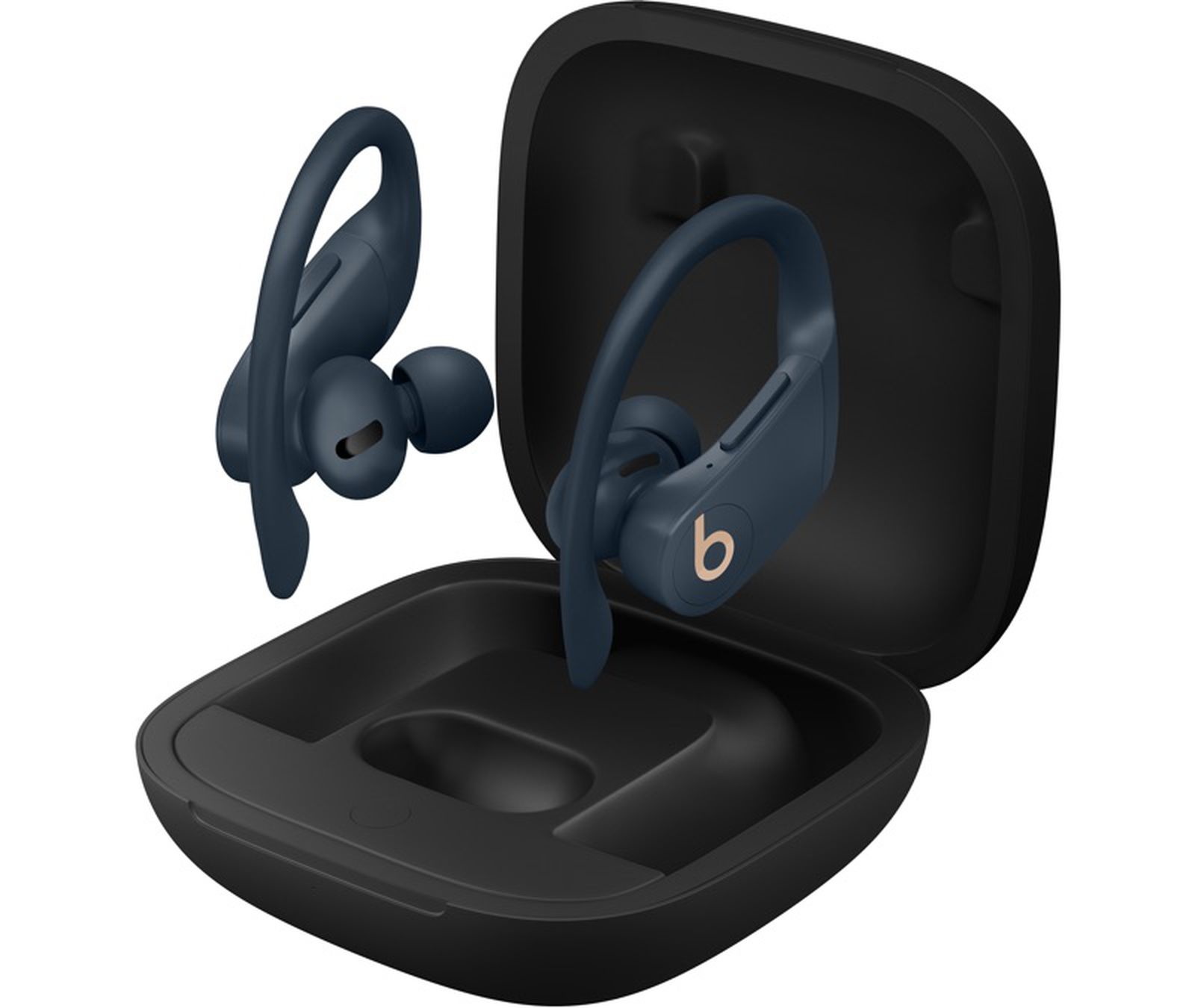
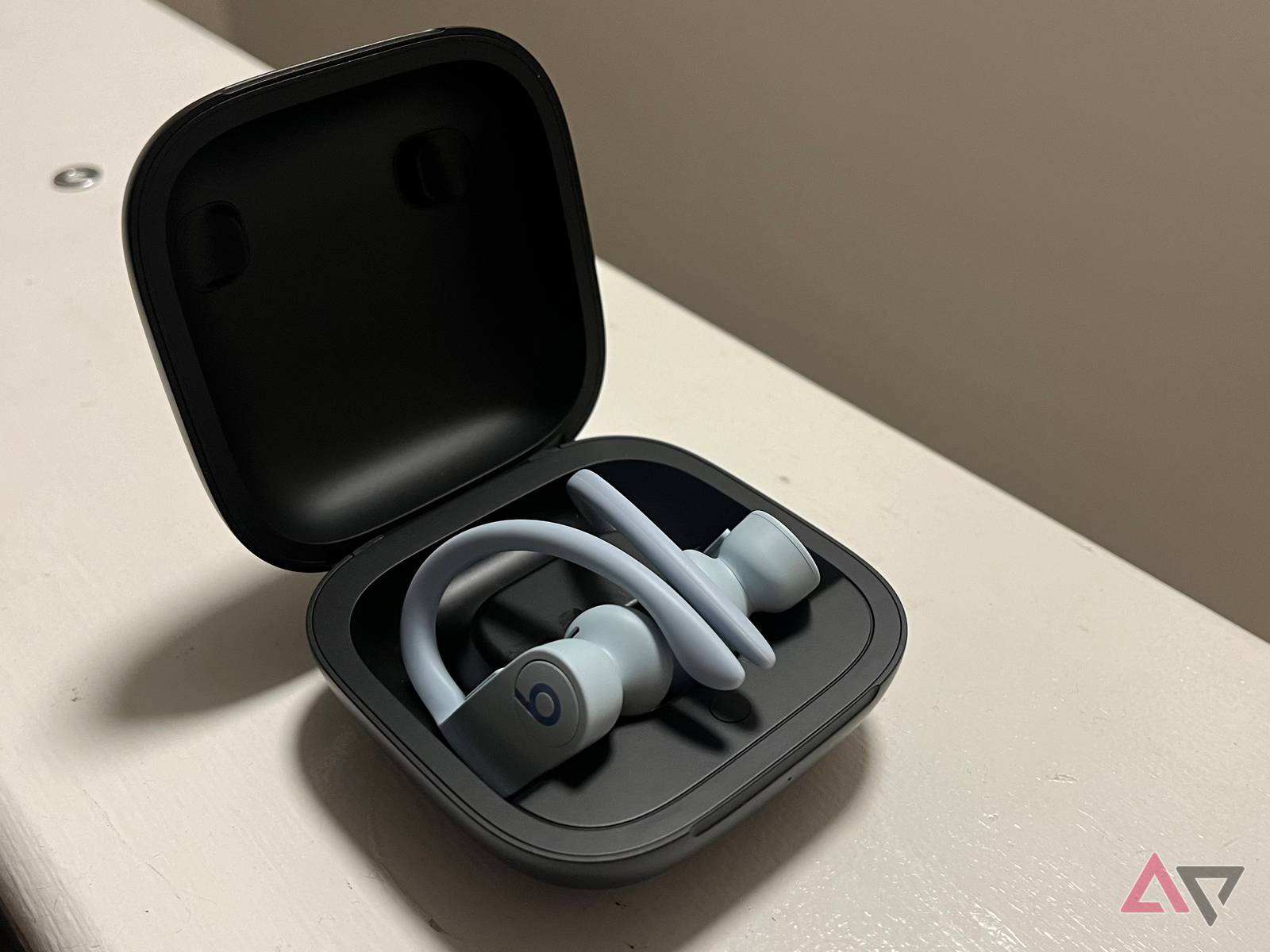
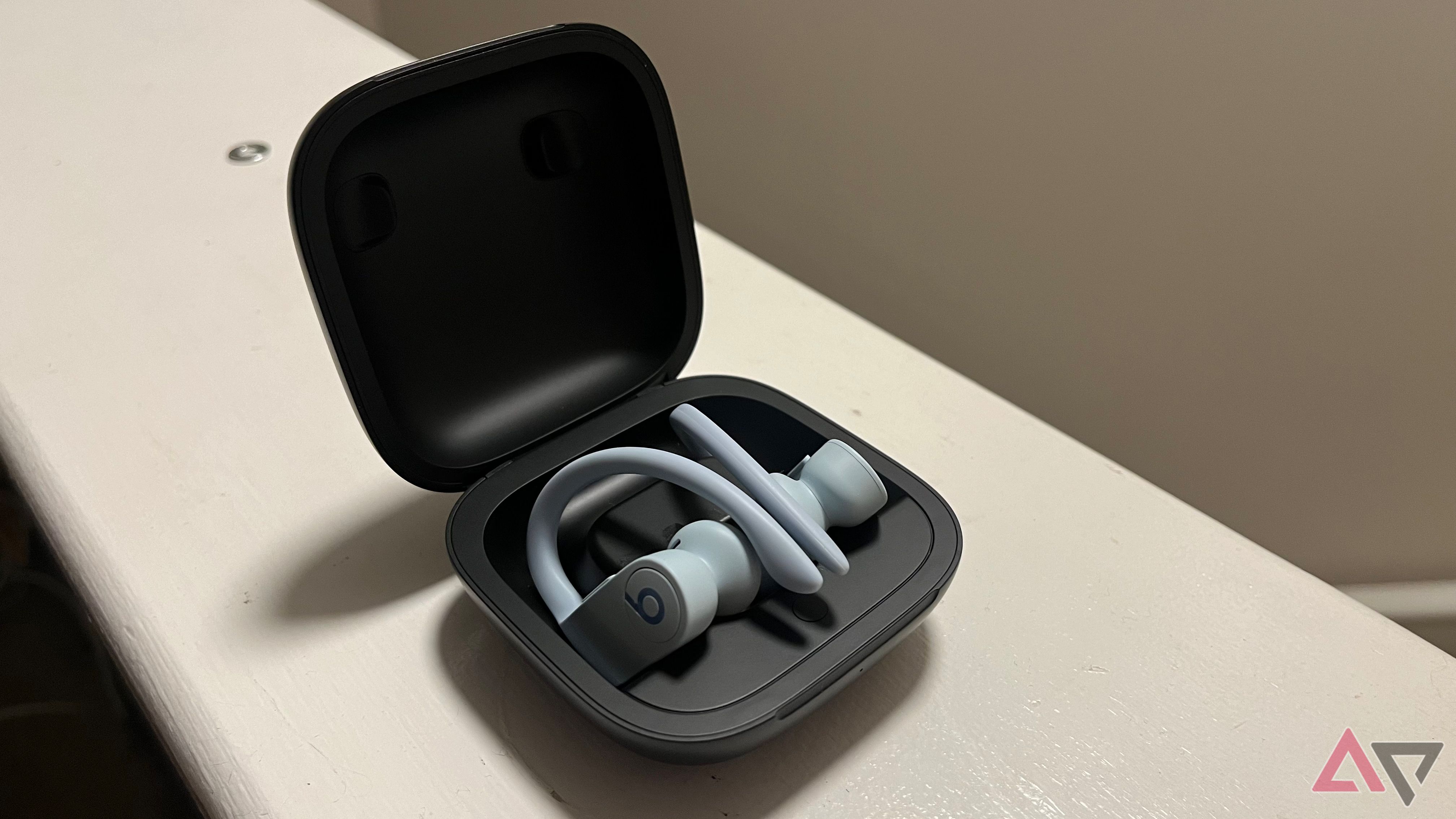
- Powerbeats Pro
- Remove both earbuds from the case. Press and hold the button on each earbud to pair or reset.
- Beats Fit Pro
- Open the case close to the device. Use the press-and-hold pairing button on the case for non-Apple devices.
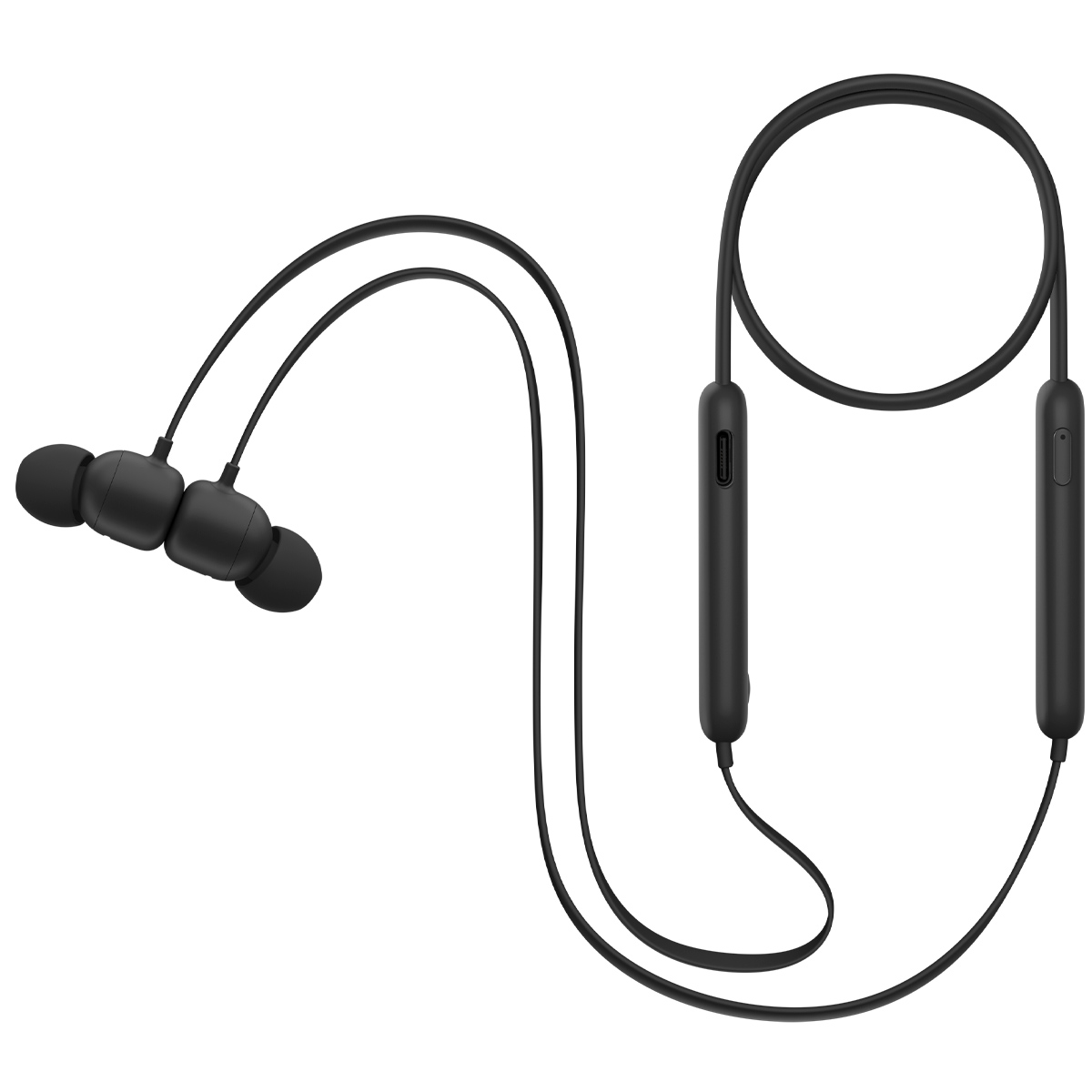
- Beats Flex or wired/neckband styles
- Put the earbuds into pairing mode by holding the power button, then choose them in Bluetooth settings.
Knowing your model helps when standard pairing steps fail. I once wasted time trying a generic trick that didn’t apply to Powerbeats Pro. Learning model differences cut my setup time in half.
Troubleshooting and reset steps when pairing fails
If pairing doesn’t work, a reset often fixes the issue. These steps resolve most common problems.
- Forget the Beats device in your phone or computer Bluetooth settings.
- Fully close the earbuds case, wait 10 seconds, and reopen it.
- Reset the earbuds per model instructions. This usually involves holding the power or case button for 10–15 seconds.
- Restart your phone, tablet, or computer and try pairing again.
If you still can’t pair, check for nearby Bluetooth devices that may interfere. Also confirm battery levels. These checks are practical and avoid repeated pairing cycles when you learn how to pair beats earbuds cleanly.
Firmware updates, battery, and connection tips
Keeping firmware up to date improves pairing and sound. Here are practical tips I use to reduce drops and speed pairing.
- Update firmware when prompted in the Beats app or device settings.
- Keep earbuds and device close (within 3 feet) during setup.
- Turn off other Bluetooth devices nearby to avoid interference.
- Charge earbuds regularly; low battery can block pairing attempts.
- Use the Beats app for controls, updates, and advanced settings when available.
A short firmware update fixed odd pairing behavior for me once. Stay current to avoid repeated pairing issues. These steps help you get consistent results when you want to know how to pair beats earbuds smoothly.
Security and privacy when pairing Beats earbuds
Bluetooth pairing is easy but be aware of safety tips. These steps protect your privacy and device.
- Pair only in trusted locations and avoid public pairing when possible.
- Accept pairing requests only from devices you control.
- Remove old paired devices you no longer use from settings.
- Update device software to reduce security risks.
These practices reduce the chance of unwanted connections and keep your audio private. Security is part of responsible pairing, especially when learning how to pair beats earbuds in public spaces.

Personal tips and common mistakes to avoid
From years of testing, these quick tips save time and frustration.
- Always check battery levels first. Dead batteries cause most pairing failures.
- Use the correct pairing button per model. One-size-fits-all methods can fail.
- Keep your device’s Bluetooth clear of old entries. A fresh list speeds pairing.
- Try resetting only after basic steps fail. Resets clear settings but can be a hassle.
I once tried pairing on a crowded subway and failed until I moved to a quiet spot. Small changes like distance and battery made all the difference when I learned how to pair beats earbuds reliably.
Frequently Asked Questions of how to pair beats earbuds
How do I force my Beats earbuds into pairing mode?
Press and hold the power or case button for about 5–15 seconds until the LED blinks. Then select the Beats model in your device’s Bluetooth menu.
Why won’t my phone find my Beats earbuds?
Common causes are low battery, already paired to another device, or Bluetooth turned off. Charge the earbuds, forget old pairs, and ensure Bluetooth is enabled.
How do I reset my Beats earbuds?
Reset instructions vary by model but usually involve holding the power button or case button for 10–15 seconds until the LED changes. After reset, pair again from scratch.
Can I pair Beats earbuds with two devices at once?
Many Beats models support multi-device switching but not simultaneous audio from two sources. You can pair to multiple devices and switch between them manually.
What do I do if audio cuts out after pairing?
Move closer to the device and remove interference sources. Update firmware and ensure both earbuds are fully charged, then reconnect.
Do Beats earbuds need an app to pair?
No. Basic pairing works through standard Bluetooth settings. The Beats app adds firmware updates, controls, and extra features where supported.
Conclusion
You now have clear, tested steps to pair Beats earbuds with phones, tablets, and computers. Start with universal steps, follow model-specific tips, and use resets only when needed. Keep firmware current and mind battery levels to avoid pairing problems.
Try these steps the next time you pair your Beats earbuds and note what works for your model. If you still have trouble, leave a comment or check the Beats app for updates. Share your experience and subscribe for more practical device guides.

Everett Ashford is a tech reviewer at mytechgrid.com specializing in SSDs, cameras, TVs, earbuds, headphones, and other consumer electronics. He provides honest, data-driven reviews based on hands-on testing and real-world performance analysis. Everett simplifies complex tech details to help readers make smart, confident buying decisions.