Turn on pairing mode on your Beats, enable Bluetooth on Android, and select Beats to connect.
I’ve paired dozens of earbuds across phones and makes, and I’ll walk you through exactly how to pair Beats earbuds to Android with clear steps, troubleshooting, and real tips. This guide covers every Beats model behavior, Android Bluetooth quirks, and simple fixes so you can connect quickly and keep listening without frustration. Read on to get confident pairing results and avoid common mistakes I’ve learned from hands-on testing.
Quick checklist before pairing
Follow these quick checks so pairing goes smoothly. These steps save time and prevent common pairing errors when learning how to pair Beats earbuds to Android.
- Make sure your Beats earbuds are charged. Low battery can block pairing.
- Turn on Bluetooth on your Android. Use Settings > Bluetooth or Quick Settings.
- Close Bluetooth apps on other nearby devices that might auto-connect.
- Put the earbuds in their case or follow the model-specific pairing trigger.
- Restart your Android if Bluetooth has been unstable recently.

Step-by-step pairing guide for all Beats models
This section gives a clean, stepwise process for how to pair Beats earbuds to Android. Follow the numbered steps and then check model-specific tips below.
-
Prepare Android
- Open Settings.
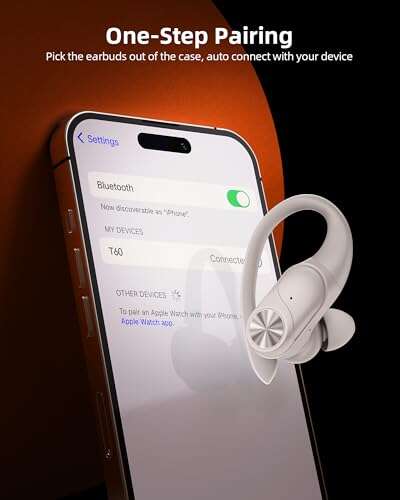
- Tap Connected devices or Bluetooth.
- Toggle Bluetooth on. Leave the Bluetooth screen open so you see available devices.
-
Prepare your Beats earbuds
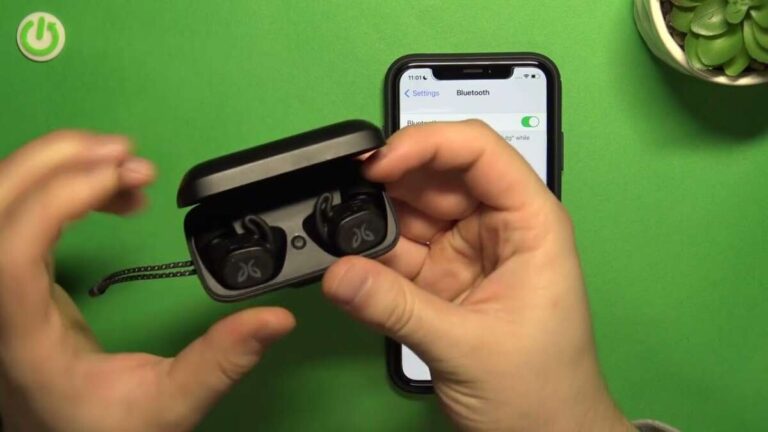
- Place them in pairing mode. For many Beats models, press and hold the power or pairing button until the LED flashes.
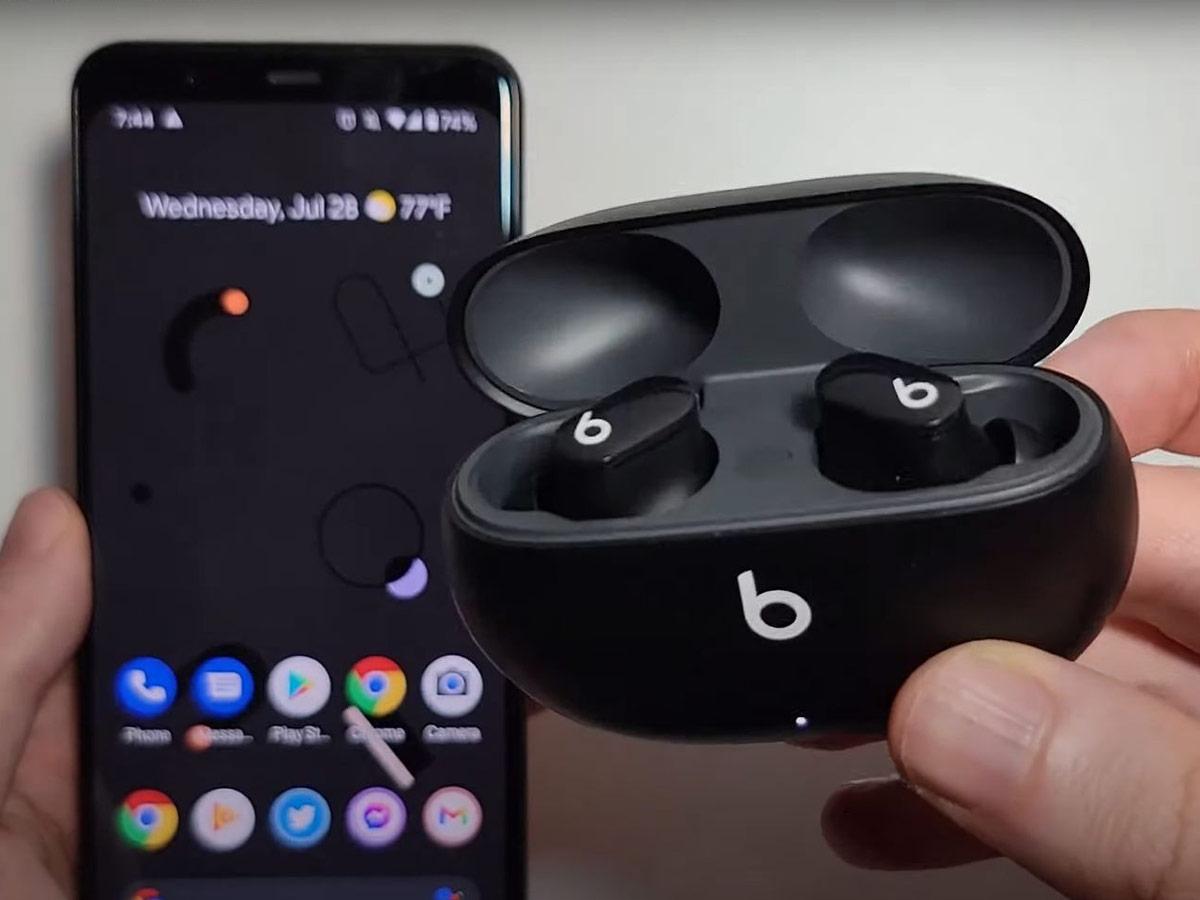
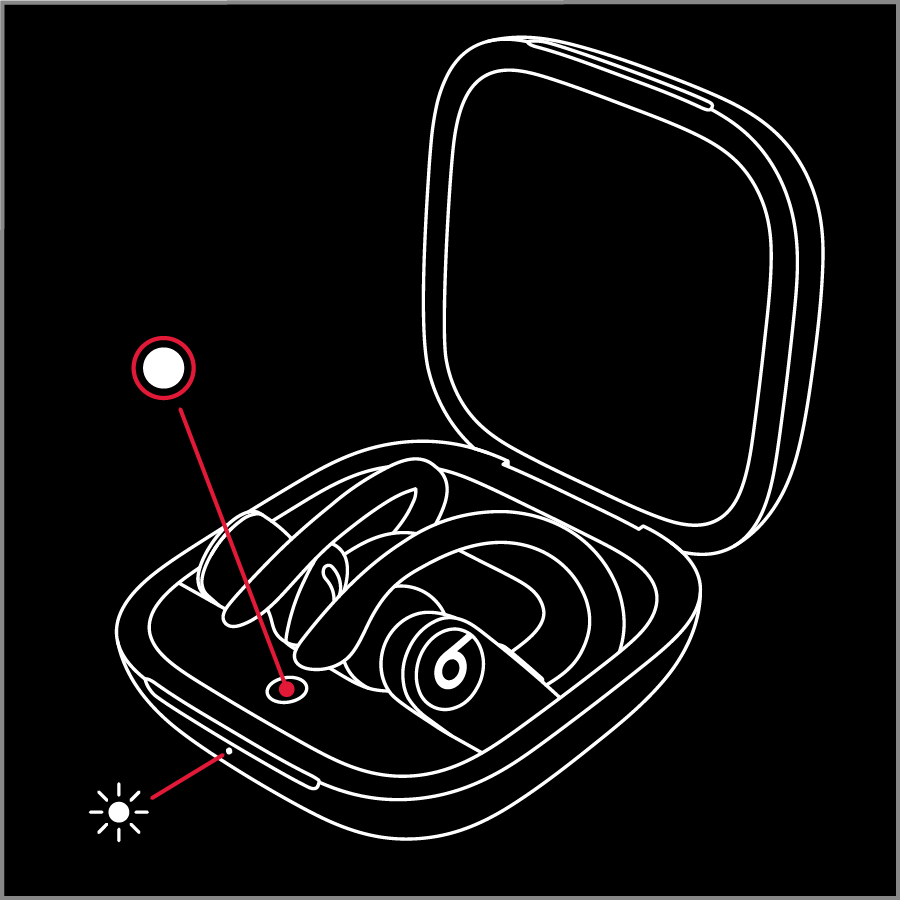
- If your Beats have a case (true wireless), open the case with earbuds inside and press the case button until the LED blinks.
-
Pair on Android
- On the Bluetooth screen, wait a few seconds for your Beats to appear in Available devices.
- Tap the Beats name (for example, Beats Studio Buds or Powerbeats Pro).
- Accept any pairing prompts. You should see "Connected" or a Bluetooth icon.
-
Final checks
- Play audio to confirm left and right channels work.
- If the phone shows media audio off, tap the settings icon next to the device and enable media audio.
Model-specific tips
Different Beats models have slightly different pairing triggers. These are the ones I use most often.
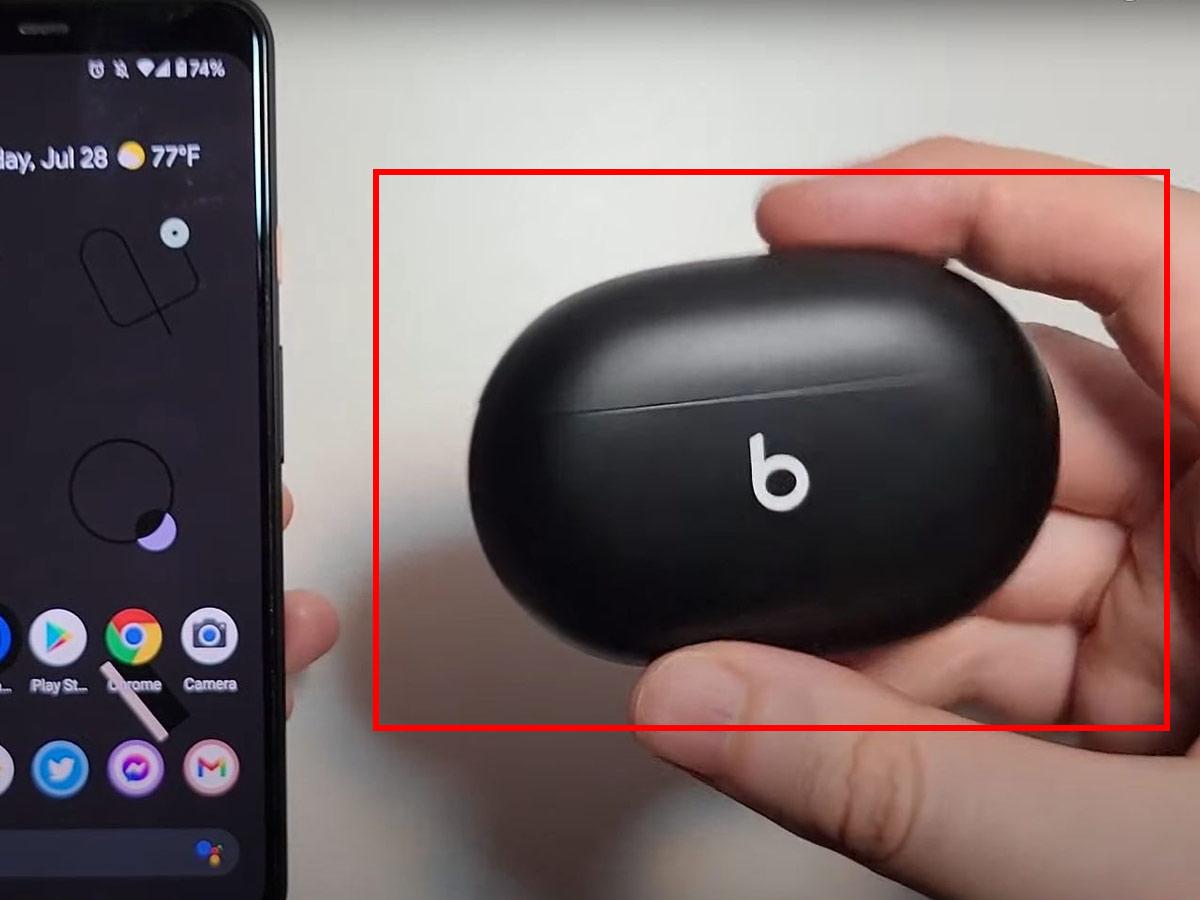
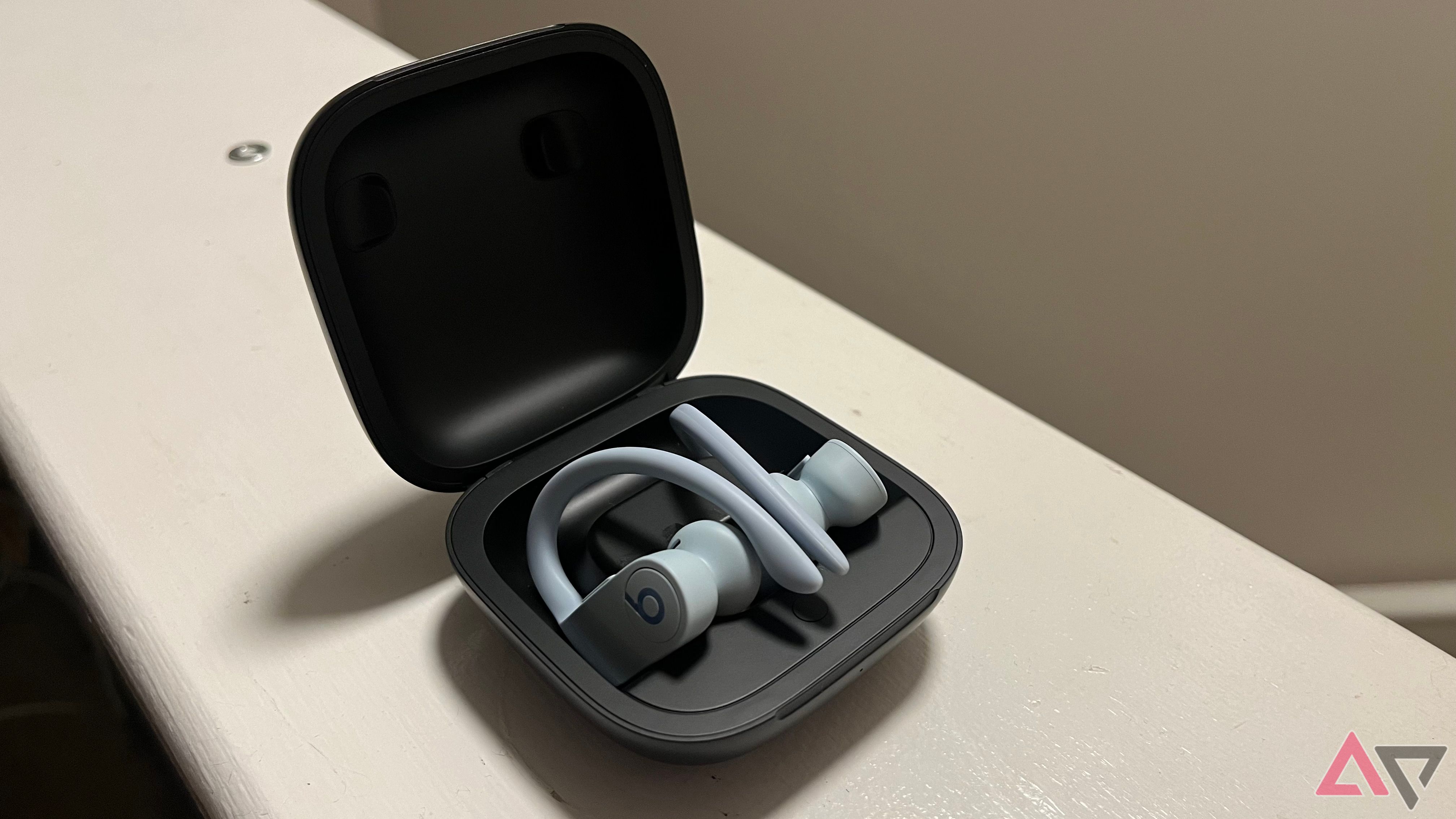
- Beats Studio Buds and Powerbeats Pro
- Open the case near the phone or press and hold the system button until LED flashes.
- Beats Flex and Solo models
- Press and hold the power button for about 5 seconds until the LED blinks.
- Beats Fit Pro
- Remove from case, press and hold the pairing button on the case until the LED blinks white.
When you learn how to pair Beats earbuds to Android, remember the pairing trigger is usually a long press on the power/pairing button or opening the case close to your phone.

Troubleshooting common issues
If pairing fails, try these targeted fixes based on problems I’ve seen.
-
Device not appearing
– Turn Bluetooth off and on again on Android.- Restart the earbuds by putting them back in the case for 10 seconds.
- Forget other previously paired devices from Bluetooth settings.
-
Pairing but no audio
- Check the device profile in Bluetooth settings and enable media audio.
- Reboot the phone and reconnect.
- Clear the Bluetooth cache: Settings > Apps > Show system apps > Bluetooth > Storage > Clear cache.
-
Earbuds keep disconnecting
- Update Beats firmware if available.
- Move away from Wi‑Fi routers or crowded Bluetooth areas.
- Ensure only one active connection exists if the pair is designed for single-host use.
-
One bud not connecting
- Reset the earbuds: hold power for 15 seconds or follow model reset steps.
- Re-pair both buds by removing device from Android list and starting fresh.
Tips for optimal performance and battery life
Small adjustments improve sound and keep the connection stable when you know how to pair Beats earbuds to Android.
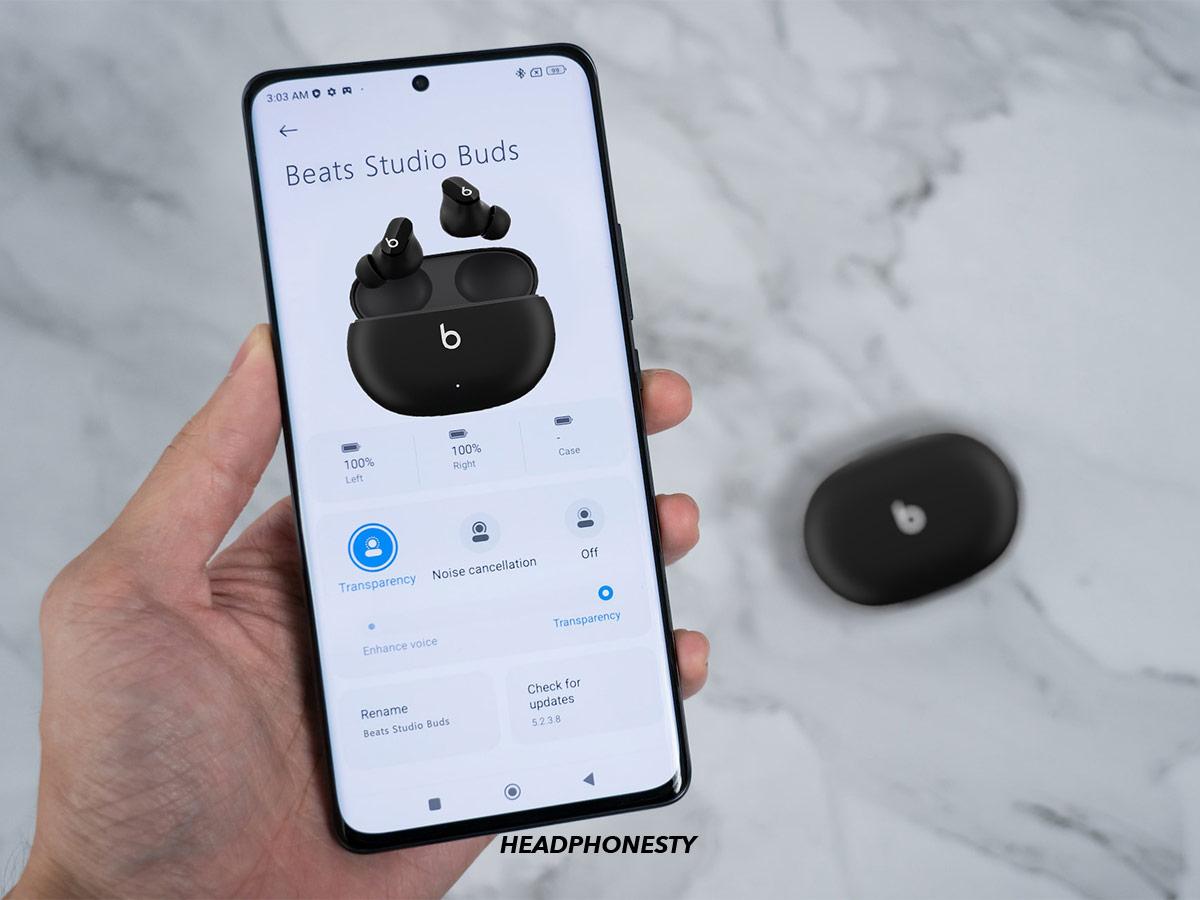
- Update firmware using the Beats or manufacturer app on Android when available.
- Use one earbud for calls to save battery on long days.
- Keep Bluetooth on the phone's Quick Settings panel for faster reconnection.
- Disable battery optimization for the Beats app so firmware updates and notifications work reliably.
Compatibility, firmware, and Android versions
Most Beats earbuds pair with Android phones that support Bluetooth 4.0 or later. Newer Android versions improve stability but limitations exist.
- Check Android version: Android 8.0 or later gives best experience for modern Beats models.
- Firmware updates: Periodically open the Beats companion app to check firmware. Updated firmware fixes bugs related to connectivity and sound.
- Dual device behavior: Some Beats support automatic switching between Apple devices but may behave differently on Android. Know your model’s capabilities.
If you run into compatibility oddities when learning how to pair Beats earbuds to Android, updating firmware and Android OS is the most reliable fix.
Security and privacy when using Bluetooth
Bluetooth connections are generally secure, but follow these simple habits when pairing Beats earbuds to Android.
- Use the official pairing process and avoid public pairing prompts from unknown devices.
- Remove paired devices you no longer use from Bluetooth settings.
- Turn off Bluetooth when not in use to reduce exposure to nearby scanning.
Frequently Asked Questions of how to pair beats earbuds to android
How do I put my Beats earbuds into pairing mode on Android?
Most Beats enter pairing mode by pressing and holding the power or pairing button until an LED flashes. For true wireless models, open the case and hold the case button until the light blinks.
Why won’t my Android see my Beats earbuds?
If your Android does not see the earbuds, Bluetooth may be off, the earbuds may not be in pairing mode, or another device may be connected. Restart both devices and try again.
How do I reset Beats earbuds for a fresh pairing?
Reset steps vary by model but usually involve holding the power or system button for 10–15 seconds until the LED flashes. Then remove the device from Android Bluetooth list and re-pair.
Is there an app to manage Beats on Android?
Some Beats models work with a companion app that provides firmware updates and settings. If available, use the official app to check firmware and customization options.
Can I pair my Beats with multiple Android phones?
Yes, but switching between phones may require turning Bluetooth off on one device or re-pairing. Some Beats keep multiple pairings stored and reconnect automatically.
Conclusion
Pairing Beats earbuds to Android is straightforward when you follow the right steps: prepare the earbuds, enable Bluetooth on Android, and complete the on-screen pairing. If problems arise, use the simple troubleshooting and firmware update steps above. Try the quick checklist before you pair next time to save time and frustration. If this guide helped, leave a comment, subscribe for more practical tech tips, or share which Beats model you use and any pairing quirks you faced.

Everett Ashford is a tech reviewer at mytechgrid.com specializing in SSDs, cameras, TVs, earbuds, headphones, and other consumer electronics. He provides honest, data-driven reviews based on hands-on testing and real-world performance analysis. Everett simplifies complex tech details to help readers make smart, confident buying decisions.