Pair Beats earbuds to a laptop by enabling Bluetooth, placing earbuds in pairing mode, and connecting from Settings.
I’ve helped dozens of people and tested many Beats models while pairing Beats earbuds to laptop systems. I’ll walk you through clear, device-specific steps, smart troubleshooting, and practical tips that work for Windows, macOS, ChromeOS, and more. Read on to pair your Beats earbuds to laptop quickly, fix common hiccups, and get better audio and battery life.

Preparing your laptop and Beats earbuds
Start with a few checks. Make sure your laptop has Bluetooth turned on and its OS is up to date. Confirm your Beats earbuds have enough charge. Close other Bluetooth devices nearby to avoid interference.
Things to check before pairing:
- Make sure Bluetooth is enabled in laptop settings.
- Charge your Beats earbuds and case to at least 20 percent.
- Keep earbuds near the laptop, within 3–6 feet.
- Update your laptop Bluetooth drivers or system software if possible.
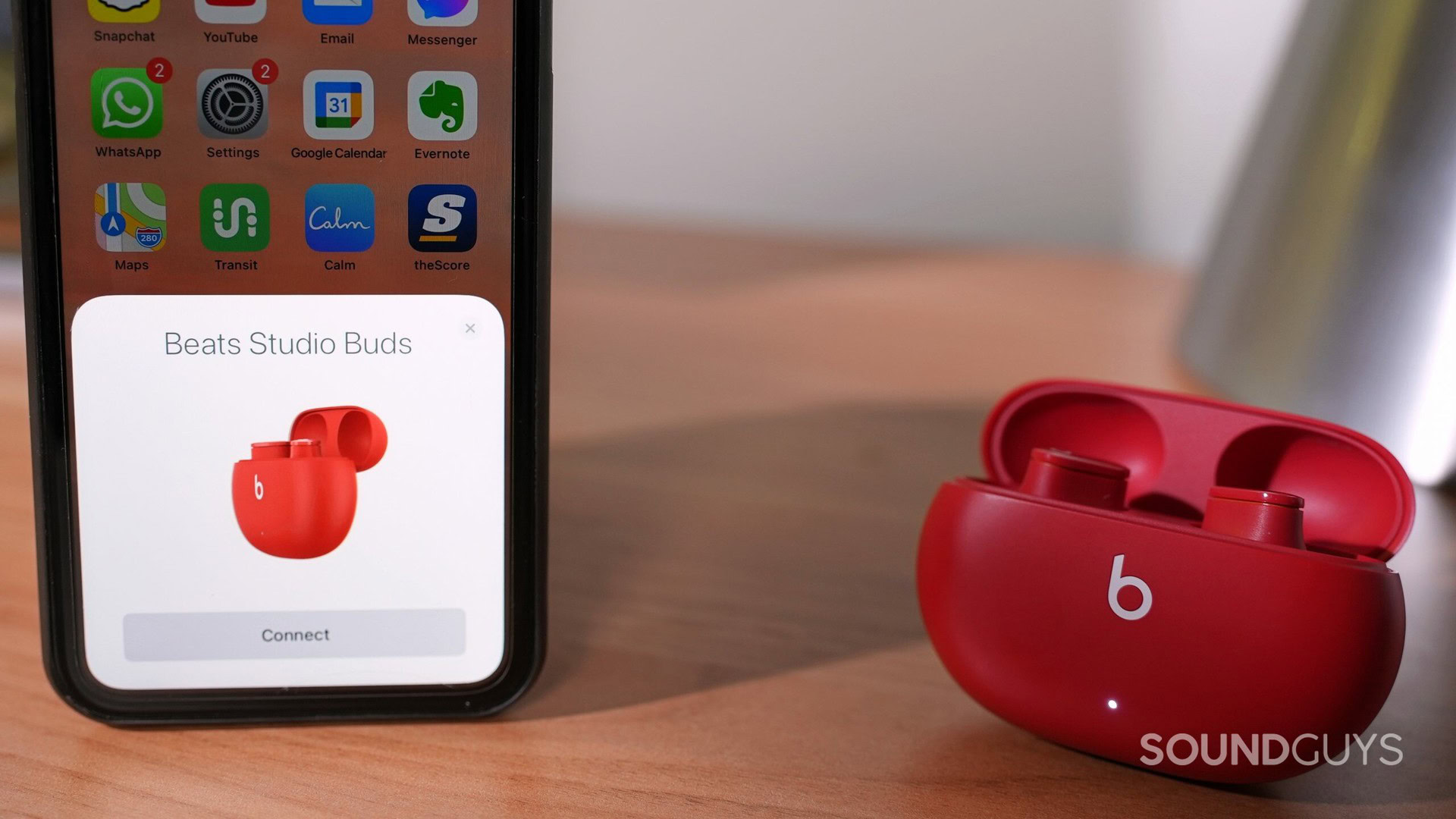
- If you use Apple devices and your Beats have an H1/W1 chip, make sure you’re signed in to the same iCloud account for easier pairing.
These prep steps speed up the process when you pair Beats earbuds to laptop and reduce issues from the start.

Step-by-step: how to pair beats earbuds to laptop
Below are clear steps for the most common laptop systems. Use the section that matches your laptop. If you try one method and it fails, come back and try the alternate steps.
Windows 10 / Windows 11
- Open Settings. Go to Devices > Bluetooth & other devices.
- Turn Bluetooth on.
- Click Add Bluetooth or other device > Bluetooth.
- Put your Beats earbuds in pairing mode:
- For many Beats earbuds, press and hold the power button or system button until the LED flashes or you hear a voice prompt.
- For earbuds with a case, open the case and press the pairing button on the case until the light flashes.
- Your Beats should appear in the device list. Select them and click Connect.
- Confirm any prompts and set Beats as your default audio device if needed.
macOS
- Open System Settings or System Preferences > Bluetooth.
- Turn Bluetooth on.
- Put your Beats earbuds in pairing mode as described above.
- When Beats appear in the list, click Connect.
- If you use Apple ID and your Beats support H1/W1, your Beats may auto-pair to the Mac if they are set up with an iPhone under the same Apple ID.
ChromeOS
- Open Settings > Connected devices > Bluetooth.
- Turn Bluetooth on.
- Put your Beats in pairing mode.
- Click the Beats entry in the list and choose Pair.
Linux (basic)
- Open your Bluetooth manager or run bluetoothctl in a terminal.
- Turn on Bluetooth and scan.
- Put Beats in pairing mode.
- Use the GUI to pair, or in bluetoothctl use scan on, pair
, and connect .
Tips while you pair Beats earbuds to laptop:
- Keep earbuds and laptop close.
- Remove or forget old pairings that might interfere.
- Restart Bluetooth on the laptop if the earbuds don’t show up.

Troubleshooting common pairing issues
If pairing fails, these fixes usually help. I’ve used these steps repeatedly when I needed to pair Beats earbuds to laptop under tight deadlines.
Issue: Earbuds don’t appear in Bluetooth list
- Turn Bluetooth off and back on.
- Put earbuds into pairing mode again.
- Restart your laptop.
- Remove old Beats entries from the laptop’s Bluetooth list, then try pairing.
Issue: One earbud won’t connect
- Place both earbuds back in the case, then take them out to re-sync.
- Forget the device on your laptop and re-pair.
- Check firmware updates via the Beats or phone app.
Issue: Poor audio quality or dropouts
- Move closer to the laptop and remove obstacles.
- Turn off other active Bluetooth devices.
- Update Bluetooth drivers or change the Bluetooth adapter if possible.
Issue: Earbuds keep disconnecting
- Check battery levels on both earbuds.
- Keep laptop Bluetooth drivers updated.
- Reset the earbuds and re-pair.
General reset approach (works for many models)
- Forget the Beats on your laptop.
- Turn off the earbuds. Hold the power or system button until the LED blinks to enter pairing mode or reset state.
- Re-pair to the laptop. If unsure, look up the model-specific reset steps in your manual.
If the standard steps don’t work, a driver update or a USB Bluetooth adapter often solves persistent problems when you try to pair Beats earbuds to laptop.
Tips for best audio, codecs, and battery life
Small settings changes can improve sound and runtime when you pair Beats earbuds to laptop.
Audio tips
- Use the Beats app on a phone to check firmware. Updated firmware can fix problems on laptops too.
- On Windows, set the Beats as the default playback device in Sound settings.
- For better quality, macOS often switches to AAC automatically with Beats. On Windows, codecs depend on the Bluetooth adapter and drivers.
Battery and usage tips
- Charge the case and earbuds before long sessions.
- Turn off automatic pairing features if you jump between devices a lot.
- Use one earbud to extend battery life when you only need mono audio.
Ergonomics and placement
- Wear the correct ear tip size to improve passive isolation and perceived bass.
- Clean the earbuds regularly to keep sound clear and to maintain charging contact.
These tweaks help you get the most from your experience when you pair Beats earbuds to laptop.

Security, privacy, and firmware updates
When you pair Beats earbuds to laptop, think about privacy and security too. Bluetooth pairing is generally safe but follow these practices.
Security best practices
- Unpair your Beats from work or shared laptops when you stop using them.
- Avoid pairing in crowded public places to reduce unwanted connections.
- Keep your laptop’s security patches updated to avoid Bluetooth vulnerabilities.
Firmware and app updates
- Use the official Beats app or the device settings (for Apple devices) to check and install firmware updates.
- Firmware updates can improve connectivity and fix bugs that affect pairing and audio quality.
Being proactive about updates reduces the chance of issues when you pair Beats earbuds to laptop.

Personal experience, lessons learned, and practical tips
I’ve paired Beats earbuds to laptop for meetings and for editing video. A few lessons stuck with me.
Real-world lessons
- Keep the case charged. I once missed a long conference because the case was empty.
- Update drivers before an important call. A quick update fixed a stutter that otherwise would have ruined a presentation.
- If you move between iPhone and laptop, pause music on one device before connecting the other. It reduces confusion and auto-switching.
Mistakes to avoid
- Don’t assume the earbuds are in pairing mode—check the LED or voice prompt.
- Don’t pair multiple devices at once during a test. It can lead to false errors.
- Don’t skip firmware checks. Many odd behaviors trace back to outdated firmware.
Practical tip
- Keep a small USB Bluetooth dongle in your bag. It’s a lifesaver on older laptops when you need to pair Beats earbuds to laptop reliably.

People also ask — quick answers
How long does it take to pair Beats earbuds to laptop?
Pairing usually takes 15 to 60 seconds once earbuds are in pairing mode and the laptop Bluetooth is scanning.
Will Beats auto-connect to my laptop after pairing?
Yes. Once paired, Beats usually auto-connect when in range and Bluetooth is enabled, unless another device has higher priority.
Do I need the Beats app to pair with a laptop?
No. The Beats app is not required to pair with a laptop, but it can help with firmware updates and extra settings.
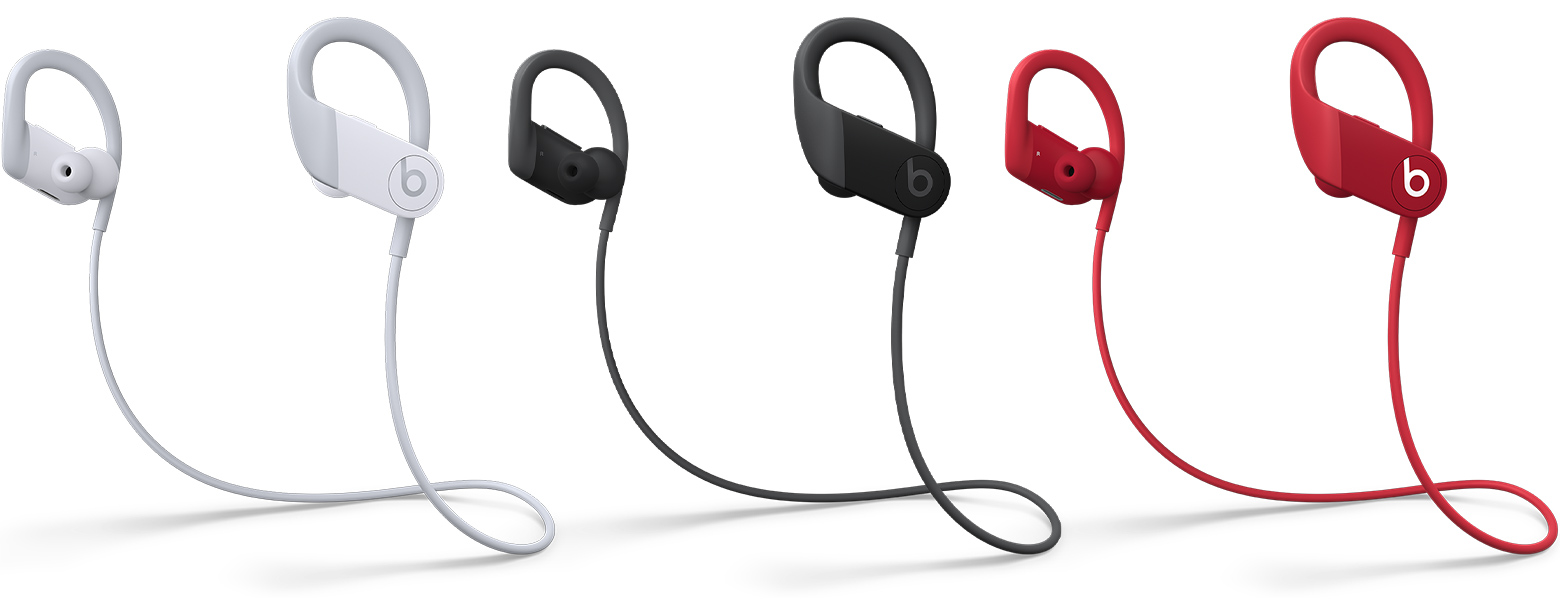
Frequently Asked Questions of how to pair beats earbuds to laptop
How do I put my Beats earbuds into pairing mode?
Put the earbuds or case into pairing mode by holding the power or system button until the LED flashes or you hear a pairing prompt. Steps vary by model, so check your manual if needed.
My laptop won’t find my Beats earbuds. What should I do?
Turn Bluetooth off and on, forget old Beats entries, restart the laptop, and make sure the earbuds are in pairing mode and charged.
Can I connect my Beats earbuds to more than one laptop?
You can pair Beats with multiple devices, but most will only maintain a single active connection at a time. Switch devices via the Bluetooth menu.
One earbud isn’t working. How can I fix it?
Place both earbuds in the case to re-sync them, forget the device on your laptop, and then re-pair. If the issue persists, check firmware or contact support.
Do Beats earbuds use different Bluetooth codecs on laptops?
Codecs depend on your laptop’s Bluetooth hardware and OS. macOS often uses AAC, while Windows may use SBC unless your adapter supports other codecs.
Conclusion
Pairing Beats earbuds to laptop is usually simple when you follow the right steps: prep your devices, use the correct pairing method for your model, and update drivers and firmware when needed. Troubleshoot with resets, driver updates, and simple proximity checks if things fail. Try these steps today and you’ll likely be listening in minutes. If this guide helped, leave a comment, share your model and OS, or subscribe for more practical tech tips.

Everett Ashford is a tech reviewer at mytechgrid.com specializing in SSDs, cameras, TVs, earbuds, headphones, and other consumer electronics. He provides honest, data-driven reviews based on hands-on testing and real-world performance analysis. Everett simplifies complex tech details to help readers make smart, confident buying decisions.