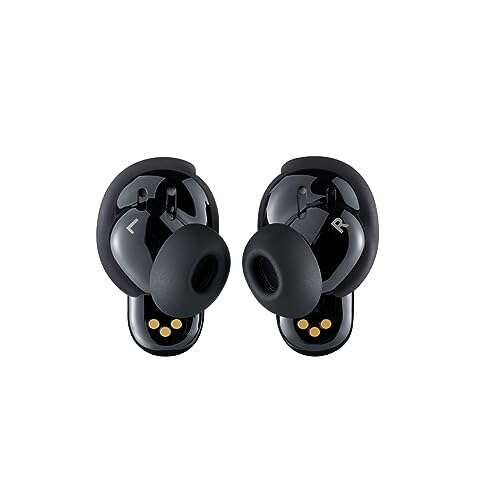
Put the earbuds in pairing mode, open Bluetooth on your device, and select your Bose earbuds from the list.
I have paired Bose earbuds dozens of times across phones, laptops, and tablets. This guide explains how to pair Bose earbuds step by step, covers model differences, and solves common pairing problems. You will get clear steps for iPhone, Android, Windows, and Mac. You will also learn troubleshooting tips and expert shortcuts that I use in real life. Read on to master how to pair bose earbuds quickly and reliably.

Which Bose earbuds support Bluetooth pairing
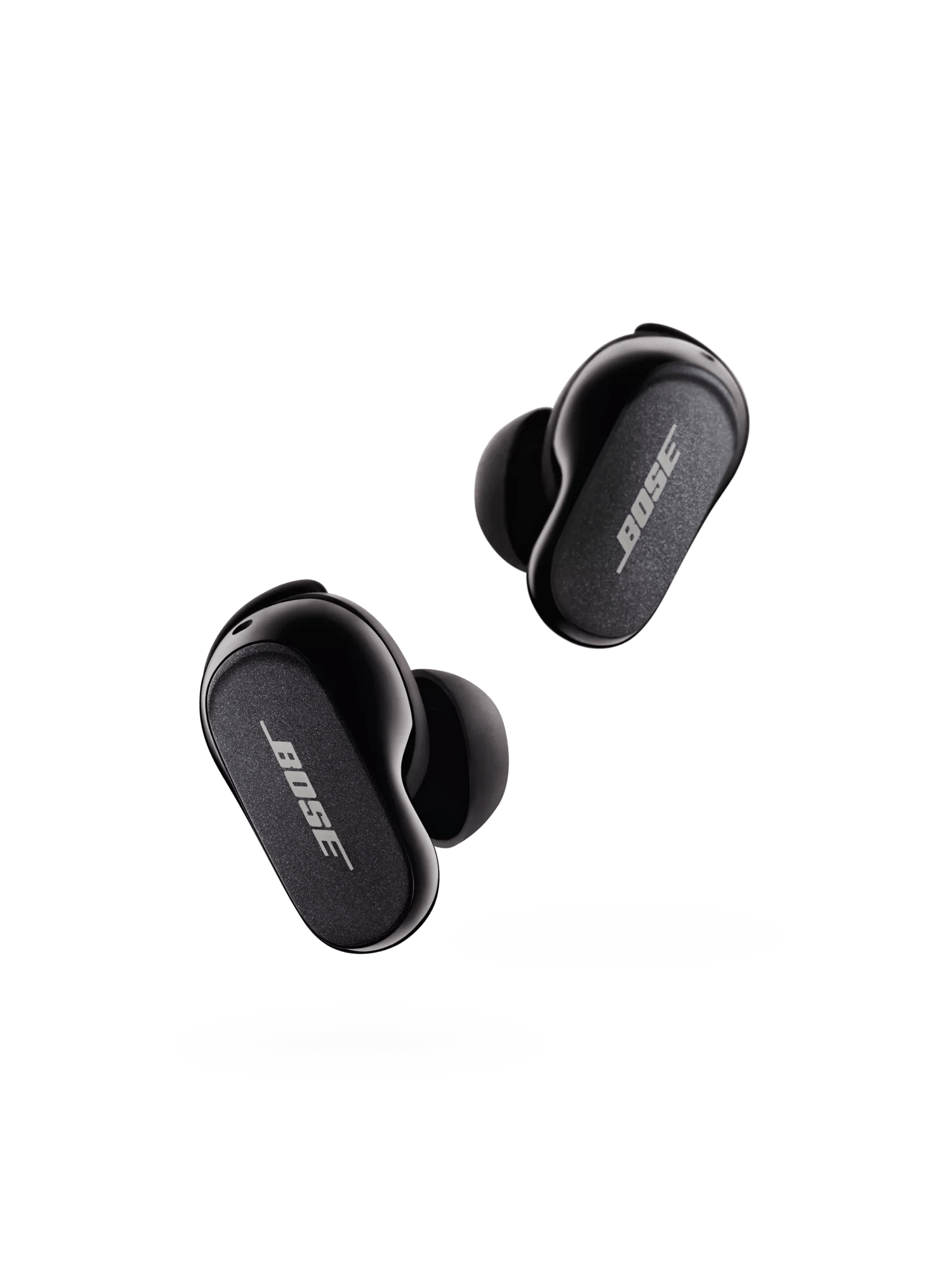
Bose earbuds use Bluetooth to connect. Most modern Bose earbuds support standard Bluetooth pairing. Models include QuietComfort Earbuds, Sport Earbuds, Sleepbuds, and QuietComfort Earbuds II. These models pair the same basic way, but some add features like multipoint or the Bose Music app.
Bose devices often use Bluetooth 5.0 or later. That means faster reconnects and better range. If your earbuds are older, they still use the same pairing steps. Knowing your model helps if you need app features or firmware updates.
Before you begin: preparation checklist
Follow these quick checks to avoid wasted time.
- Ensure the earbuds have at least 30 percent battery.
- Charge the case and earbuds if they are low.
- Turn on Bluetooth on your phone, tablet, or computer.
- Close other nearby Bluetooth devices to reduce interference.
- If you use the Bose app, install it before pairing.
- Note whether your device supports multipoint if you plan to pair two devices.
These steps cut down common pairing issues and make the process smooth. I learned to check battery first after a few frustrating sessions where flat earbuds looked like pairing failures.
How to pair Bose earbuds with iPhone (iOS)
These steps cover iPhones and iPads.
- Open Settings on your iPhone and tap Bluetooth. Keep the Bluetooth screen open.
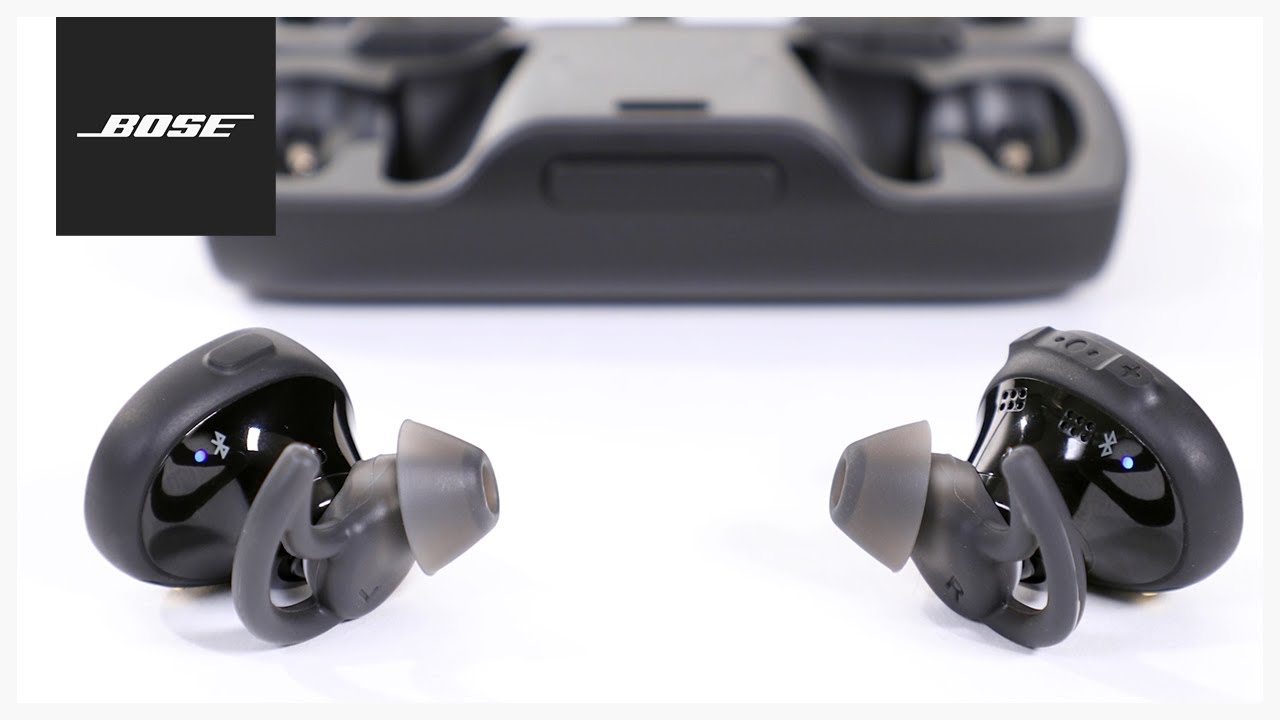
- Take the earbuds out of the case. For most Bose earbuds, holding the power button or touching the earbuds turns them on.
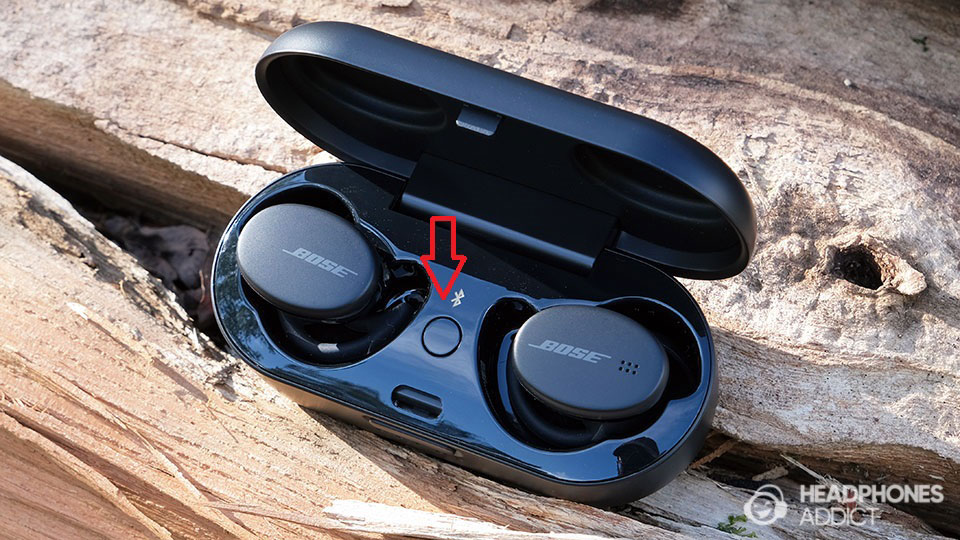
- Put the earbuds in pairing mode. For many models, hold the power button for about 3 to 5 seconds until the LED flashes blue or you hear a voice prompt saying “ready to pair”.
- Watch the Bluetooth list on your iPhone. Tap the name that matches your Bose earbuds when it appears.
- Wait for the confirmation. You will see “Connected” next to the device name or hear a confirmation sound.
If you use the Bose Music app, open it after pairing to enable firmware updates and settings. When I paired my iPhone, using the app made updates painless and improved call quality immediately.
How to pair Bose earbuds with Android
Android steps are similar but may vary slightly by phone brand.
- Open Settings and go to Bluetooth or Connections.
- Turn Bluetooth on and keep the Bluetooth screen visible.
- Remove the earbuds from the case and put them in pairing mode. Hold the power or multifunction button until the indicator flashes blue or you hear “ready to pair”.
- Look for the earbuds name under Available devices and tap to pair.
- If prompted, confirm pairing permissions or enter a PIN if needed (usually 0000).
Install the Bose Music app from the Play Store to access extra features and firmware updates. On Android, you may also need to grant location permissions for full Bluetooth scanning. I always enable location temporarily to ensure the device shows up.
How to pair Bose earbuds with Windows and Mac
Windows and Mac pair with Bose earbuds like other Bluetooth devices.
For Windows 10 and 11:
- Open Settings and choose Bluetooth & devices.
- Turn Bluetooth on and click Add device.
- Select Bluetooth, then put the earbuds in pairing mode.
- Click the earbuds name when it appears and wait for “Connected”.
For macOS:
- Open System Settings or System Preferences and click Bluetooth.
- Turn Bluetooth on and keep the Bluetooth window open.
- Put the earbuds in pairing mode.
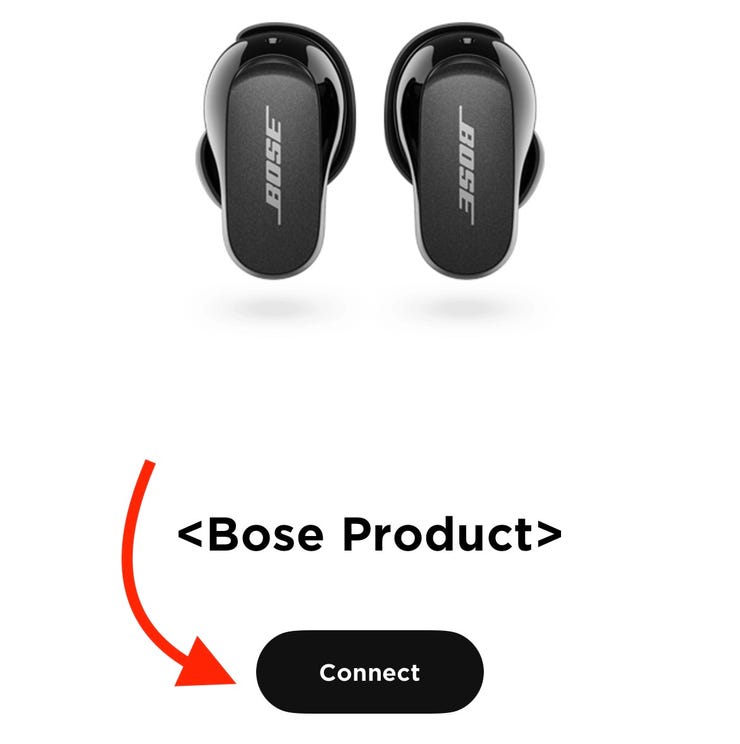
- Click Connect next to the earbuds name.
If your Windows PC has trouble, update Bluetooth drivers. On Mac, rebooting the Bluetooth service often fixes discovery problems. I once fixed a Windows pairing issue by updating the Bluetooth driver after trying every reset. It worked immediately.

Pairing multiple devices and switching
Many Bose earbuds support multipoint. Multipoint lets the earbuds stay connected to two devices at once.
- Check your model’s manual to confirm multipoint support.
- Pair with the first device normally.
- Put earbuds back in pairing mode, then pair with the second device.
- Use the device Bluetooth menu to switch audio, or pause on one device and play on the other.
If multipoint is not supported, you must disconnect from one device before connecting to another. I find multipoint very handy for switching between laptop calls and phone music. It saves time and keeps audio seamless.
Troubleshooting common pairing problems
Simple fixes solve most problems.
- Earbuds don’t appear in Bluetooth list
- Put the earbuds back in pairing mode and move close to the device.
- Restart Bluetooth on your phone or computer.
- Earbuds show connected but no sound
- Ensure the earbuds are set as the audio output in your device.
- Restart the app or web player, or toggle Bluetooth off and on.
- Frequent disconnects
- Update earbuds firmware using the Bose app.
- Remove sources of interference like other active Bluetooth devices.
- One earbud not working
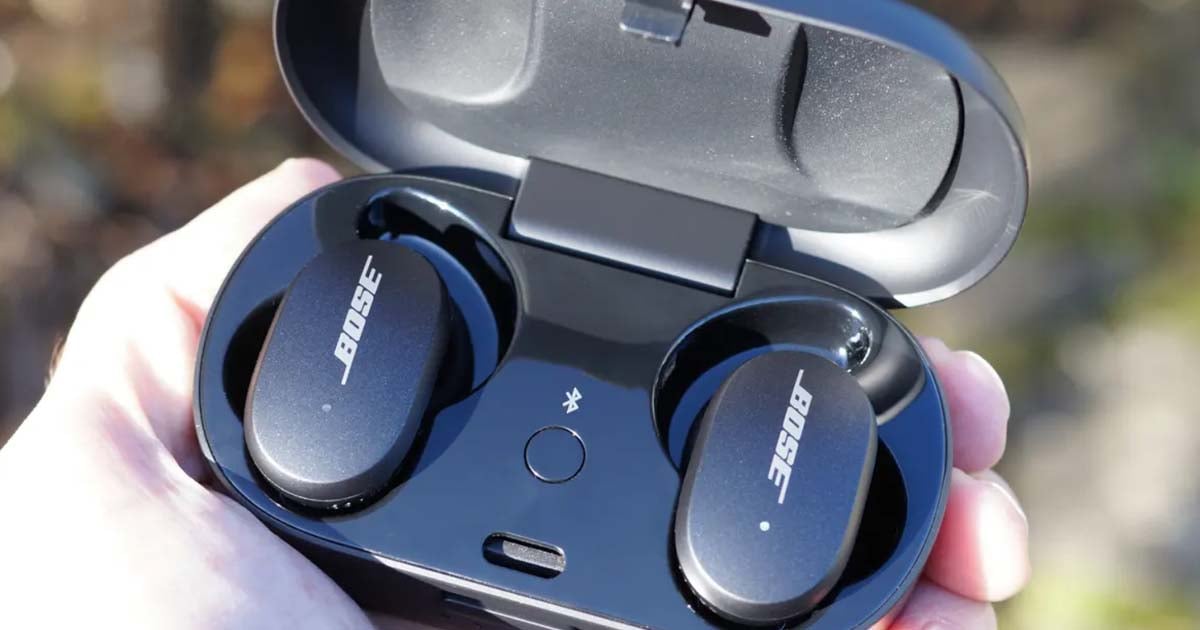
- Place both earbuds back in the case, then remove them to force a re-sync.
- Reset the earbuds (see next section).
- Device fails to pair after multiple tries
- Forget or remove the earbuds from the device’s Bluetooth list, then re-pair.
When I troubleshoot, I always restart devices first. This clears small glitches. Resetting or updating firmware is usually the last step that fixes stubborn problems.

How to reset your Bose earbuds
Resetting often fixes stubborn pairing issues. Steps can vary by model.
- Place both earbuds in the case and close the lid for 30 seconds.
- Open the case, then remove the earbuds and hold the power button for 10 seconds until the LED flashes amber or white.
- On some models, you press and hold the earbuds’ buttons for up to 20 seconds until you hear a prompt.
After reset, remove the device from your phone’s Bluetooth list and pair again. I reset earbuds after repeated drops or failed firmware upgrades. It usually restores normal behavior.
Best practices and tips from experience
These habits make pairing fast and reliable.
- Keep firmware current using the Bose Music app.
- Charge the case and earbuds regularly to avoid low-battery pairing problems.
- Store earbuds in a dry place at room temperature.
- Use the app for advanced settings and diagnostics.
- Label your earbuds in the Bluetooth list if your device allows it, so you pick the right device fast.
One tip I learned: if you often switch devices, enable multipoint if your model supports it. It cuts connection time and feels seamless.
Frequently Asked Questions of how to pair bose earbuds
How long does pairing Bose earbuds usually take?
Pairing typically takes 10 to 30 seconds once the earbuds are in pairing mode and your device’s Bluetooth is scanning. If it takes longer, try restarting Bluetooth or resetting the earbuds.
Do Bose earbuds need an app to pair?
No, Bose earbuds pair over Bluetooth without the app. The Bose Music app is optional but useful for firmware updates and extra settings.
Why won’t my device find my Bose earbuds?
Common causes are low battery, earbuds not in pairing mode, or Bluetooth interference from other devices. Charge the earbuds, enable pairing mode, and move closer to the device.
How do I update Bose earbuds firmware?
Use the Bose Music app to check for and install firmware updates. Keep earbuds charged and follow the app prompts during the update.
Can I pair Bose earbuds with two devices at once?
Some Bose models support multipoint and can stay connected to two devices. Check your model’s features and pair each device according to the normal steps.
Conclusion
Pairing Bose earbuds is usually quick when you follow the steps and check basics like battery and Bluetooth settings. Start by putting the earbuds in pairing mode, open Bluetooth on your device, and select the earbuds. Use the Bose app for updates and extra features, and reset only when necessary. Apply the tips above, and you will avoid most issues.
Try pairing now and update firmware if available. If you still have a problem, leave a comment or check the Bose support resources to get targeted help.

Everett Ashford is a tech reviewer at mytechgrid.com specializing in SSDs, cameras, TVs, earbuds, headphones, and other consumer electronics. He provides honest, data-driven reviews based on hands-on testing and real-world performance analysis. Everett simplifies complex tech details to help readers make smart, confident buying decisions.