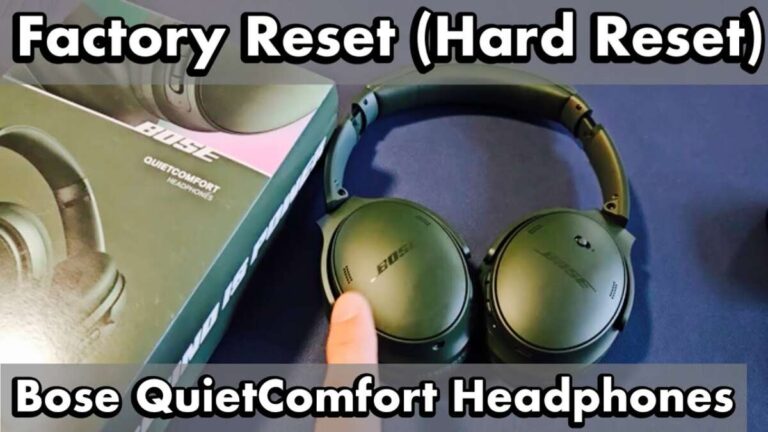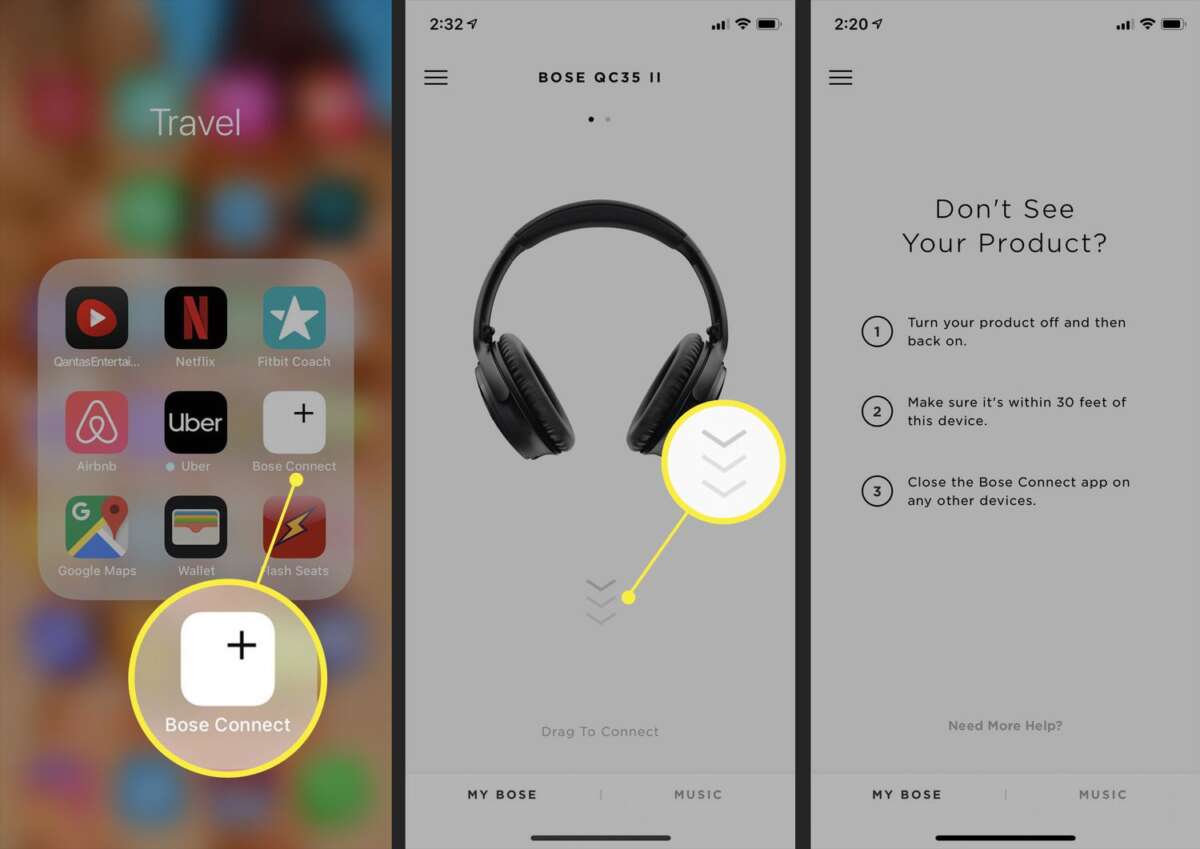
Power on the QC45, hold the Bluetooth switch until "Ready to pair" and select Bose QC45 on your device.
I’ve paired Bose QC45 headphones with phones, tablets, and laptops for years. I know the exact steps that work across iPhone, Android, Windows, and macOS. This guide explains how to pair Bose QC45 headphones step by step, covers multipoint setup, troubleshooting, and practical tips I learned from hands-on testing.

Why pairing correctly matters
Pairing your headphones correctly saves time. It keeps audio clear and avoids connection drops. Knowing how to pair Bose QC45 headphones helps you use noise cancelling, voice prompts, and multipoint features without fuss.
Good pairing also makes firmware updates and app features available. You get better battery life and fewer reconnection hiccups. Follow the steps below for reliable results.
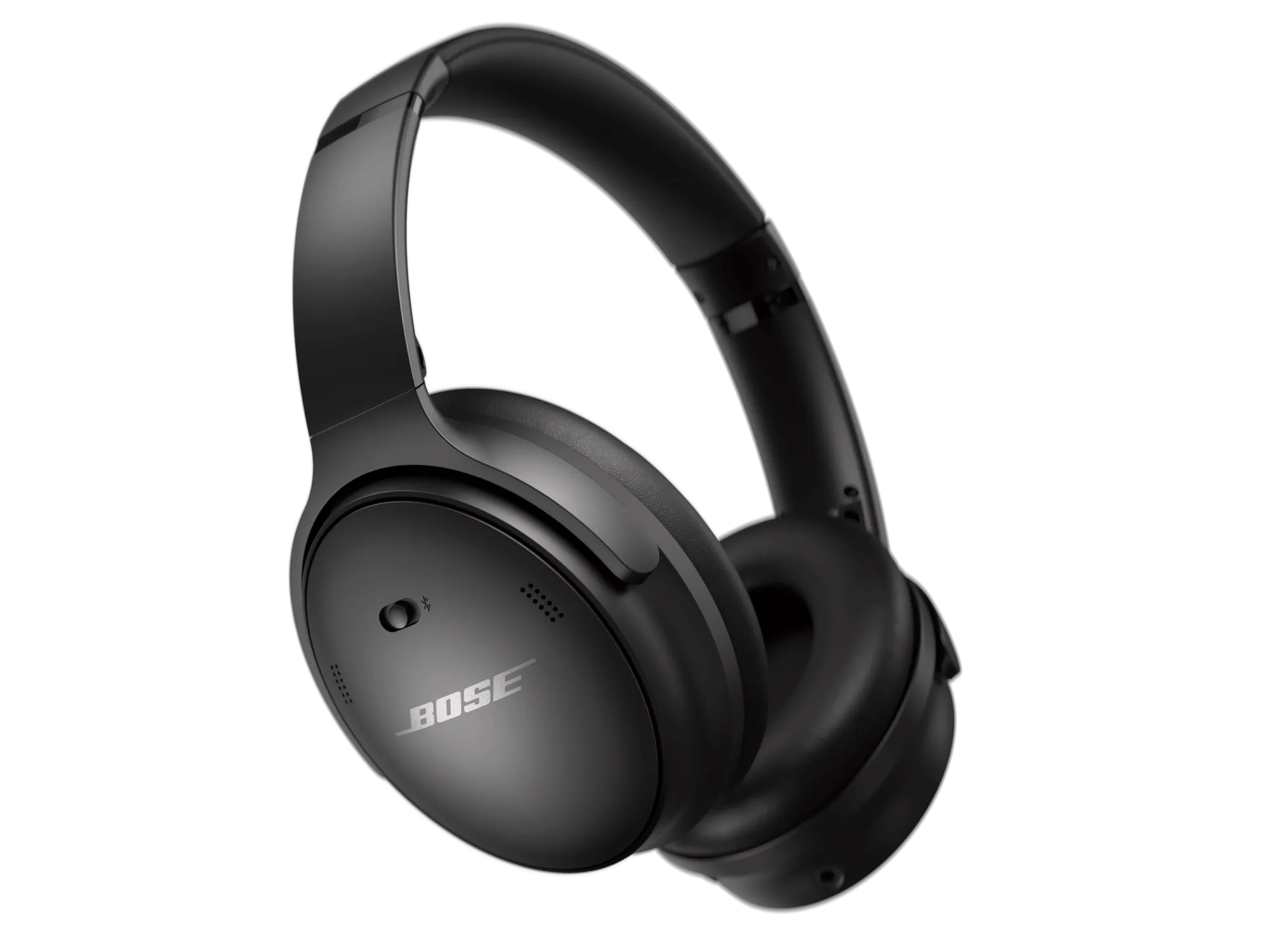
How to pair Bose QC45 headphones with a phone (iPhone and Android)
These steps show how to pair Bose QC45 headphones with a phone. I tested them on both iPhone and Android and they are consistent.
- Charge the headphones
- Make sure the QC45 has some charge. Low battery can block pairing attempts.
- Power on and enter pairing mode
- Slide the power/Bluetooth switch to the Bluetooth symbol and hold for about three seconds. Wait for the voice prompt "Ready to pair" or for the indicator light to flash blue.
- Open Bluetooth on your phone
- On iPhone, go to Settings > Bluetooth. On Android, go to Settings > Connections or Bluetooth.
- Select Bose QC45
- Look for "Bose QC45" in the device list. Tap to connect. You should hear a confirmation prompt through the headphones.
- Confirm audio and controls
- Play music or make a short call to test sound and mic. Adjust volume on the phone or headphones as needed.
If the headphones do not appear, toggle Bluetooth off and on and try again. If you see multiple "Bose QC45" entries, choose the one with the active pairing indicator.

How to pair Bose QC45 headphones with a computer (Windows and Mac)
Pairing with a computer is similar to a phone. These short steps cover Windows 10/11 and macOS.
Windows
- Open Settings > Devices > Bluetooth & other devices.
- Turn on Bluetooth and click Add Bluetooth or other device.
- Choose Bluetooth, then press and hold the QC45 Bluetooth switch until it says "Ready to pair."
- Select Bose QC45 from the list and confirm.
Mac
- Open System Settings or System Preferences > Bluetooth.
- Ensure Bluetooth is on.
- Put the headphones in pairing mode and select Bose QC45 from the list.
- Click Connect.
If audio doesn’t route to the QC45, open your sound output settings and select Bose QC45 as the output device.
:max_bytes(150000):strip_icc()/001-how-to-connect-bose-headphones-to-iphone-4767807-01d0cf9dea7b4e2a9c9cef4a8619a322.jpg)
Pairing multiple devices and using multipoint
Bose QC45 headphones support Bluetooth multipoint. That means you can keep two devices connected at once. Here’s how to manage it.
- Pair the first device
- Follow regular pairing steps for your main phone or laptop.
- Pair the second device
- Put the QC45 into pairing mode again. On the second device, select Bose QC45.
- Switch audio sources
– Play audio on one device. If you start audio on the other, QC45 usually switches automatically. - Manage connections
- Use your device Bluetooth menus to disconnect or forget devices as needed.
Tip: Multipoint works best when both devices use standard Bluetooth audio profiles. Some older devices or certain apps may not switch audio smoothly.

Troubleshooting common pairing problems
Here are practical fixes I use when pairing fails. I tested many scenarios and these solutions worked most of the time.
Problem: Headphones not showing in device list
- Solution: Turn QC45 off and on. Charge the headphones. Move them closer to the device. Restart the device’s Bluetooth.
Problem: Device says paired but no sound
- Solution: Check output audio on the device. Reconnect in Bluetooth settings. Restart the app you were using.
Problem: Headphones reconnect to a different device
- Solution: Disable Bluetooth on the device you don’t want. Or forget the headphones on that device.
Problem: Frequent dropouts
- Solution: Reduce interference. Move away from Wi-Fi routers and USB 3.0 devices. Update firmware through the Bose app.
Problem: Voice prompts or Bluetooth behavior seems wrong
- Solution: Use the Bose Music app to check headphone settings and install firmware updates. Firmware fixes many odd behaviors.
If nothing works, try removing the headset from the device’s Bluetooth list and pairing again from scratch. If problems persist, contact support or check for a firmware update.

Tips, tricks, and my personal experience
I’ve paired Bose QC45 headphones with phones, laptops, and a tablet. These tips come from real use.
- Keep firmware updated
- The Bose app delivers fixes that improve pairing stability.
- Fully charge before pairing
- Low battery sometimes prevents pairing mode.
- Pair the device closest to you first
- The first paired device often becomes the default.
- Use the voice prompts
- They tell you when the QC45 is in pairing mode or connected.
- Forget and re-pair when stuck
- Clearing old pairings often fixes mysterious issues.
I once spent 20 minutes trying to pair on a crowded train. Moving to a quieter spot and restarting both devices solved it in two minutes. Small steps save time.

Advanced settings and voice assistant setup
You can link voice assistants and adjust controls on the QC45. The Bose Music app helps with this. Here’s a brief overview.
- Voice assistant
- You can enable your phone’s voice assistant to work with the QC45. Use the app to set the default.
- Button behavior
- The QC45 uses simple controls on the right earcup. Use them to play, pause, and accept calls.
- Firmware and settings in the app
- The app shows battery and lets you update firmware for better Bluetooth behavior.
If you want a tailored setup for two devices, test the flow after each change. Small app-based tweaks can improve pairing life.
Frequently Asked Questions of how to pair bose qc45 headphones
How do I put my Bose QC45 into pairing mode?
Slide the power/Bluetooth switch to the Bluetooth symbol and hold it for a few seconds. You should hear "Ready to pair" and see the LED flash blue.
Will the QC45 connect to two devices at once?
Yes. The Bose QC45 supports Bluetooth multipoint and can keep two devices connected simultaneously for calls and media.
My device can’t find Bose QC45. What should I do?
Turn Bluetooth off and on, fully charge the headphones, move devices closer together, and try pairing again. Restarting the device often helps.
How do I remove old Bluetooth pairings from QC45?
Forget or remove the QC45 entry from your device’s Bluetooth settings. If issues persist, use the Bose app to manage paired devices or re-pair.
Do I need the Bose app to pair my QC45?
No. You don’t need the app to pair. The app is useful for firmware updates and extra settings but pairing works via standard Bluetooth menus.
Conclusion
You can pair Bose QC45 headphones quickly by entering pairing mode and selecting Bose QC45 from your device. Follow the clear steps for phones, computers, and multipoint setup. When problems happen, try charging, toggling Bluetooth, forgetting and re-pairing, or updating firmware.
Take action now: pair your QC45, test audio, and update the firmware. If this guide helped, leave a comment or share your pairing tip.

Everett Ashford is a tech reviewer at mytechgrid.com specializing in SSDs, cameras, TVs, earbuds, headphones, and other consumer electronics. He provides honest, data-driven reviews based on hands-on testing and real-world performance analysis. Everett simplifies complex tech details to help readers make smart, confident buying decisions.