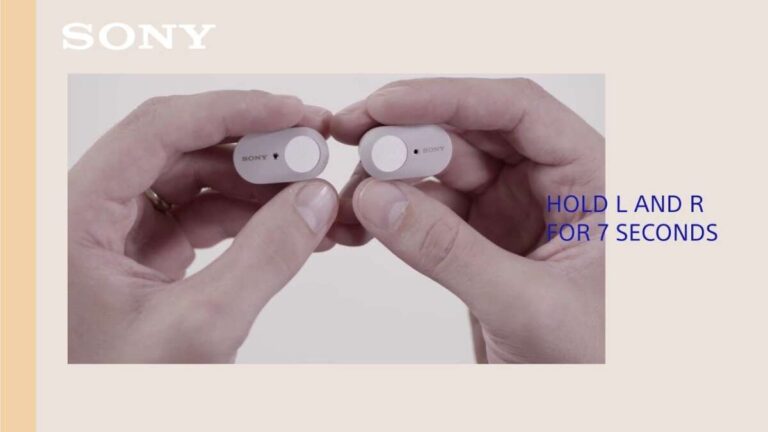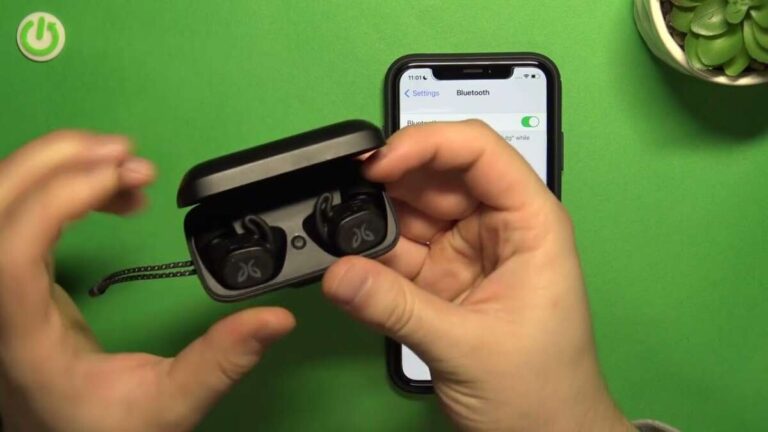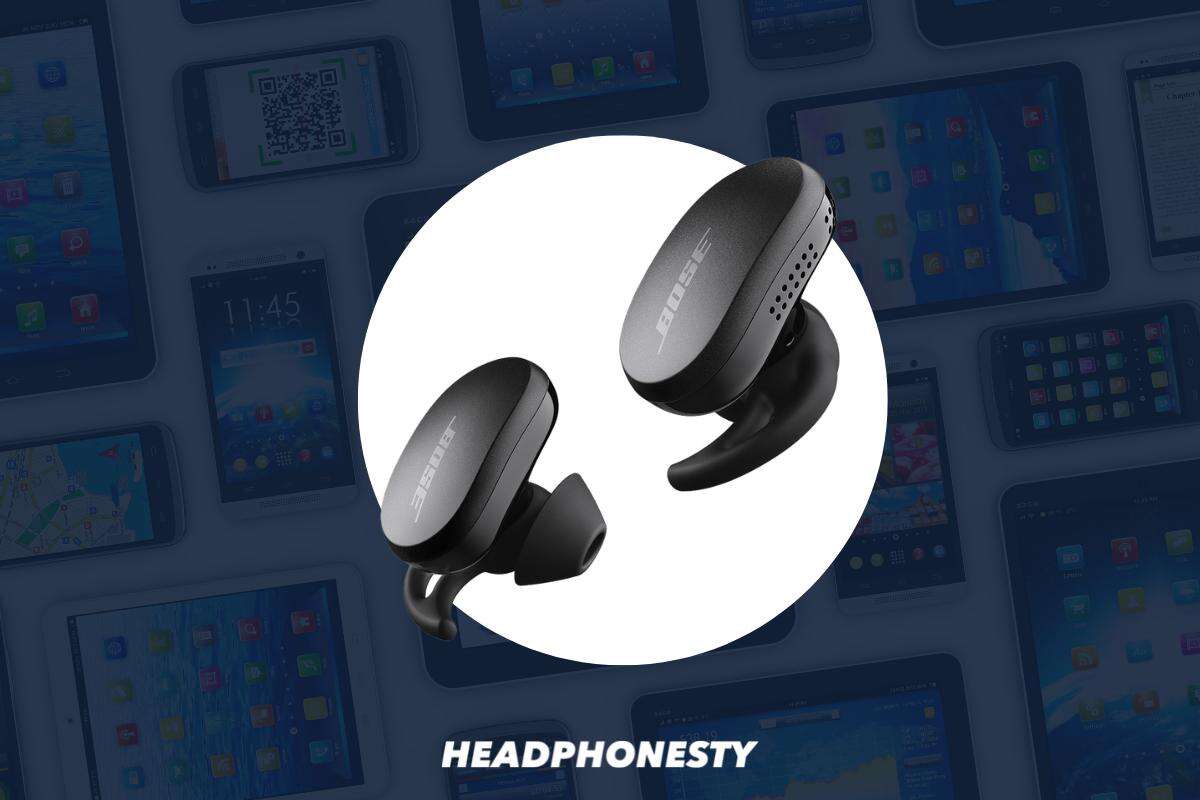
Open the case, enable Bluetooth on your device, then hold the earbuds' button until pairing mode appears.
I’ve spent years testing audio gear and helping friends fix stubborn Bluetooth issues. This guide on how to pair Bose wireless earbuds explains each step clearly, lists model-specific tips, and walks you through common problems and fixes. Read on to pair faster, keep connections stable, and get the most from your Bose earbuds.
Why pairing matters and what to know about Bose wireless earbuds
Pairing connects your Bose earbuds to a phone, tablet, or computer so audio and controls work correctly. Good pairing makes calls clear, keeps music in sync, and lets you use features like noise cancellation or voice assistants. Knowing how to pair Bose wireless earbuds avoids wasted time and frustration when Bluetooth acts up.
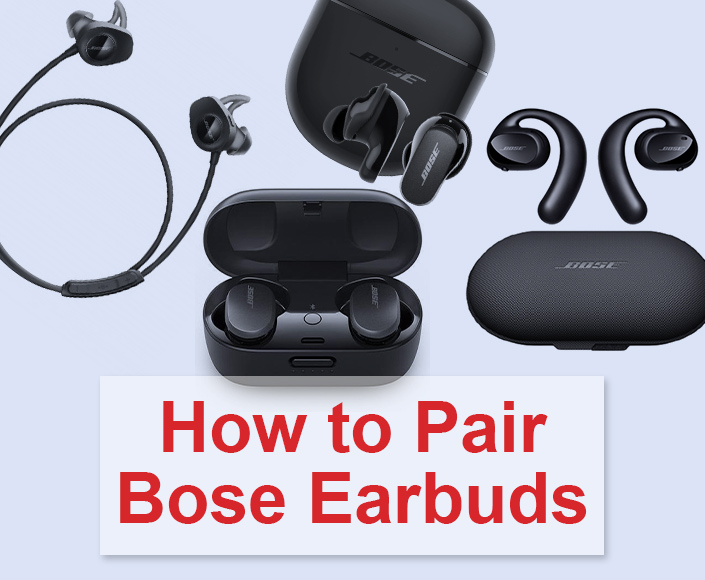
Bose models share similar steps but have small differences. Newer Bose earbuds often use quick pairing modes and the Bose Music app. Older models rely on a button press on the case or the earbud itself. I’ll cover both common and model-specific methods so you can pair any Bose earbuds with ease.
Prepare your devices before pairing
Set up a smooth pairing with a quick checklist. Follow these steps before you start pairing Bose wireless earbuds.
- Charge the earbuds and the case to at least 20 percent to prevent interruptions.
- Turn on Bluetooth on your phone, tablet, or computer and leave the device near the earbuds.
- Close other active Bluetooth connections on the phone to avoid auto-reconnect conflicts.
- Install the Bose Music app if your model supports it. The app helps with updates and guided pairing.
- Turn off airplane mode and disable battery-saving features that can block Bluetooth.
These prep steps reduce errors and save time when you follow how to pair Bose wireless earbuds. I learned to always charge fully before tests — low battery often hides configuration issues.
How to pair Bose wireless earbuds — step-by-step (general and model-specific)
Here are clear, short steps for most Bose earbuds. I include variations for specific models below.
General pairing steps for most Bose wireless earbuds:
- Remove the earbuds from the case. Many models turn on automatically.
- Put the earbuds in pairing mode:
- For many models, press and hold the button on the case or the earbud for 3–5 seconds.
- Listen for an audible prompt or watch for a flashing LED that indicates pairing mode.
- On your device, open Settings > Bluetooth and look for the Bose earbud name.
- Tap the Bose device name to pair. Wait for a confirmation tone or message.
- Test audio and microphone. Play music and make a quick test call.
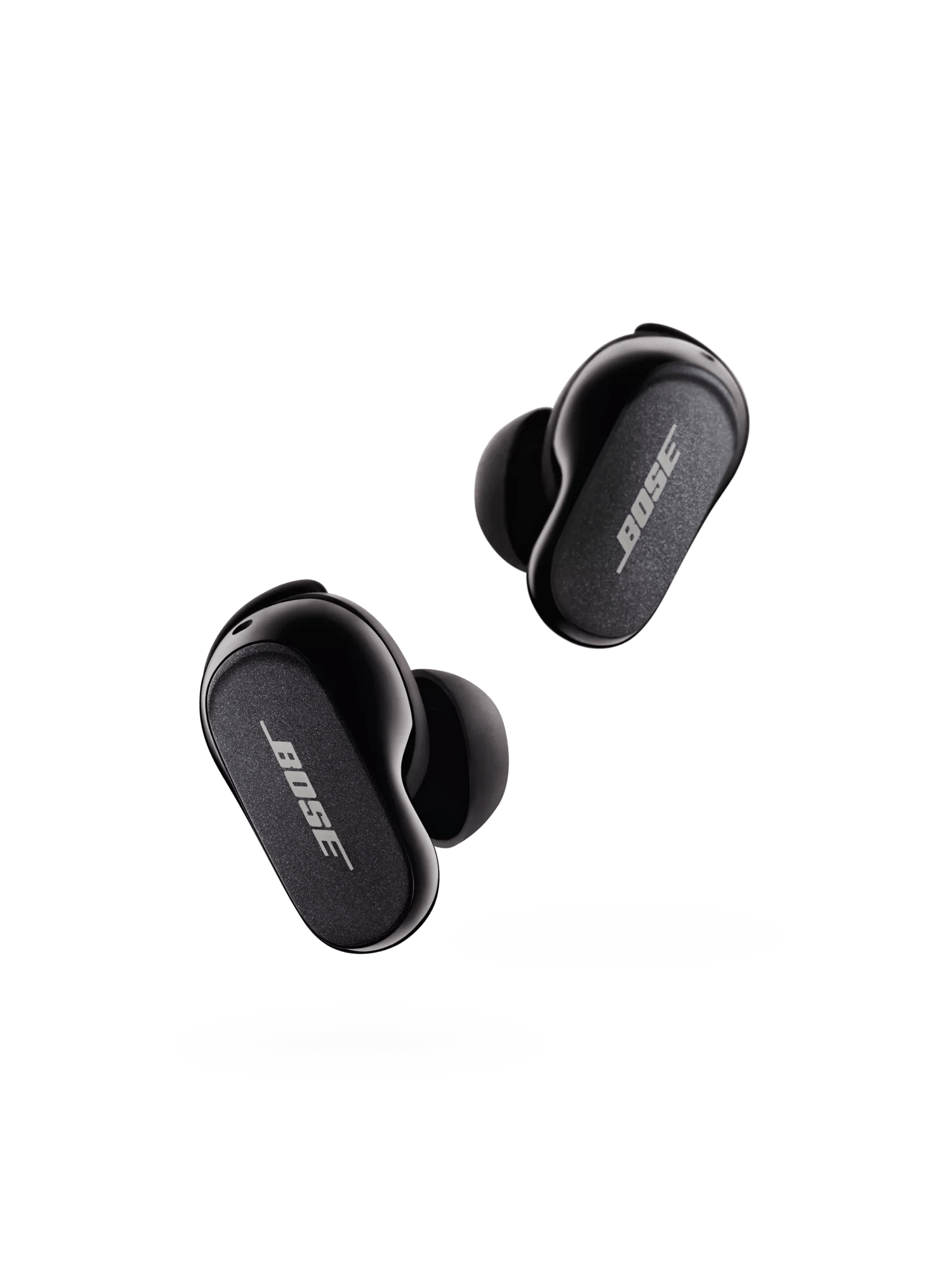
How to pair Bose QuietComfort Earbuds / QuietComfort Earbuds II:
- Remove the earbuds from the charging case. A voice prompt often says “Ready to connect.”
- For first-time pairing, the earbuds usually enter pairing mode automatically. If not, press and hold the button on either earbud for 5 seconds.
- Open Bluetooth settings and select the QuietComfort name.
How to pair Bose Sport Earbuds and SoundSport Free:
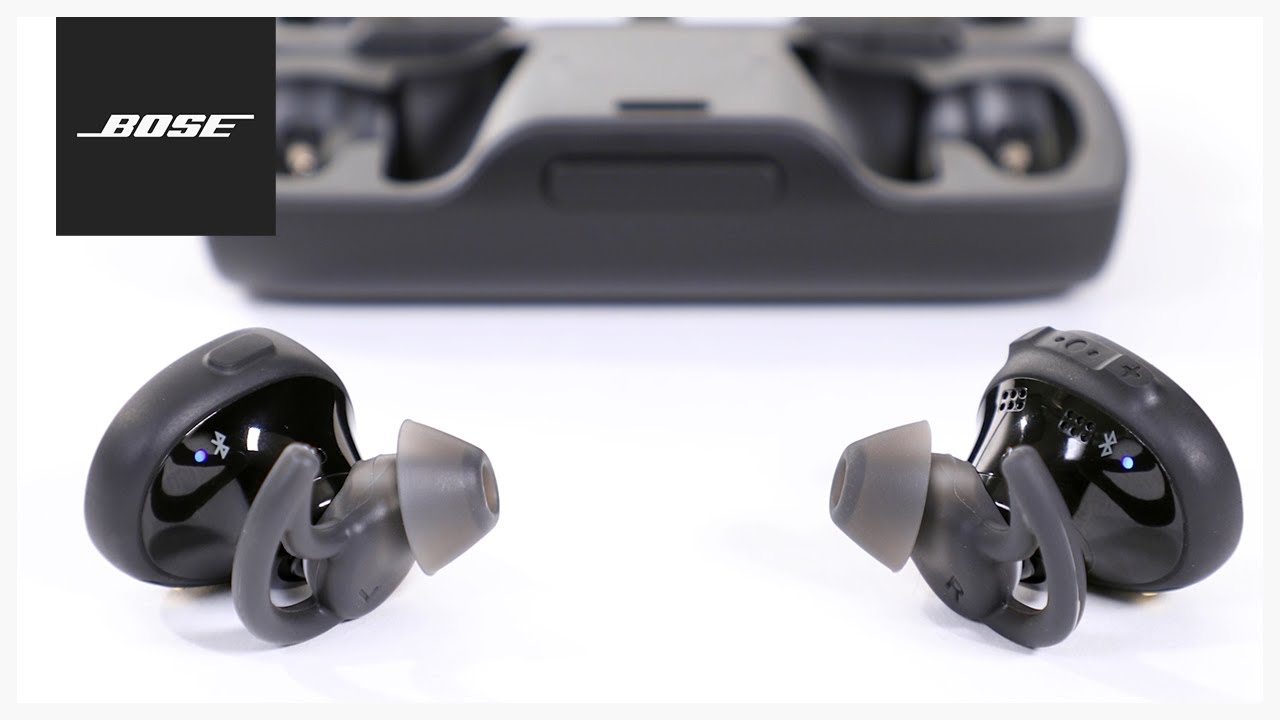
- Press the button on each earbud or open the case for automatic pairing.
- If they pair to a previous device automatically, turn off that device’s Bluetooth to force pairing mode.
- Select the Bose name in your device’s Bluetooth menu.
How to use the Bose Music app for pairing:
- Open the app and follow on-screen prompts to add a new product.
- The app walks you through firmware updates and settings.
- App pairing often simplifies the process and enables extra features.
Repeat these steps when you need to pair a second device or re-pair after a reset. If you need more model-specific help, mention your exact Bose model and I’ll walk through precise button presses.
Troubleshooting common pairing problems
Pairing can fail for many small reasons. Here are fixes I use most often when learning how to pair Bose wireless earbuds.
Problem: Earbuds do not appear in Bluetooth scan
- Ensure earbuds are in pairing mode and showing a flashing LED or audio prompt.
- Turn Bluetooth off and on again on your phone, then rescan.
- Restart both your device and the earbuds by placing them in the case and closing it for 10 seconds.
Problem: Earbuds connect but audio stutters or drops
- Move closer to the device and remove sources of interference like other active Bluetooth devices or crowded Wi-Fi.
- Clear the connected device list in the Bose app or on the earbuds by resetting them.
Problem: Earbuds pair with the wrong device automatically
- Disable Bluetooth on the unwanted device or forget the earbuds on that device.
- Use the Bose app to manage paired devices or enable exclusive pairing.
How to reset Bose earbuds (common method)
- Place the earbuds in the case and close the lid for 30 seconds.
- Open the case, then press and hold the case button (if present) or the earbud buttons until the LED flashes amber and white.
- Reattempt pairing after the reset finishes.
If issues persist, update the firmware via the Bose app. Firmware updates often fix compatibility and connection bugs. I’ve resolved intermittent drops this way several times during tests.
Tips for better Bluetooth performance and battery life
A few practical habits improve pairing success and daily use. These tips come from real tests and daily use.
- Keep earbuds and phone close during pairing. Short range avoids scanning issues.
- Avoid metal obstructing the case during pairing, like pockets or bags. Metal can block signals.
- Turn off other Bluetooth accessories while pairing to prevent auto-reconnect conflicts.
- Update firmware regularly in the Bose app to fix bugs and improve connectivity.
- Turn off touch controls or voice assistant features when you need longer battery life.
- Store the case charged and avoid leaving earbuds in extreme heat or cold.
From my experience, simple steps like restarting the phone and closing the case for 30 seconds solve more than half of pairing issues. These small habits make how to pair Bose wireless earbuds fast and reliable.

Advanced pairing and features: multipoint, firmware, and voice assistants
Once you know how to pair Bose wireless earbuds, you can unlock advanced features.
Multipoint pairing:
- Some Bose models support connecting to two devices at once. Use the Bose app to enable and manage multipoint.
- Test multipoint by playing music on one device and answering a call on the other.
Firmware updates:
- Use the Bose Music app to update firmware. Updates can add features and fix bugs that affect pairing.
- Always update when prompted to keep Bluetooth compatibility current.
Using voice assistants and touch controls:
- Pairing does not disable assistant setup. After pairing, set up voice controls in the app.
- Train yourself on touch gestures for play, pause, and skip to avoid accidental pairing resets.
These advanced steps help you customize the earbuds once you know how to pair Bose wireless earbuds. I recommend updating firmware before enabling multipoint to avoid connection conflicts.

Frequently Asked Questions of how to pair bose wireless earbuds
How do I put my Bose earbuds into pairing mode?
Press and hold the button on the earbud or case for about 3–5 seconds until the LED flashes or you hear a voice prompt. If pairing fails, try resetting the earbuds by placing them in the charge case for 30 seconds.
Why won't my device find my Bose earbuds?
Often the earbuds are not in pairing mode or another device is already connected. Turn off other Bluetooth devices, restart your phone, and re-enter pairing mode on the earbuds.
Can I pair Bose earbuds with multiple devices at once?
Some Bose models support multipoint pairing. Check the Bose Music app or your model’s manual to confirm and enable multipoint in settings.
How do I reset Bose wireless earbuds if pairing fails?
Place earbuds in the charging case, close the lid for 30 seconds, then open and press and hold the case or earbud buttons until the LED flashes amber and white. After reset, reattempt pairing.
Do I need the Bose app to pair my earbuds?
No, most models can pair via Bluetooth without the app. The Bose Music app adds guided pairing, firmware updates, and extra features but is optional.
Conclusion
Pairing Bose wireless earbuds should be quick when you follow clear steps, prepare devices, and use simple fixes. Start by charging and enabling Bluetooth, then use the correct button press for your model. If problems appear, reset the earbuds, update firmware, and try again.
Try the steps today and leave a comment with your model if you need model-specific help. Subscribe or revisit this guide for updates and tips on getting the best from your Bose earbuds.

Everett Ashford is a tech reviewer at mytechgrid.com specializing in SSDs, cameras, TVs, earbuds, headphones, and other consumer electronics. He provides honest, data-driven reviews based on hands-on testing and real-world performance analysis. Everett simplifies complex tech details to help readers make smart, confident buying decisions.