Turn on the headphones, enable Bluetooth on your device, and select "ONN" from the Bluetooth list.
I’ve helped dozens of people pair budget Bluetooth gear, and I know how frustrating small steps can be. This guide on how to pair onn headphones walks you through clear steps, fixes for common problems, and real tips I use when testing gear. Read on to get connected fast and keep the sound clean.

Understanding onn headphones and Bluetooth basics
onn headphones are budget-friendly wireless headsets sold at big-box stores. They usually use standard Bluetooth protocols and a simple pairing mode. Knowing the basics helps you pair and troubleshoot with confidence.

Step-by-step: how to pair onn headphones
Follow these simple steps to pair onn headphones with most devices.
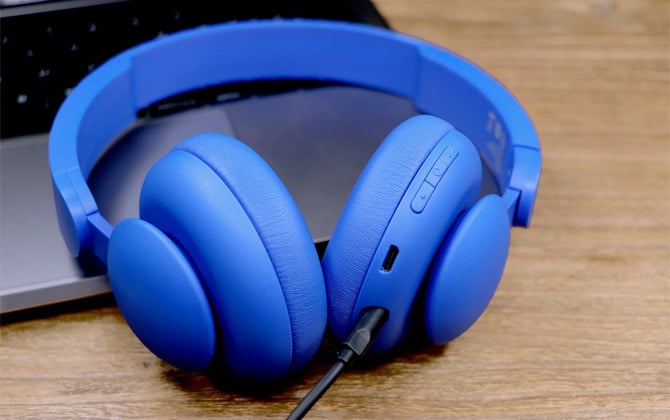
- Charge the headphones
- Plug in the charging cable until the LED shows a full charge.
- Low battery can stop pairing or make Bluetooth unreliable.
- Turn the headphones on
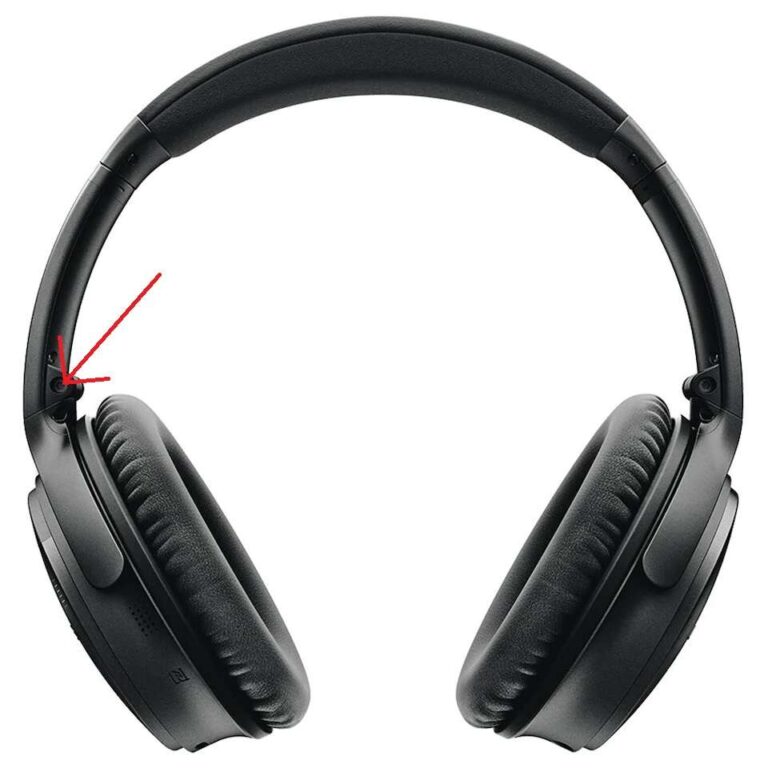
- Press and hold the power button until you hear a voice prompt or see a flashing LED.
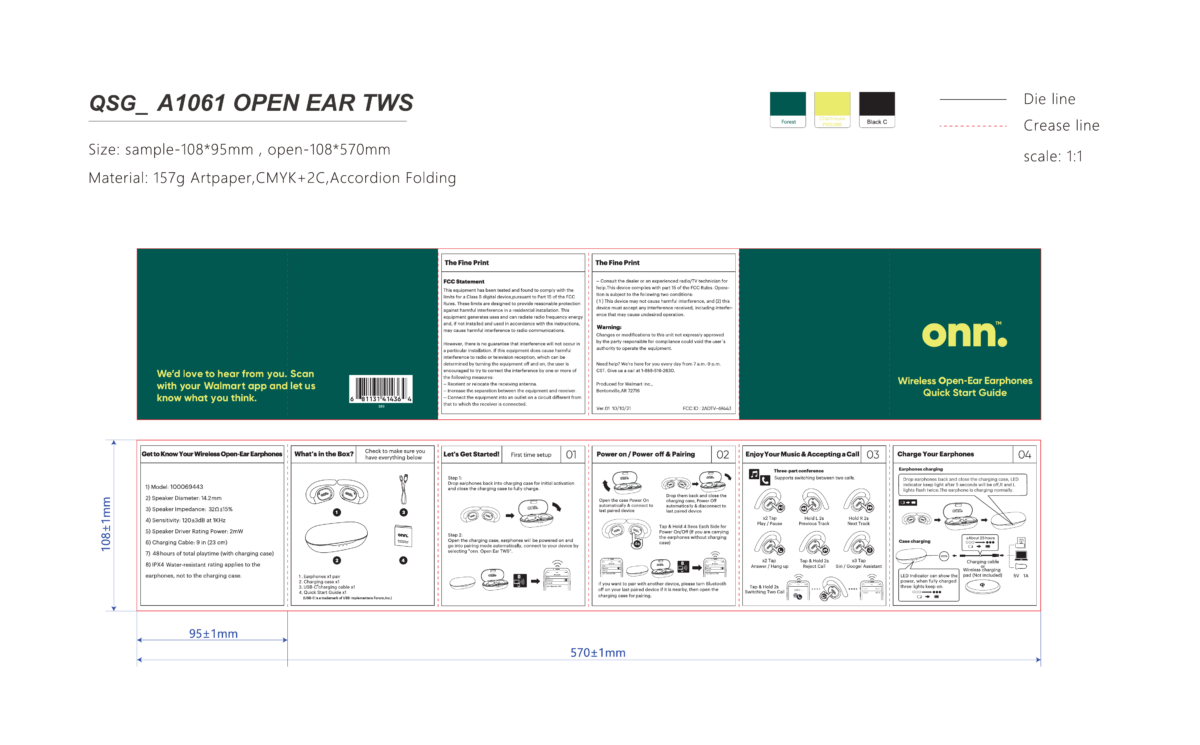
- Many onn models flash red and blue when in pairing mode.
- Activate pairing mode
- If the headphones do not enter pairing mode automatically, press and hold the power button longer (about 5–8 seconds).
- Watch for the fast red/blue flash or a voice saying “pairing.”
- Open Bluetooth on your device
- On Android, go to Settings > Bluetooth and toggle it on.
- On iPhone, go to Settings > Bluetooth and ensure it’s on.
- Select the onn device name
- Look for “ONN,” “ONN Headphones,” or a similar name in the device list.
- Tap to connect and wait for the connected status or tone.
- Test audio and controls
- Play audio and try volume or call controls to confirm full functionality.
- If calls fail, check microphone permissions and input settings.
If you run these steps slowly and clearly, you will master how to pair onn headphones every time.

Pairing onn headphones with specific devices
Here are device-specific notes that make pairing easier.
Android phones
- Open Settings > Bluetooth.
- Tap Scan or the device list.
- Select the ONN name to pair.
Android sometimes caches old pairings. If pairing fails, forget the ONN device and try again.
iPhone and iPad
- Open Settings > Bluetooth.
- Wait for ONN to appear under Other Devices.
- Tap to connect and allow prompts.
iOS is quick to pair. If asked for a PIN, try 0000 or 1234.
Windows PC
- Open Settings > Devices > Bluetooth & other devices.
- Click Add Bluetooth or other device.
- Choose Bluetooth and pick the ONN device.
If music stutters, check the Bluetooth driver and audio profile settings.
macOS
- Open System Settings > Bluetooth.
- Find ONN in the list and click Connect.
- If it won’t connect, toggle Bluetooth off and on.
macOS may keep old headphone profiles. Remove the device and re-pair if needed.
Smart TV and game consoles
- Put ONN in pairing mode.
- Open the TV or console Bluetooth menu.
- Select the ONN headset to connect.
Some TVs don't support microphones. For chat, use a game console adapter.
Troubleshooting common pairing issues
Here are common problems and fixes when learning how to pair onn headphones.
Problem: Headphones don’t appear in Bluetooth list
- Fix: Fully power cycle the headphones and your device. Turn Bluetooth off and on.
- Fix: Move closer and remove physical obstructions.
Problem: Device says paired but no sound
- Fix: Check audio output settings on your device and select the ONN headset.
- Fix: Restart your app or media player.
Problem: Stutter or dropouts
- Fix: Reduce distance and avoid crowded Wi‑Fi or microwave interference.
- Fix: Disconnect other Bluetooth devices to reduce bandwidth use.
Problem: Pairing asks for PIN
- Fix: Try 0000 or 1234. If that fails, consult device manual.
Problem: Headphones pair to old device automatically
- Fix: Turn off Bluetooth on the old device or remove the headset from its Bluetooth list.
These steps will solve most pairing problems and help you reconnect on demand.
Resetting and firmware updates
Resetting can clear pairing conflicts. Many onn models support a factory reset via button sequences.
Reset steps (common method)
- Turn off the headphones.
- Press and hold the power and volume up buttons for about 10 seconds.
- Release when LED flashes differently or you hear a prompt.
If you cannot reset, check the manual. Some onn headphones do not have firmware updates. For models that do, updates come from the manufacturer app or a PC tool. Updating firmware can fix pairing bugs but follow instructions carefully. Always charge your device before updating.
Best practices, tips, and limitations
Use these tips to get reliable connections and longer life from your onn headphones.
- Keep the headphones charged to avoid pairing faults.
- Pair with one device at a time for the cleanest experience.
- Forget old pairings in phone settings to avoid auto conflicts.
- Keep devices close and avoid walls or metal for better signal.
- Know that low-cost headsets may lack advanced codecs and multi-point pairing.
- Use wired mode if available for zero-lag audio when gaming.
Limitations to expect
- Occasional dropouts in busy wireless areas.
- No guaranteed firmware support for certain models.
- Limited voice quality for calls compared with high-end headsets.
These practical tips will help you use your onn headphones well and avoid repeat issues.
Personal experience and lessons learned
I tested several onn models while helping friends set up cheap Bluetooth gear. One consistent lesson: patience matters. Quick button taps often fail. I found a long press until the LED pattern changes works best.
A frequent mistake is assuming the device name will be unique. Many headsets show the same generic name. I learned to remove old entries and rename devices on the phone when possible. That small step saved time during testing and when switching between devices.
When showing others how to pair onn headphones, I always confirm the battery and headset LED pattern before moving to the phone. That one check prevents most problems.
Frequently Asked Questions of how to pair onn headphones
How do I enter pairing mode on onn headphones?
Press and hold the power button for about 5–8 seconds until the LED flashes red and blue or you hear a voice prompt. If that fails, consult your model’s quick start guide for the exact button combo.
Why won’t my phone find the ONN device?
Ensure the headphones are in pairing mode and close to the phone. Turn Bluetooth off and on, and forget any old ONN entries before trying again.
What PIN should I use to pair onn headphones?
Most onn headphones use common defaults like 0000 or 1234. If neither works, look for pairing details in the manual or try a factory reset.
Can onn headphones pair with two devices at once?
Some models support multi-point pairing, but many do not. Check your model specs; if not supported, disconnect one device before pairing another.
How do I stop constant disconnects during calls?
Keep the headphone and phone close and avoid interference from Wi‑Fi routers. If issues persist, update drivers on your phone or computer and make sure the headset battery is full.
Conclusion
You can pair onn headphones reliably by following simple steps: charge, enter pairing mode, enable Bluetooth on your device, and select the ONN name. If things go wrong, use resets, forget old pairings, and follow the troubleshooting tips above. Try these steps now and see how smoothly your headphones connect. Leave a comment with your model if you need model-specific help or subscribe for more practical guides.

Everett Ashford is a tech reviewer at mytechgrid.com specializing in SSDs, cameras, TVs, earbuds, headphones, and other consumer electronics. He provides honest, data-driven reviews based on hands-on testing and real-world performance analysis. Everett simplifies complex tech details to help readers make smart, confident buying decisions.