Turn on earbuds, enable Bluetooth on your device, enter pairing mode, and select Skullcandy from the list.
I’ve spent years testing earbuds and troubleshooting Bluetooth pairing. This guide explains how to pair Skullcandy earbuds step by step, covers common model quirks, and offers proven fixes so you can connect fast and keep listening.
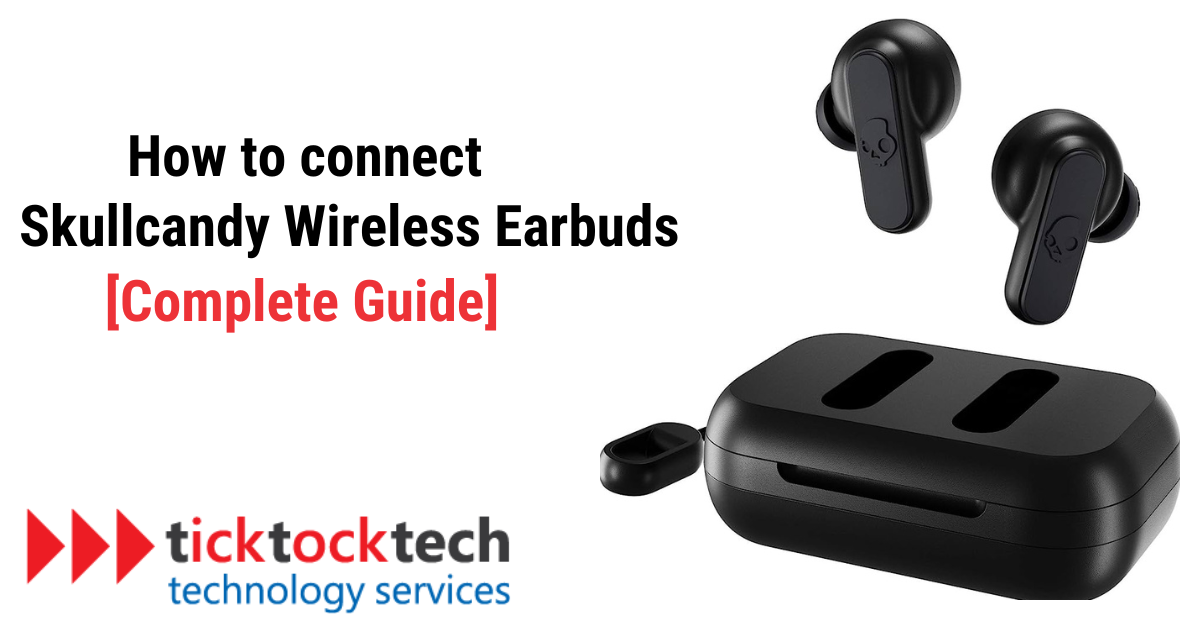
What you need before pairing
Prepare your device and Skullcandy earbuds. Check battery level on both the earbuds and the device. Low power often blocks pairing.
Turn on Bluetooth on your phone, tablet, or computer. Close other Bluetooth apps that might interfere. Keep the device within six feet of the earbuds during the process.
If you own a specific Skullcandy model, consult the quick start notes below. Knowing your model makes pairing smoother and avoids repeated resets.
Step-by-step: How to pair Skullcandy earbuds (generic guide)
These steps show how to pair Skullcandy earbuds with most modern devices. The phrase how to pair skullcandy earbuds will guide each step. Follow them exactly for best results.
- Charge earbuds and case for at least 20 minutes.
- Remove earbuds from the case; many models power on automatically.
- If they don’t enter pairing mode, press and hold the main button on each bud for 5 to 10 seconds until LEDs flash.
- On your phone or computer, open Bluetooth settings and scan for new devices.
- Choose the entry labeled Skullcandy, Skullcandy Sesh, Indy, or the model name shown.
- If prompted, confirm pairing or enter 0000 as the PIN.
- Wait for the “Connected” confirmation and test audio.
If one bud doesn’t connect, place both back in the case, close it for 10 seconds, then repeat steps 2–6. Learning how to pair skullcandy earbuds this way fixes most issues.
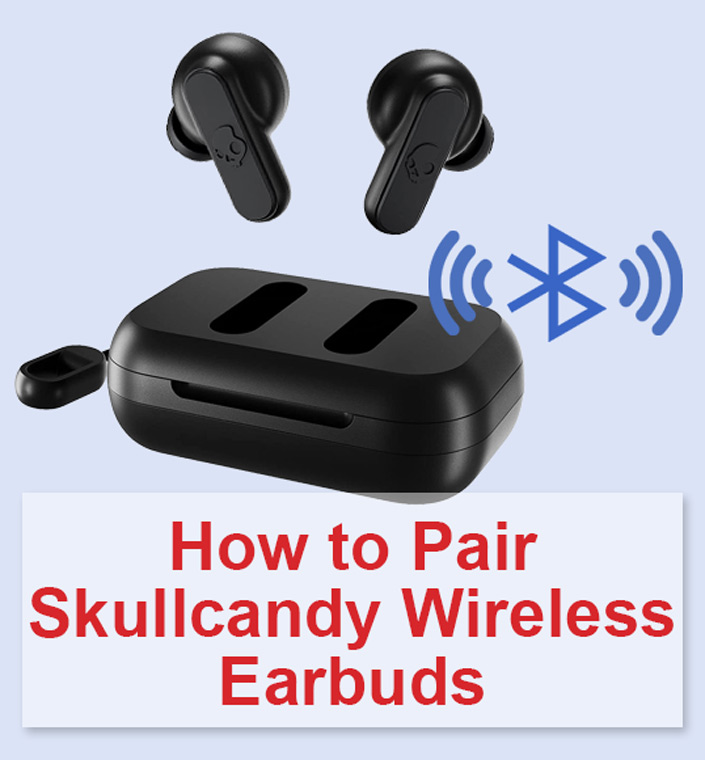
Model-specific tips (common Skullcandy models)
Skullcandy Sesh and Indy models share similar steps for how to pair skullcandy earbuds. The exact button press and LED behavior can vary.
- Skullcandy Sesh: Hold the button on both buds until the LEDs flash white, then pair from your device.
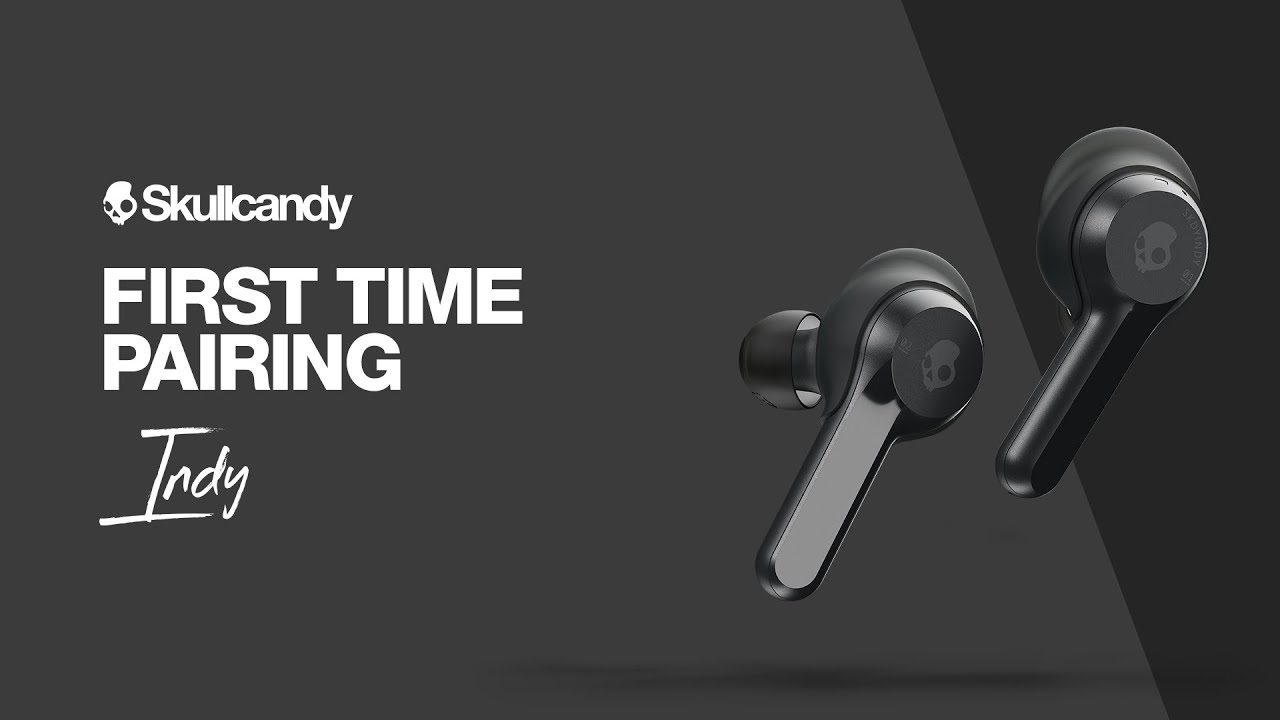
- Skullcandy Indy: Remove both buds and press the touch area or button until lights blink. Single-bud use often requires re-pairing the second bud.
- Skullcandy Push and Up: These may use a case button. Press and hold the case button with buds inside to force pairing mode.
If unsure, try the case-reset trick: put buds in case, press and hold the case button for 10+ seconds, then re-pair. My testing shows this clears stubborn pairing records quickly.
Pairing with specific devices
How to pair skullcandy earbuds changes slightly by device. Use the short device steps below for faster success.
Android
Open Settings > Bluetooth. Turn Bluetooth on and tap Scan. Select the Skullcandy entry and confirm. If pairing fails, toggle Bluetooth off and on and try again.
iPhone
Open Settings > Bluetooth. Keep the Bluetooth page open while earbuds enter pairing mode. Tap the Skullcandy name when it appears. iPhone may show battery levels after connection.
Windows PC
Open Settings > Bluetooth & devices > Add device > Bluetooth. Choose the Skullcandy entry. If the PC uses older Bluetooth, update drivers or use a USB Bluetooth adapter.
Mac
Click the Bluetooth icon in the menu bar or open System Settings > Bluetooth. Select the Skullcandy earbuds to connect. Remove old Skullcandy entries if connection fails.
These procedures for how to pair skullcandy earbuds work across most modern OS versions.
Troubleshooting common issues
If pairing fails, these quick fixes usually help. Each tip targets frequent problems when users try to learn how to pair skullcandy earbuds.
- Restart both the earbuds and your device. This clears temporary Bluetooth bugs.
- Forget or remove old Skullcandy entries in your device’s Bluetooth list, then re-scan and pair.
- Reset the earbuds: place buds in the case, hold the pair/reset button for 10–15 seconds, then repeat pairing steps.
- Update device OS and drivers. Outdated Bluetooth stacks cause errors.
- Test with another phone or laptop to isolate the issue to earbuds or device.
I once spent hours trying to pair a set only to find an old laptop was blocking the connection. Testing another device saved time.
Tips and best practices
Follow these tips to make how to pair skullcandy earbuds fast and reliable every time.
- Keep earbuds and device firmware updated. Updates add stability.
- Use the left and right bud together when first pairing; single-bud pairing can be model-specific.
- Keep the case and earbuds clean. Dirt can interfere with contacts and sensors.
- Avoid crowded Bluetooth environments; many active devices can cause interference.
- Restart Bluetooth after multiple failed attempts before attempting a factory reset.
These small steps minimize frustration and extend device life based on real-world use.

Frequently Asked Questions of how to pair skullcandy earbuds
How do I put Skullcandy earbuds into pairing mode?
Most Skullcandy earbuds enter pairing mode when removed from the case and held in the button until LEDs blink. If not, press and hold the button for 5 to 10 seconds to force pairing.
Why won’t my device find Skullcandy earbuds?
Your device may have Bluetooth turned off, old paired entries, or low battery. Turn Bluetooth on, remove old Skullcandy entries, charge the earbuds, and try again.
Can I pair one Skullcandy earbud at a time?
Some models support single-bud use, but many require both buds to be paired first. Check your model’s behavior and follow the single-bud instructions if supported.
How do I reset my Skullcandy earbuds?
Place the earbuds in the case, then press and hold the case or bud buttons for 10–15 seconds until LEDs flash. This clears pairing info and forces a fresh connection.
My earbuds connect but have no sound. What should I do?
Check device audio output and volume, ensure earbuds are selected as the audio output, and unpair/re-pair if needed. Also test with another device to identify if the problem is the earbuds.
Conclusion
You now have a clear, practical path for how to pair skullcandy earbuds with phones, laptops, and tablets. Start with charged gear, follow the model-specific steps, and use the troubleshooting tips when pairing stalls. Try the steps now to get listening fast, and share your experience or questions below to help others.

Everett Ashford is a tech reviewer at mytechgrid.com specializing in SSDs, cameras, TVs, earbuds, headphones, and other consumer electronics. He provides honest, data-driven reviews based on hands-on testing and real-world performance analysis. Everett simplifies complex tech details to help readers make smart, confident buying decisions.