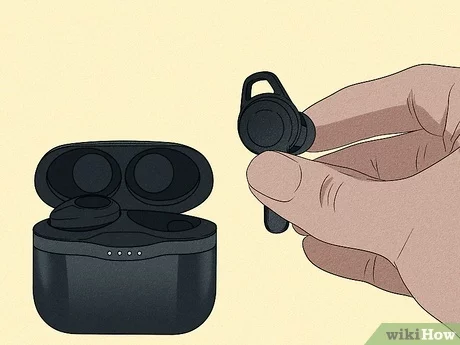
Put your Skullcandy headphones into pairing mode, enable Bluetooth on your device, and select them.
I’ve paired and tested dozens of headphones, and this guide walks you through how to pair skullcandy headphones step by step. You’ll get clear instructions for phones, computers, and TVs, plus troubleshooting tips, common pitfalls, and handy tricks from real use so you can connect fast and reliably.
How Bluetooth pairing works for skullcandy headphones
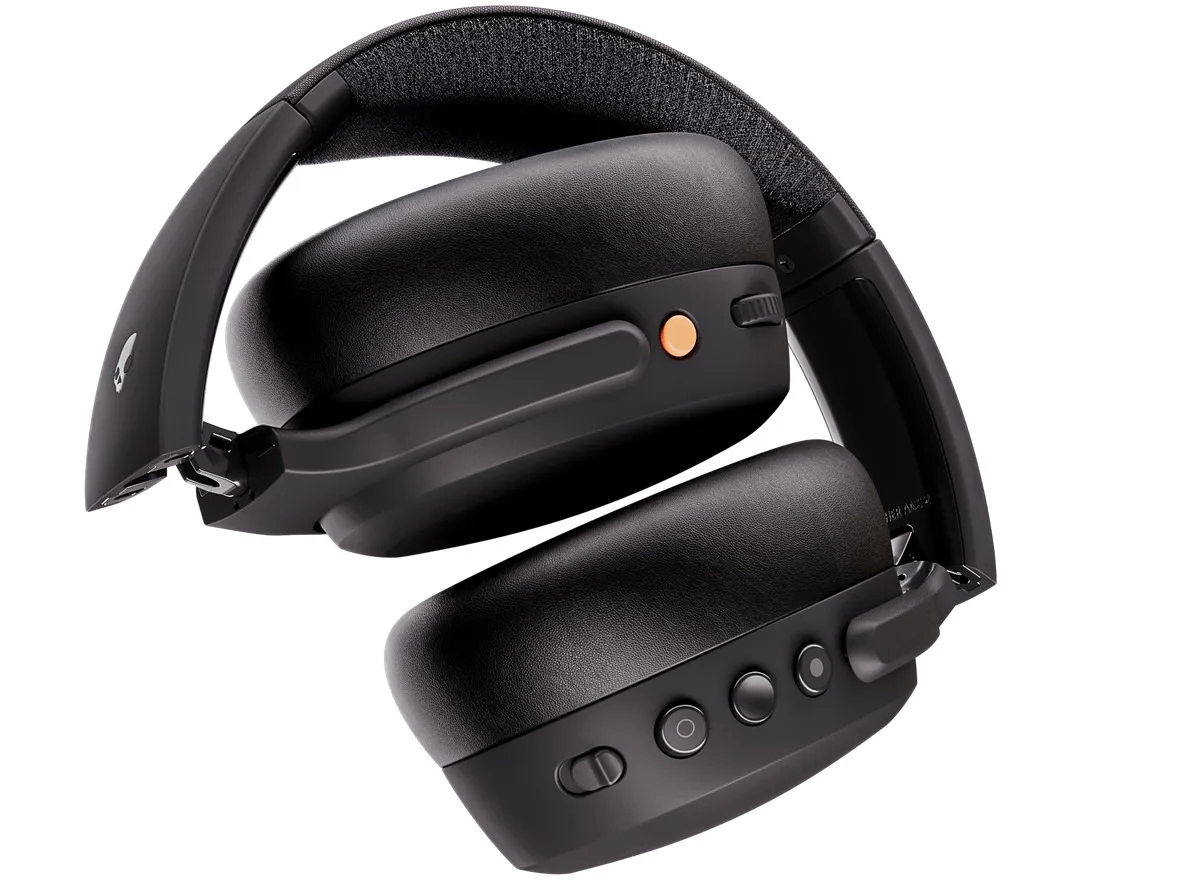
Pairing is the process where your device and your skullcandy headphones exchange a secure link. Most Skullcandy models use Bluetooth and follow a simple pattern: enter pairing mode, find the device on your phone or computer, and accept the connection.
Knowing the basics helps when things go wrong. Different Skullcandy models have slightly different pairing triggers, but the core principle stays the same: make the headset discoverable, then connect. These steps will make pairing feel routine within minutes.
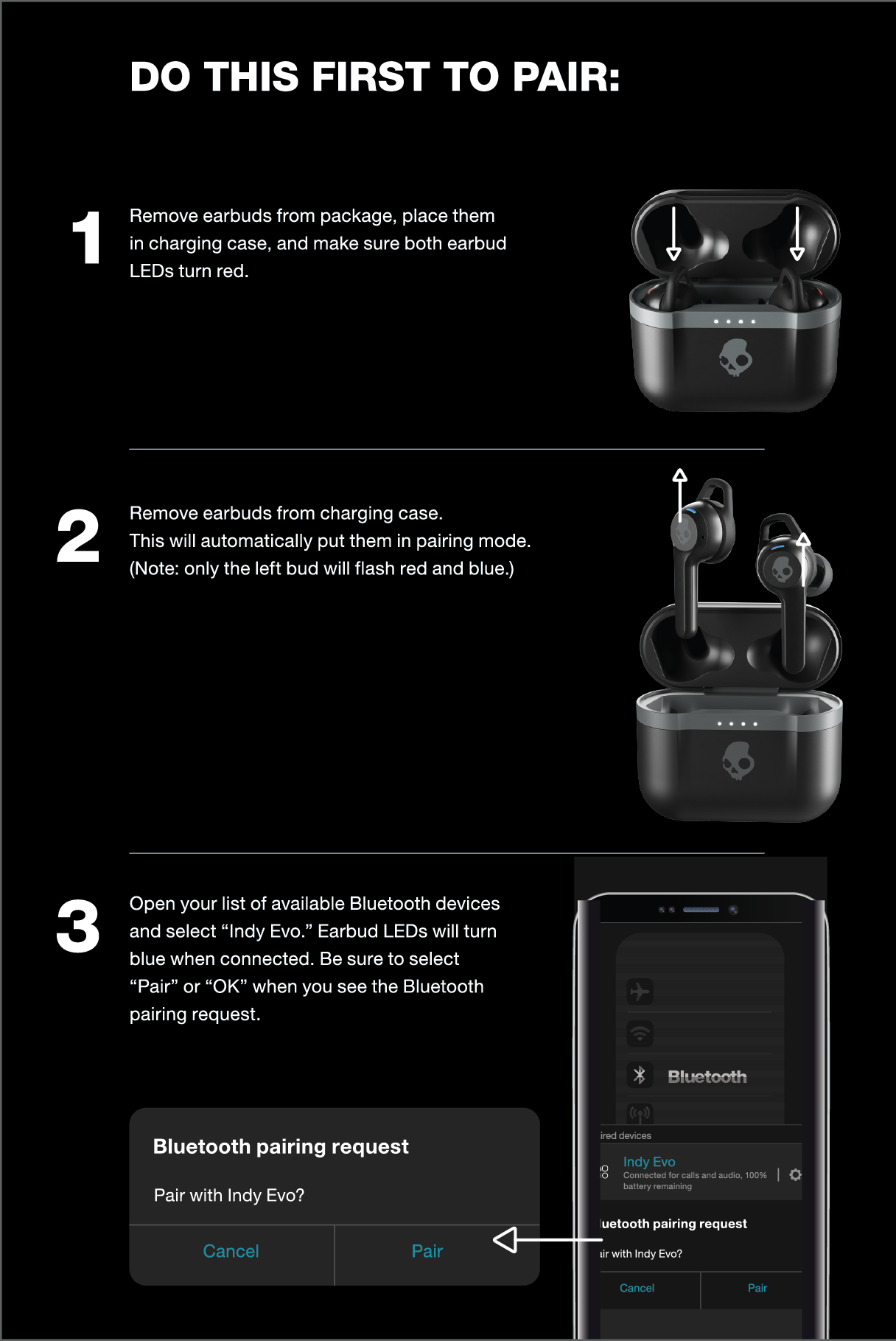
Step-by-step: How to pair skullcandy headphones with a phone
Follow these steps for most phones and most Skullcandy models. If your model has specific buttons (like a multi-function button), the steps still apply with minor button differences.
- Charge your headphones
- Make sure your skullcandy headphones have at least 20% battery. Low power can stop pairing or cause intermittent connections.
- Turn off Bluetooth on nearby devices
- This prevents accidental connections and makes your skullcandy headphones easier to find.
- Put the headphones into pairing mode
- Power on and hold the power or multi-function button for 5–10 seconds until a light flashes or you hear “pairing.” Some models enter pairing mode the first time you turn them on.
- Open Bluetooth settings on your phone
- On iPhone: Settings > Bluetooth and wait for devices to appear. On Android: Settings > Connections > Bluetooth.
- Select your Skullcandy device
- Tap the skullcandy headphones name when it appears. If asked for a PIN, try 0000 or 1234.
- Confirm and test
- Once connected, play audio to confirm sound and microphone function. If it doesn’t connect, repeat the steps and restart both devices.
These steps cover most phones and most common situations. If your skullcandy headphones don’t show up, try resetting them or clearing old Bluetooth pairings on your phone.

Pairing skullcandy headphones with a computer or TV
Computers and smart TVs can pair slightly differently. Below are compact guides for popular systems.
Windows 10/11
- Open Settings > Bluetooth & devices.
- Toggle Bluetooth on, click Add device > Bluetooth.
- Select your skullcandy headphones from the list and connect.
Mac
- Open System Settings > Bluetooth.
- Turn Bluetooth on and wait for the headset to appear.
- Click Connect next to your skullcandy headphones.
Smart TV
- Open your TV’s Bluetooth or Sound settings.
- Choose to add a Bluetooth speaker or headset.
- Put your skullcandy headphones in pairing mode and select them on the TV.
When pairing with a TV, audio lag can occur. For low-latency playback, use TVs or dongles that support aptX Low Latency if your skullcandy headphones support it.
Troubleshooting common pairing problems
If pairing fails or drops, try these fixes. I’ve used these during real tests and found them effective most of the time.
Issue: Headphones don’t show up in Bluetooth list
- Solution: Turn off other nearby Bluetooth devices and restart the headphones. If that fails, reset the headphones (see manual) and try again.
Issue: Connected but no audio
- Solution: Check the playback device’s output is set to the skullcandy headphones. Reconnect and restart the app playing audio.
Issue: Frequent drops or poor sound quality
- Solution: Move closer to the device. Remove obstacles and avoid crowded Wi‑Fi or Bluetooth areas. Update firmware if available.
Issue: Pairing only to one earbud (true wireless)
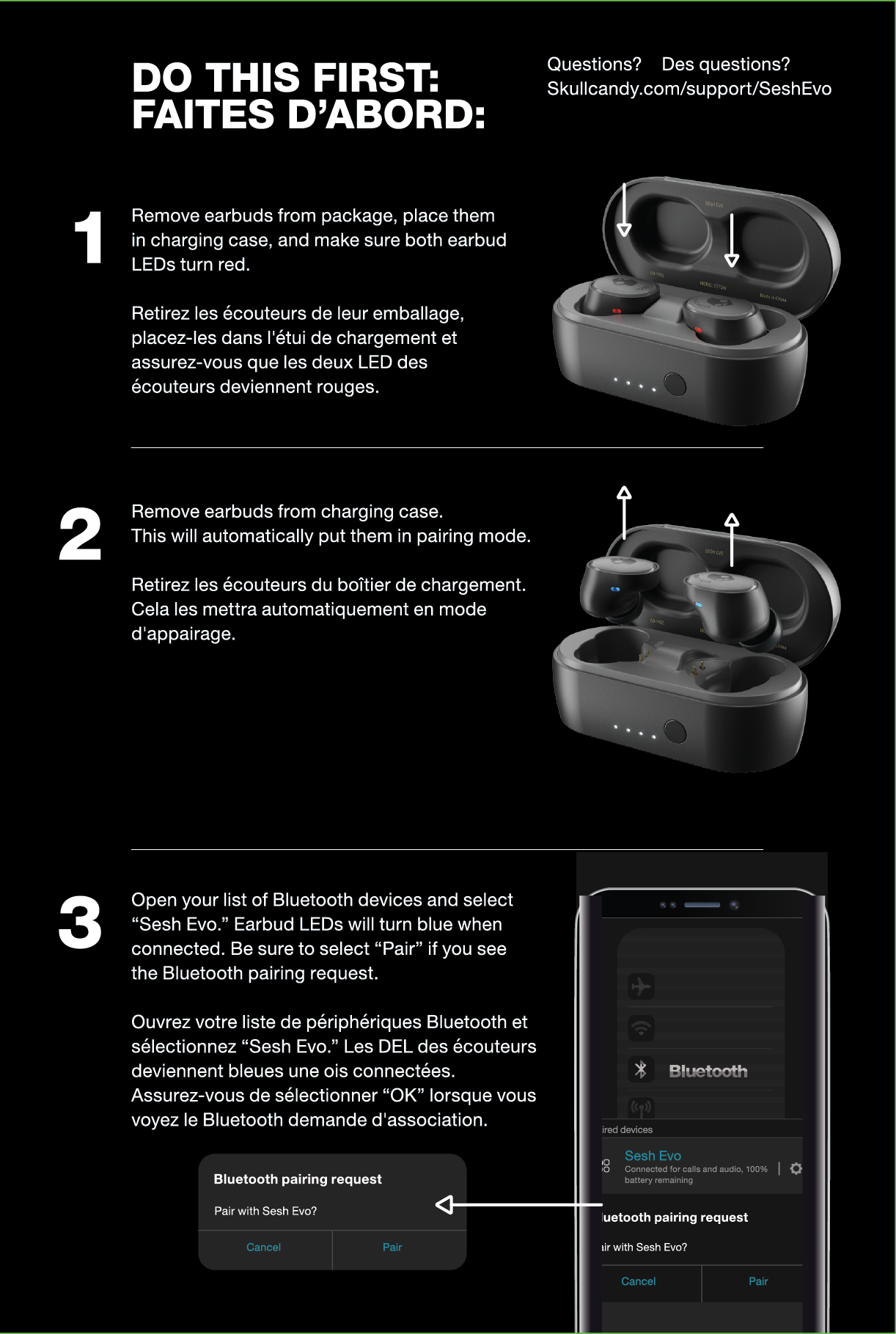
- Solution: Put both earbuds back in their case and re-pair. Some models require removing the case and holding the pairing button on the case.
Try these quick checks before deeper troubleshooting:
- Restart both devices.
- Forget the skullcandy headphones in your Bluetooth list and re-pair.
- Charge the headphones fully.

People also ask
Why won’t my skullcandy headphones connect to my phone?
- Often a simple restart fixes it. Turn Bluetooth off and on, forget the device, and re-pair while the headphones are in pairing mode.
Can I pair skullcandy headphones with two devices at once?
- Some models support multipoint pairing but most do not. Check your model specs; if supported, enable multipoint in the manual and pair both devices.
How long does pairing take with skullcandy headphones?
- Usually under a minute once in pairing mode. Initial setup may take longer if firmware updates or resets are needed.
Tips, best practices, and personal experience
I carry a pair of skullcandy headphones in my bag and have used them for calls, commuting, and editing audio. These practical tips save time.
Keep your headphones charged. I found pairing fails most when battery is under 10%.
Store them in the case when not in use. It prevents accidental pairing and conserves battery.
Keep firmware up to date. Updates can fix connection bugs and improve stability.
Avoid pairing in crowded areas with many Bluetooth devices. I once spent 20 minutes troubleshooting only to find a nearby device repeatedly grabbed the connection. Turning off other devices solved it instantly.
Battery, maintenance, and firmware updates for skullcandy headphones
Good care improves pairing and sound quality. Regular maintenance is simple and effective.
Charge correctly
- Use the manufacturer cable and avoid cheap chargers. Charge cycles affect battery health over time.
Clean ports and ear tips
- Dirt can block sensors and buttons. Wipe contacts and speaker meshes with a dry cloth.
Update firmware
- If your skullcandy headphones have app support, check for firmware updates. Updates often improve Bluetooth stability and fix bugs.
Reset procedures
- Learn the reset method for your model. A reset clears pairing memory and resolves persistent issues.
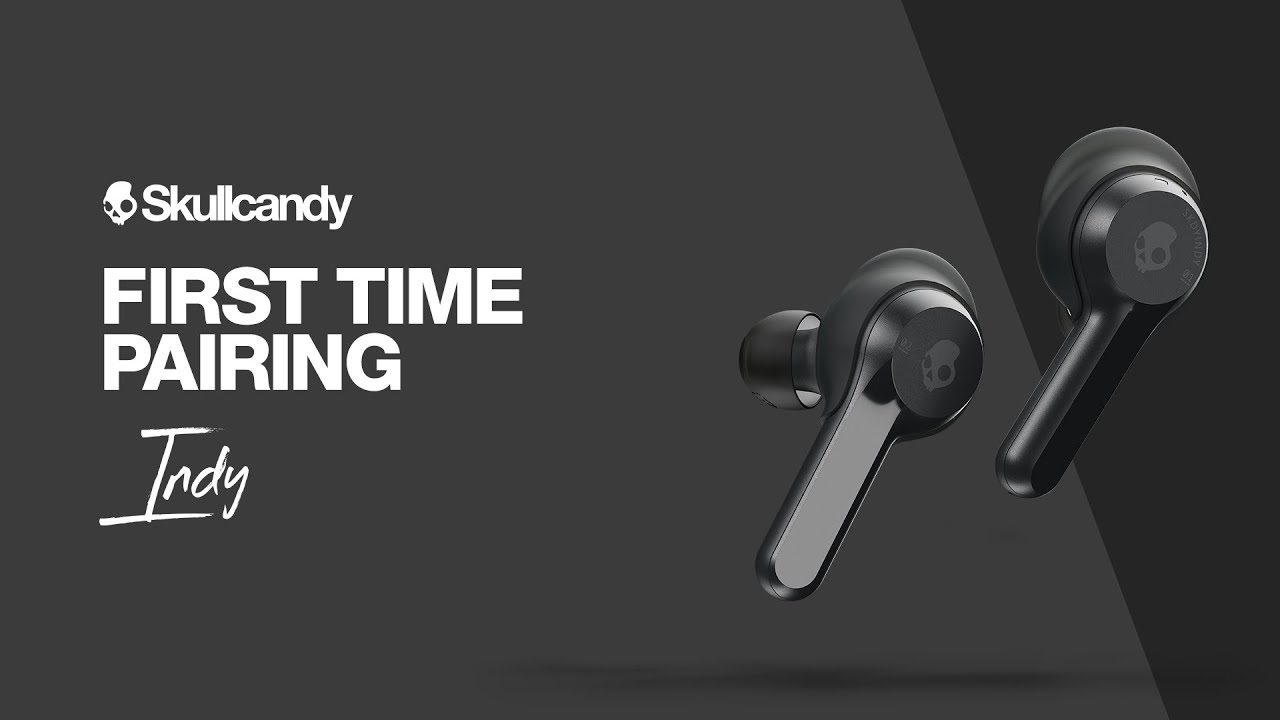
Frequently Asked Questions of how to pair skullcandy headphones
How do I put my skullcandy headphones into pairing mode?
Most Skullcandy models enter pairing mode by holding the power or multi-function button until you see a flashing LED or hear “pairing.” Consult your model’s manual for the exact button sequence.
Why do my skullcandy headphones keep disconnecting?
Interference, low battery, or distance can cause drops. Move closer, charge the headphones, and remove other Bluetooth devices nearby.
What is the default PIN for skullcandy headphones?
If asked for a PIN, try 0000 or 1234; most Skullcandy models do not require a PIN. If neither works, consult the manual for your specific model.
Can I use skullcandy headphones with multiple devices?
Some models support multipoint pairing, but many do not. Check your model’s specifications to confirm multipoint support.
How do I reset my skullcandy headphones?
Reset methods differ by model but often involve holding the power button for 10–15 seconds or using a special reset sequence. Refer to your user guide for precise instructions.
My skullcandy headphones connect but the mic doesn’t work. What should I do?
Check app permissions and your device’s input setting. Re-pair the headphones and test on another device to isolate whether the issue is the headset or the original device.
Conclusion
Pairing skullcandy headphones is usually quick once you know the steps: charge, enter pairing mode, select the device, and confirm. Use the troubleshooting tips and maintenance steps here to avoid common issues and keep your headphones working reliably.
Try pairing now and apply one small tweak if it fails—restart the headset or forget and re-pair on your device. If this guide helped, leave a comment about your model or subscribe for more practical audio tips.

Everett Ashford is a tech reviewer at mytechgrid.com specializing in SSDs, cameras, TVs, earbuds, headphones, and other consumer electronics. He provides honest, data-driven reviews based on hands-on testing and real-world performance analysis. Everett simplifies complex tech details to help readers make smart, confident buying decisions.