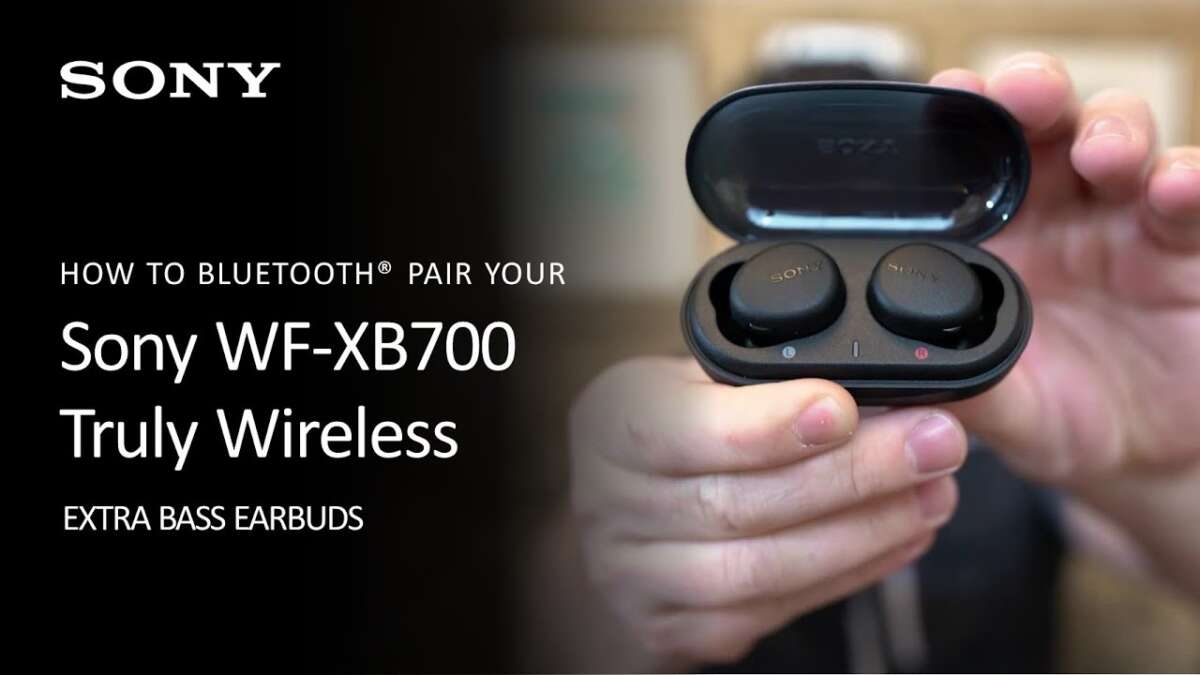
Turn on the earbuds, enable Bluetooth, and select Sony earbuds from your device list.
I’ve paired dozens of Sony earbuds across phones, tablets, and laptops, so I’ll walk you through clear, tested steps for how to pair sony earbuds with Android, iPhone, Windows, and Mac. This guide explains model differences, common pitfalls, troubleshooting tips, and real-world tricks so you can pair quickly and keep a stable connection.
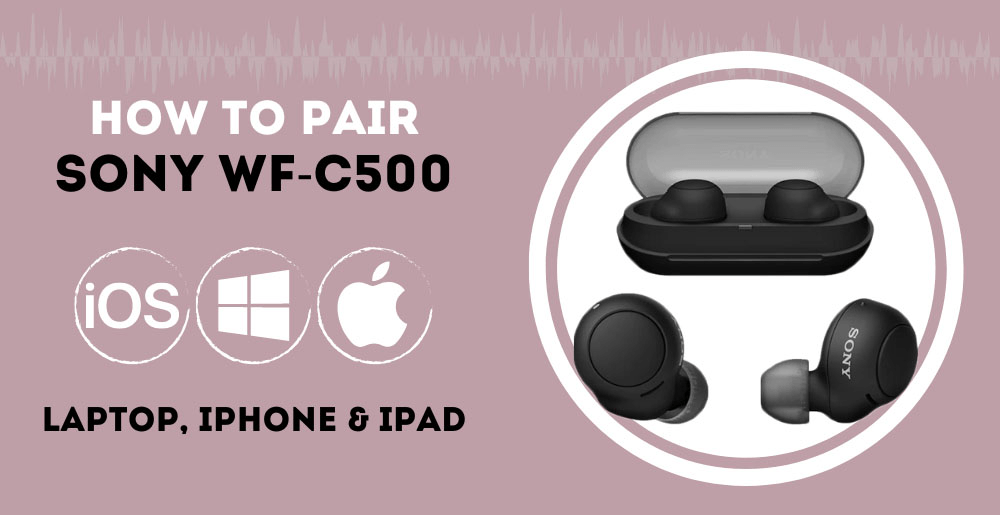
Which Sony earbuds support Bluetooth pairing and pairing modes
Sony sells true wireless and neckband earbuds. Most modern Sony earbuds use standard Bluetooth pairing and work with phones, tablets, and computers. Learning how to pair sony earbuds starts with knowing whether your model uses standard pairing, case‑based pairing, or supports multipoint connections.
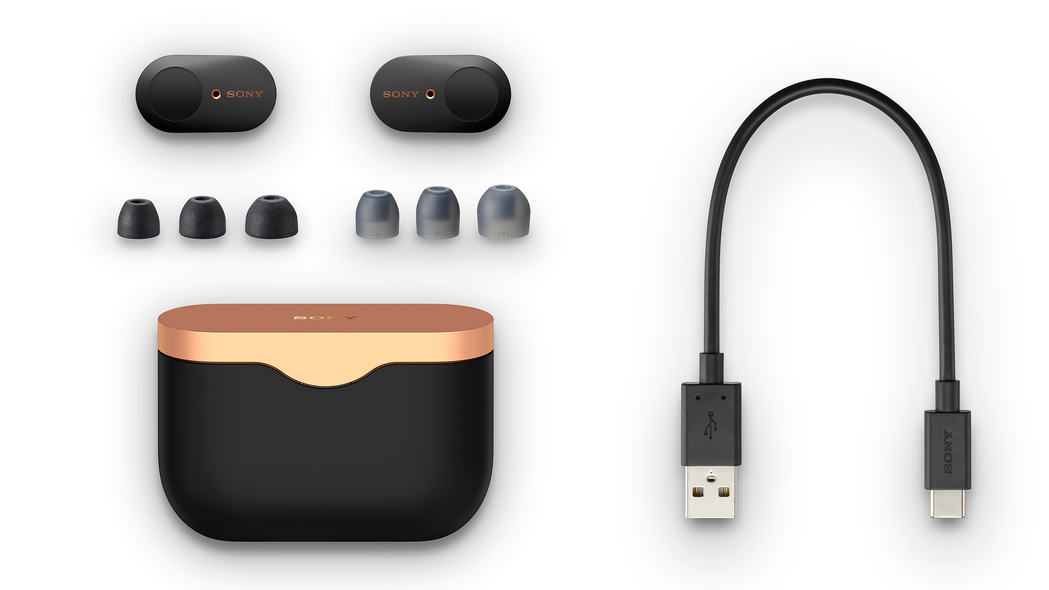
- True wireless models like WF-1000XM5 and WF-1000XM4 pair from the case or the earbuds themselves.
- Neckband and wired-style earbuds use the earbuds’ power button to enter pairing.
- Multipoint support varies by model; check settings in the Sony Headphones Connect app if you need two-device connections.
Common terms to know:
- Pairing mode: The state that makes the earbuds discoverable.
- Reset: Clears saved pairings so the earbuds can pair fresh.
- Firmware: Updated through Sony’s app to fix pairing bugs.
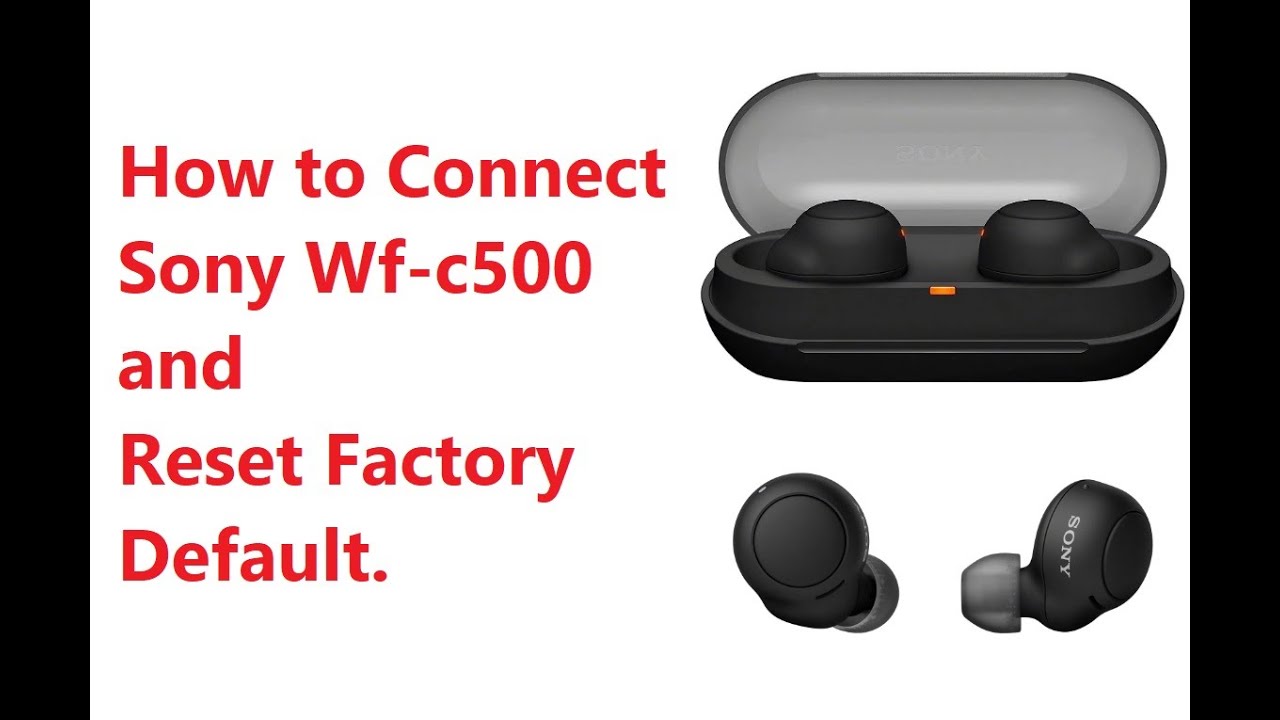
Step-by-step: Pairing Sony earbuds with Android
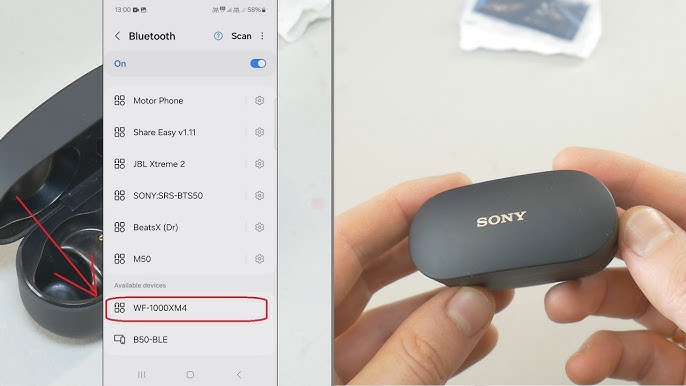
These steps show how to pair sony earbuds with most Android phones. Keep the phone nearby and the earbuds charged.
- Prepare the earbuds
- Remove earbuds from the case or press the power button to turn them on.
- If the earbuds don’t enter pairing automatically, press and hold the power or BR/PAIR button until the indicator flashes blue or white.
- Open Android Bluetooth
- Open Settings and select Bluetooth.
- Turn Bluetooth on and wait for available devices.
- Select the earbuds
- Tap the device name that matches your Sony earbuds.
- Confirm pairing if a prompt appears.
- Verify connection
- Look for “Connected” next to the earbuds in Bluetooth settings.
- Open a music app to test sound.
If pairing fails, try resetting the earbuds or toggling Bluetooth on the phone. In my experience, updating the Sony Headphones Connect app and firmware solved two stubborn pairing issues I had with older earbuds. Learning how to pair sony earbuds on Android becomes quick once the app and firmware are current.
Pairing Sony earbuds with iPhone or iPad
Pairing sony earbuds with iPhone follows Apple’s standard Bluetooth flow. Keep gestures simple and use the latest iOS for best results.
- Turn on the earbuds or open the case to activate pairing mode.
- Open Settings on the iPhone and tap Bluetooth.
- Under Other Devices, tap the Sony earbuds name to connect.
If you see a pop-up pairing request, tap Pair. For iPhones, enabling Location is not needed for Bluetooth, but allow any app permissions the Sony app requests if you want advanced features. I once had to reset an iPhone’s Bluetooth cache after switching between multiple earbuds; a quick restart fixed it.
Pairing Sony earbuds with Windows PC or Mac
Computers sometimes require different steps. Here’s how to pair sony earbuds with Windows or macOS.
Windows 10/11
- Click Start > Settings > Bluetooth & devices.
- Turn Bluetooth on and choose Add device.
- Select Bluetooth and then pick your Sony earbuds from the list.
macOS
- Open System Settings (or System Preferences) and go to Bluetooth.
- Make sure Bluetooth is on.
- Select the Sony earbuds from the device list and click Connect.
If the computer can’t find the earbuds, reset the earbuds and try again. For low-latency audio on Windows gamers, consider enabling the aptX or AAC codec if supported by your hardware and drivers. I sometimes use a small USB Bluetooth adapter when built-in Bluetooth is unreliable; it’s an easy fix for flaky connections.
Troubleshooting common pairing issues
When you don’t know how to pair sony earbuds because they won’t connect, try these quick fixes. Each tip solves a common root cause.
- Earbuds not discoverable
- Fully charge the earbuds and case.
- Hold the power button longer to force pairing mode.
- Device won’t show the earbuds
- Turn Bluetooth off and on on the host device.
- Remove older Bluetooth devices to avoid confusion.
- One earbud connects but the other doesn’t
- Return earbuds to the case and re-pair both.
- Perform a factory reset on the earbuds.
- Intermittent audio or dropouts
- Move closer to the device and avoid physical obstructions.
- Disable other nearby Bluetooth devices temporarily.
- Still failing
- Update firmware in Sony Headphones Connect.
- Reset network settings on your phone as a last resort.
Personal tip: I once spent 20 minutes chasing audio dropouts before realizing my Wi‑Fi router was sitting between my laptop and the earbuds. Moving the router or changing channels cleared the issue immediately.

Tips for better Bluetooth stability and battery life
Follow practical steps to keep pairings fast and stable, and to extend battery life.
- Keep firmware updated through the Sony Headphones Connect app.
- Charge earbuds and case regularly; low battery can block pairing.
- Use the right codec: AAC for Apple devices, aptX or LDAC where supported.
- Limit distance and avoid thick walls or metal between devices.
- Clean earbud contact points and remove debris from the case.
- Reset pairing when performance degrades rather than pairing repeatedly.
A small habit I follow is to open the case and wait 3 seconds before pairing. This ensures the earbuds are fully awake and reduces failed pairing attempts. Learning how to pair sony earbuds smoothly relies largely on simple maintenance and keeping firmware up to date.
Frequently Asked Questions of how to pair sony earbuds
How do I force my Sony earbuds into pairing mode?
Press and hold the power or pairing button on the earbuds or in the case until the LED blinks in pairing colors. If that doesn’t work, consult your model’s manual for the exact button sequence.
Why won’t my phone find the Sony earbuds?
Ensure the earbuds are in pairing mode and close to the phone, then toggle Bluetooth off and on. Clearing old device entries or restarting the phone often fixes discovery issues.
Can I pair Sony earbuds with two devices at once?
Some Sony models support multipoint pairing, but many do not; check your earbuds’ specs and the Sony Headphones Connect app. Multipoint setups usually let audio from two devices switch automatically or stay connected simultaneously.
How do I reset my Sony earbuds to factory settings?
Reset methods vary by model but often involve holding a touch sensor or power button for 10 to 15 seconds or using the Sony Headphones Connect app. Resetting clears saved pairings so you can pair fresh.
Why is one earbud silent after pairing?
This often happens when the earbuds lose sync. Place both earbuds back in the case, then take them out to re-sync and re-pair if needed. If the issue persists, perform a reset and test again.
Do I need the Sony app to pair earbuds?
No, basic pairing works through device Bluetooth settings, but the Sony Headphones Connect app provides firmware updates and sound customization. Installing the app can also fix pairing glitches in many cases.
Conclusion
You now have clear, practical steps for how to pair sony earbuds across Android, iPhone, Windows, and Mac, plus proven fixes for common problems. Start by ensuring the earbuds are charged, put them into pairing mode, and select them in your device’s Bluetooth settings; update firmware and reset when needed. Try the tips and habits shared here to avoid repeated issues and keep a stable connection.
Ready to get flawless audio? Pair your earbuds now, update firmware if prompted, and leave a comment about which Sony model you use or any pairing challenge you want help with.

Everett Ashford is a tech reviewer at mytechgrid.com specializing in SSDs, cameras, TVs, earbuds, headphones, and other consumer electronics. He provides honest, data-driven reviews based on hands-on testing and real-world performance analysis. Everett simplifies complex tech details to help readers make smart, confident buying decisions.