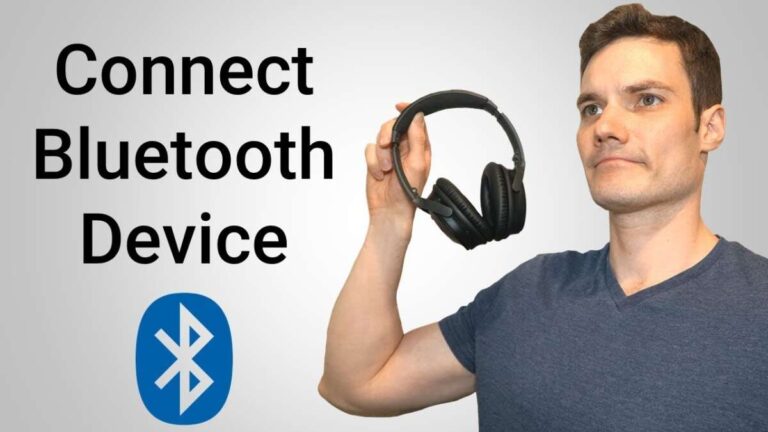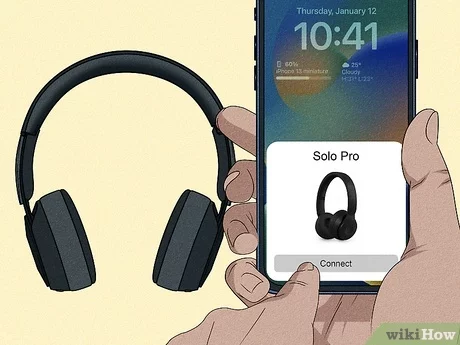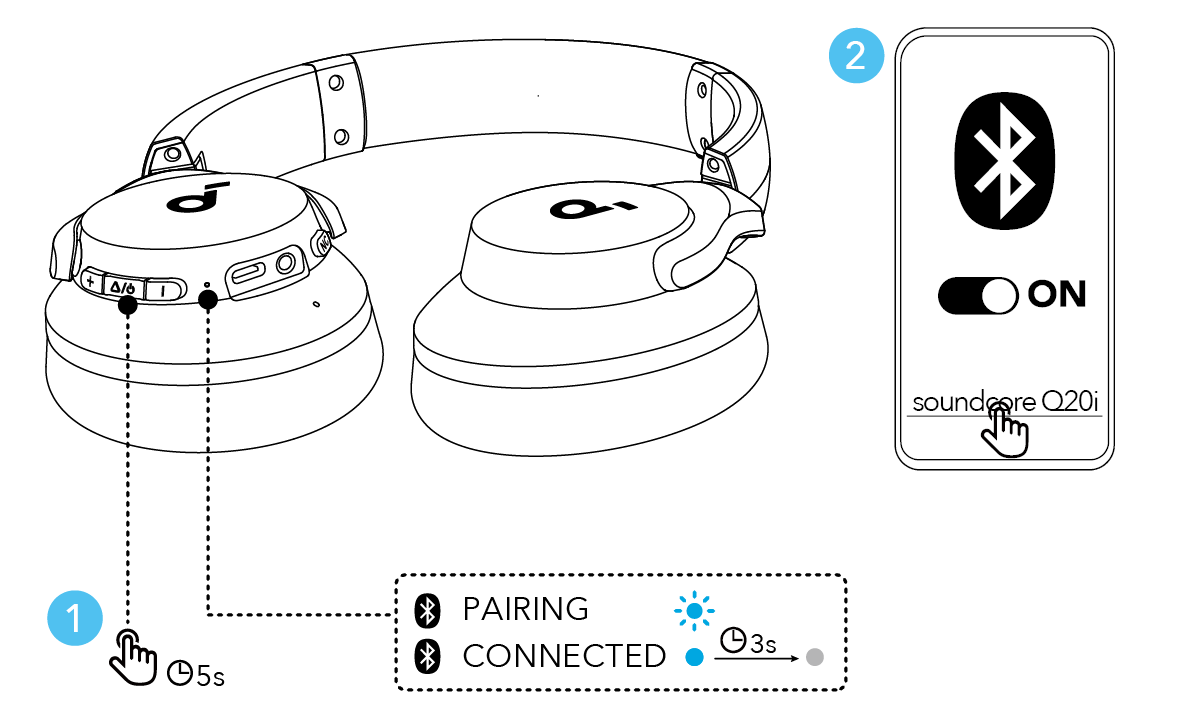
Press and hold the Soundcore power button to enter pairing mode, then select it in your device's Bluetooth list.
I’ve paired dozens of Soundcore headphones across phones, laptops, and TVs. This guide explains how to pair Soundcore headphones step by step, fixes common problems, and shows ways to get the best sound and stability. Whether you own Soundcore Liberty earbuds, Life Q over-ear cans, or another model, you’ll learn clear, tested steps and practical tips to connect quickly and keep them working well.
Understanding Soundcore Bluetooth pairing and basics
Pairing means making a secure wireless link between your Soundcore headphones and a device. Most Soundcore models use standard Bluetooth protocols. Pairing mode makes the headset discoverable to your phone, computer, or TV.
Key terms to know:
- Pairing mode: Device broadcasts its name so other devices can find it.
- Multipoint: Allows two devices to stay connected at once.
- Reset: Clears pairing memory to fix stubborn faults.
Knowing these basics helps when you follow pairing steps or troubleshoot. It also keeps expectations realistic about range and interference.
Step-by-step: How to pair Soundcore headphones (earbuds and basic models)
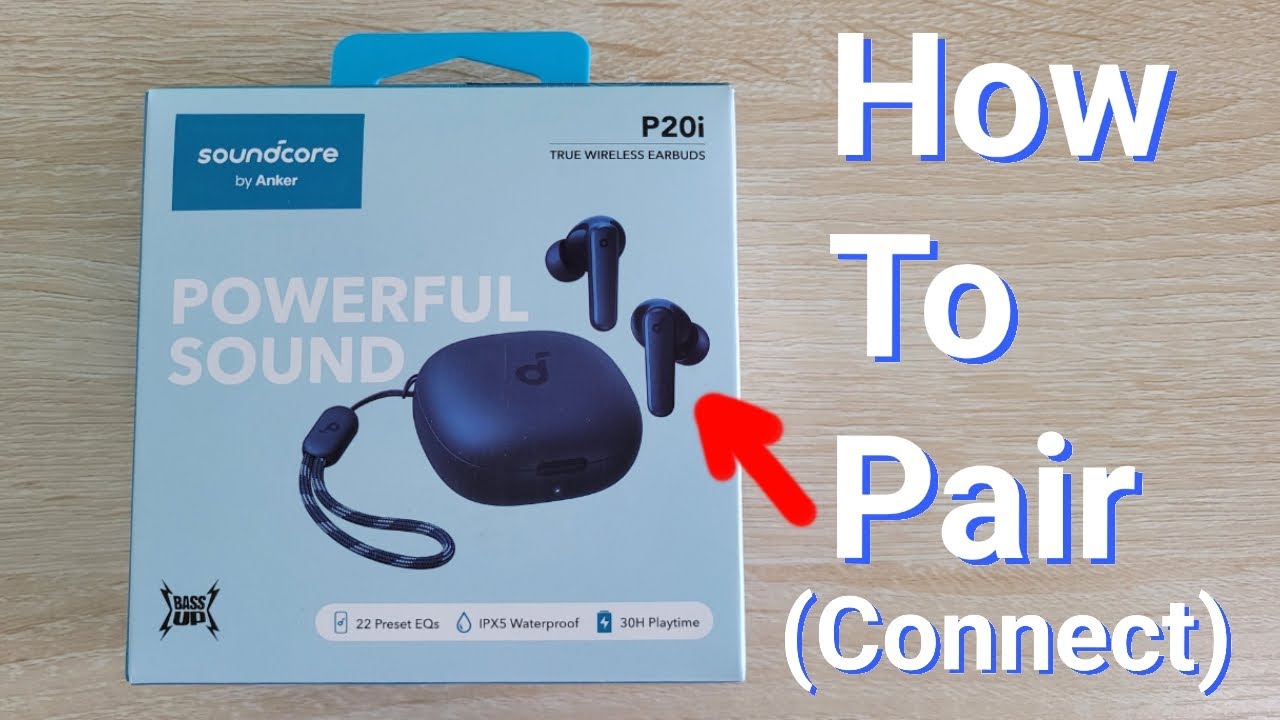
These steps work for most Soundcore earbuds like Liberty and Life A-series. Read them slowly and follow each step.
- Charge both earbuds and the case. Low battery blocks pairing.
- Take the earbuds from the case. Many models enter pairing automatically when removed.
- If they do not enter pairing, press and hold the power/touch area for 3–5 seconds until the LED flashes. This signals pairing mode.
- On your phone, open Settings > Bluetooth. Make sure Bluetooth is on.
- Look for the Soundcore device name and tap to pair. If prompted, accept pairing or enter 0000.
- When the LED stops flashing or the voice prompt says “Connected,” you’re done.
If you need to pair the second earbud manually, return the first to the case and repeat. These steps are simple and usually finish in under a minute.
Pairing Soundcore over-ear and on-ear headphones
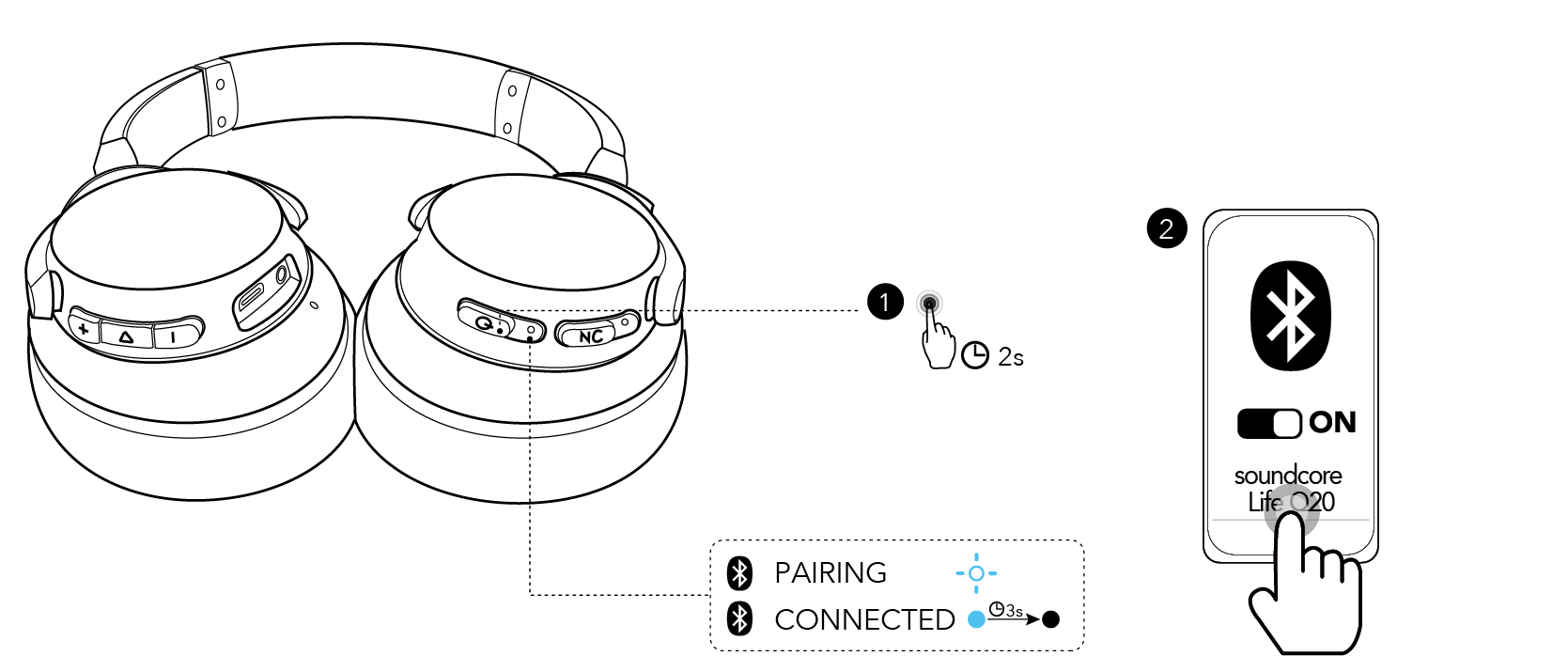
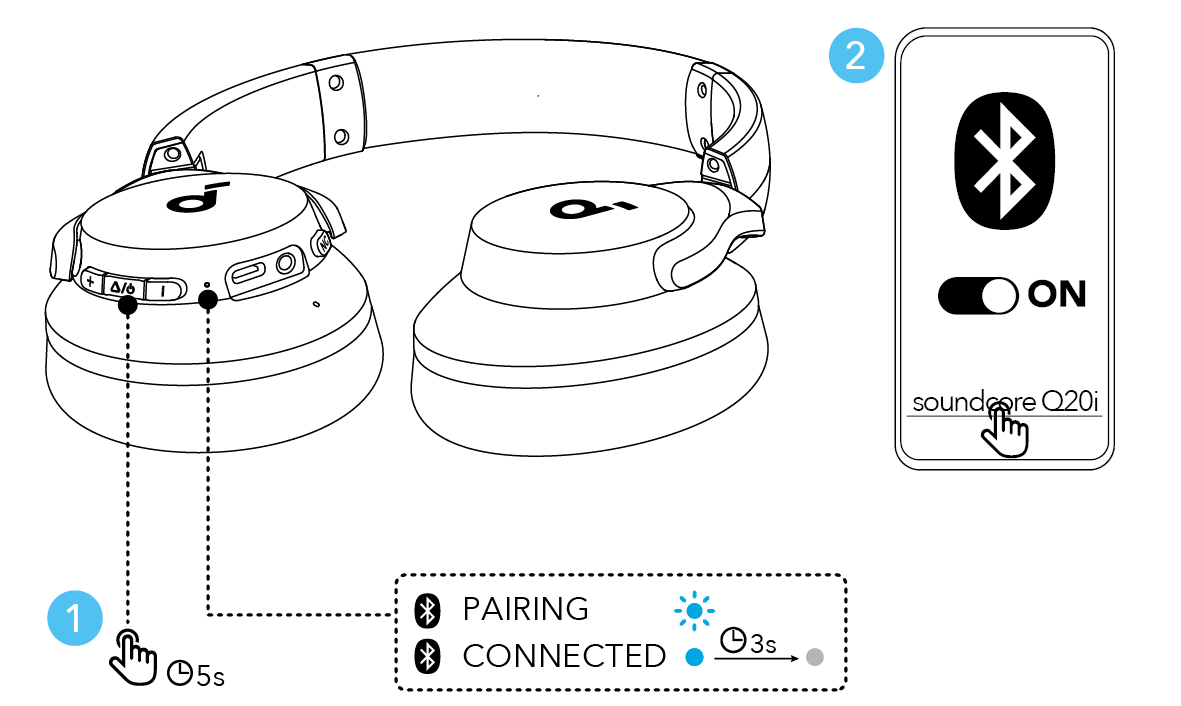
Over-ear models use similar steps but rely on a physical power button and LED signals. Follow these tested steps.
- Turn on the headset by pressing and holding the power button for 2–4 seconds.
- Hold the power button longer (about 5–7 seconds) until the LED alternates or pulses. This is pairing mode.
- Open Bluetooth on your device and select the Soundcore model name.
- Confirm connection by listening to the voice prompt or checking the device’s Bluetooth list.
For models with NFC, tap the device to your phone’s NFC area to pair instantly. Over-ear models often support multipoint. Check the manual to enable it if you need two-device connection.

Pairing with specific devices: iPhone, Android, Windows, Mac, and TV
Each device type has a small difference. Here’s a fast guide that covers them all.
- iPhone and iPad: Settings > Bluetooth, then tap the Soundcore name under Other Devices. Follow any prompts.
- Android phones: Settings > Connected devices > Bluetooth. Tap the Soundcore name. Some phones show a pairing request to accept.
- Windows 10/11: Settings > Bluetooth & devices > Add device > Bluetooth. Pick the Soundcore device. Allow drivers to install if prompted.
- macOS: System Settings > Bluetooth. Click Connect next to your Soundcore device.
- Smart TV and streaming devices: Open the TV Bluetooth menu or the streaming device’s settings. Some TVs require a separate Bluetooth adapter if they lack native support.
If the device asks for a code, try 0000 or 1234. Most modern devices do this automatically.

Troubleshooting common pairing issues
Pairing can fail for a handful of predictable reasons. Try these quick fixes.
- No LED or sound: Charge the headphones fully and restart them.
- Not visible in Bluetooth list: Turn Bluetooth off and on. Move closer to the device and remove other active Bluetooth devices.
- Device says pairing failed: Delete the old Soundcore entry and try pairing again. On phones, choose “Forget” before reconnecting.
- One earbud not connecting: Reset the earbuds using the case method or the reset button. Then pair again with both earbuds in the case.
- Intermittent audio or dropouts: Check for wireless interference and disable Wi-Fi band steering if your router causes trouble.
I’ve fixed most issues by restarting both devices and resetting the earbuds. Small steps save time.

Resetting Soundcore headphones — when and how
Resetting wipes saved pairings and often resolves persistent bugs. Methods vary by model but are usually quick.
- Earbuds in case: Place earbuds in the charging case, hold the case button for 10–15 seconds until LEDs flash, then re-pair.
- Over-ear: Hold the power and volume buttons together for 8–10 seconds until the LED indicates reset, then pair anew.
Try a reset when normal troubleshooting fails. It clears software oddities without harming hardware.

Using the Soundcore app and firmware updates
The Soundcore app unlocks extra controls and firmware updates that improve pairing and stability.
- Install the app on Android or iOS, sign in, and add your model.
- Check for firmware updates and install them while the headphones are charged.
- Use EQ and feature toggles in the app for better sound.
I recommend checking for firmware updates monthly. Updates can fix bugs and add multipoint support.

Optimize Bluetooth connection and audio quality
Small habits improve real-world performance. Try these tips.
- Keep firmware updated for stability.
- Avoid crowded Wi-Fi channels and microwave interference.
- Use AAC or aptX if your phone supports them for better audio.
- For gaming or TV, use a low-latency codec or a wired connection if possible.
I often prefer a wired backup for long sessions. That guarantees no latency or drops.

Personal experience, mistakes to avoid, and practical tips
I’ve paired many Soundcore models. Here are lessons from real use:
- Mistake to avoid: Trying to pair before charging. Low battery causes weird failures.
- Helpful habit: Turn off other nearby Bluetooth devices when pairing for the first time.
- Time-saver: Use the Soundcore app to confirm model and firmware before troubleshooting.
- Pro tip: Label your device in your phone’s Bluetooth list to avoid confusion with similar model names.
These small practices save frustration and speed up pairing.
Security and privacy considerations
Bluetooth pairing is generally safe but follow good practices.
- Pair only with trusted devices in private settings.
- Forget the headset on public or shared devices after use.
- Keep firmware updated to patch potential vulnerabilities.
These steps reduce the chance of accidental access or data leakage.
Frequently Asked Questions of how to pair soundcore headphones
How do I reset my Soundcore earbuds if they won’t pair?
Most models reset by placing both earbuds in the case, holding the case button for 10–15 seconds until LEDs flash, then re-pairing. Check your manual for exact steps if that doesn’t work.
Why won’t my Soundcore headphones show up in Bluetooth?
They may be out of battery, not in pairing mode, or out of range. Charge them, force pairing mode, and move closer to your device before searching again.
Can Soundcore headphones connect to two devices at once?
Some Soundcore models support multipoint and can connect to two devices simultaneously. Check the model specs or the Soundcore app to confirm and enable the feature.
What do I do if only one earbud connects?
Reset both earbuds using the case reset method, then pair again with both earbuds present. Cleaning the charging contacts can also help if one earbud won’t charge.
How often should I update my Soundcore firmware?
Check for updates monthly or when you notice pairing or audio problems. Firmware fixes often improve connectivity and add features, so updates are recommended.
Conclusion
Pairing Soundcore headphones is simple once you know the right steps. Charge your devices, use the correct pairing method for your model, and keep firmware updated. If you hit problems, reset, restart, and remove old pairings before trying again.
Try the steps in this guide and apply the practical tips to save time. If you found this helpful, subscribe for more guides, share your pairing story in the comments, or ask a question below — I’ll help you troubleshoot.

Everett Ashford is a tech reviewer at mytechgrid.com specializing in SSDs, cameras, TVs, earbuds, headphones, and other consumer electronics. He provides honest, data-driven reviews based on hands-on testing and real-world performance analysis. Everett simplifies complex tech details to help readers make smart, confident buying decisions.