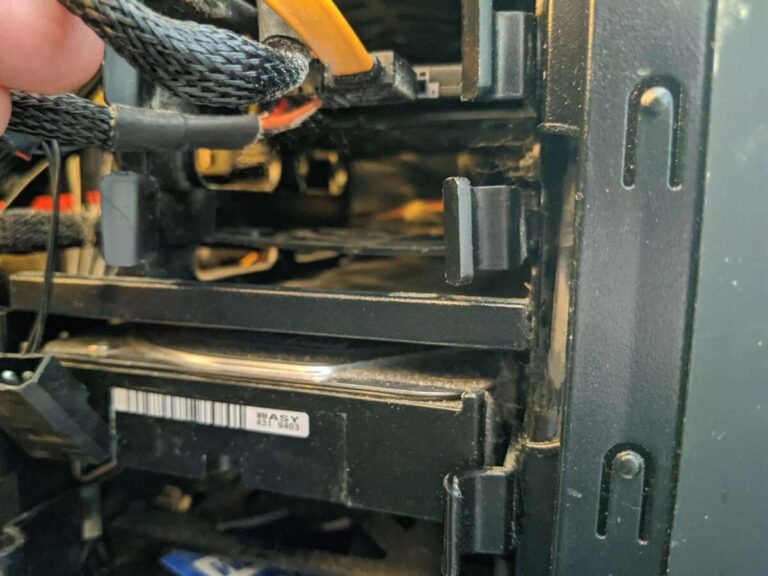
Yes, you can play AC Shadows without an SSD, but expect slower loads and stutter.
If you want a smooth plan for how to play AC Shadows with no SSD, you’re in the right place. I’ve tuned many big games on old drives for clients and for myself. I’ll show you how to squeeze stable performance from a spinning disk using smart settings, simple Windows tweaks, and a few pro moves that make a big difference.

Can you play AC Shadows without an SSD?
Short answer: yes, but it needs care. Ubisoft’s modern PC specs often list an SSD for big open worlds. HDDs still work, yet loading and asset streaming get much slower. That can cause hitching in big cities and long fast travel times.
This guide breaks down how to play AC Shadows with no SSD and keep it stable. I’ll explain what hurts performance on HDDs, and what fixes it. If you follow the steps, you can play now and plan your upgrade later. This is exactly how to play ac shadows with no ssd without losing your mind.

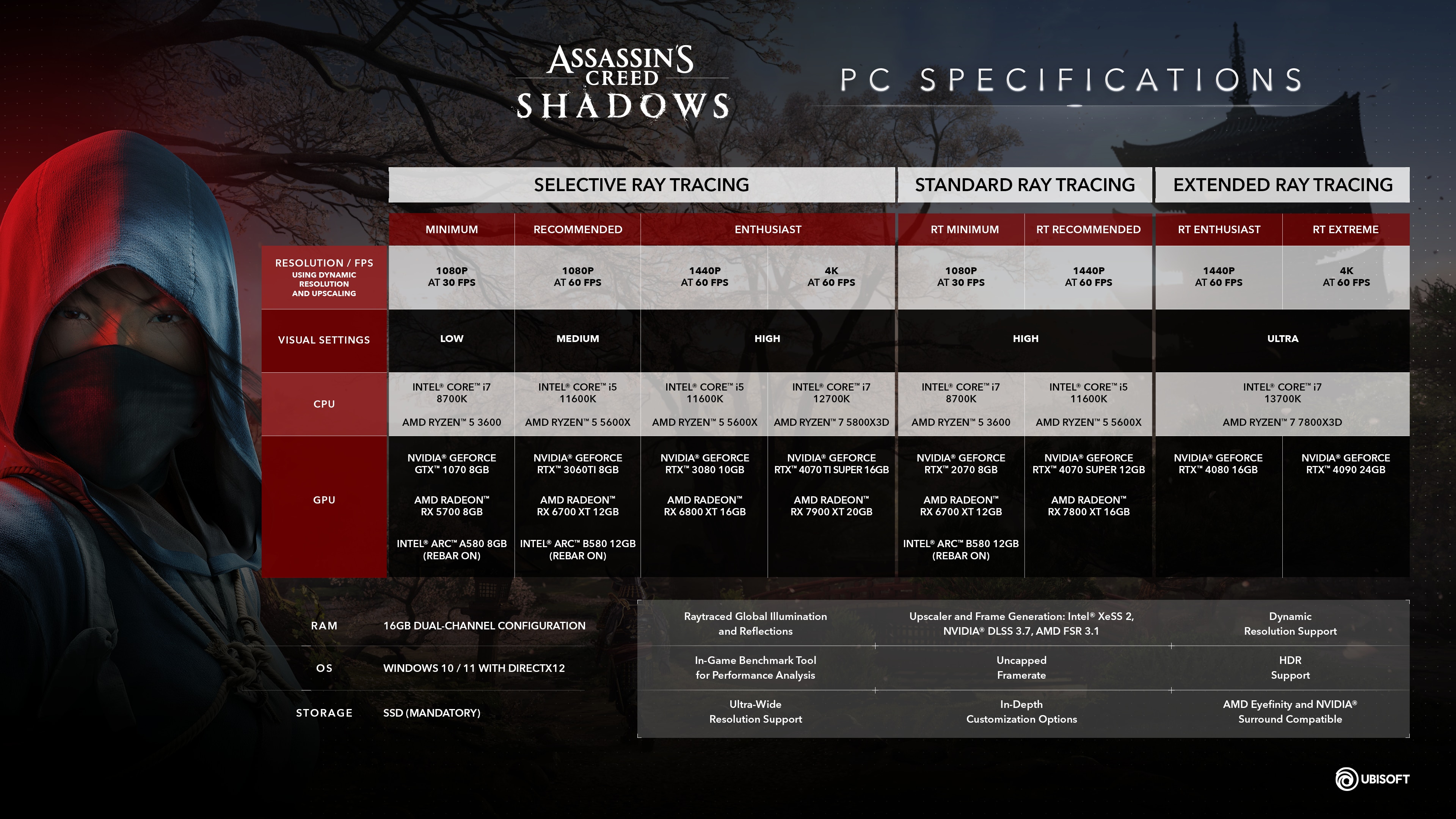
Pre-check: system requirements and bottlenecks
Before you tweak, confirm the basics. A clean base stops many issues later.
- CPU and GPU at or above the minimum. Newer AC titles lean on the CPU for streaming. A weak CPU plus HDD is a tough combo.
- RAM: 16 GB is strongly preferred. With 8 GB, Windows will hit the pagefile hard on an HDD.
- Drive type: a 7200 RPM HDD with 64 MB or 128 MB cache performs better than a 5400 RPM laptop drive.
- Free space: keep 20% of the game drive free. Full drives fragment and slow down seek times.
- OS: Windows 10/11 64-bit, fully patched. Latest GPU and chipset/storage drivers.
If you wondered how to play ac shadows with no ssd on very old hardware, you can, but expect trade-offs. Your goal is to reduce disk thrash and smooth asset streaming.
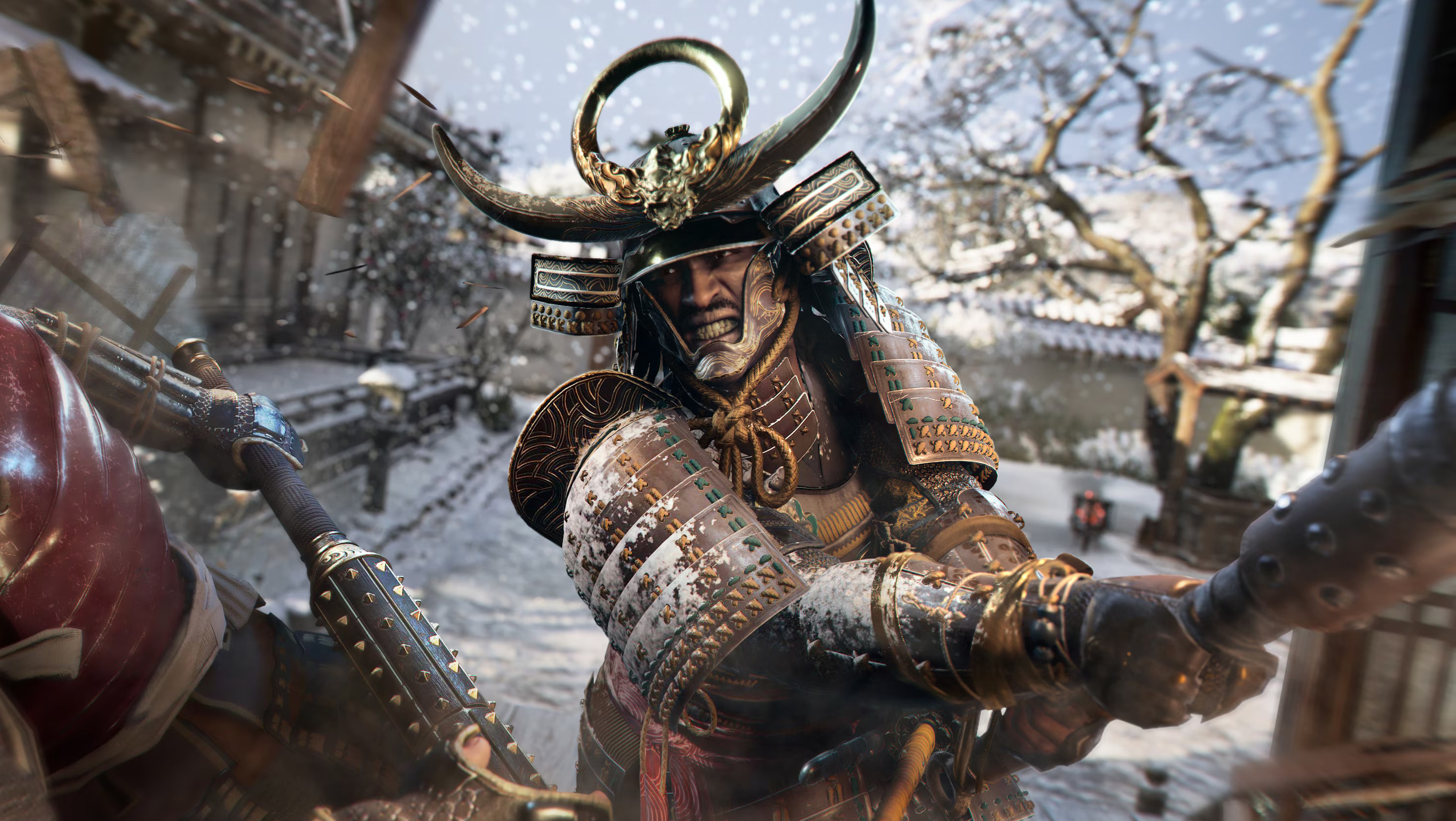
Step-by-step setup: how to play AC Shadows with no SSD
Follow these steps in order. They tackle the biggest wins first.
- Prepare the drive
- Defragment the game drive after installing or patching. Use Windows Defragment and Optimize Drives for HDDs.
- Exclude the game folder and launcher folder from your antivirus. This avoids real-time scans during streaming.
- Turn off indexing on the game drive. Right-click drive, Properties, uncheck Allow files on this drive to have contents indexed.
- Fix virtual memory
- Set a fixed pagefile. System Properties > Advanced > Performance > Advanced > Virtual memory.
- Use the game drive if your OS drive is busy. Set Initial size and Maximum size to the same value. A simple rule is 1.5× RAM up to 16 GB, or just let Windows manage if unsure.
- Reboot after changes.
- Power and USB settings
- Set Windows to High Performance or Ultimate Performance.
- Disable USB selective suspend. It prevents external drives from dozing off if you must use one.
- Storage driver and BIOS
- Ensure SATA mode is AHCI, not IDE, in BIOS. Use the latest chipset and storage drivers from your motherboard maker.
- If you moved Windows from IDE to AHCI, follow a proper guide before toggling BIOS to avoid boot issues.
- Clean boot and Game Mode
- Enable Windows Game Mode.
- Close launchers, overlays, browser tabs, and screen recorders. Disable Xbox Game Bar, Discord overlay, and any capture app if not needed.
- In-game settings that matter on HDD
- Texture quality: set to Medium or Low. Lower textures cut streaming pressure.
- Crowd density and world detail: lower these for steadier traversal.
- Shadows and volumetrics: one step lower for extra headroom.
- Anti-aliasing and resolution scaling: use DLSS/FSR/XeSS if offered. Pick Quality mode for a cleaner look.
- Frame cap: cap at 45 or 60. A cap stabilizes frame times when the drive stalls.
- Precompile shaders: if the game offers it, let it finish once before playing.
- Fullscreen or borderless: try both. On some systems, exclusive fullscreen stutters less.
- Warm up the cache
- Load into a busy hub, stand still for 1–2 minutes, then roam slowly to let assets stream.
- Fast travel once, return, and repeat. This warms caches and reduces first-minute hitching.
That’s the core of how to play ac shadows with no ssd while keeping your sanity. It trades some visual flash for stable motion.

Advanced tweaks for HDD users
When the basics are done, use these extras for a bit more headroom.
- Separate drives: install the game on a different drive than Windows if possible. Splitting OS and game traffic helps.
- Fixed-size pagefile on a second drive: if you have two HDDs, dedicate one to the pagefile.
- SysMain (Superfetch): test both on and off. On some HDDs, it helps prefetch. On others, it hammers the disk. Use Services to toggle, reboot, and compare.
- Write caching: Device Manager > Disk drives > Policies. Keep Windows defaults unless you use a UPS and know the risks.
- Launch options: if the game supports DirectX 12, use it. It can reduce CPU overhead. Note: DirectStorage benefits NVMe SSDs; HDDs will not gain much here.
- Ubisoft Connect: set Offline Mode when playing to reduce background traffic.
I’ve used this exact playbook for big games on client PCs. It is the reliable path for how to play ac shadows with no ssd when every second counts.

What to expect: performance and load times
Be realistic. HDDs mean longer waits and more pop-in in dense scenes.
- Load times can be several minutes on first launch or after patches.
- Traversal hitching is common when sprinting fast into new areas.
- Driving the frame rate too high worsens stutter. Cap it for better feel.
- Video memory matters. If your GPU VRAM is tight, lower textures to reduce streaming hits.
If you are tracking how to play ac shadows with no ssd and avoid frustration, set a frame cap and keep textures modest. Smooth beats flashy when the drive is the bottleneck.

Troubleshooting common HDD issues
If stutters or crashes persist, run through this quick list.
- 100% disk usage: check Task Manager. Kill background updaters and torrents. Pause Windows Update while you play.
- Hitching during traversal: lower textures and crowd density. Raise the frame cap slightly if the GPU is underused, or lower it if CPU/disk spikes.
- Crashes on load: verify game files. Delete shader cache if the game has an option, then recompile.
- Audio crackle: raise the frame cap a bit, or switch to borderless mode. Audio often exposes CPU spikes from disk thrash.
- Drive health: use a SMART tool to check reallocated sectors and pending sectors. If the drive is failing, no tweak will fix it.
These steps are the reality of how to play ac shadows with no ssd when your disk is working hard.
Cloud and console options when you have no SSD
If your PC drive holds you back, consider these paths.
- Cloud gaming: if AC Shadows appears on a cloud platform, you can stream it with no SSD at all. A stable 35–50 Mbps line and wired Ethernet help a lot.
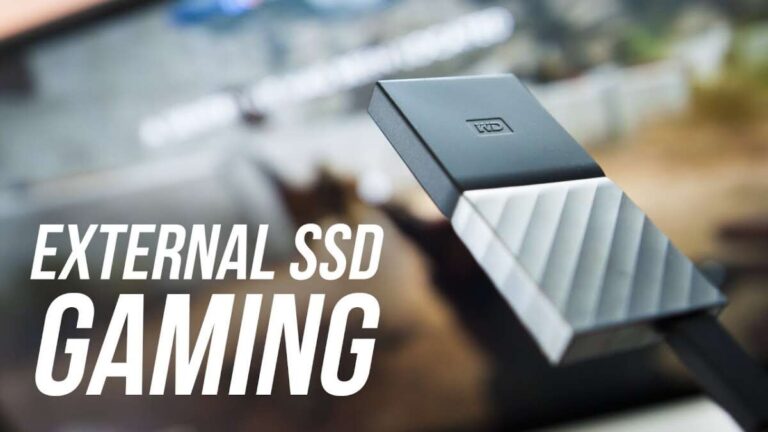
- External SSD: a USB 3.2 Gen 2 portable SSD can be a quick fix. It is not an internal upgrade, but it removes the HDD bottleneck.
- Console: PS5 and Xbox Series consoles use fast SSDs by default and avoid the streaming issues you see on HDD.
For many players asking how to play ac shadows with no ssd, cloud or a simple external SSD gives the best cost-to-result ratio.
My field notes and real-world tips
From years of tuning big open-world games on spinning disks, a few patterns keep showing up.
- The first 15 minutes are the roughest. Let caches build, then restart to smooth things out.
- A strict frame cap is the cheapest stutter fix you can apply.
- Antivirus exclusions are not optional on HDD. Real-time scanning can double load times.
- Keep screenshots, captures, and downloads off the game drive.
- If you must pick one setting to drop, make it textures, then shadows.
This is the practical side of how to play ac shadows with no ssd and still enjoy the world.

When to upgrade: honest advice
HDDs can work, but open worlds are moving on. If you can, plan an upgrade.
- A modest SATA SSD offers a huge jump over any HDD. NVMe is better, but SATA is already great.
- If you cannot open the PC, use a portable SSD. It installs and runs games fine over USB.
- Back up your saves before you migrate.
Until then, the steps above are the best way to handle how to play ac shadows with no ssd and keep it playable.
Frequently Asked Questions of how to play ac shadows with no ssd
Can I install the game on an HDD and still get stable FPS?
Yes, with careful settings. Cap your FPS, lower textures, and reduce crowd density to cut disk stress.
Will defragmenting really improve performance?
On HDDs, yes. Defragging places files closer together and reduces seek time, which lowers stutter.
Should I disable SysMain on an HDD?
Test both ways. On some systems it helps prefetch data, on others it causes extra disk usage and stutter.
Do I need 16 GB of RAM if I have no SSD?
It helps a lot. With only 8 GB, Windows uses the pagefile more, which is slow on an HDD.
Is an external SSD over USB fast enough?
Usually yes. A USB 3.2 Gen 2 SSD delivers far better load times and streaming than any HDD.
Conclusion
You can run AC Shadows without an SSD by tuning the system, easing disk load, and setting smart in-game targets. Keep textures modest, cap frames, defrag the drive, and trim background apps. Use a fixed pagefile, a clean power plan, and warm up caches before long sessions.
If you want the best result, try cloud play or add a simple external SSD. Put these steps to work today, then share your results or questions below. If this helped, subscribe for more hands-on performance guides and next-level settings for big games.

Jamie Lee is a seasoned tech analyst and writer at MyTechGrid.com, known for making the rapidly evolving world of technology accessible to all. Jamie’s work focuses on emerging technologies, product deep-dives, and industry trends—translating complex concepts into engaging, easy-to-understand content. When not researching the latest breakthroughs, Jamie enjoys exploring new tools, testing gadgets, and helping readers navigate the digital world with confidence.