Play Quiplash on your TV by running Jackbox on a streaming device, console, or casting from a computer.
I’ve run dozens of game nights and set up Quiplash on every kind of TV. This guide shows exactly how to play Quiplash on TV, step by step, with clear device options, simple setup, and real tips from my experience. You’ll learn what equipment you need, how to connect players, how to cast or mirror, and how to fix the common hiccups that can slow down game night.

What you need to play Quiplash on TV
Quiplash runs as part of the Jackbox Party Pack. To know how to play Quiplash on TV, you need a few basics.
- A TV with HDMI input or a smart TV that supports apps or casting.
- A source device that runs the Jackbox app: PC, Mac, Nintendo Switch, Xbox, PlayStation, Apple TV, or certain smart TV app stores.
- A stable Wi-Fi network so players can join using phones or tablets.
- Smartphones, tablets, or laptops for players to type responses using a browser and a room code.
If you plan to cast, you will need a Chromecast or AirPlay-compatible device. If you use a console or streaming box, you only need one HDMI cable. Once you have devices ready, the next steps are fast.
Step-by-step: How to play Quiplash on TV
Follow these steps to launch and run Quiplash on your TV with minimal fuss.
- Install or buy Jackbox
- Buy the Jackbox Party Pack that includes Quiplash on your platform store or download it on PC.
- Connect the source device to your TV
- Plug a laptop or console into the TV via HDMI, or open the Jackbox app on a streaming box or smart TV.
- Launch the game
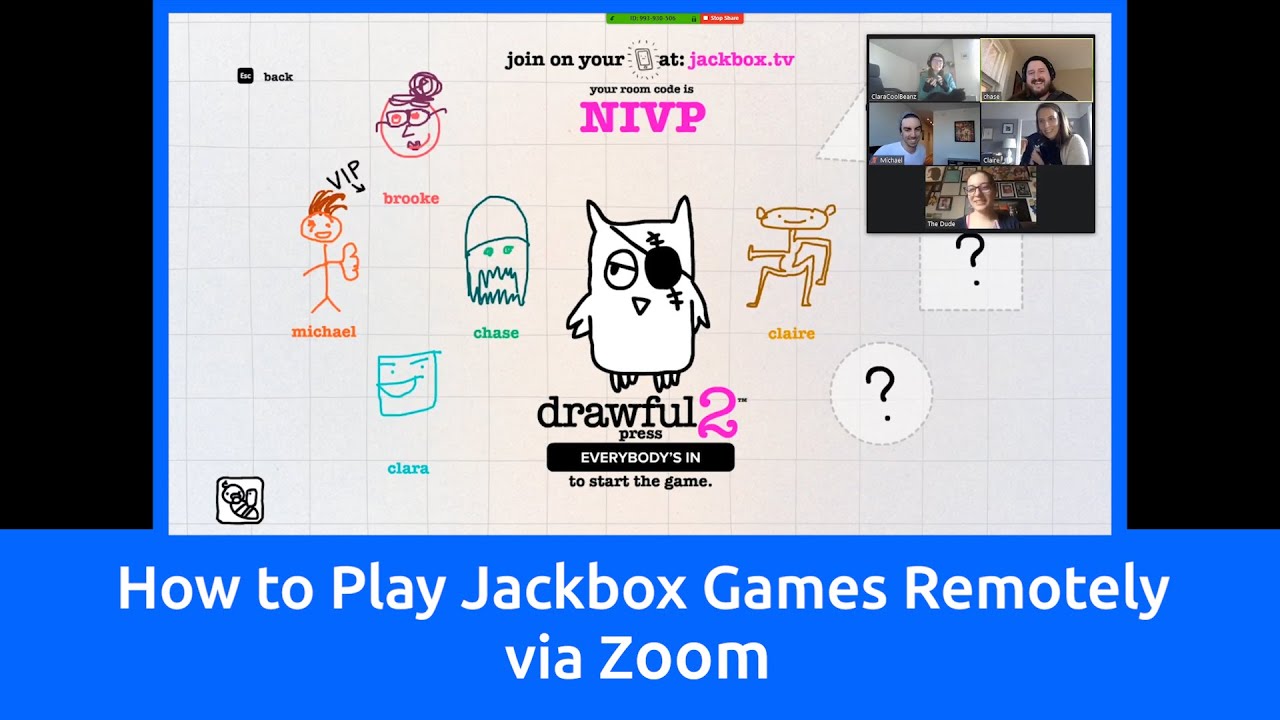
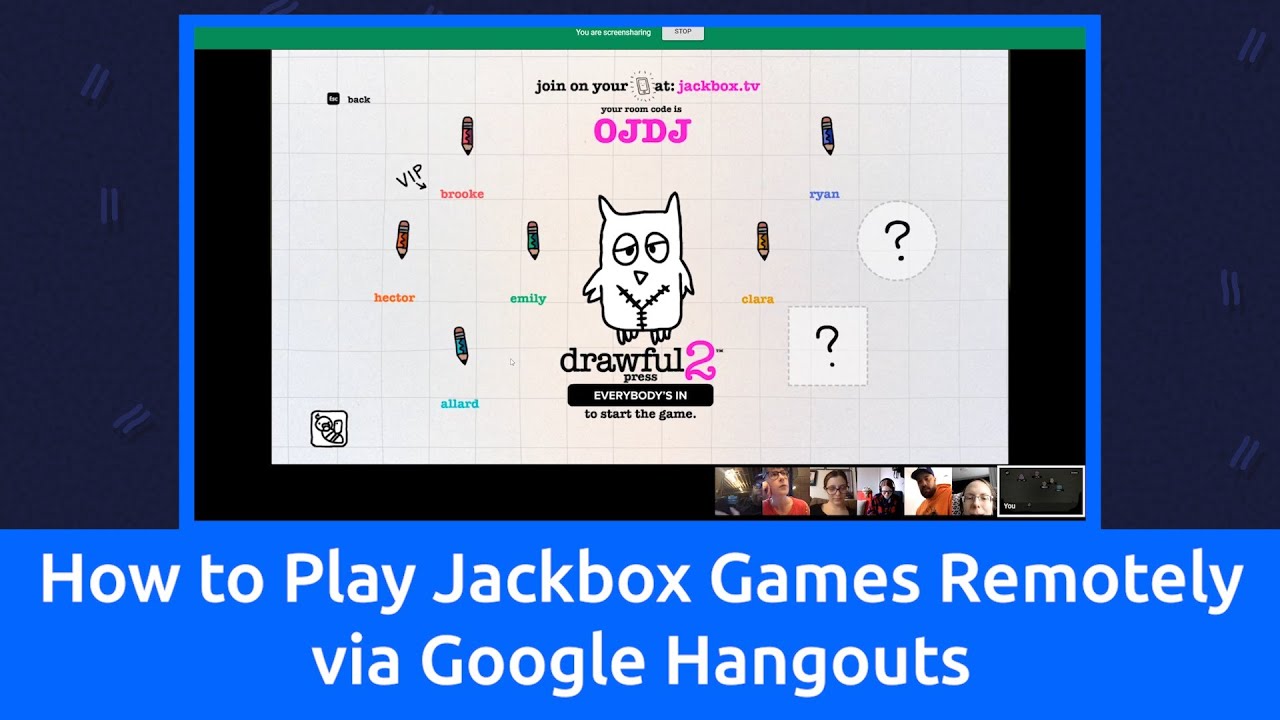
- Open Jackbox and select Quiplash from the menu. The TV shows the game screen and room code.
- Share the room code
- Tell players the web address and the room code shown on the TV. Players visit the site on their phones and enter the code.
- Start playing
- Once players join, follow on-screen prompts to start rounds. Players type answers on their devices while the TV shows prompts and results.
If you use a laptop, set the TV as an extended screen or mirror. If you mirror, set the TV to full screen so text is readable. This is how to play Quiplash on TV step by step in a typical setup.
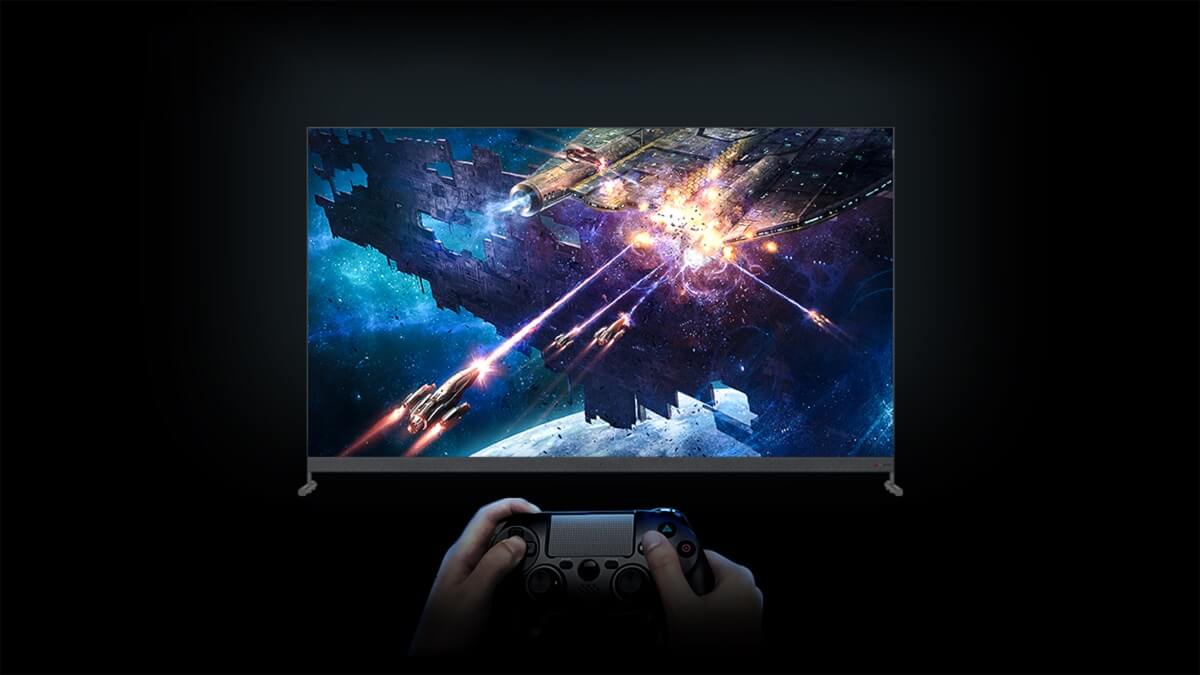
Alternative ways to play Quiplash on TV
You can play Quiplash on TV via casting, console, or direct app. Choose what fits your gear.
- Cast from PC or phone
- Use Chromecast to cast a browser tab showing Jackbox. Use AirPlay for Apple devices.
- Play on game consoles
- Install Jackbox on Xbox, PlayStation, or Switch and run directly to the TV.
- Use a streaming device
- Run Jackbox on Apple TV, Amazon Fire TV, or other compatible streaming boxes.
- HDMI from laptop
- Connect a laptop via HDMI and mirror the display to the TV for the clearest experience.
Each method has pros and cons. Casting is convenient but may add latency. HDMI gives the best stability and visual quality. Knowing these options helps you pick the best way to play Quiplash on TV for your group.
Tips for hosting a smooth Quiplash game on TV
These practical tips come from hosting many sessions and will help your game night shine.
- Check internet speed
- Aim for stable Wi-Fi with low latency to keep player responses quick.
- Use a wired connection for the source device if possible
- Ethernet reduces lag during streaming or mirroring.
- Limit background traffic
- Ask others on the network to pause big downloads while you play.
- Use a bigger font or zoom on the TV
- If players are far from the screen, increase the font size for prompts.
- Assign one person as host
- A single host manages join codes, rounds, and tiebreakers to keep things smooth.
These tips reduce friction and make it easy for everyone to learn how to play Quiplash on TV without technical pauses.

Troubleshooting common problems when you play Quiplash on TV
If something goes wrong, try these quick fixes to get back to the fun fast.
- Room code not working
- Make sure the TV and players are on the same network or that the game is visible online; reload the Jackbox screen if needed.
- Casting lags or stutters
- Reduce video resolution or switch to HDMI for a smoother picture.
- Players can’t join
- Verify the web address and room code. Ask players to clear their browser cache or use a different browser.
- Audio or video out of sync
- Restart the Jackbox app, or reconnect the HDMI cable. If casting, stop the cast and start again.
These fixes cover most issues when you play Quiplash on TV. They are simple and effective.
My experience and practical tips
I host weekly game nights and have learned a few things the hard way. I’ll share what worked and what didn’t.
- Use HDMI for groups larger than six
- Casting worked for small groups, but HDMI made big groups more stable.
- Send the room code in chat
- I text the code to everyone. That avoids shouting across the room and lost time.
- Have a backup device ready
- Once, my laptop crashed mid-game. A phone with the console app saved the night.
- Keep rounds short to keep energy high
- Quick rounds let players stay engaged and make the game more fun.
These lessons come from real play. They help when you want to host fast, fun sessions and truly master how to play Quiplash on TV.

Frequently Asked Questions of how to play quiplash on tv
How do players join when I play Quiplash on TV?
Players go to the Jackbox join site on their phone and enter the room code shown on the TV. They then choose a name and join the game lobby.
Can I play Quiplash on smart TVs without extra devices?
Some smart TVs support the Jackbox app directly or allow casting. If your TV doesn’t, use a laptop, console, or streaming stick connected by HDMI.
Is casting better than HDMI when I play Quiplash on TV?
Casting is easy but can add lag or quality loss. HDMI is more stable and better for big groups or long sessions.
How many players can join when I play Quiplash on TV?
Quiplash supports up to 8 players per game with many audience members voting. You can have more people watching and voting from their devices.
What do I do if the room code is not working while I play Quiplash on TV?
Refresh the TV game screen and re-share the code. Check internet connections and ask players to refresh their browser or try a different device.
Conclusion
You can make game night great by knowing how to play Quiplash on TV. Choose the right device, set up HDMI or casting, ensure solid Wi-Fi, and use the hosting tips here to avoid common issues. Try a dry run before guests arrive, keep rounds quick, and have a backup plan to keep the fun rolling. Ready to host your best game night? Set up your TV, grab your devices, and start a Quiplash session tonight — then tell others about your wins or questions in the comments.

Jamie Lee is a seasoned tech analyst and writer at MyTechGrid.com, known for making the rapidly evolving world of technology accessible to all. Jamie’s work focuses on emerging technologies, product deep-dives, and industry trends—translating complex concepts into engaging, easy-to-understand content. When not researching the latest breakthroughs, Jamie enjoys exploring new tools, testing gadgets, and helping readers navigate the digital world with confidence.