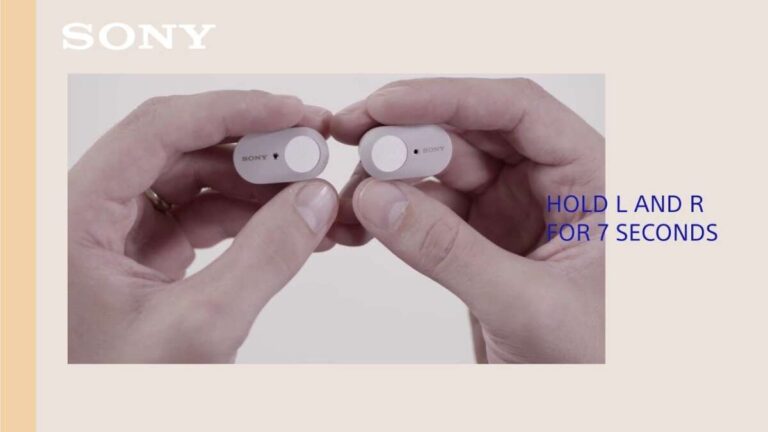
Put the earbuds in pairing mode by opening the case and holding the button until the LED flashes.
I’ve spent years fixing earbuds and helping people connect them. This guide explains how to put Jabra earbuds in pairing mode for any Jabra model. I will show the exact steps for common models, explain what pairing mode means, and give real troubleshooting tips I’ve learned on the job. Read on to get your Jabra earbuds paired fast and keep them paired.
What pairing mode means for Jabra earbuds
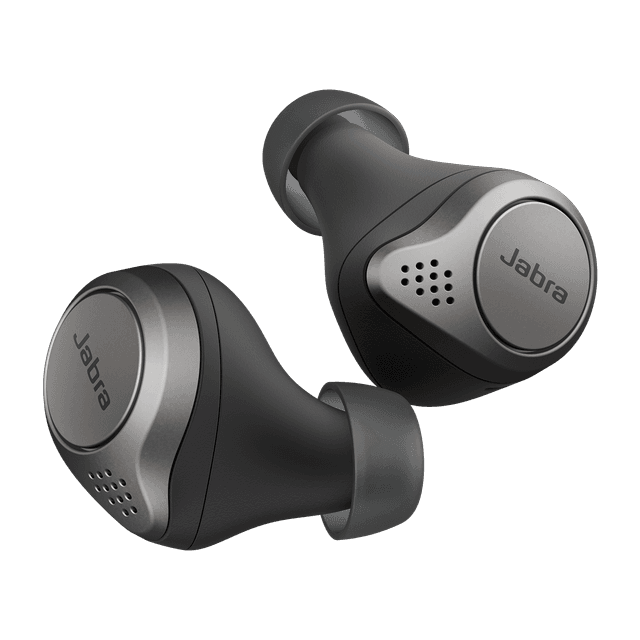
Pairing mode is the state when your earbuds make themselves discoverable to phones and other devices. When you put Jabra earbuds in pairing mode, they broadcast a Bluetooth signal. Your phone sees that signal and can connect. This is the same for most Jabra models, but the exact button press can vary. Knowing how to put Jabra earbuds in pairing mode saves time and avoids frustration.

Prepare your device and earbuds
Before you try to put Jabra earbuds in pairing mode, do these quick checks. Keep the earbuds charged. Turn Bluetooth on the device you want to pair. Close any apps that manage Bluetooth. If your device is already paired to the earbuds, remove that connection first. These steps reduce hiccups and make pairing smoother.

How to put Jabra earbuds in pairing mode — step-by-step
Below are step-by-step methods that cover most Jabra models. Follow the steps for your model and you will know how to put Jabra earbuds in pairing mode quickly.
For true wireless models (e.g., Elite 65t, 75t, 85t, 7 series)
- Remove both earbuds from the case. They will power on automatically.
- If they do not enter pairing mode, place them in the case and close the lid for 5 seconds.
- Open the case and press and hold the pairing button on the case or on the earbuds for 3–5 seconds.
- Wait for the LED to flash blue or blink alternately. The flashing LED means the earbuds are in pairing mode.
- On your phone, search for Bluetooth devices and select the Jabra name shown.
For single-earbud pairing (useful for mono use)
- Take out the earbud you want to use.
- Press and hold the button on that earbud for 3–5 seconds until the LED blinks.
- Select the earbud name in your device’s Bluetooth list.
For newer models with multi-function touch controls (e.g., Elite 7 Pro)
- Remove earbuds from the case. They will power on.
- Tap and hold the earbud surface for about 5 seconds, until you hear a voice prompt or see a flashing light.
- Use your phone to find and pair the earbuds.
If you need to reset before pairing
- Put the earbuds in the case and close the lid for 10 seconds.
- Open the lid and press the button on the case for 10 seconds or follow the model-specific reset steps.
- Repeat pairing steps above.
These methods show how to put Jabra earbuds in pairing mode for most situations. I recommend keeping your phone’s Bluetooth menu open while you do this. It speeds up finding the device.

Model-specific notes and quick tips
Some Jabra models have small differences. Here are quick notes by model family to make pairing fail-proof.
- Elite 65t and Elite Active 65t
- Press and hold the left earbud for 3–4 seconds to enter pairing mode if not auto.
- Elite 75t and 85t
- Open the case and hold the button on the case for 3 seconds to reset and then pair.
- Elite 7 and Elite 7 Pro
- Long press the touch surface when earbuds are out to force pairing mode.
- Sport and Active models
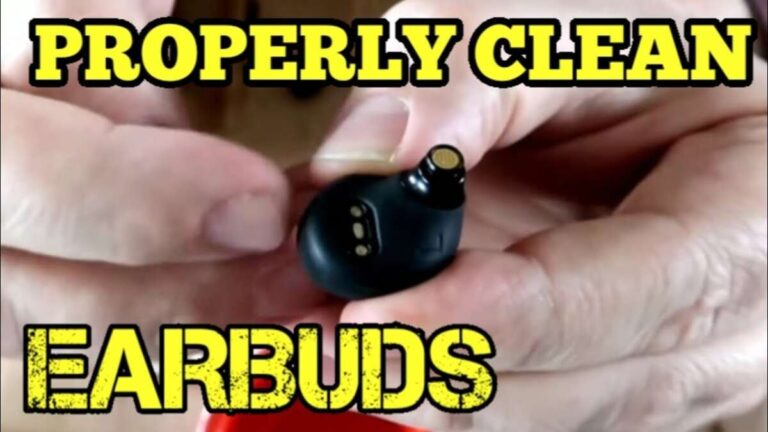
- Make sure sweat or debris is not blocking buttons. Clean gently before pairing.
These small differences matter when you are learning how to put Jabra earbuds in pairing mode. Keep the manual if you have it. If not, the steps above usually work.
Troubleshooting: pairing fails or earbuds not discoverable
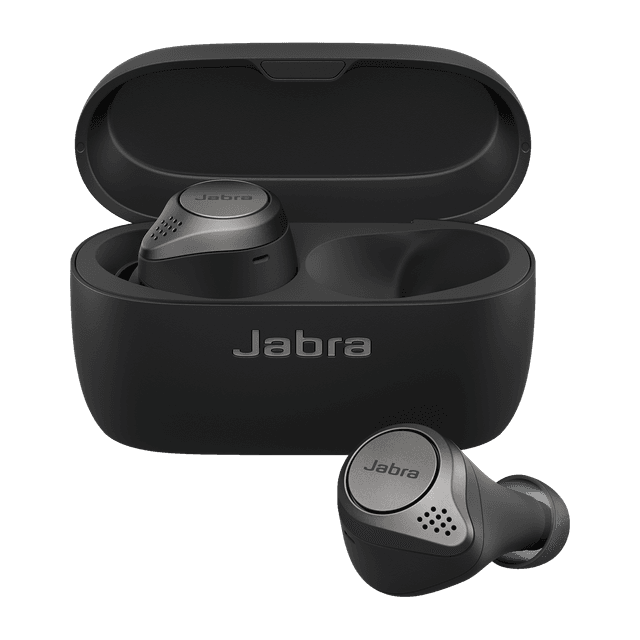
If pairing does not start, try these fixes. I use these steps daily when supporting users.
- Restart both devices
- Turn Bluetooth off and on. Restart phone or laptop.
- Forget and re-pair
- Remove the earbuds from your device’s paired list. Then repeat the pairing steps.
- Charge earbuds and case
- Low battery can block pairing. Charge both to at least 50%.
- Reset earbuds
- Do a factory reset as described earlier. This clears old pairings and helps.
- Check for interference
- Move away from other Bluetooth devices, Wi-Fi routers, or microwaves.
Example from my experience: I once tested a pair that would not enter pairing mode. A tiny grain of sand had trapped a button. A quick clean and reset fixed it. Small things often cause big problems.

Best practices and things to avoid
Follow these rules for reliable pairing every time. Use these tips from field experience.
- Keep firmware updated
- Update earbuds with the official app. Updates can fix pairing bugs.
- Limit connections
- Avoid pairing the earbuds with many devices at once. Too many remembered devices can confuse the earbuds.
- Use the official app when possible
- The Jabra app offers guided pairing and diagnostics.
- Avoid water and dirt
- Clean contacts and buttons. Moisture can stop pairing mode.
Mistakes to avoid:
- Don’t assume the LED color means the same on all models. Check the manual.
- Don’t hold power too long. A reset often needs a specific hold time.

PAA-style questions (common quick answers)
What does pairing mode look like on Jabra earbuds?
Pairing mode usually shows a flashing blue LED or an audio prompt saying “pairing.” Some models blink differently, but a steady or flashing blue light means discoverable.
Why won’t my device find Jabra earbuds in pairing mode?
Often the earbuds are already connected to another device or they need a reset. Try forgetting the earbuds on all devices and then put them back into pairing mode.
How do I put Jabra earbuds in pairing mode if one earbud won’t connect?
Reset the earbuds and try single-earbud pairing. Clean the earbud and case contacts. Then repeat the pairing steps for the single earbud.
Can I pair Jabra earbuds with two devices at once?
Some Jabra models support multi-connect. Check your model specs. If supported, you can switch between two devices without re-pairing.
What if the LED doesn’t flash when I try to pair?
Charge the earbuds and try again. If the LED still does not flash, perform the factory reset steps for your model and then attempt pairing.
Frequently Asked Questions of how to put jabra earbuds in pairing mode
How do I put Jabra earbuds in pairing mode for the first time?
Take the earbuds out of the case and they should power on. If they do not auto enter pairing mode, press and hold the case or earbud button for several seconds until the LED flashes.
Can I use one earbud at a time while in pairing mode?
Yes. Press and hold the single earbud’s button for a few seconds to make it discoverable by itself. This is helpful for mono use or calls.
How long does pairing mode remain active on Jabra earbuds?
Pairing mode usually stays active for about two minutes, though this varies. If you miss the window, turn Bluetooth off and on and repeat the steps.
Will a factory reset help when pairing fails?
A factory reset often clears old connections and solves many pairing issues. Use the reset steps specific to your model to restore default settings.
How do I know if my Jabra earbuds are already paired to another device?
Open the Bluetooth list on your phone or go to the earbuds’ app to see active connections. If they are connected to a different device, disconnect that device before pairing your current device.
Conclusion
You now know how to put Jabra earbuds in pairing mode across common models. Follow the simple steps, keep your firmware updated, and use the reset options when things go wrong. Try the pairing steps slowly and check for small issues like low battery or debris. If a pair ever gives trouble, the reset and the official app usually fix it.
Take action today: try pairing your Jabra earbuds now, update their firmware, and leave a note below about your experience.

Everett Ashford is a tech reviewer at mytechgrid.com specializing in SSDs, cameras, TVs, earbuds, headphones, and other consumer electronics. He provides honest, data-driven reviews based on hands-on testing and real-world performance analysis. Everett simplifies complex tech details to help readers make smart, confident buying decisions.