You’ve probably felt it by now—your energy draining after back-to-back video calls. Zoom fatigue isn’t just about staring at a screen; it’s about how your tech setup affects your focus and comfort.
What if small changes to your equipment and environment could help you feel less tired and more in control during virtual meetings? You’ll discover simple, practical ways to adjust your tech setup that will reduce eye strain, ease mental overload, and keep you refreshed throughout your workday.
Keep reading to unlock the secrets to beating Zoom fatigue with smarter technology choices.
Causes Of Zoom Fatigue
Zoom fatigue happens after many video calls. It makes you feel tired and stressed. Understanding what causes this fatigue helps you change your tech setup. This change can make video meetings less exhausting.
Visual Overload
Too many faces and images on the screen cause visual overload. Your brain works hard to process all the details. This constant input can tire your eyes and mind quickly.
Continuous Eye Contact
Staring at people on video feels different than in person. It feels like nonstop eye contact. This can make you feel uneasy and increase stress during meetings.
Lack Of Physical Movement
Sitting still for a long time reduces blood flow and energy. Without moving, your body becomes stiff and tired. This lack of movement adds to Zoom fatigue.
Multitasking Temptations
It is easy to open other tabs or check your phone during calls. Trying to do many things at once splits your attention. This lowers focus and causes mental exhaustion.
Extended Screen Time
Long hours looking at a screen strain your eyes. Bright lights and screen glare make it worse. Over time, this causes headaches and tiredness linked to Zoom fatigue.
Optimizing Video Settings
Optimizing your video settings can greatly reduce Zoom fatigue. Small changes improve comfort and focus during video calls. Adjusting how you see yourself and others on screen lowers stress. Managing screen brightness helps prevent eye strain. These tweaks make long calls easier to handle.
Hide Self-view
Seeing yourself on video all the time can feel stressful. It makes you focus on your appearance instead of the meeting. Most video apps let you hide your self-view. This simple step reduces anxiety and distractions. You stay more relaxed and present in the conversation.
Use Speaker View
Speaker view shows only the person talking on screen. It cuts down the number of faces you see at once. This reduces visual clutter and helps you focus better. Avoid grid view where many faces appear together. Speaker view keeps your attention on one speaker at a time.
Turn Off Camera When Possible
Turning off your camera gives your eyes a break. It reduces pressure to always look perfect on screen. Use this option if your team allows it during parts of the meeting. It saves energy and lowers fatigue. You can also focus more on listening without the camera on.
Adjust Display Brightness
Screen brightness affects your eye comfort during calls. Too bright or too dim screens cause strain and headaches. Adjust your display brightness to a comfortable level. Match it to the room lighting to reduce glare. This helps your eyes stay relaxed for longer periods.
Managing Environment
Managing your environment plays a big role in reducing Zoom fatigue. A well-arranged space can make video calls feel less tiring and more comfortable. Small changes in your surroundings help your mind relax and stay focused during long calls.
Improve Lighting
Good lighting helps reduce eye strain and makes you look clear on camera. Use natural light from windows or position a lamp behind your screen. Avoid harsh overhead lights that cause shadows on your face. Soft, even lighting creates a pleasant view for both you and others.
Reduce Background Noise
Noise can distract you and others in the meeting. Find a quiet room or use noise-cancelling headphones. Close doors and windows to block outside sounds. Mute your microphone when not speaking to keep the audio clear. A calm sound environment helps you concentrate better.
Declutter Workspace
A tidy desk reduces stress and keeps your mind clear. Remove unnecessary items and organize your tools for easy access. A clean background looks professional and avoids distractions on video calls. Simple, neat spaces help maintain focus during meetings.
Add Natural Elements
Plants or natural objects bring calmness and fresh energy to your space. A small plant on your desk can improve mood and reduce fatigue. Nature elements create a soothing atmosphere that helps your brain relax. A touch of green makes your environment more inviting.
Tech Tools To Enhance Comfort
Tech tools play a vital role in easing Zoom fatigue. A well-chosen setup can improve comfort and focus. Small adjustments to your equipment make a big difference during long video calls.
These tools help reduce physical strain and eye discomfort. They create a more pleasant and productive meeting experience.
Ergonomic Equipment
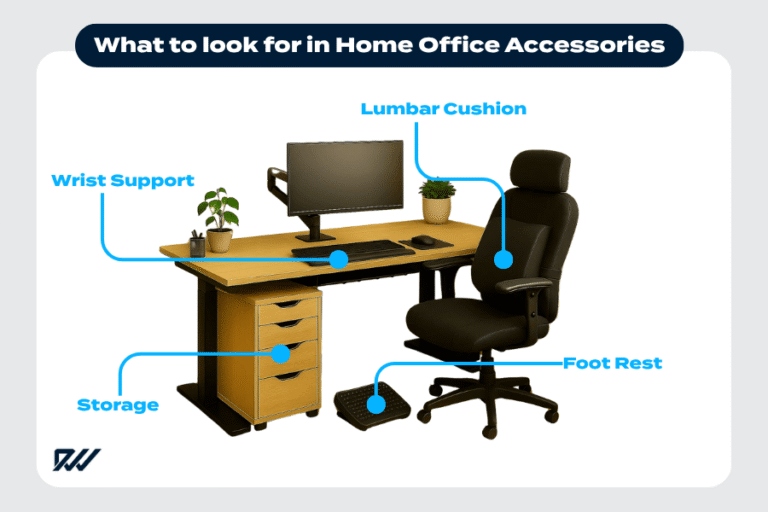
Use an ergonomic chair that supports your back properly. Adjust your desk and chair height to keep your posture straight. A good setup stops neck and shoulder pain.
Consider a keyboard and mouse that fit your hand shape. These reduce wrist strain and help avoid discomfort during long sessions.
High-quality Headphones
Choose headphones with noise cancellation to block background sounds. Clear audio helps you hear better and lowers the need to strain your ears.
Comfortable ear pads prevent soreness. Wireless options reduce cable clutter and give freedom to move.
External Webcam
An external webcam offers better video quality than built-in cameras. Place it at eye level to create a natural and comfortable viewing angle.
This reduces the need to look down or up, preventing neck pain. It also improves your video presence for others in the call.
Blue Light Filters
Blue light from screens can cause eye strain and tiredness. Use blue light filter glasses or screen protectors to reduce this effect.
Many devices have built-in settings to lower blue light. Activate them, especially in the evening, to protect your eyes and improve sleep quality.
During Meetings Strategies
During meetings, using smart strategies helps reduce Zoom fatigue. Small changes improve comfort and focus. These tips keep your energy steady and your mind clear.
Close Unnecessary Apps
Shut down apps not needed for the meeting. This frees up computer power and reduces distractions. A faster system helps video run smoothly. Less clutter on your screen means better focus on the meeting.
Focus On Active Speaker
Use the active speaker view to see only the person talking. This cuts down on the many faces on screen. It lowers mental strain and makes it easier to follow the conversation. Avoid the gallery view if it feels overwhelming.
Limit Meeting Length
Keep meetings short and to the point. Long meetings tire the brain quickly. Aim for 30 to 45 minutes if possible. Schedule breaks between meetings to refresh your mind and body.
Mute When Not Speaking
Mute your microphone when you are not talking. This stops background noise and helps others focus. It also reduces your stress about accidental sounds. Unmute only to speak, then mute again after.

Credit: www.bossedup.org
Between Meetings Habits
Between meetings habits play a crucial role in reducing Zoom fatigue. These small actions help refresh your mind and body. They prepare you for the next call without feeling drained. Focus on simple routines that give your eyes and muscles a break. Consistent practice of these habits can improve your energy levels throughout the day.
Take Short Breaks
Step away from your screen for a few minutes. Even a quick break helps lower eye strain and mental fatigue. Use this time to stretch your hands or look out a window. Avoid jumping immediately into the next meeting. Short pauses reset your focus and calm your nerves.
Stand And Move
Stand up between meetings to improve circulation. Walk around your room or office for a minute or two. Movement reduces stiffness and boosts energy. It also helps your brain switch gears. Changing your posture prevents discomfort from sitting too long.
Blink And Rest Eyes
Remember to blink often during and between calls. Blinking moistens your eyes and prevents dryness. Look away from the screen regularly and focus on distant objects. This practice relaxes eye muscles and reduces strain. Resting your eyes helps maintain comfort for long workdays.
Practice Deep Breathing
Take slow, deep breaths to lower stress levels. Breathe in through your nose and out through your mouth. Deep breathing calms your mind and increases oxygen flow. It helps reduce tension caused by back-to-back meetings. Spend a minute or two on this simple habit before starting again.
Reducing Overall Screen Time
Reducing overall screen time plays a key role in easing Zoom fatigue. Spending long hours staring at a screen tires your eyes and mind. Cutting down on screen exposure helps you feel refreshed and focused.
Simple changes in how you communicate can lower screen time. These steps create space to rest your eyes and reduce mental strain. A better tech setup supports healthier work habits and less fatigue.
Switch To Audio Calls
Audio calls use less mental energy than video meetings. You avoid constant eye contact and screen distractions. Use audio calls for quick updates or one-on-one talks. This approach reduces eye strain and helps you stay alert longer.
Use Email When Appropriate
Email works well for sharing detailed information without a meeting. It saves time and lets you respond when ready. Choose email for non-urgent topics or clear instructions. This method cuts down on unnecessary screen time and interruptions.
Schedule Meetings With Buffers
Add short breaks between meetings to rest your eyes. These buffers let you stretch and reset before the next call. Avoid rushing from one meeting to another. This practice reduces stress and improves your focus during each session.
Avoid Back-to-back Calls
Back-to-back meetings increase fatigue quickly. They leave no time to recover or process information. Space out your calls to maintain energy throughout the day. This simple change helps keep your mind sharp and reduces burnout.

Credit: newatlas.com
Creating Clear Meeting Agendas
Creating clear meeting agendas helps reduce Zoom fatigue by keeping meetings focused. Agendas guide participants through the meeting. They prevent unnecessary discussions and save time. A well-prepared agenda improves meeting quality and reduces stress.
Set Objectives
Start by defining clear objectives for the meeting. Objectives explain the purpose and goals. They help participants prepare better. Clear goals keep discussions on track and relevant. This avoids confusion and wasted time.
Define Time Limits
Assign specific time slots for each agenda item. Time limits prevent meetings from dragging on. They encourage concise and focused conversations. Setting limits helps respect everyone’s schedule. Meetings that end on time reduce fatigue.
Assign Roles
Give participants clear roles before the meeting starts. Roles include facilitator, note-taker, and timekeeper. This improves organization and participation. Everyone knows their responsibilities and can prepare. Defined roles help the meeting run smoothly.
Share Agenda In Advance
Send the agenda to all participants before the meeting. Early sharing allows time to review and prepare. It reduces surprises and last-minute questions. Participants join the meeting ready to contribute. This practice saves time and lowers stress.

Credit: www.themuse.com
Frequently Asked Questions
What Is A Good Way To Reduce Zoom Fatigue?
Take regular breaks, hide your self-view, use speaker view, minimize distractions, and opt for phone calls to reduce Zoom fatigue effectively.
What Is The 40 Minute Rule On Zoom?
The 40-minute rule on Zoom limits free meetings to 40 minutes for groups over three participants. After that, the call ends automatically.
How To Deal With Zoom Fatigue In Online Classes?
Take regular breaks to rest your eyes and move. Hide self-view to reduce anxiety. Use speaker view and close distractions. Turn off your camera when possible. Schedule shorter meetings with clear agendas. Opt for phone calls or emails to limit screen time.
How To Optimize Zoom Performance?
Optimize Zoom performance by closing unused apps, using a strong internet connection, and updating the Zoom app regularly. Use speaker view, mute when not speaking, and ensure good lighting. Schedule breaks between meetings to reduce fatigue and maintain focus.
Conclusion
Reducing Zoom fatigue starts with simple tech changes. Use speaker view to focus on the active speaker only. Hide your self-view to lessen anxiety during calls. Take short breaks to rest your eyes and move your body. Close extra tabs to reduce distractions and improve focus.
Adjust your screen brightness and lighting to ease eye strain. Schedule meetings with clear agendas and avoid back-to-back calls. These steps help you stay comfortable and alert throughout your day. Small changes make long video calls easier to handle and less tiring.