You usually cannot repair SSD hardware; focus on data recovery and replacement.
If your drive acts up, do not panic. I have fixed many “dead” SSDs without opening a case or using a soldering iron. In this guide, I will show you how to repair a SSD the right way. You will learn what fails, what you can fix in software, and when to walk away. I will share field-tested steps, safe tools, and smart habits that protect your data and your wallet. Read on if you want clear answers and practical wins.

How SSDs fail and the signs to watch
SSDs fail in two big ways. Software level errors that you can fix. Hardware level faults that you cannot fix at home. Knowing which one you face is the key to how to repair a SSD.
Watch for these signs:
- Slow boots or apps that hang often means file system errors or TRIM issues.
- Sudden read-only mode points to firmware safeguards or bad NAND blocks.
- Drive not detected can be a cable, port, power, or controller fault.
- Blue screens, kernel panics, or random freezes can be driver or firmware bugs.
- SMART warnings like Reallocated NAND blocks or Wear Leveling Count show wear.
In my lab, most “dead” drives were not dead. Bad SATA cables, old chipset drivers, or a broken USB enclosure were to blame. Always test the easy stuff first when deciding how to repair a SSD.

First steps before you try to fix an SSD
Before any fix, protect your data. This is the most important rule in how to repair a SSD.
Do this first:
- Stop writing to the SSD. Do not install tools on it.
- Back up what you can right away to another drive.
- Check warranty status. If valid, use it. Do not open the drive.
- Try another cable, port, or PC. Many “no detect” cases are simple.
- Note errors, SMART values, and symptoms. This guides the next step.
If the SSD is your only boot drive, use a live USB to copy files. This simple move has saved many readers when they work on how to repair a SSD.
Step-by-step: how to repair a SSD software issues
You can fix many issues with safe software steps. Follow this order. Test after each step.
- Check health using SMART
- Windows: Install the vendor tool or use smartctl. Look for wear, bad blocks, and temperature.
- macOS: Use Disk Utility First Aid and smartmontools for deep checks.
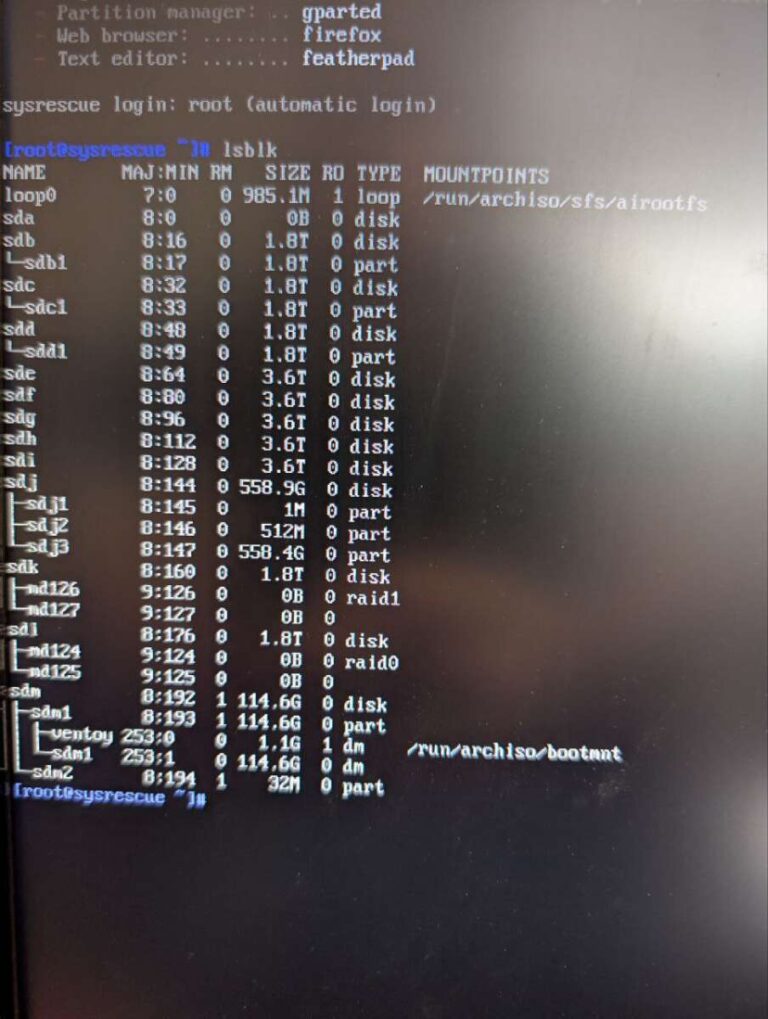
- Linux: smartctl -a and lsblk for status.
- Update drivers and chipset
- Windows: Update storage, SATA, NVMe, and chipset drivers. Old drivers cause timeouts.
- Scan and repair file system
- Windows: chkdsk C: /f for the affected volume.
- macOS: Disk Utility First Aid on the volume and container.
- Linux: fsck on unmounted volumes.
- Enable and verify TRIM
- Windows: fsutil behavior query DisableDeleteNotify should be 0.
- macOS: TRIM is on for Apple and most third-party NVMe.
- Linux: fstrim -v / or mount with discard if needed.
- Check power and thermal
– Ensure the SSD has direct motherboard power and airflow. Thermal throttling can mimic failure.
These steps solve many slowdowns. They are the safest moves in how to repair a SSD without risk to your data.

Firmware, secure erase, and re-partition fixes
If the drive is found but flaky, advanced steps can help. Be careful. Back up first.
- Update firmware
- Use the brand’s tool. It can fix power loss bugs, TRIM issues, and sleep bugs.
- Secure erase or sanitize
- This resets flash translation tables. It can clear bad maps and restore speed.
- Use the vendor tool or hdparm/nvme-cli in Linux. This wipes all data.
- Recreate partitions from scratch
- Delete partitions. Create a new GPT. Format. This clears corrupt metadata.
- Overprovisioning
- Leave 10 to 20 percent unallocated. This gives the controller room to heal.
I have seen drives jump from “unusable” to stable after a firmware fix and secure erase. This is a classic win in how to repair a SSD when the controller is fine but the map is messy.

When hardware fails: your real options
Most hardware faults need a full replacement. NAND chips and controllers are complex. Data is spread across blocks with wear leveling and encryption. Swapping parts at home will not work.
What you can do:
- Try a cold and warm boot cycle. Power off the PC. Unplug wall power for 30 seconds. Reboot. This can clear stuck power states.
- Leave the drive idle on power for an hour. Some controllers refresh tables when idle.
- Test in another system with a known-good cable and port. Rule out the host.
What you should not do:
- Do not bake the drive or open the case. You will lose data and void warranty.
- Do not reflow chips. This is not how to repair a SSD.
If the data is mission critical and the drive is not detected, call a pro lab. They have vendor-only tools. They can access service modes. It is not cheap, but it is the only real path for hard faults.

Data recovery playbook
Your goal is to get data first, then fix. Use this simple flow when you plan how to repair a SSD and save files.
- If the drive mounts, copy your most important files first.
- If it is slow or throws errors, clone it to a healthy drive.
- Use ddrescue on Linux. It handles bad reads and keeps a map.
- On Windows, use a block-level cloner that supports retries.
- If it is read-only, copy data and do not try to “fix” first.
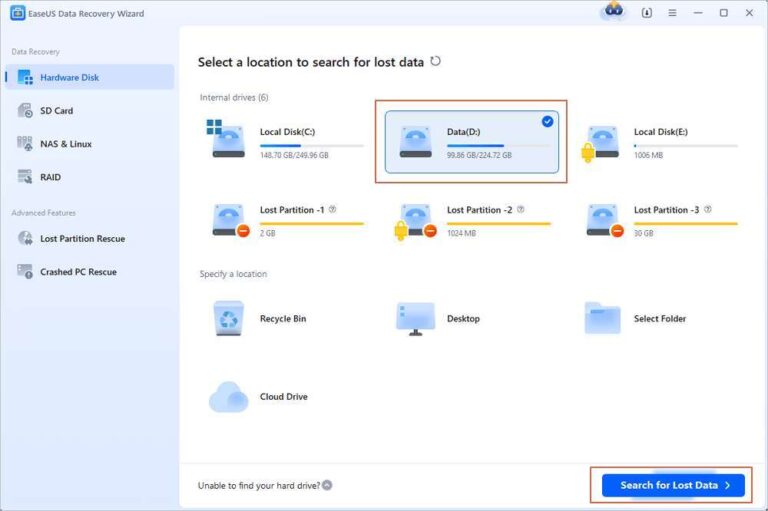
- If it does not mount but is detected, try a quick scan with a trusted recovery tool.
- If it is not detected anywhere, consider a pro lab.
Tip from the field: Always clone before deep scans. Scans push many reads. Cloning reduces risk and creates a safe copy for work. This is the safest way to approach how to repair a SSD while protecting data.

Preventive care: make your SSD last longer
Good habits prevent most pain. They also reduce how often you need to learn how to repair a SSD.
- Keep 10 to 20 percent free space. SSDs need room to manage blocks.
- Enable TRIM and keep firmware up to date.
- Avoid power cuts. Use a UPS on desktops and servers.
- Do not fill the drive to 100 percent. Performance and wear suffer.
- Watch SMART. Set alerts for rising media errors or temperature spikes.
- Use proper cooling in laptops and small PCs.
I have seen long-lived SSDs with simple care. The owner checked SMART monthly and kept space free. Small steps pay off.

Essential tools and commands
Here are tools I trust when teaching how to repair a SSD.
- Vendor suites
- Samsung Magician, Crucial Storage Executive, WD Dashboard, Kingston SSD Manager.
- Cross-platform tools
- smartmontools for SMART.
- ddrescue for cloning weak drives.
- CrystalDiskInfo on Windows for a quick health view.
- GParted or Disk Utility for partition work.
- Useful commands
- Windows: chkdsk, sfc /scannow, DISM /RestoreHealth, fsutil for TRIM.
- macOS: diskutil verifyVolume, diskutil apfs list, fsck_apfs in Recovery.
- Linux: smartctl -a, nvme list, nvme smart-log, fstrim, fsck, hdparm.
Keep these on a USB toolkit. It saves time and stress when you need how to repair a SSD fast.
Mistakes to avoid when learning how to repair a ssd
Small errors can make things worse. Avoid these traps.
- Running many benchmarks on a sick drive. This adds wear and stress.
- Writing recovery tools to the failing SSD. Always work from another disk.
- Skipping backups before secure erase. You cannot undo it.
- Ignoring SMART warnings. They are early smoke signals.
- Mixing cables and ports during tests. Change one thing at a time.
Stay calm. Take notes. Work step by step. This mindset is key for how to repair a SSD without risk.
Frequently Asked Questions of how to repair a ssd
Can I fix a dead SSD at home?
If the controller or NAND failed, no. You can try firmware and software checks, but hardware fixes need a lab.
Does a secure erase repair bad sectors on an SSD?
It does not fix physical defects. It resets mapping and can work around weak blocks, which often restores speed and stability.
How do I know if my SSD is failing?
Watch for slow boots, random freezes, and SMART warnings. If the drive turns read-only or disappears, back up now.
Will updating firmware erase my data?
Most updates keep data, but backup first. Power loss during a firmware update can brick the drive.
Are SSD recovery services worth it?
For mission critical data, yes. Labs can access service modes you cannot, but costs are high, so weigh the value of your data.
Should I leave free space on my SSD?
Yes. Keep 10 to 20 percent free. It helps wear leveling, reduces write amplification, and maintains speed.
Can overheating damage my SSD?
High heat shortens life and causes throttling and errors. Ensure airflow and avoid stacked enclosures without cooling.
Conclusion
You now know what you can fix in software, what needs a pro, and how to protect your data. Start with backups, check SMART, update drivers, then move to firmware, secure erase, and clean partition work if needed. Keep your habits sharp, and you will rarely face an SSD surprise.
Put this plan to work today. Test your drive, turn on TRIM, and set a SMART alert. Want more guides like this? Subscribe, share your results, or drop a question in the comments.
Related Posts

Jamie Lee is a seasoned tech analyst and writer at MyTechGrid.com, known for making the rapidly evolving world of technology accessible to all. Jamie’s work focuses on emerging technologies, product deep-dives, and industry trends—translating complex concepts into engaging, easy-to-understand content. When not researching the latest breakthroughs, Jamie enjoys exploring new tools, testing gadgets, and helping readers navigate the digital world with confidence.