Reset your Roku TV by using the Settings menu, the remote, or the TV’s physical reset button.
I’ve walked hundreds of people through how to reset a roku tv — from quick restarts to full factory wipes. As someone who has set up, troubleshot, and repaired Roku TVs over years, I’ll explain clear, tested steps, common pitfalls, and recovery tips so you can reset confidently and get back to watching. Read on for step-by-step instructions, practical examples, and safety tips.
Why reset your Roku TV?
Resetting can fix many common problems. A restart clears temporary glitches like frozen apps, sound issues, or remote lag. A factory reset restores original settings when you’re selling the TV or when software problems persist.
Knowing how to reset a roku tv saves time and avoids needless support calls. I recommend trying a restart first, then a factory reset only if issues continue. This protects your apps and account while solving most problems.
Types of resets and when to use each
- Soft restart (Restart)
- Use when apps freeze or the UI is sluggish. This is quick and keeps your settings and apps.
- System restart via Settings
- A deeper reboot triggered from the Roku menu. Useful when the remote works but the screen misbehaves.
- Factory reset (Erase everything)
- Use when you can’t fix issues, or before selling/giving away the TV. This deletes apps, settings, and local data.
- Physical button reset (pin or power button method)
- Use when the TV won’t respond to the remote or on-screen menus.
- Remote-based reset sequences
- Certain key combos can trigger a reset when the software supports them.
Each option is a different level of intervention. Learn how to reset a roku tv using the correct method for your problem to avoid unnecessary data loss.
How to reset a Roku TV — step-by-step guides
How you reset depends on whether you want a simple restart or a full factory reset. Below are clear steps for each common method.
Soft restart from the remote (fast, safe)
- Press the Home button on your Roku remote to go to the main screen.
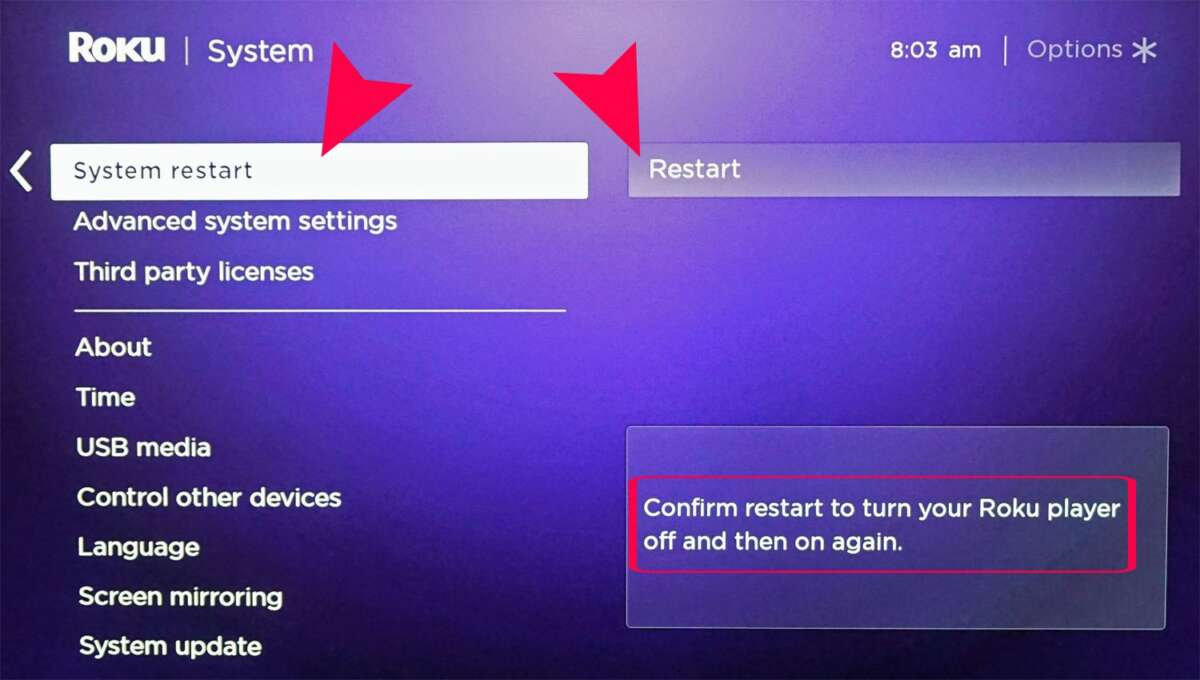
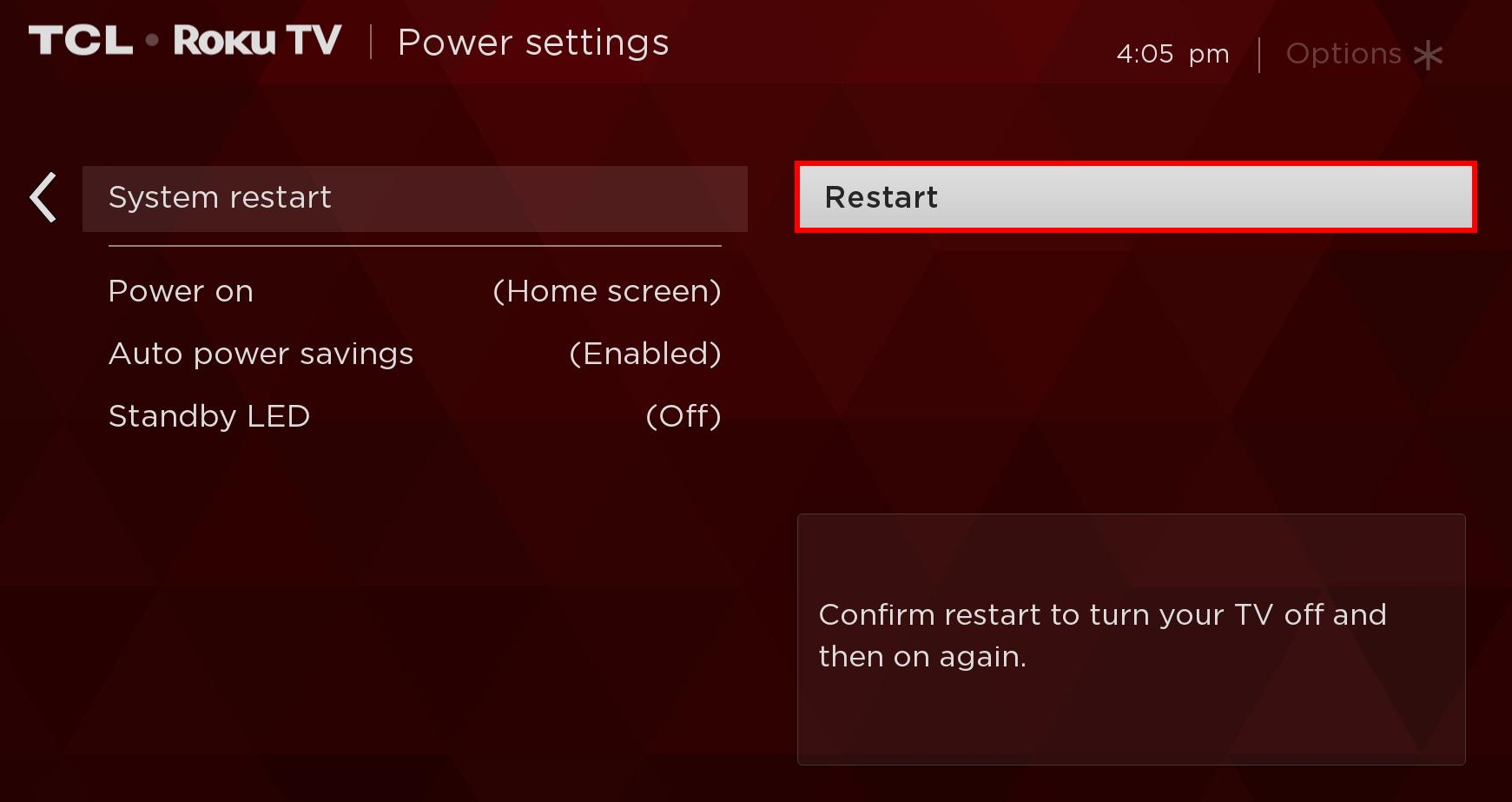
- Scroll up or down to select Settings > System > Power (if present) > System restart.
- Confirm and wait for the TV to reboot — usually 30–90 seconds.
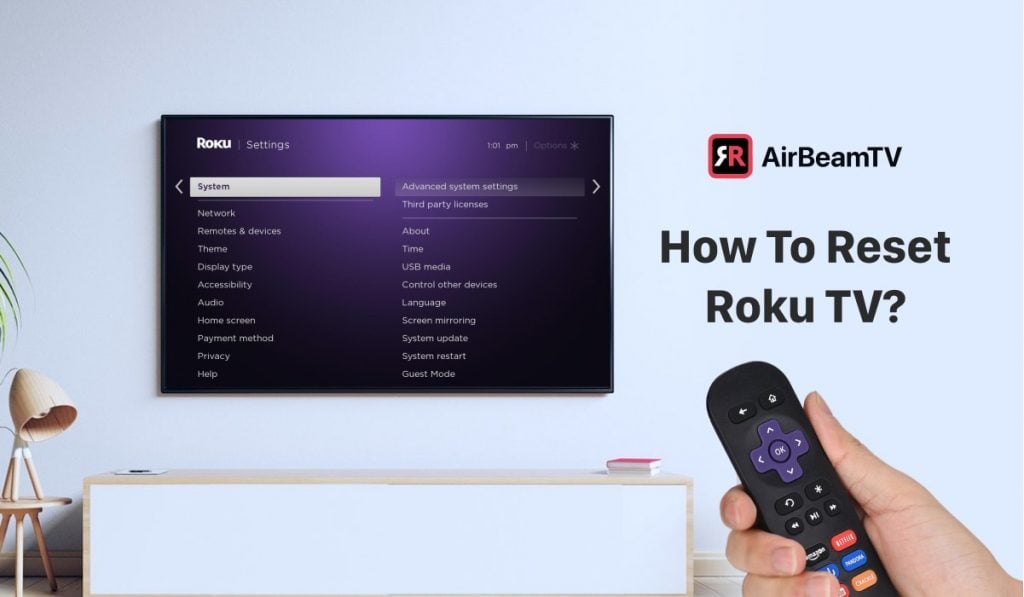
How to reset a roku tv via Settings (works on most models)
- Press Home on the remote.
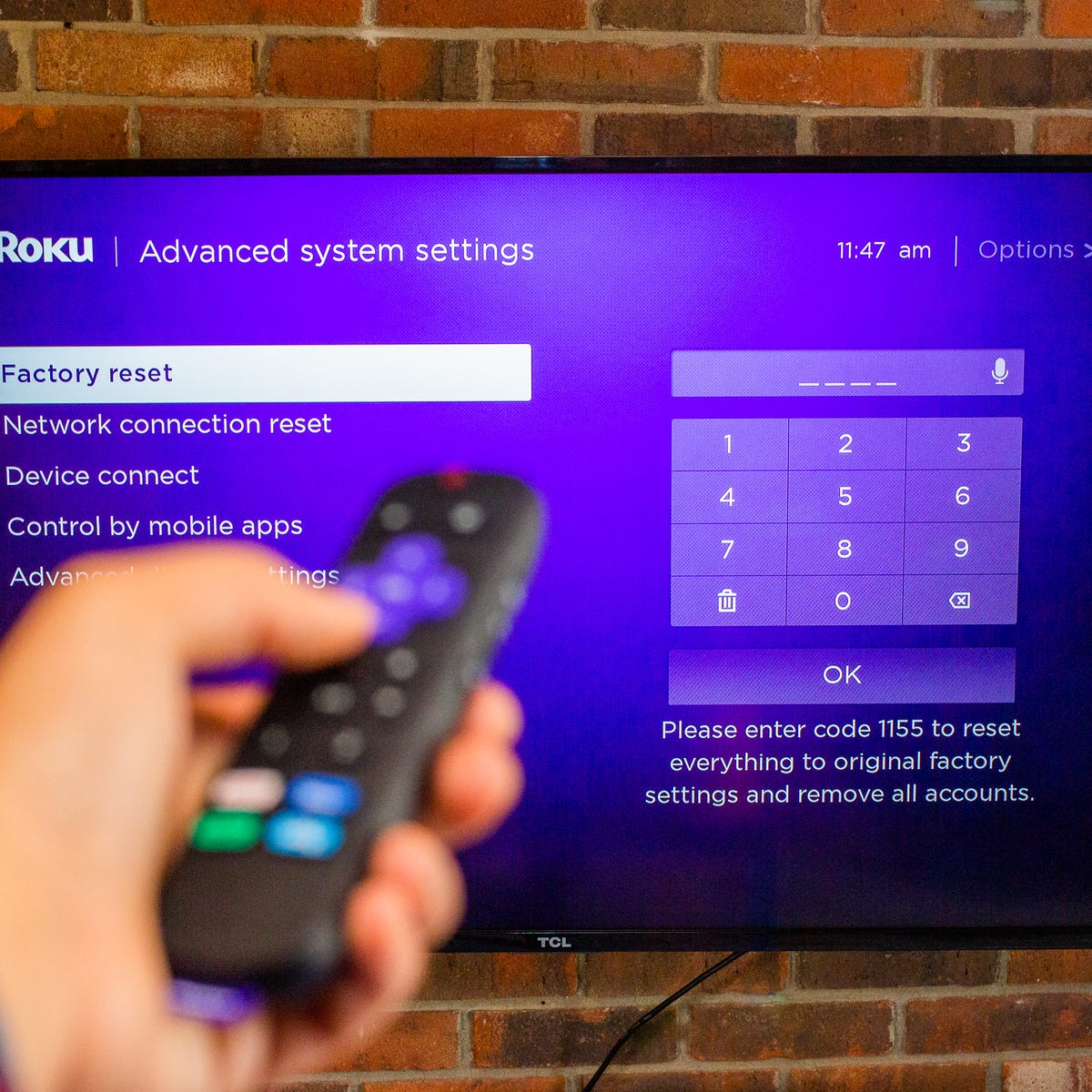
- Go to Settings > System > Advanced system settings.
- Choose Factory reset and follow on-screen prompts.
- Enter the code shown on screen to confirm and start the reset.
How to reset a Roku TV with remote buttons (when menus are inaccessible)
- Unplug the TV power cord for 10 seconds, then plug back in.
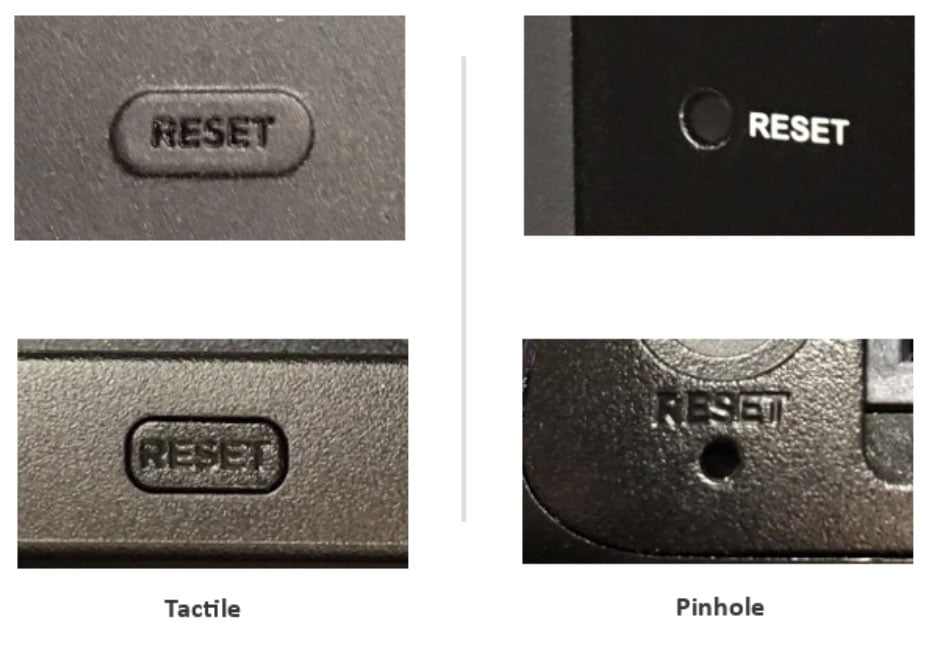
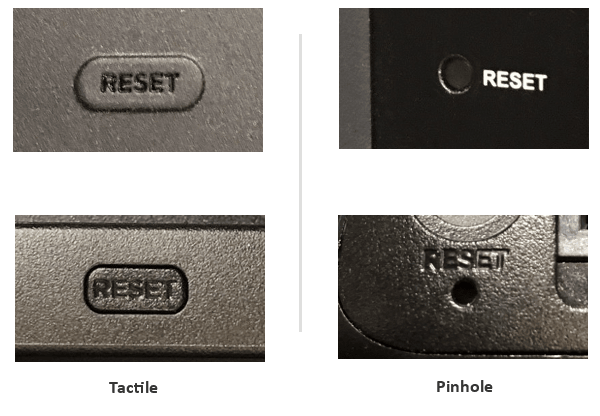
- As it powers on, press and hold the Reset button (if available) on the back or bottom for about 20 seconds. Some models require a paperclip to press a pinhole button.
- Release when the Roku logo and progress bar appear.
Alternative remote combo (older models)
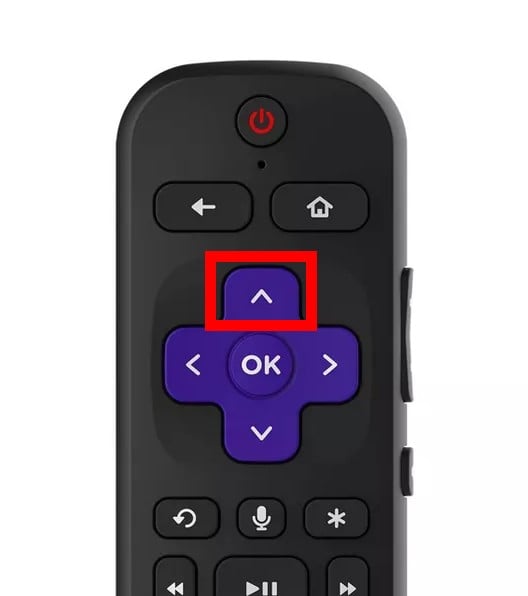
- With the TV on, press Home 5 times, Up once, Rewind twice, Fast Forward twice.
- If supported, this sequence opens a secret menu that may allow a reset.
Tips during reset
- Keep the TV plugged into reliable power during a reset to avoid corruption.
- Never interrupt a factory reset once it begins.
- If your remote is unresponsive, try the Roku mobile app as a temporary remote.
These methods cover most scenarios where you need to reset. Practicing the softer resets first is usually best before doing a factory reset.
Before you reset: checklist and preparations
- Sign into your Roku account on a phone or computer so you can re-add the TV later.
- Note Wi‑Fi name and password to reconnect after reset.
- Deauthorize any streaming apps that use device-specific activation if needed.
- Take screenshots or notes of custom settings like picture modes and account usernames.
- Remove external storage (USB drives) to avoid accidental erasure.
Preparing first reduces downtime and helps restore the TV quickly after you reset. I once reset a device without saving a TV app PIN and had to spend 20 minutes recovering it — save yourself that hassle.
:max_bytes(150000):strip_icc()/roku-factory-reset-code-entry-page-arrows-5b802c1bc9e77c00501e2ed0.jpg)
After the reset: reconnecting and troubleshooting
- Reconnect to Wi‑Fi and sign into your Roku account.
- Reinstall apps from the Roku Channel Store. Most paid apps require signing back into your account.
- Update system software: Settings > System > System update > Check now.
- Calibrate picture and sound settings to your liking.
- If issues persist, try a wired Ethernet connection or contact support with the serial number.
When I reset a Roku TV for a neighbor, a stuck app returned because it was reinstalled automatically from their account. Watch which apps you reinstall and test the TV for 24–48 hours after a reset.
Common mistakes to avoid
- Doing a factory reset for simple freezes — try a restart first.
- Not saving Wi‑Fi credentials and Roku account info before wiping.
- Interrupting a reset by unplugging the TV mid-process.
- Assuming apps are deleted from your account — apps are tied to your account, not the TV, but local data is removed.
Avoiding these mistakes ensures the reset solves problems instead of creating new ones.
Personal experience and pro tips
I’ve reset Roku TVs in living rooms, hotels, and repair shops. A few tips I rely on:
- Try the mobile Roku app as a remote when the physical remote is flaky.
- Keep a photo of your Wi‑Fi password in your phone for quick reconnection.
- Use System restart daily for TVs that run 24/7 to prevent slowdowns.
- If you’re selling a Roku TV, perform a factory reset and remove the device from your Roku account online.
These small habits make how to reset a roku tv painless and faster.

Safety, privacy, and limitations
- A factory reset removes stored account tokens, so sign out of services before gifting or selling.
- Resetting won’t remove your Roku account; remove the device from your Roku account online for full dissociation.
- Hardware faults (power board, display issues) won’t be fixed by resets; those require repair.
Be honest about what a reset can and cannot do so you spend time on the right fix.
Frequently Asked Questions of how to reset a roku tv
Can I reset my Roku TV without the remote?
Yes. You can use the physical reset button on the TV or the Roku mobile app as a virtual remote. Unplugging and replugging while holding the reset button may also work.
Will resetting my Roku TV delete my Roku account?
No. Resetting the TV removes local data and settings but does not delete your Roku account. Remove the device from your account online to fully dissociate it.
How long does a factory reset take on a Roku TV?
A factory reset usually completes in 5–10 minutes, including reboots and initial setup prompts. Reinstalling apps and updates can add more time.
My Roku TV won’t turn on after reset — what should I do?
Check power connections and try a different outlet. If it still won’t power up, the issue may be hardware-related, and you should contact support or a technician.
Do I need to update software after resetting?
Yes. After a reset, check Settings > System > System update to ensure you have the latest firmware and security fixes.
Conclusion
Resetting a Roku TV is a useful skill for fixing glitches, protecting privacy, or preparing a TV for a new owner. Start with a soft restart, move to a Settings-based reset if needed, and use a factory reset only when you must erase everything. Prepare your account details and Wi‑Fi info beforehand to get back online quickly. Try the steps above, leave a comment with your issue, or subscribe for more device tips to keep your streaming smooth.

Jamie Lee is a seasoned tech analyst and writer at MyTechGrid.com, known for making the rapidly evolving world of technology accessible to all. Jamie’s work focuses on emerging technologies, product deep-dives, and industry trends—translating complex concepts into engaging, easy-to-understand content. When not researching the latest breakthroughs, Jamie enjoys exploring new tools, testing gadgets, and helping readers navigate the digital world with confidence.