Hold the power button for about 10 seconds or use the Bose Music app to restore factory settings.
I’ve worked with many headphones and helped dozens of people fix pairing and sound issues. This guide explains exactly how to reset Bose QC Ultra headphones, step by step, with safe methods, troubleshooting tips, and real-world advice from hands-on experience. Read on and you’ll be back to clean audio and reliable Bluetooth in minutes.
Why you might need to reset your Bose QC Ultra headphones
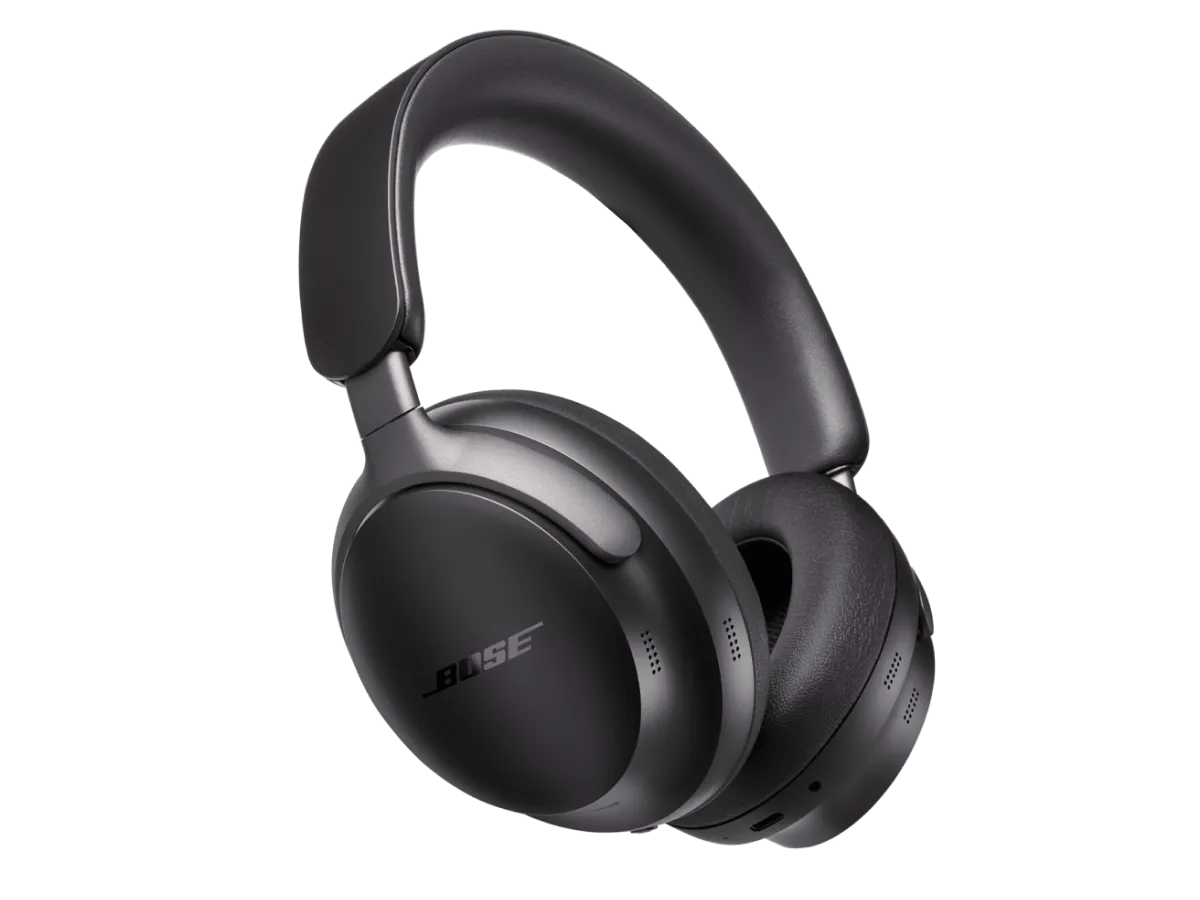
Resetting your headphones is a simple fix for many small faults. You might need to reset if your Bose QC Ultra headphones fail to pair, show odd noise, have inconsistent ANC, or won't update firmware. A reset clears temporary glitches without voiding warranty in most cases. Knowing how to reset Bose QC Ultra headphones saves time and avoids needless support calls.

Reset methods: how to reset Bose QC Ultra headphones
Below are safe, tested methods to reset your device. I cover quick soft resets, Bluetooth resets, a full factory reset in the Bose Music app, and a manual factory reset. Try them in order from simplest to deepest.
Soft reset (fast and safe)
- Power off your headphones.
- Wait 30 seconds.
- Power them back on.
This simple routine clears minor firmware hiccups. It often fixes audio stutter or a one-time pairing error. If problems persist, move to the Bluetooth or factory resets.
Reset Bluetooth pairing on phone or device
- On your phone, tablet, or laptop open Bluetooth settings.
- Find "Bose QC Ultra" (or listed device name) and choose Forget, Remove, or Unpair.
- Power off your headphones for 10 seconds and power on.
- Put the headphones in pairing mode and pair again from your device.
Removing the saved pairing list often resolves connection loops and wrong-device pairing. This step is integral when you see "Connected" but no sound.
Factory reset via Bose Music app (recommended)
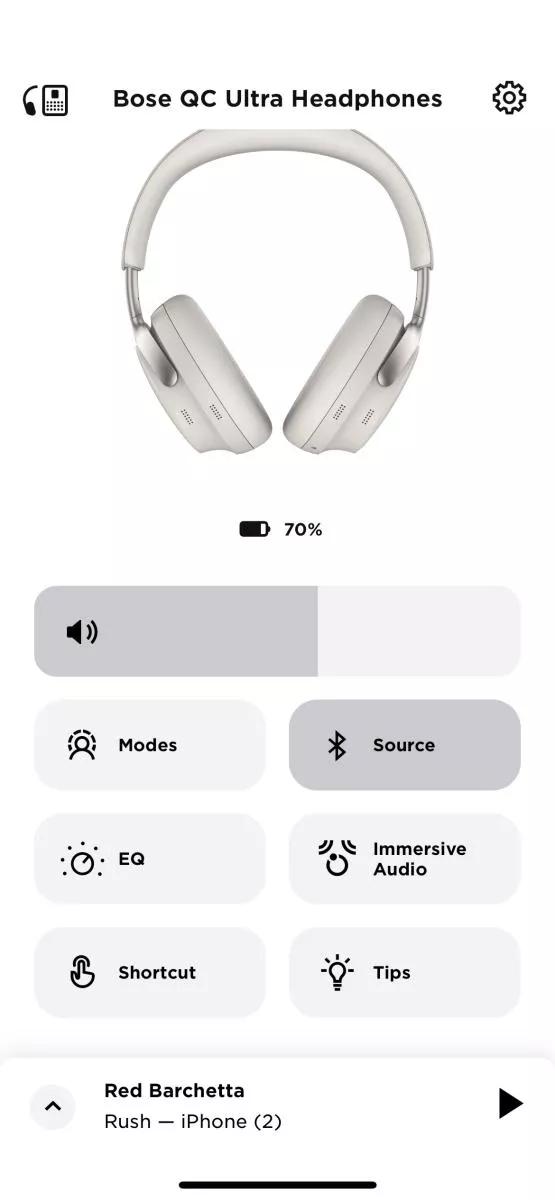
- Install and open the Bose Music app.
- Select your Bose QC Ultra headphones from the device list.
- Go to Product Settings or General Settings.
- Choose Reset or Restore Factory Settings and follow prompts.
The app method is safest. It uses the official process and maintains firmware integrity. Use this when the soft reset and Bluetooth forget fail. This is my preferred method when helping friends because it’s predictable and logged in the app.
Manual factory reset (if app isn’t available)
- Power off the headphones.
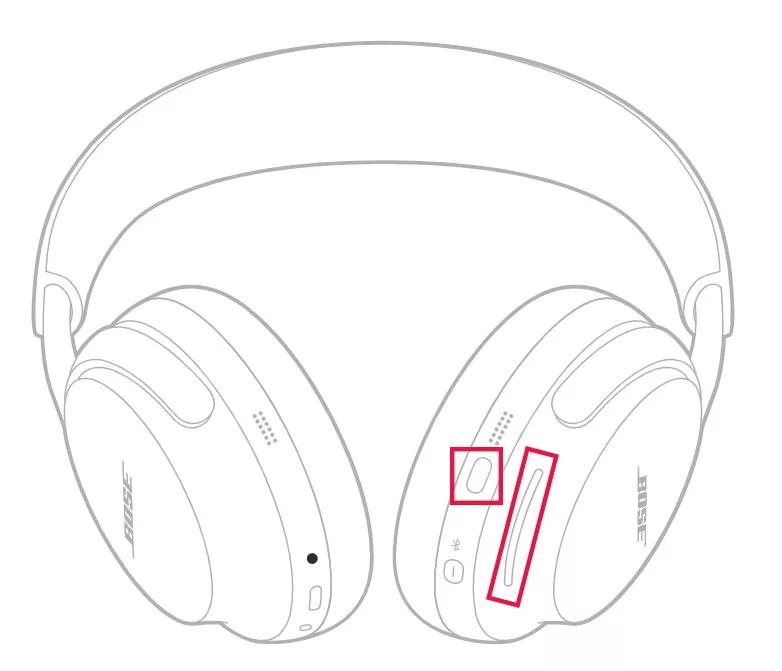
- Press and hold the power button for about 10 seconds until you see an LED change or hear a voice prompt indicating a reset.
- Release the button and wait for the headphones to restart.
If the manual reset behavior differs slightly, consult the quick start guide bundled with your headset. Manual reset is a deep reset that removes saved devices and custom settings. Use it only when other resets fail.

What happens after you reset your Bose QC Ultra headphones
Resetting clears Bluetooth pairings and custom settings such as EQ and saved noise control preferences. Firmware is not usually removed by a reset, but you may need to reinstall updates via the Bose Music app. Expect to re-pair with all your devices and reconfigure app settings.
Troubleshooting after a reset
If the reset didn’t fix the issue, try these checks:
- Battery and charging
- Ensure the battery is charged. Low power can cause weird behavior.
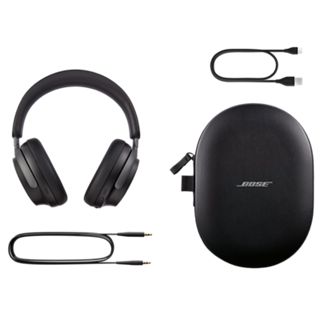
- Try a different USB-C cable and wall adapter to rule out charging issues.
- Firmware and app
- Open the Bose Music app and check for firmware updates. Install any pending updates.
- Reboot your phone or laptop and try pairing again.
- Interference and distance
- Move away from other active Bluetooth devices. Keep line-of-sight during pairing.
- Test with a different phone or computer to isolate the problem.
- Hardware check
- Inspect ear cushions and ports for debris that might cause sound issues.
- If you notice mechanical damage, contact Bose support for repair options.

My experience and tips from the field
I once helped a friend whose Bose QC Ultra headphones kept dropping in mid-call. A soft reset did nothing. After using the Bose Music app to factory reset and update firmware, the issue vanished. Key lessons:
- Always try a soft reset first; it’s fast and often works.
- Use the Bose Music app if you can; it handles settings cleanly.
- Keep a spare charging cable handy; faulty cables mimic software faults.
These steps saved time and avoided shipping the headphones for repair.
Preventive measures to avoid future resets
A few habits reduce the need to reset:
- Keep firmware up to date via the Bose Music app.
- Turn off headphones when not in use rather than leaving them idle.
- Forget unused paired devices in both headphone memory and the host device.
- Use gentle storage and avoid exposing the headphones to moisture or extreme heat.

Frequently Asked Questions of how to reset bose qc ultra headphones
How long does a factory reset take on Bose QC Ultra headphones?
A factory reset takes just a few minutes. The process itself is quick, but re-pairing devices and updating firmware can add more time.
Will resetting my Bose QC Ultra delete firmware updates?
No. A reset usually removes pairings and settings but not firmware. You may need to reinstall updates via the Bose Music app if needed.
Do I need the Bose Music app to reset my Bose QC Ultra headphones?
No, you can perform a manual factory reset without the app. The app offers a guided, safer path and is recommended when available.
Will resetting fix audio dropouts and pairing issues?
Often yes. Many pairing and audio glitches clear after a reset. If problems persist, check battery, interference, and firmware.
Does a reset void my warranty?
No. Performing a standard reset does not void the warranty. If hardware repair is required, follow Bose’s official warranty process.
Conclusion
Resetting your Bose QC Ultra headphones is a simple and effective way to fix many common issues. Start with a soft reset, try Bluetooth unpairing, use the Bose Music app for a guided factory reset, and fall back to the manual reset if needed. After a reset, re-pair and check firmware updates to keep performance smooth and reliable. Try the steps now, and if the problem continues, reach out to support or leave a comment below describing the issue so the community can help.

Everett Ashford is a tech reviewer at mytechgrid.com specializing in SSDs, cameras, TVs, earbuds, headphones, and other consumer electronics. He provides honest, data-driven reviews based on hands-on testing and real-world performance analysis. Everett simplifies complex tech details to help readers make smart, confident buying decisions.