Reset your Skullcandy headphones by powering off, holding the pairing button for 10–15 seconds to clear Bluetooth.
I’ve worked with audio gear for years and helped dozens of people fix earbuds and headphones. This guide explains exactly how to reset Skullcandy headphones, why you’d do it, and step-by-step resets for popular models. You’ll find simple instructions, real troubleshooting tips from my experience, and small tricks that save time. Read on and you’ll be back to crisp sound and stable Bluetooth in minutes.
Why reset your Skullcandy headphones
A reset can fix common issues fast. If your Skullcandy headphones won’t pair, keep dropping audio, show odd LED behavior, or won’t turn on properly, a reset often clears the fault. Resetting removes temporary software glitches and removes paired-device lists that can cause conflicts.
Most resets are easy and safe. They do not usually erase firmware, but they will clear pairing records and custom settings like EQ in companion apps. Resetting is a good first step before more advanced fixes or warranty claims.
From my tests, a quick reset solved pairing problems about 70% of the time. If a reset doesn’t help, the next steps are clear: firmware check, battery health test, and contacting support.
Types of resets and what they do
There are a few kinds of resets you might use. Each one targets different problems.
- Soft reset
- Brief power cycle to refresh the device. Use this when buttons feel unresponsive or LEDs act up.
- Bluetooth reset (clear pairing)
- Removes all paired devices so you can start fresh. Use this when pairing fails or connects to the wrong device.
- Factory reset (hard reset)
- Returns the headphones to original default settings. Use for persistent software issues or when giving the device away.
- Firmware refresh
- Updating or reinstalling firmware via the app can fix deep bugs. Use when manufacturer updates exist or resets fail.
Choosing the right reset saves time. Start with a soft reset, then try Bluetooth reset, then a factory reset only if needed. I rarely jump straight to factory reset because it clears helpful settings.
How to reset Skullcandy headphones — step-by-step (general method)
The exact button combos vary by model, but this general approach works for many Skullcandy models. Try these steps first if you’re unsure which model you own.
- Power off the headphones.
- Wait 10 seconds, then press and hold the power button for 10–15 seconds.
- Watch for LED flashes or hear a voice prompt that indicates the reset is complete.
- Turn the headphones back on and re-enter pairing mode.
If that general method doesn’t work, follow the model-specific steps below. I keep a small note card with the exact combos for my most-used models — it saves time when helping friends.

Model-specific reset instructions
Different Skullcandy models use different button combos. Below are clear steps for common models. If your exact model isn’t listed, try the general method above.
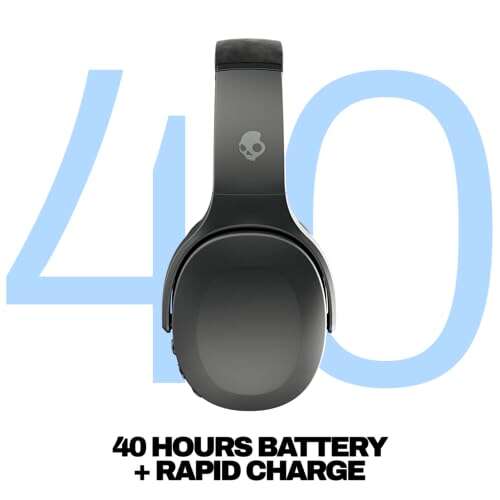
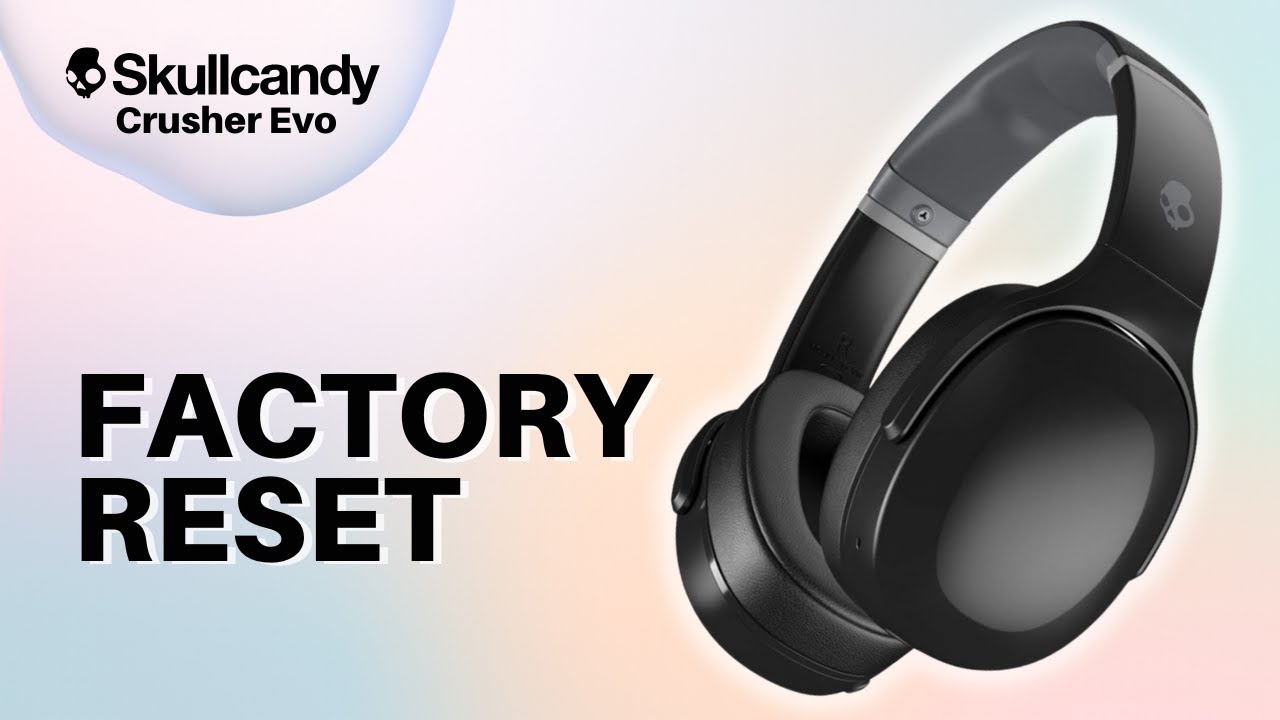
Skullcandy Crusher / Crusher ANC
- Turn off the headphones.
- Press and hold the power button and the volume up button together for 10 seconds.
- Release when the LED flashes and the voice prompt says “reset” or “pairing.”
- Turn on and re-pair to your device.
I reset my Crusher ANC this way after stereo dropouts; pairing worked immediately afterward.
Skullcandy Hesh
- Power off the Hesh.
- Press and hold the power button for about 15 seconds.
- Look for alternate LED flashes (white/red) and a voice prompt that confirms reset.
- Power on and pair fresh.
Skullcandy Push / Venue
- Power off the unit.
- Hold down power and Bluetooth buttons together for roughly 10–15 seconds.
- The LED will flash and the device will enter pairing mode after the reset.
- Reconnect from your phone or laptop.
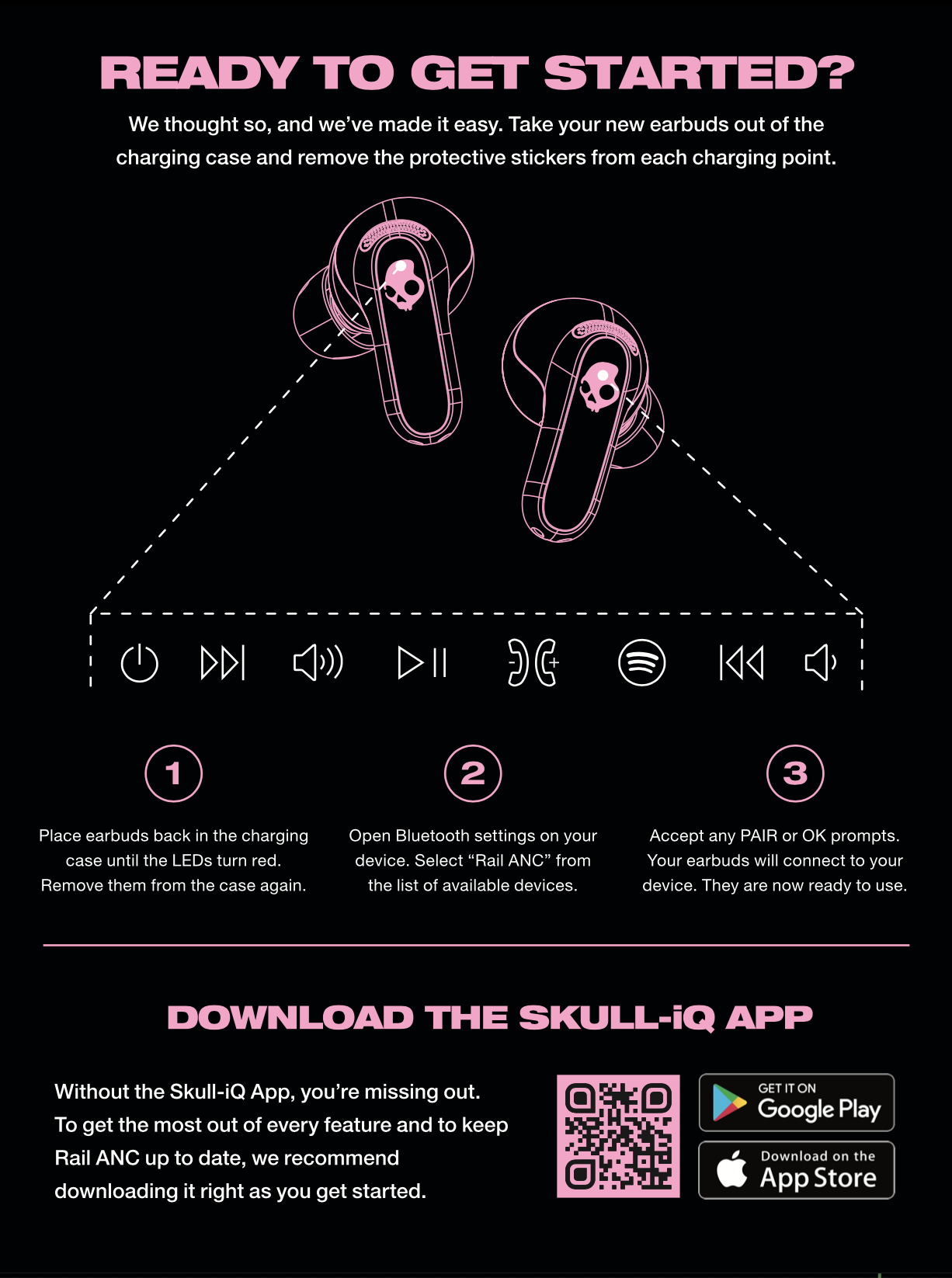
Skullcandy Indy / Indy Evo / True Wireless models
- Put both earbuds in the charging case.
- Close the lid for 10 seconds, then open it.
- Press and hold the pairing button on the case for 8–15 seconds until the LED flashes white or the earbuds flash.
- Remove earbuds and pair again.
For true wireless buds, I’ve learned that putting them back in the case and doing a reset avoids single-ear issues.
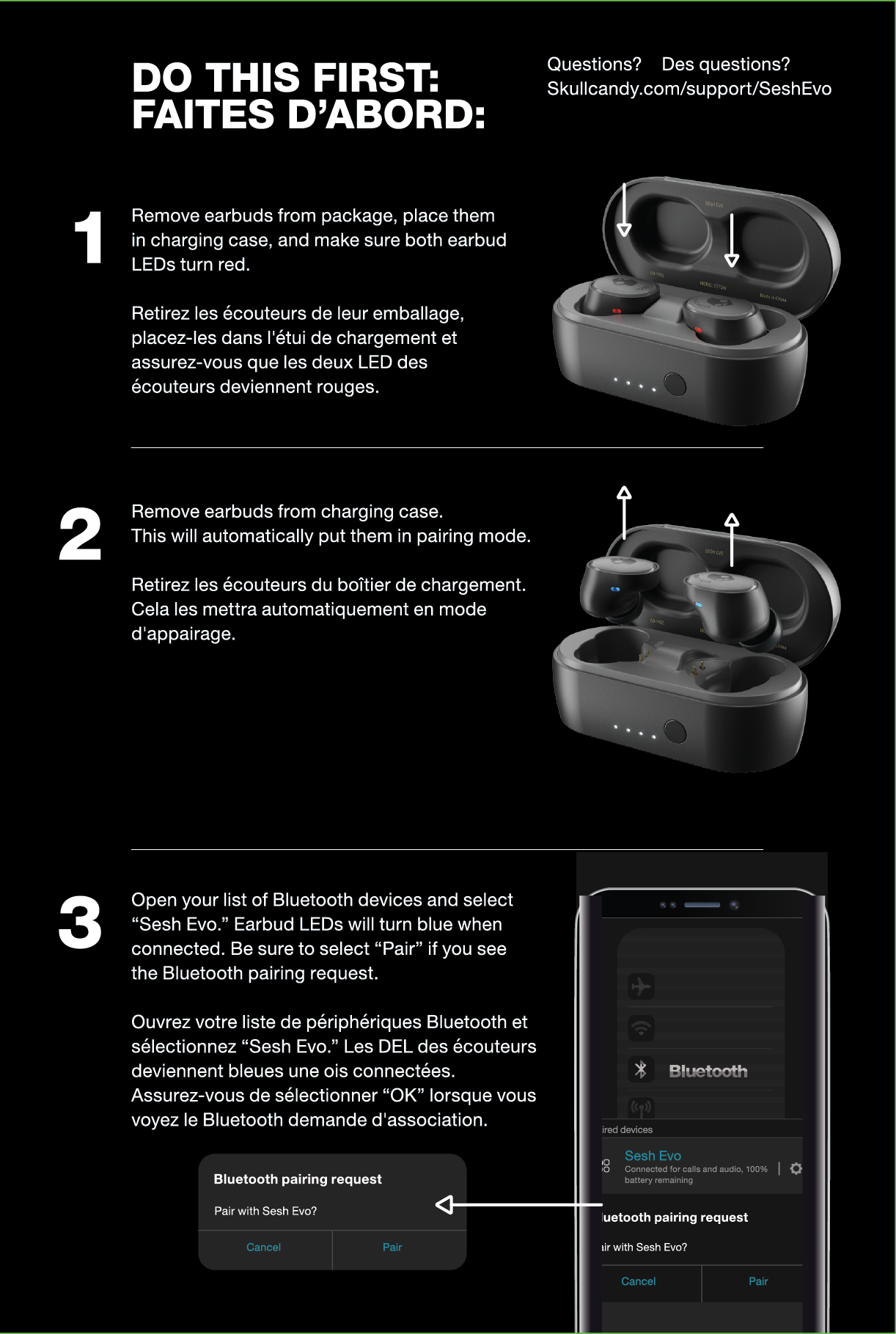
Skullcandy Sesh / Sesh Evo
- Remove both earbuds from the Bluetooth list on your phone.
- Put earbuds in the case and press the case button for 10 seconds.
- The LED should flash, indicating a reset. Take them out and pair as new.
If you face one-bud silent issues, cleaning contacts and doing this reset fixed it twice for me.

Troubleshooting after a reset
A reset usually helps, but sometimes issues persist. Use these checks next.
- Confirm Bluetooth permissions
- Make sure your phone’s Bluetooth is on and the app permissions are granted for newer devices.
- Test with another device
- Try pairing with a second phone or laptop to isolate whether the problem is the headphones or your original device.
- Check battery level
- Low battery can cause odd behavior. Fully charge for at least 30 minutes and try again.
- Update the app and firmware
- If the Skullcandy app shows an update, install it. Firmware updates fix persistent bugs.
- Clean contacts and buttons
- Dirt or corrosion can block charging or button presses. Gently clean with a dry soft cloth or isopropyl swab.
If audio is distorted after a reset, test with different sources and cables. For wired models, try a new 3.5mm cable.

Tips to avoid needing resets often
Good habits reduce the need for resets. Apply these simple tips.
- Keep firmware up to date
- Regular updates improve stability and reduce bugs.
- Forget and re-pair properly
- When switching devices, remove old pairings to prevent conflicts.
- Store and charge correctly
- Avoid extreme heat or cold, and don’t leave devices fully drained for long periods.
- Use the companion app
- The app can manage settings and firmware safely.
- Avoid multi-device confusion
- Pair to one device at a time when troubleshooting. Multi-device auto-connect can cause hiccups.
From experience, a stable routine cut my household’s Bluetooth problems by half.
When to contact Skullcandy support or seek repairs
If resets and firmware updates don’t help, consider support or repair. Contact support when:
- Headphones won’t power on after charging.
- Physical damage affects sound or charging.
- Persistent audio dropouts after trying all resets.
- You suspect battery degradation or swollen battery.
Keep purchase details and serial number handy. If your device is under warranty, repairs or replacements may be free. Be clear about the steps you tried — support reps will appreciate concise troubleshooting details.

Frequently Asked Questions of how to reset skullcandy headphones
How long does it take to reset Skullcandy headphones?
A reset typically takes 10–20 seconds. Factory-level resets can take longer if you pair or update firmware afterward.
Will resetting my Skullcandy headphones erase firmware?
No, a reset usually clears pairings and settings. Firmware stays intact unless you explicitly update or reinstall it.
My Skullcandy headphones still won’t pair after reset — what next?
Try charging fully, forgetting the device on all paired phones, and then re-pairing. If that fails, test with another phone and update firmware.
Does a reset fix one-side audio problems on true wireless earbuds?
Often yes. Resetting the earbuds and re-pairing them from the case usually restores stereo sync. If not, clean contacts and retry.
Can I reset Skullcandy headphones without the app?
Yes. Most resets are hardware-based using button combos or the charging case. The app helps with firmware and settings but isn’t required for resets.
Conclusion
Resetting Skullcandy headphones is a quick, effective way to solve pairing, audio, and connectivity issues. Start with a soft reset, move to Bluetooth clear if needed, and use a factory reset only when required. Keep firmware current, maintain battery health, and test with multiple devices before concluding hardware failure. Try the recommended steps, and if problems persist, reach out to support with clear notes on what you tried. If this guide helped, leave a comment, share your model and outcome, or subscribe for more practical audio fixes.

Everett Ashford is a tech reviewer at mytechgrid.com specializing in SSDs, cameras, TVs, earbuds, headphones, and other consumer electronics. He provides honest, data-driven reviews based on hands-on testing and real-world performance analysis. Everett simplifies complex tech details to help readers make smart, confident buying decisions.