Reset Sony headphones by using model-specific button sequences, a factory reset, or the Headphones Connect app.
I’ve spent years fixing audio gear and guiding users through tech hiccups. This guide explains exactly how to reset Sony headphones step by step. You will learn simple resets for Sony over-ear and true wireless models. I’ll share clear steps, tips from my own tests, and ways to avoid common mistakes so you can get back to listening fast.
Why you might need to reset Sony headphones
Resetting fixes many issues. It can clear pairing problems. It can stop random disconnects. Resetting also helps after firmware updates go wrong.
Resetting does not always delete user settings. Some models have both a reset and a factory reset. Knowing which you need will save time and keep settings you want. This article shows both options and when to use each one.

When to reset: clear signs and quick checks
If audio skips, reconnects fail, or the left or right bud won’t pair, consider a reset. If the Headphones Connect app reports errors, try a reset next. Always try simple fixes first, like rebooting your phone or charging the headphones fully.
A reset is a good step before seeking a warranty repair. It solves many software and pairing issues that look like hardware faults. I often recommend a reset before booking service.

How to reset Sony headphones — step-by-step for common models
Below are clear steps to show how to reset Sony headphones. Follow the model that matches your device. If you aren’t sure which model you own, check the case, the inside of the earcup, or the original packaging.
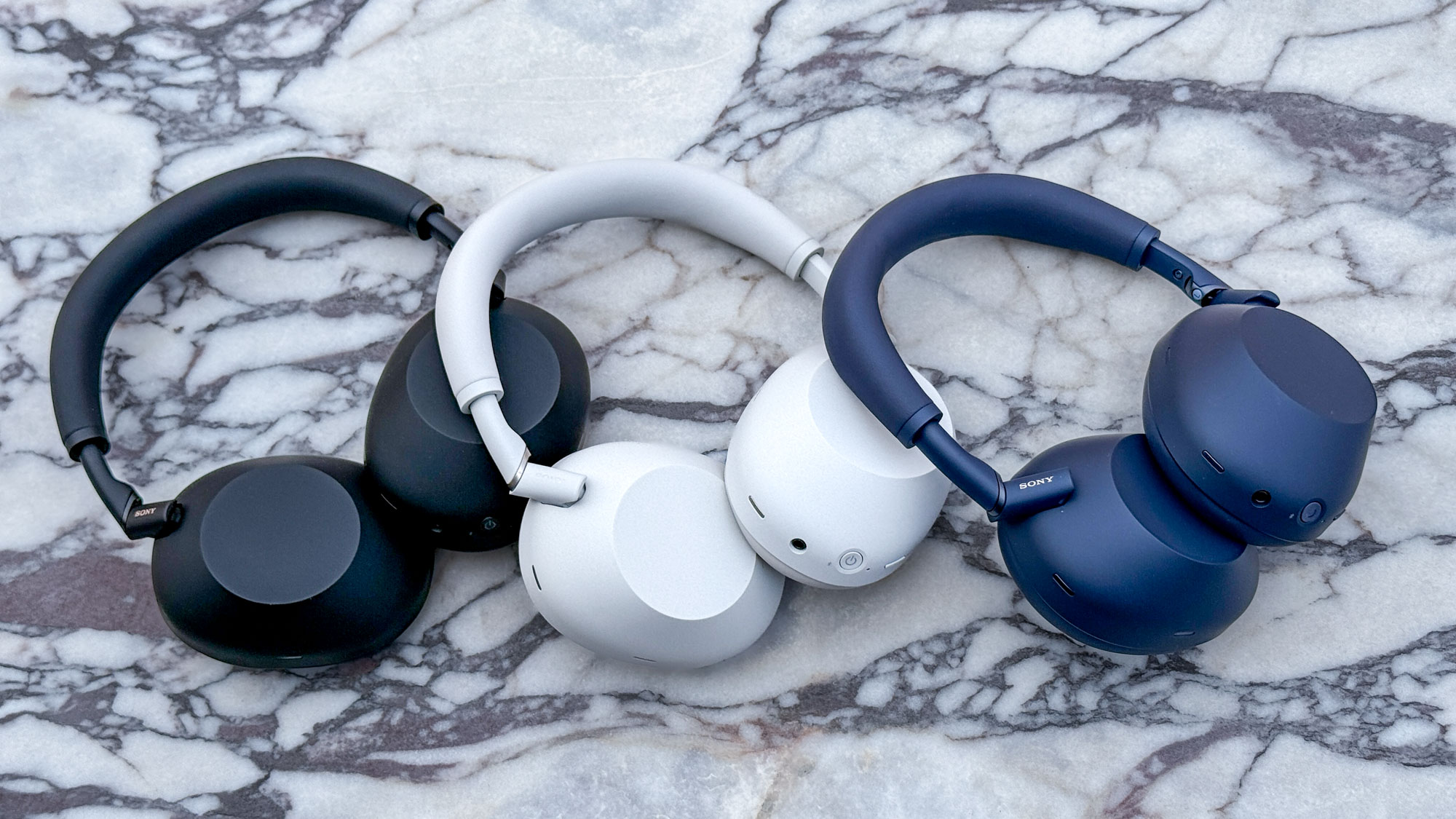
Sony WH-1000XM5 and WH-1000XM4 (over-ear) reset
- Turn off the headphones.
- Press and hold the power button and the custom button simultaneously for about 7 seconds.
- Release when the indicator flashes blue and red or the voice prompt says the pairing list is cleared.
- Re-pair the headphones with your device through Bluetooth settings.
These models also support a factory reset via the app if the button reset doesn’t help. Repeat the button step if pairing still fails.
Sony WH-1000XM3 (over-ear) reset
- Turn off the headphones.
- Hold the power button and the NC/Ambient button for about 10 seconds.
- The LED will flash. Release the buttons.
- Re-pair the headphones on your device.
This reset clears the Bluetooth pairing list. If you need a full factory reset, use the Headphones Connect app for a deeper reset.
Sony WF-1000XM4 and WF-1000XM3 (true wireless) reset
- Place both buds in the charging case.
- Keep the case open. Press and hold the case button for about 10 seconds until the indicator blinks.
- For WF-1000XM3, you may need to hold the earbuds’ buttons while in the case.
- Remove the earbuds and re-pair via Bluetooth.
If the app offers a reset, use it for a full restore of settings and pairing data.
Sony WH-CH700N and budget Sony on-ear models
1. Turn off the headphones.
2. Press and hold the power button and the volume up button at the same time for 7–10 seconds.
3. The LED will flash. Release and re-pair the device.
Check your manual if this combo does not work. Some older models use a tiny reset hole that needs a pin press.
Factory reset via Sony Headphones Connect app
- Open the Headphones Connect app on your phone.
- Connect to your Sony headphones.
- Go to the settings or device info. Choose Reset or Initialize.
- Confirm the factory reset and follow prompts.
Using the app often clears deeper settings like EQ, spatial audio, and pairing history. It is the best choice for a full restore.
These steps show how to reset Sony headphones across models. If a particular model is not listed, the button patterns usually involve holding power with another button for 7–10 seconds. The app-based factory reset works for many modern Sony models.
My experience resetting Sony headphones: tips that helped me
I have reset Sony headphones dozens of times. Most issues cleared after a single reset. Once, a WH-1000XM4 would not pair with two phones. A reset fixed it in less than five minutes.
Tip I learned: fully charge the devices before a reset. Low battery can make a reset fail. Also, remove old Bluetooth pairings on your phone. Old entries sometimes reconnect and confuse the headphones.
When an app reset failed once, I did a manual button reset and then used the app. That combo solved a stubborn firmware issue. These small steps saved a warranty visit.
Troubleshooting after you reset Sony headphones
If the headphones still don’t work, try these checks:
- Make sure Bluetooth is on and the device is in range.
- Remove old pairings from your phone and other nearby devices.
- Update the headphone firmware through the app if available.
- Charge the headphones fully and try resetting again.
If sound is distorted after a reset, test with another device. Distortion on only one source usually means the source device or the audio file is the issue. If problems persist with multiple devices, contact support or explore a repair.

Tips to avoid needing frequent resets
Keep firmware up to date through the Headphones Connect app.
Turn Bluetooth off on devices that you aren’t using with the headphones.
Store true wireless buds in their case when not in use.
Avoid pairing many devices at once to reduce confusion.
These small habits reduce the chance you will need to reset Sony headphones often. They also help battery life and connection stability.
Frequently Asked Questions of how to reset sony headphones
How do I perform a basic reset on Sony headphones?
Press and hold the power and designated secondary button for 7–10 seconds until the LED flashes. Then re-pair the headphones to your device.
Will resetting delete my EQ settings and saved preferences?
A basic reset may not remove all settings. A factory reset through the Headphones Connect app will remove EQ and saved preferences.
My Sony earbuds won’t charge after a reset. What should I do?
Check the case and earbud contacts for dirt and clean with a dry cloth. Try a different USB cable and power source and then attempt the reset again.
Does a reset fix firmware problems?
A reset can resolve some firmware glitches, but installing the latest firmware via the app is often needed for full fixes. If problems persist, repeat the reset after updating.
Can I reset Sony headphones without the app?
Yes. Most Sony models have button-based resets. The app provides the factory reset option but is not always required.
How long does it take to reset and re-pair Sony headphones?
The reset itself takes under 15 seconds. Re-pairing usually takes about one minute depending on your device’s Bluetooth menu speed.
Conclusion
Resetting Sony headphones is a simple and effective first step when you face pairing issues, audio glitches, or strange behavior. Use the model-specific button method for quick fixes and the Headphones Connect app for a full factory reset. Charge your devices, clear old pairings, and keep firmware current to avoid repeat problems.
Take a moment to try the steps that match your model. If one method does not work, try the other or combine them. If this guide helped you, leave a comment, subscribe for more tips, or try the app reset next.

Everett Ashford is a tech reviewer at mytechgrid.com specializing in SSDs, cameras, TVs, earbuds, headphones, and other consumer electronics. He provides honest, data-driven reviews based on hands-on testing and real-world performance analysis. Everett simplifies complex tech details to help readers make smart, confident buying decisions.