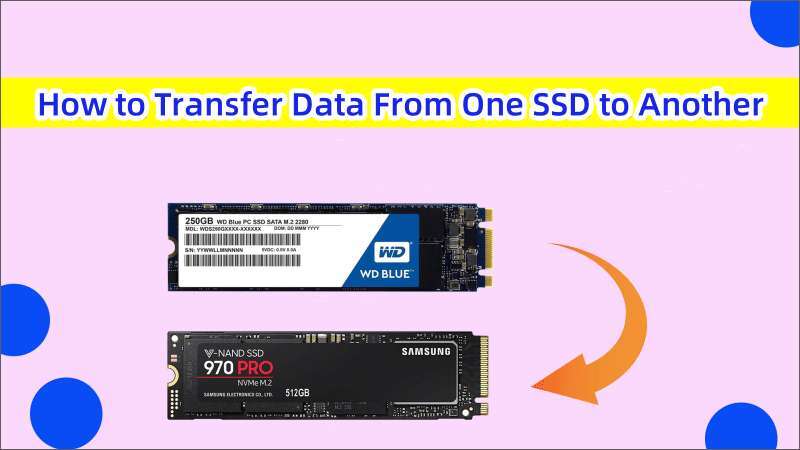
Cloning software easily moves all your data, including the operating system, from one SSD to another. Upgrading your computer’s storage is one of the most impactful changes you can make, but the thought of moving your entire digital life can be daunting. As someone who has performed this process countless times, both for my own systems and for others, I understand the hesitation. This guide demystifies the entire process. We will walk you through exactly how to transfer data from one SSD to another, ensuring a smooth, error-free transition that gets you back up and running on your new, faster drive in no time.

Why Transfer Data to a New SSD?
Upgrading your Solid State Drive (SSD) is a common step for anyone looking to boost their computer's performance or storage capacity. The primary reasons often boil down to a few key benefits. You might be running out of space, and a larger SSD provides the room needed for more applications, games, and large files.
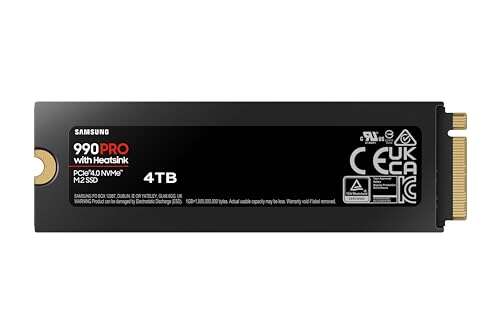
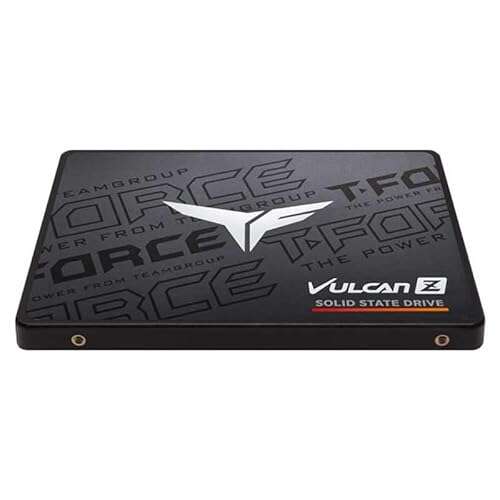
Another major reason is speed. Moving from an older SATA SSD to a newer NVMe M.2 SSD can result in dramatically faster boot times, quicker application loading, and a more responsive system overall. Lastly, you might need to replace an aging or failing drive. Learning how to transfer data from one SSD to another proactively can save you from the headache of data loss down the road.

Before You Begin: Essential Preparations
A successful data transfer is all about good preparation. I once rushed into a transfer without properly checking my connections, only to find the cloning process failed halfway through. Taking just a few minutes to gather your tools and prepare your system will save you from potential frustration and ensure a seamless experience.
What You'll Need (Hardware & Software)
Getting your gear in order is the first step. You do not need a lot, but having the right components is critical.
- The new SSD. Ensure it is compatible with your computer, whether it is a 2.5-inch SATA or an M.2 NVMe drive.
- A way to connect the new SSD. For a laptop, a SATA-to-USB adapter or an NVMe-to-USB enclosure is essential. For a desktop, you can often install it directly into a spare slot on the motherboard.
- Cloning software. There are excellent free and paid options available. Macrium Reflect Free has long been a favorite for its reliability, while Clonezilla is a powerful open-source alternative. Paid software like Acronis True Image also offers robust features.
Back Up Your Data First!
This is the single most important rule of any data migration. Before you even think about how to transfer data from one SSD to another, create a complete backup of your current drive. Think of it as your safety net. If anything unexpected happens during the cloning process, you will have a full copy of your files, photos, and documents safe and sound. You can use cloud storage services or a separate external hard drive for your backup.
Clean Up Your Current Drive
Why copy over files you do not need? Take a few moments to clean up your existing SSD. Uninstall programs you no longer use, delete old downloads, and clear out temporary files. This not only reduces the amount of data you need to transfer, making the process faster, but it also gives you a fresh, clutter-free start on your new drive.
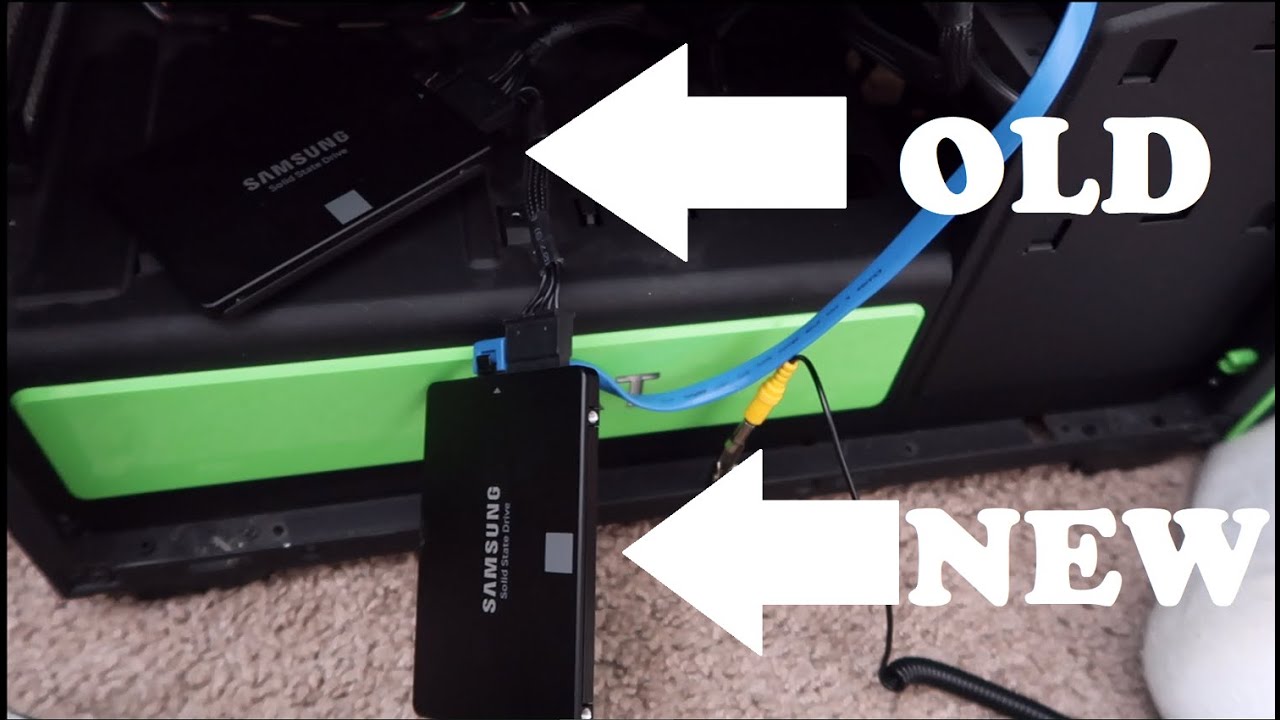
How to Transfer Data From One SSD to Another: The Cloning Method
The most effective method for this task is "cloning." Unlike simply copying files, cloning creates an exact, bootable one-to-one copy of your entire drive. This includes the operating system, all your programs, settings, and hidden files. Following these steps will guide you through a perfect clone.
-
Connect the New SSD to Your Computer
Your computer needs to see both drives at the same time. If you are using a desktop, you can typically install the new SSD into an empty M.2 or SATA port. For laptop users, a USB adapter or enclosure is the way to go. Ensure the connection is firm and secure before proceeding. -
Initialize the New SSD
A brand-new drive is like a blank slate and needs to be prepared. In Windows, you can do this through "Disk Management." Simply search for it in the Start Menu. When you open it, a prompt should appear asking you to initialize the new disk. For modern systems, choose GPT (GUID Partition Table) as the partition style. This step is crucial; the cloning software might not recognize the drive if it is not initialized. -
Install and Launch Your Cloning Software
Download and install your chosen cloning application. For this guide, we will use the popular Macrium Reflect as an example, but the process is very similar across most programs. Once installed, run the application as an administrator to ensure it has the necessary permissions. -
Select the Source and Destination Drives
This is the most critical step. The software will show you a list of connected drives.- Your Source Disk is your current, old SSD (the one with your OS).
- Your Destination Disk is your new, empty SSD.
Take your time and double-check that you have selected the correct drives. Cloning will erase everything on the destination drive, so a mistake here can lead to data loss. Think of it like a photocopy machine: you must be certain which document is the original and which is the blank paper.
-
Start the Cloning Process
Once you have confirmed your selections, begin the clone. The software will copy every bit of data from the source to the destination. This process can take anywhere from 30 minutes to a few hours, depending on the amount of data and the speed of your drives. It is best to let the computer work without interruption until it is finished.
After the Transfer: Final Steps
The cloning is done, but you are not finished just yet. These final steps ensure your computer uses the new drive as its primary boot device, completing the process of how to transfer data from one SSD to another.
Installing the New SSD
Now it is time for the physical swap. Power down your computer completely and disconnect it from the power source. Open the case and carefully remove the old SSD. Install the new, cloned SSD in its place.
Booting From Your New SSD
After installing the new drive, you may need to tell your computer to boot from it. When you power the computer on, enter the BIOS or UEFI settings. This is usually done by pressing a specific key during startup, like F2, F12, or Del. In the BIOS menu, find the "Boot" or "Boot Order" section and set your new SSD as the primary boot device. Save your changes and exit.
Verifying the Transfer
Your computer should now boot up from the new SSD. It should look and feel exactly like your old system, but hopefully faster. Open a few files and launch some applications to confirm everything was transferred correctly and is working as expected. You can also check "This PC" or "File Explorer" to see the new drive's capacity.
What to Do With the Old SSD?
You now have a spare drive. You can format the old SSD and use it as a secondary internal drive for extra storage or place it in an external enclosure to use as a fast portable drive. If you plan to sell or give it away, be sure to use a secure erase tool to permanently wipe all your data from it first.

Frequently Asked Questions of how to transfer data from one ssd to another
Can I just copy and paste files to the new SSD?
No, simply copying and pasting will not work for your operating system or programs. This method only moves personal files and fails to transfer the hidden system files and settings required for Windows to boot and applications to run correctly.
Will cloning transfer my Windows license?
Yes, cloning creates an exact replica of your original drive, including its Windows activation status. Your system will remain activated on the new SSD without any extra steps, as the license is tied to your computer's hardware.
How long does it take to clone an SSD?
The time it takes depends on the amount of data being transferred and the speed of both SSDs and the connection. A typical transfer of a few hundred gigabytes can take anywhere from 30 minutes to a couple of hours.
What if the new SSD is smaller than the old one?
You can clone to a smaller SSD, but only if the total amount of used data on the old drive is less than the capacity of the new drive. Most modern cloning software can automatically shrink the partition to fit, but it is not always guaranteed to work.
Do I need to format the new SSD before cloning?
While the cloning software will format the destination drive as part of the process, it is a best practice to initialize it first. Initializing the drive in Windows Disk Management ensures the system properly recognizes it and prepares it for the cloning process.
Conclusion
Successfully upgrading your storage is a rewarding task that breathes new life into your computer. By following a clear process of preparing your hardware, backing up your data, and using reliable cloning software, you can master how to transfer data from one SSD to another without fear of losing your valuable information. The key is to be methodical and double-check your selections, particularly the source and destination drives.
Now that you are equipped with the knowledge, you can confidently tackle your next storage upgrade. Boost your system's performance and enjoy the extra space. If you found this guide helpful, consider sharing it with others who might be planning a similar upgrade.

Everett Ashford is a tech reviewer at mytechgrid.com specializing in SSDs, cameras, TVs, earbuds, headphones, and other consumer electronics. He provides honest, data-driven reviews based on hands-on testing and real-world performance analysis. Everett simplifies complex tech details to help readers make smart, confident buying decisions.