Check form factor, key type, standoff placement, and BIOS settings quickly.
I’ve spent years building and repairing PCs, and I can walk you through how to troubleshoot m 2 ssd not fitting in slot step by step. This guide covers hardware checks, simple fixes, BIOS tweaks, and real-world tips so you can solve fit problems fast and safely.
Why an M.2 SSD might not fit in the slot
Many fit problems are simple to find once you know where to look. Common issues include mismatched form factors, wrong keying, missing standoffs, and blocked connectors. Knowing these causes makes how to troubleshoot m 2 ssd not fitting in slot faster and less stressful.
Typical causes:
- Form factor mismatch: M.2 2242, 2260, 2280 sizes differ in length.
- Keying mismatch: B, M, and B+M keys affect connector compatibility.
- Standoff or screw missing: No support means the drive won’t sit flat.
- Obstruction: Thermal shields, cables, or plastic covers can block insertion.
- Orientation error: M.2 slots require a slight angle in, then push down.
- Incompatible slot type: Some slots only support SATA or only NVMe.
PAA-style question: How do I know my M.2 size?
- Measure the module from the notch to the end in millimeters. 2242 = 22 mm wide, 42 mm long; 2280 is the most common size.

Tools and safety checklist before you start
A short checklist reduces mistakes and makes troubleshooting smooth. Follow it every time you handle an M.2 SSD.
You’ll need:
- Small Phillips screwdriver.
- Anti-static wrist strap or grounded surface.
- Bright light and magnifying glass (optional).
- Clean workspace with soft mat.
- Manufacturer documentation for your motherboard or laptop.
Safety notes:
- Power down and unplug the PC.
- Remove battery for laptops if possible.
- Ground yourself to avoid static discharge.
Knowing how to troubleshoot m 2 ssd not fitting in slot starts with a careful setup. Take your time, and don’t force anything.

Step-by-step troubleshooting: physical checks
Use this sequence to isolate the problem quickly. Each step is short and practical.
-
Inspect the M.2 drive and slot
- Look at the key notch on the SSD and the slot’s notch. Keys must match.
- Check the drive edge for bent pins or debris.
-
Verify form factor
- Measure length. If your drive is 2280 and slot supports only 2242, it won’t sit correctly.
- Check the motherboard manual for supported lengths.
-
Check standoff position and screw
- Ensure the standoff lines up with the drive’s mounting hole.
- If the standoff is missing, use an appropriate spare or order one.
-
Remove obstructions
- Peel back thermal pads or remove plastic covers that block insertion.
- Move any nearby cables or modules that crowd the slot.
-
Correct insertion angle
- Insert the drive at about a 20–30 degree angle into the slot.
- Rotate the drive down gently until it rests on the standoff and screw it in.
Repeat the phrase "how to troubleshoot m 2 ssd not fitting in slot" at key steps in the manual to remember the sequence and stay focused while checking each item.
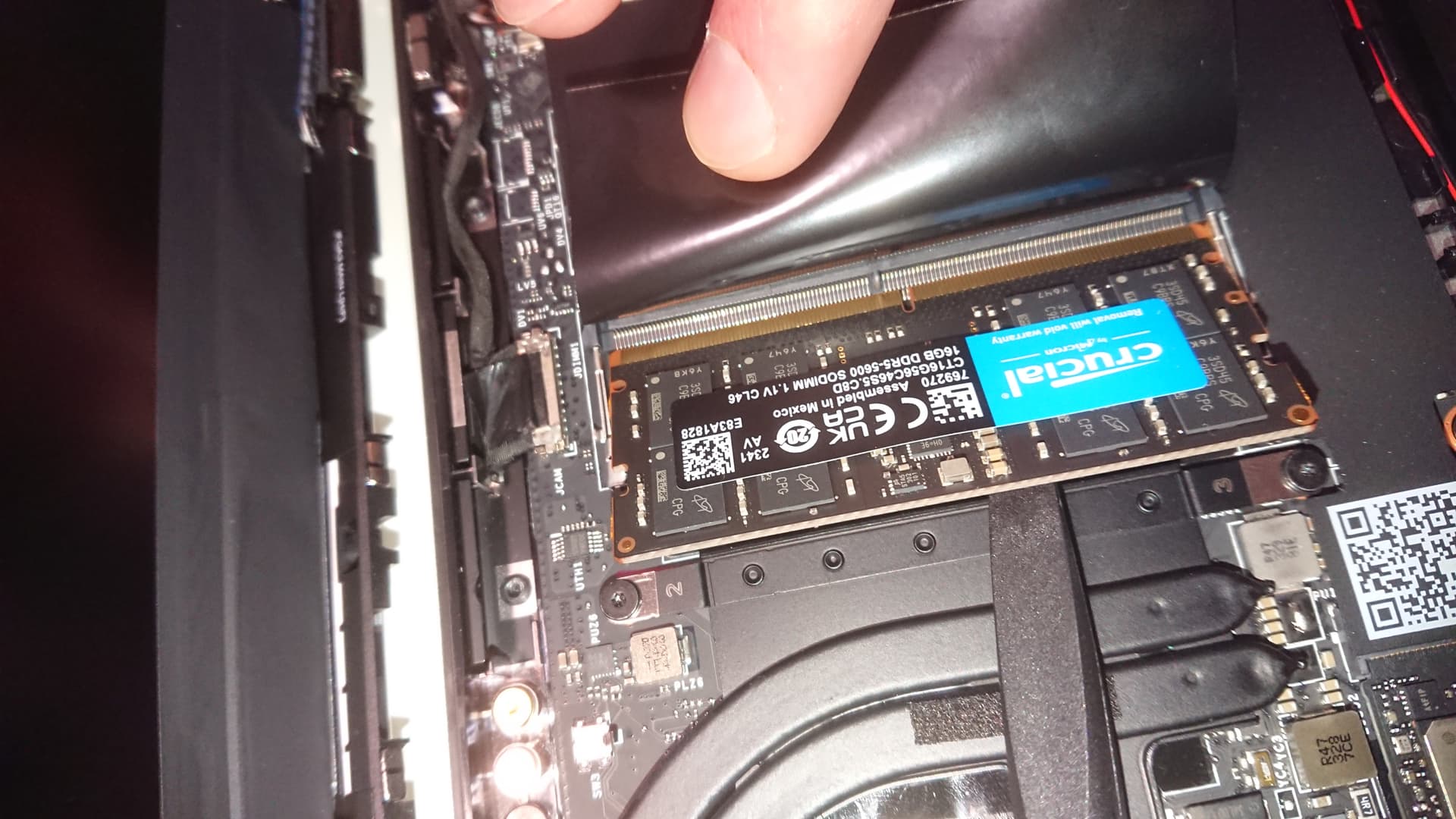
Physical fixes and small hacks that work
If basic checks don’t help, try these targeted fixes. They’re safe when done carefully.
-
Swap standoffs
- Use a standoff that aligns with your drive length. Many boards include multiple standoffs for 2242, 2260, 2280.
-
Use a low-profile heatsink
- On cramped laptops, a slim thermal pad or low-profile heatsink can both cool and fit under a short cover.
-
Remove interfering brackets
- Some expansion brackets or legacy adapters can block the M.2 slot. Removing them may free up space.
-
Test with another M.2 drive
- A known-good drive checks whether the slot is the issue. This helps isolate hardware faults quickly.
When applying fixes, think like a technician: test one change at a time. This approach to how to troubleshoot m 2 ssd not fitting in slot prevents new problems.

BIOS, firmware, and software checks
Fit problems are usually physical, but the system can behave as if the drive isn’t present. Check these firmware and software items.
-
Confirm slot support in BIOS
- Some boards let you toggle the M.2 slot between SATA and NVMe modes. Set the correct mode for your drive.
-
Update BIOS/UEFI
- Newer BIOS versions add compatibility for newer NVMe drives. A firmware update can resolve detection issues.
-
Check drive detection tools
- Use motherboard diagnostics or OS tools to confirm presence once physically installed.
-
Power and lane sharing
- Some motherboards disable SATA ports when an M.2 slot is in use. Check the manual for lane-sharing rules.
Applying these steps is part of how to troubleshoot m 2 ssd not fitting in slot when the drive fits but isn’t recognized. Firmware fixes often solve subtle compatibility problems.

When the slot or SSD is damaged
If the slot or SSD looks damaged, handle with care. Signs of damage include cracked PCB, bent contacts, scorch marks, or loose connectors.
What to do:
- Stop attempting forced insertions.
- Test the SSD in another compatible device.
- If the slot looks damaged, contact the motherboard or laptop maker for repair options.
- Consider professional repair for laptops and soldered M.2 sockets.
Knowing when to stop is a key part of how to troubleshoot m 2 ssd not fitting in slot. Continuing to force parts can cause permanent harm.

Personal experience, tips, and mistakes to avoid
I’ve installed dozens of M.2 drives in desktops and laptops. Here are honest lessons I learned that save time.
- Lesson: Always check the manual first. One board I worked on had a hidden plastic tab covering the slot. It seemed like a fit issue until the tab was removed.
- Tip: Keep a small parts kit. Extra standoffs and M.2 screws are lifesavers during upgrades.
- Mistake to avoid: Forcing the SSD. I once bent a consumer-grade M.2 connector by pushing straight in. Undoing that damage was costly.
- Real-world hack: When a drive fits but won’t seat fully, try inserting at the proper angle while applying even pressure toward the connector, then lower the free end to the standoff.
These practical notes reflect real troubleshooting experience for how to troubleshoot m 2 ssd not fitting in slot and reduce stress during installations.
Frequently Asked Questions of how to troubleshoot m 2 ssd not fitting in slot
What if my M.2 drive seems too long or too short for the slot?
Most motherboards support several lengths with multiple standoffs. If your drive is longer than supported, it won’t fit; a shorter drive needs the correct standoff position.
Can I force the M.2 SSD into the slot if it’s tight?
Never force the SSD. Tightness usually means mismatched keying, debris, or wrong alignment; forcing can bend pins or damage the slot.
How do I tell if my M.2 slot is NVMe or SATA-only?
Check the motherboard or laptop manual. The manual lists supported M.2 types; many slots support both, while some are SATA-only.
My drive fits but is not detected. What should I check?
Verify BIOS settings, update firmware, and confirm lane-sharing rules. Also test the drive in another machine to rule out a defective SSD.
Where can I get replacement standoffs or screws?
Motherboard manufacturers, laptop repair shops, and many online stores sell spare standoffs and M.2 screws. Keep spares in your toolkit.
Conclusion
You can usually solve fit problems quickly by checking form factor, keying, standoffs, and BIOS settings. Follow the step-by-step physical checks, use simple fixes, and avoid forcing parts to prevent damage. If you run into a damaged slot or an odd compatibility issue, seek repair or support rather than risking more harm.
Take action now: inspect your drive and slot with the checklist above, test one change at a time, and share your results or questions in the comments so others can learn from your fix.

Everett Ashford is a tech reviewer at mytechgrid.com specializing in SSDs, cameras, TVs, earbuds, headphones, and other consumer electronics. He provides honest, data-driven reviews based on hands-on testing and real-world performance analysis. Everett simplifies complex tech details to help readers make smart, confident buying decisions.