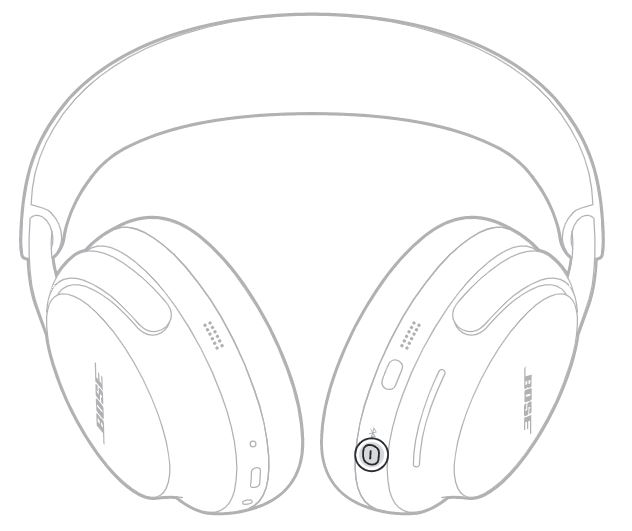
Press and hold the Power/Bluetooth button until you hear “Power off” or the LED goes dark.
I’ve used several Bose QuietComfort models and tested their controls closely. This guide shows exactly how to turn off Bose QC Ultra headphones, step by step. You’ll learn the fastest method, app and Bluetooth workarounds, how to force power off when the headset misbehaves, and battery-saving tips I learned from real use. Read on and you’ll be able to power down and manage your Bose QC Ultra with confidence.
Fast steps: how to turn off bose qc ultra headphones
Follow these short steps to power off quickly. These are the most reliable actions I use every day.
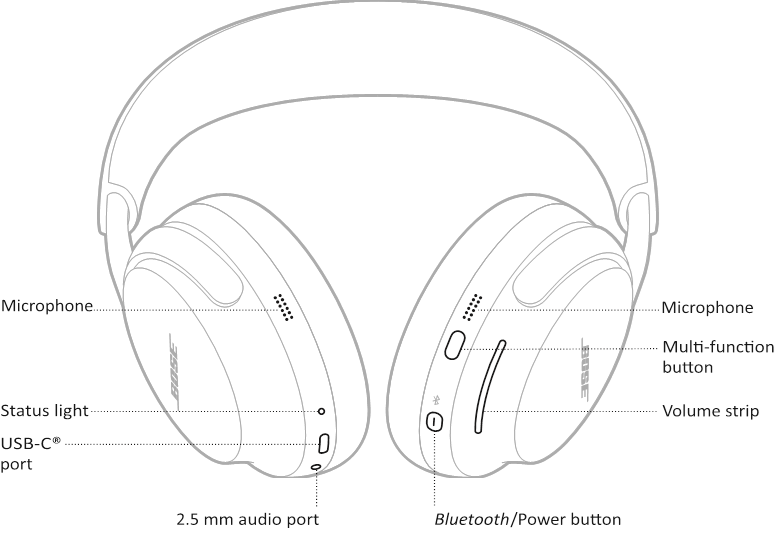
- Locate the Power/Bluetooth button on the right earcup.
- Press and hold that button for 1.5–3 seconds.
- Wait for a voice prompt that says “Power off” or watch the LED turn off.
- If the headset is silent, hold the button a bit longer until the LED goes dark.
Notes and quick checks:
- If you just press briefly, you may enter pairing mode instead of powering off.
- If you want to disconnect without powering off, turn Bluetooth off on your phone or device.
Alternate methods and app controls for how to turn off bose qc ultra headphones
Sometimes you may prefer not to press the hardware button. Here are safe alternatives.
- Use the Bose Music app to check battery and connection. The app does not always power off the headphones, but it can disconnect them from devices.
- Turn off Bluetooth on the connected phone or tablet. This disconnects audio and may let the headphones auto-shut after a timeout.
- Put the headphones in a low-activity state by pausing audio and leaving them idle. If auto-off is enabled, they will power down automatically.
Keep in mind that the app can change auto-off timers and firmware. Updating firmware can fix power-off bugs I’ve seen on older models.

Troubleshooting: when you can’t turn off bose qc ultra headphones
If the normal method fails, try these steps. I handled a frozen QC headset this way once and it worked.
- Force power off: Press and hold the Power/Bluetooth button for 10–20 seconds until the LED fully goes out. This usually forces a shutdown.
- Unpair and restart connected devices: Remove the QC Ultra from your phone’s Bluetooth list, then try powering off again.
- Charge and retry: Low battery can cause strange behavior. Plug in the headphones for a few minutes and then power off normally.
If none of these work, update firmware via the Bose Music app or consult official support instructions for a factory reset. Be transparent about any data loss risk before doing a factory reset.
Battery habits and auto-off settings for how to turn off bose qc ultra headphones
Understanding battery behavior helps you control power usage and avoid unnecessary drain.
- Check auto-off timer in the Bose Music app and set it to your preference. Short auto-off reduces drain when you forget to turn the headset off.
- Turn off always-on features like voice wake or constant Bluetooth search if you want longer idle time before auto-off.
- Store the headphones with some charge. Leaving them at 0% can harm battery health.
From my experience, enabling a short auto-off timer saved me hours of battery life when I forgot to turn the headphones off on travel days.

Practical tips and personal experience with how to turn off bose qc ultra headphones
I’ll share a few lessons I learned while using Bose QC family headphones.
- Habit: Get into the habit of powering off after long use. A quick press-and-hold takes a second and prevents battery drain.
- Troubleshooting tip: If the headset is unresponsive, charging for 10 minutes often allows the device to accept the shutdown command.
- Avoid frequent force shutdowns. Use them only when the device freezes. Repeated forced power-offs can hide underlying firmware issues that need updates.
These small habits helped me avoid emergency power-offs and kept the headphones working reliably.
Frequently Asked Questions of how to turn off bose qc ultra headphones
How long do I hold the button to turn off Bose QC Ultra headphones?
Press and hold the Power/Bluetooth button for about 1.5–3 seconds for a normal shutdown. If the headset is unresponsive, holding for 10–20 seconds forces a power-off.
Can I turn off Bose QC Ultra headphones from the Bose Music app?
The Bose Music app usually lets you manage settings and disconnect devices, but it may not always power off the headphones. Use the hardware button for guaranteed shut down.
What if my Bose QC Ultra headphones won’t turn off?
Try a forced shutdown by holding the Power/Bluetooth button for 10–20 seconds, charge the headphones, update firmware, or unpair and retry. If problems persist, contact support.
Will turning Bluetooth off on my phone power down the headphones?
Turning Bluetooth off disconnects audio, and the headphones will often auto-shut after the configured timeout. It does not always immediately power them off.
Do Bose QC Ultra headphones auto-off to save battery?
Yes, they have an auto-off feature that powers them down after inactivity. You can usually adjust this timer in the Bose Music app.
Conclusion
Turning off your Bose QC Ultra headphones is simple: press and hold the Power/Bluetooth button until the LED or voice confirms the shutdown. Use the Bose Music app to tune auto-off settings, and rely on a force shutdown only when needed. Try the tips above to save battery and avoid common mistakes. If this guide helped, leave a comment or subscribe for more practical device tips and troubleshooting advice.

Everett Ashford is a tech reviewer at mytechgrid.com specializing in SSDs, cameras, TVs, earbuds, headphones, and other consumer electronics. He provides honest, data-driven reviews based on hands-on testing and real-world performance analysis. Everett simplifies complex tech details to help readers make smart, confident buying decisions.