Turn off HDR on Roku TV via Settings > Display type and pick SDR or a lower HDR mode.
I’ve spent years fixing TV picture issues for friends and clients. I know exactly how to turn off HDR on Roku TV, why you might want to, and what to check when it won’t switch. This guide walks you step-by-step through safe, proven methods, gives practical tips from hands-on experience, and helps you get the picture you want without fuss. Read on and you’ll be able to change HDR behavior on your Roku TV in minutes.

Why you might want to turn off HDR on Roku TV
HDR can look great. But it can also make some old shows look too bright, too dark, or oddly colored. Turning HDR off often gives a more natural picture for older content and for devices that don’t send a clean HDR signal.
From my experience, the most common reasons to disable HDR are mismatched source output, app streaming bugs, and personal taste. If colors look washed out, highlights clip, or the image flickers when HDR kicks in, disabling HDR on Roku TV usually fixes it fast. This section explains the why so you can decide if you should change the setting.
Which Roku TVs and situations let you disable HDR
Not every Roku TV model gives a single switch for HDR. Many models let you change display type per input or globally. Older Roku TVs may have limited options. Newer models usually allow manual selection between options like Auto, 4K HDR, and 1080p SDR.
You can disable HDR when:
- Your Roku TV supports manual display type settings
- The HDMI source forces HDR and you can change its output
- A streaming app mislabels content as HDR and you want SDR instead
If your Roku TV hides HDR settings, read the troubleshooting section below for workarounds and practical fixes.

Step-by-step: how to turn off hdr on roku tv (easy method)
These steps work on most Roku TVs. Follow them exactly.
- Use the Roku remote to press Home.
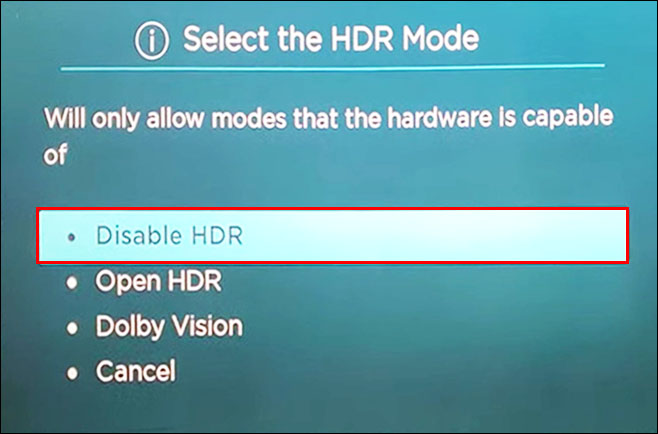
- Go to Settings > Display type.
- Select a non-HDR option such as 1080p SDR or 1080p.
- If you only want SDR on one HDMI input, choose Advanced picture settings then change the input’s display type if available.
- Exit and test with content that previously looked off.
If you don’t see Display type, try Settings > TV picture settings or Settings > Advanced picture settings. That difference depends on Roku OS version and TV model.
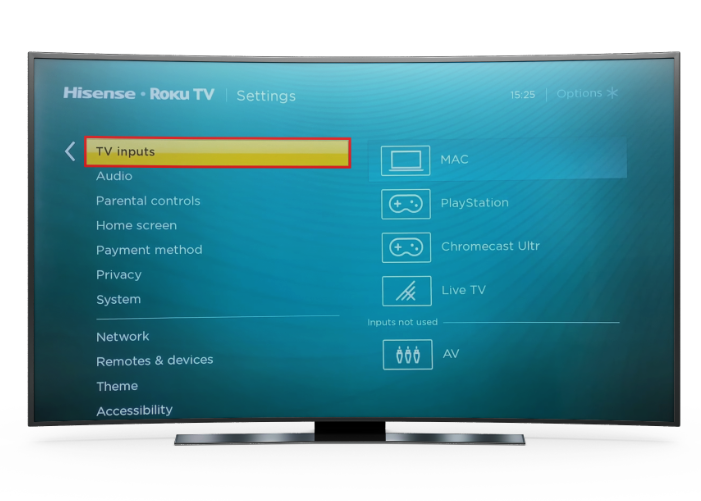
How to turn off HDR on Roku TV for HDMI devices that force HDR
Some game consoles and streaming boxes send HDR no matter what. To stop HDR from those devices:
- Open the source device settings (console or player).
- Set video output to SDR, 1080p, or disable HDR in that device’s video options.
- If the device lacks HDR off, change the Roku TV’s input display type to 1080p SDR.
- Power-cycle both devices after changes.
If the device still forces HDR, try swapping the HDMI cable to one that doesn’t advertise HDR bandwidth. That can sometimes stop automatic HDR handshakes.

App-specific issues and how to turn off HDR on Roku TV for apps
Some streaming apps mislabel streams as HDR. For app problems:
- Update the app on your Roku and the Roku OS to the latest versions.
- Check app settings for picture or quality options and choose SDR or standard quality.
- If no option exists, change the Roku display type to 1080p SDR to force SDR across apps.
I once fixed a movie that flashed between HDR and SDR by updating the app and setting display type to 1080p. The problem stopped immediately.
Troubleshooting: HDR keeps turning back on
If HDR returns after you turn it off, try these steps:
- Reboot the TV and connected device. A simple restart often finishes the HDMI handshake cleanly.
- Use a different HDMI port. Some ports default to enhanced modes that favor HDR.
- Replace the HDMI cable with one certified for HDMI 2.0 if needed, or try a basic cable to prevent forced HDR negotiation.
- Reset picture settings to default and then set Display type again.
- Check for Roku OS updates and apply them.
If none of these work, your model might not support disabling HDR globally. Refer to your TV manual or contact support for model-specific guidance.

Best picture settings after you turn off HDR on Roku TV
After disabling HDR, tweak these settings to get a pleasing image:
- Brightness: Raise slightly if SDR looks dim compared to HDR.
- Contrast: Adjust to preserve highlight detail without clipping.
- Color: Keep near default and adjust small steps for skin tones.
- Sharpness: Lower to avoid artificial edges if content looks too crisp.
- Backlight (for LED TVs): Set for room lighting; lower for dark rooms, higher for daylight.
I recommend using a familiar movie or show to test settings. Small changes add up. Save the settings only after you’re happy with the result.
Safety, limitations, and final tips
Changing display type is safe. It won’t harm the TV or connected devices. But remember:
- Disabling HDR removes HDR benefits when watching true HDR content.
- Some streaming apps or devices may ignore SDR requests if they must deliver HDR.
- Firmware updates can change menu names, so wording may vary by Roku OS.
If you rely on HDR for gaming or HDR-only apps, create a note of your preferred settings so you can switch back quickly.

Frequently Asked Questions of how to turn off hdr on roku tv
How do I find the Display type setting on my Roku TV?
Go to Home, then Settings, then look for Display type or Advanced picture settings. Menu names vary with Roku OS versions but the option is usually under picture or display settings.
Can I disable HDR for only one HDMI input?
Yes, many Roku TVs let you set the display type per input. Change the input’s settings under Advanced picture settings or Input settings if your model supports it.
Why does HDR turn back on after I disable it?
HDR can return due to HDMI handshake with a source device, firmware updates, or app behavior. Try rebooting devices, changing HDMI ports, or adjusting the source device output to keep HDR off.
Will turning off HDR affect streaming quality?
Yes. Turning off HDR gives SDR quality instead of HDR. SDR may look less vivid but can reduce brightness clipping and color issues on non-HDR content.
What if my Roku TV has no HDR toggle?
If your model lacks a toggle, change the source device’s output to SDR, swap HDMI ports or cables, or update the Roku OS. If none of those work, contact support for model-specific help.
Conclusion
You now have clear, practical ways to change how HDR behaves on your Roku TV. Whether you prefer a more natural SDR look, need to fix app glitches, or want consistent output from an HDMI device, the steps above will get you there. Try the simplest method first: Settings > Display type, then follow troubleshooting tips if HDR keeps returning. If this helped, try the adjustments yourself now, leave a comment with your model and results, or subscribe for more hands-on TV tips.

Everett Ashford is a tech reviewer at mytechgrid.com specializing in SSDs, cameras, TVs, earbuds, headphones, and other consumer electronics. He provides honest, data-driven reviews based on hands-on testing and real-world performance analysis. Everett simplifies complex tech details to help readers make smart, confident buying decisions.